Helm is the package manager for Kubernetes. Instead of hand-maintaining a pile of YAML manifests and editing them by hand for every environment, you write a Helm chart once: a set of templates plus a values.yaml file that fills in the blanks. Helm renders the templates with those values into real Kubernetes manifests, applies them, and tracks the result as a named release it can upgrade or roll back. This guide takes you from an empty directory to a working, versioned deployment, and back out again with a clean uninstall.
What you’ll accomplish
- Create a working Helm chart with
helm createand understand every file it generates. - Change what gets deployed by editing
values.yaml, not the templates. - Preview the exact manifests Helm will apply with
helm lintandhelm templatebefore touching the cluster. - Install, upgrade, roll back, and uninstall a release, and read its revision history.
Prerequisites
- Helm 3 installed. Run
helm versionand confirm it reportsv3.x. If you remember Helm 2 and its cluster-side Tiller component: that is gone. Helm 3 is a client-only binary that talks to the Kubernetes API directly with your own credentials, so there is no server-side agent to install, secure, or grant cluster-admin. Anything you can do withkubectl, Helm can do; nothing more. - A working cluster and a
kubectlcontext pointing at it.kubectl get nodesshould return at least oneReadynode. A localkind,minikube, ork3dcluster is perfect for practice. - Kubernetes 1.23 or newer. The scaffold Helm generates uses API versions (
apps/v1,autoscaling/v2) that are stable on any currently supported cluster.
How it works
A chart is a directory of templates plus a values.yaml file. The templates are ordinary Kubernetes manifests with placeholders — Helm calls them template directives — written in Go template syntax. When you install, Helm merges the chart’s default values with any overrides you pass, renders every template into a finished manifest, and sends the result to the API server.
The installed instance is a release. A release has a name you choose, and Helm records each version of it as a numbered revision, stored in a Secret inside the release’s namespace. That stored history is what makes helm rollback possible: Helm keeps the rendered manifests of every revision, so it can re-apply an earlier one on demand. This is the whole loop — chart in, release out, revisions tracked.
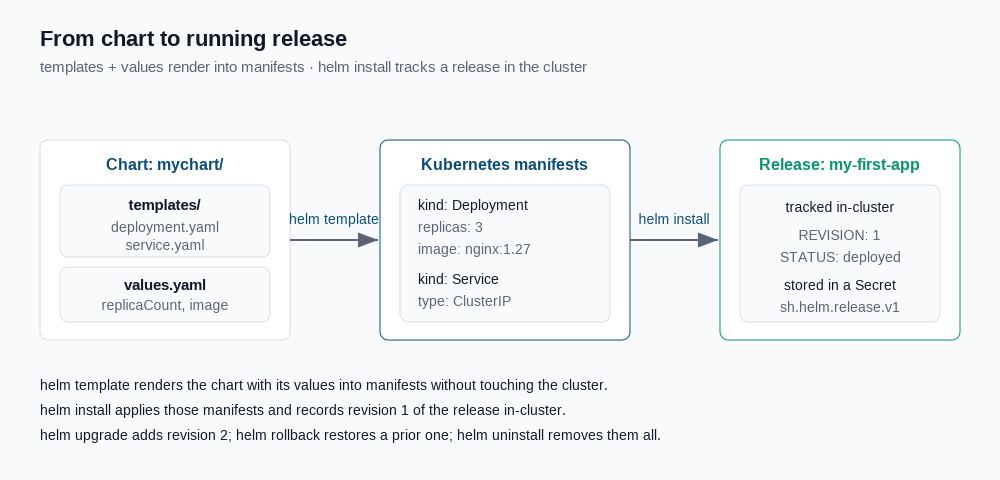
The key mental split: templates decide the shape of your manifests, values decide the content. You edit templates rarely and values often. That separation is why one chart can deploy to dev, staging, and production with nothing but a different values file each time.
Step-by-step
1. Scaffold a new chart. helm create generates a complete, installable example chart — an NGINX Deployment, a Service, and the wiring around them.
$ helm create mychart
Creating mychart
2. Tour the generated tree. Look at what you got before changing anything.
$ find mychart -maxdepth 2 -type f | sort
mychart/.helmignore
mychart/Chart.yaml
mychart/charts
mychart/templates/NOTES.txt
mychart/templates/_helpers.tpl
mychart/templates/deployment.yaml
mychart/templates/hpa.yaml
mychart/templates/service.yaml
mychart/templates/serviceaccount.yaml
mychart/templates/tests/test-connection.yaml
mychart/values.yaml
The three files you will touch most:
Chart.yaml— metadata: the chart name,version(the chart’s own version), andappVersion(the version of the app it deploys). These are separate on purpose.values.yaml— every default a user can override. This is the chart’s public interface.templates/— the manifests.deployment.yamlandservice.yamlare the real resources;_helpers.tplholds reusable naming snippets;NOTES.txtprints usage hints after install;tests/holds a test hook.
3. Read a template to see the wiring. Open mychart/templates/service.yaml. Every value it references comes from values.yaml, reached through a template directive like .Values.service.port. You do not edit this file to change the port — you edit the value.
4. Edit values.yaml to change what deploys. Open mychart/values.yaml and change three things: the replica count, the image tag, and the service type.
replicaCount: 3

image:
  repository: nginx
  tag: "1.27"

service:
  type: ClusterIP
  port: 80
5. Lint the chart. helm lint catches structural mistakes — malformed YAML, missing required fields, values referenced by a template but absent from values.yaml.
$ helm lint mychart
==> Linting mychart
[INFO] Chart.yaml: icon is recommended

1 chart(s) linted, 0 chart(s) failed
An [INFO] line is advisory. An [ERROR] line blocks a clean install and must be fixed first.
6. Render the manifests without installing. helm template runs the whole rendering step locally and prints the finished YAML. This is your dry run — nothing goes to the cluster.
$ helm template my-first-app mychart | head -20
---
# Source: mychart/templates/serviceaccount.yaml
apiVersion: v1
kind: ServiceAccount
metadata:
  name: my-first-app-mychart
...
Confirm replicas: 3 and image: nginx:1.27 appear in the rendered Deployment. If they do, your values reached the templates correctly.
7. Install the release. Give the release a name (my-first-app) and point at the chart directory. --namespace with --create-namespace keeps it tidy.
$ helm install my-first-app mychart --namespace demo --create-namespace
NAME: my-first-app
LAST DEPLOYED: Sun Jul 19 10:14:03 2026
NAMESPACE: demo
STATUS: deployed
REVISION: 1
NOTES:
1. Get the application URL by running these commands:
  export POD_NAME=$(kubectl get pods --namespace demo ...)
8. List your releases. helm list shows what is installed in the namespace.
$ helm list --namespace demo
NAME         	NAMESPACE	REVISION	STATUS  	CHART        	APP VERSION
my-first-app 	demo     	1       	deployed	mychart-0.1.0	1.16.0
9. Upgrade with a changed value. Use --set for a one-off override without editing the file — here, scale to five replicas.
$ helm upgrade my-first-app mychart --namespace demo --set replicaCount=5
NAME: my-first-app
STATUS: deployed
REVISION: 2
The revision is now 2. Helm computed the difference and updated only the Deployment. For anything beyond a quick test, change values.yaml and commit it rather than relying on --set, so the desired state lives in version control.
10. Roll back to the previous revision. If revision 2 misbehaves, return to revision 1.
$ helm rollback my-first-app 1 --namespace demo
Rollback was a success! Happy Helming!
A rollback does not delete history — it creates a new revision (3) whose contents match revision 1. helm history my-first-app --namespace demo shows the full trail.
11. Uninstall when you’re done. This removes every resource the release created and clears its history.
$ helm uninstall my-first-app --namespace demo
release "my-first-app" uninstalled
Validate it works
Confirm the release is healthy from a few angles rather than trusting one command.
Check the release status:
$ helm list --namespace demo
NAME         	NAMESPACE	REVISION	STATUS  	CHART        	APP VERSION
my-first-app 	demo     	1       	deployed	mychart-0.1.0	1.16.0
STATUS: deployed is the green state. failed or pending-upgrade means the last operation did not finish.
Find the actual objects Helm created. Every resource is labelled with the release name, so one selector finds them all:
$ kubectl get all -l app.kubernetes.io/instance=my-first-app --namespace demo
NAME                                       READY   STATUS    RESTARTS   AGE
pod/my-first-app-mychart-6c9d...           1/1     Running   0          40s
Get a richer summary with helm status my-first-app --namespace demo, and see the exact YAML that is live in the cluster with helm get manifest my-first-app --namespace demo. That last command is the source of truth for what Helm believes it applied.
Troubleshooting
Install fails with a template render error. A message like error converting YAML to JSON or nil pointer evaluating interface means a template referenced a value that does not exist or produced invalid YAML. Reproduce it locally without the cluster: helm template my-first-app mychart --debug. The --debug flag prints the partially rendered output up to the failure, so you can see exactly which line broke and which value was missing.
A value you set is ignored. Almost always a path or indentation mistake in values.yaml. --set replicacount=5 does nothing if the template reads replicaCount — YAML keys are case-sensitive, and a value nested one level too deep or too shallow simply is not found. Render with your override and grep for the result: helm template my-first-app mychart --set replicaCount=5 | grep replicas. If the number is wrong, the path is wrong.
“cannot re-use a name that is still in use.” A release by that name already exists in the namespace, possibly from a half-finished earlier attempt. Either upgrade it (helm upgrade) or remove it first (helm uninstall my-first-app --namespace demo) and install again. For a stuck failed install, helm install ... --replace reuses the name.
An upgrade leaves orphaned resources behind. If you rename or remove a resource in a chart, Helm usually prunes the old one — but resources it no longer recognizes as part of the release (for example, something created outside Helm, or through a mismatched name) can linger. After an upgrade, reconcile with kubectl get all -l app.kubernetes.io/instance=my-first-app against helm get manifest. Anything present in the cluster but absent from the manifest is an orphan to delete by hand.
Rollback to a revision whose image is gone. helm rollback re-applies an old rendered manifest verbatim, including its image tag. If that tag was deleted from the registry, the rollback “succeeds” at the Helm level but the pods land in ImagePullBackOff. Check with kubectl get pods after any rollback; if images are missing, roll forward to a revision with a valid tag instead. See diagnosing CrashLoopBackOff for reading pod failure states, and liveness and readiness probes for why a pulled image never reaches a ready state.
When this is the wrong approach
Helm earns its keep when a deployment has moving parts that change per environment. It is overhead you do not need for a single static manifest — if you are applying one unchanging Deployment and Service, kubectl apply -f is simpler and has nothing to template.
If your objection is specifically the Go templating — the braces, the whitespace rules, the helper functions — look at Kustomize. It layers plain YAML with overlays and patches instead of a template language, and kubectl has it built in. It cannot do conditional logic or loops the way Helm can, but for straightforward per-environment tweaks that is often a feature, not a limit.
And if you are moving toward GitOps, the release model shifts underneath you. Tools like Argo CD or Flux treat a Git repository as the desired state and reconcile the cluster to match continuously. They can render Helm charts, but you generally stop running helm install by hand — the controller owns the apply, and Git history replaces helm history. The chart-authoring skills from this guide carry straight over; the deployment mechanics change. The upstream Helm documentation and the chart template guide are the reference for going deeper on templating.
If this is the kind of work you’d rather never own again, it’s the daily job of Managed Cloud Ops — book an infrastructure review.