This guide helps WooCommerce store owners and the people who run their servers find out why checkout is slow for one shopper, even when the store is quiet. The symptom is familiar: the checkout page appears, then the order total spins for several seconds, and clicking “Place order” takes another five or more. The cause is usually one step, and most often it is an outside service such as a shipping-rate or tax lookup that WooCommerce waits on. You will time each checkout request separately, find the one slow piece, and fix that piece instead of buying a bigger server.
What you’ll accomplish
- Know which of the three checkout requests is slow: the page load, the order total refresh, or the order submission.
- Have a timing for every outside HTTP call the checkout makes, with anything over 1 second flagged.
- Know whether autoloaded options, old shopper sessions or order storage settings are adding database work.
- End state: the checkout page loads in under 1 second, the total refreshes in under 1 second, and “Place order” completes in under 3 seconds including the payment gateway.
Prerequisites
- WooCommerce 8.x or newer on WordPress 6.4 or newer, with shell access and WP-CLI (the WordPress command-line tool) run as the site user from the WordPress folder.
- A staging copy with real shipping, tax and payment plugins in test mode. Never replay a real order submission against production.
- Chrome, Edge or Firefox with developer tools, and
curlon your workstation. - The Query Monitor plugin, installed on staging. It shows database queries and outside HTTP calls for each page view.
- On cPanel servers, root access if you want the PHP-FPM slow log (PHP-FPM is the PHP process manager many cPanel servers use). Servers running LiteSpeed with LSAPI, its own PHP handler, have no equivalent log; step 8 covers the alternative.
- The SQL below assumes the default
wp_table prefix. Runwp db prefixto see yours and replace it where needed.
This article is about slowness with one shopper. If checkout only fails when many people buy at once, read WooCommerce checkout 504 under load instead.
How it works
A checkout is a short sequence of requests, and each one can be slow for a different reason.
With the classic shortcode checkout (the [woocommerce_checkout] page), the browser first loads /checkout/. It then posts to ?wc-ajax=update_order_review to calculate shipping, tax and the total. That call repeats whenever the shopper changes their address or shipping method. Clicking “Place order” posts the whole form to ?wc-ajax=checkout.
The block checkout does the same work through the Store API, WooCommerce’s REST interface for the storefront. Address changes go to /wp-json/wc/store/v1/batch or /wp-json/wc/store/v1/cart/update-customer, and the order is submitted to /wp-json/wc/store/v1/checkout.
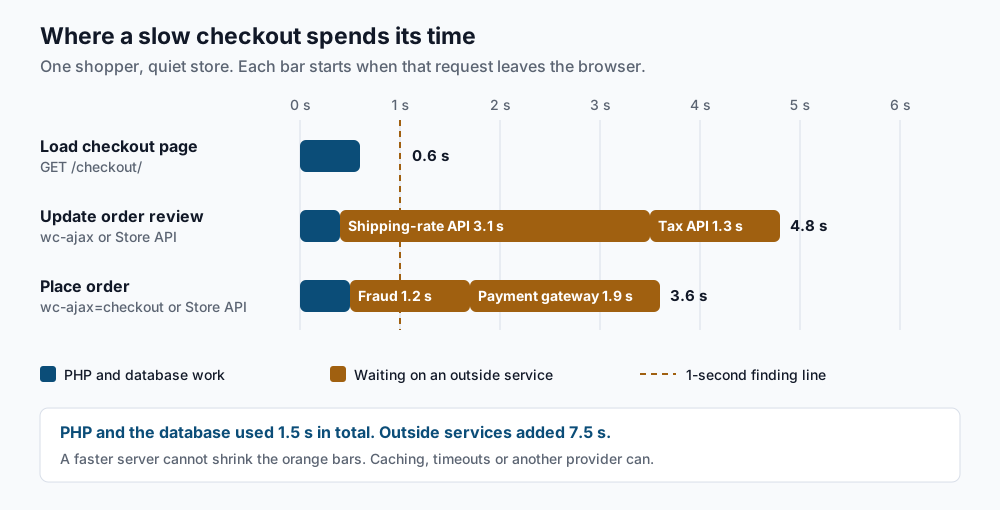
The total refresh is where outside services hurt most. To show shipping options, a live-rate plugin calls the carrier’s API. A tax service may be called for the same cart. WooCommerce caches shipping rates in the shopper’s session and reuses them while the cart and address stay the same. When that cache is bypassed, every refresh pays for a new carrier call. The order submission then adds fraud screening and the payment gateway, and it writes the order to the database.
PHP itself is rarely the problem on a quiet store. When it is, the usual causes are a large block of autoloaded options (settings WordPress loads on every request), a bloated sessions table, or order storage writing each order twice.
Step-by-step
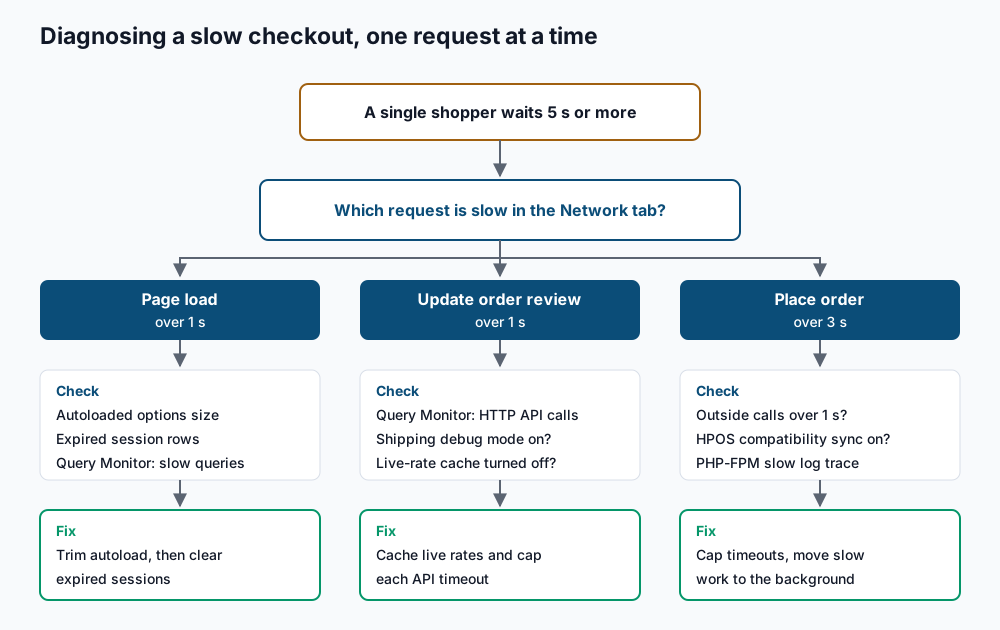
1. Find the slow request in the browser. Open the checkout on staging with a product in the cart. Open developer tools, go to the Network tab, and type wc-ajax in the filter box (or store/v1 for the block checkout). Change the postcode, then place a test order.
Expected: you see update_order_review (or batch) after each address change, and checkout after you place the order. Click each one and open the Timing tab. The line “Waiting for server response” is the server time. Write down the three numbers. Any request over 1 second is where you dig next. If the page document itself is slow, note that too.
2. Time the slow request from the command line. In the Network tab, right-click the slow update_order_review request and choose Copy as cURL. Paste it into a terminal and add the timing flags below to the end. The copied command carries your session cookie and security token, so it replays the same request.
# paste the copied curl command, then append:
  -o /dev/null -s -w 'connect=%{time_connect}s tls=%{time_appconnect}s ttfb=%{time_starttransfer}s total=%{time_total}s\n'
connect=0.012s tls=0.041s ttfb=4.793s total=4.801sttfb (time to first byte) minus tls is the time your server spent working. Here that is about 4.75 seconds, so the delay is on the server side, not the network. Run it three times. If the first run is slow and the next two are fast, a cache is warming and the real problem is that the cache gets emptied too often. Replay only update_order_review. Replaying the checkout request creates a real order.
3. Log every outside HTTP call. WordPress sends most outside requests through its HTTP API (wp_remote_get, wp_remote_post and related functions), and two hooks let you time them. Create this must-use plugin on staging.
<?php
// wp-content/mu-plugins/sh-http-timing.php
add_filter( 'pre_http_request', function ( $pre, $args, $url ) {
    $GLOBALS['sh_http_start'][ $url ] = microtime( true );
    return $pre;
}, 10, 3 );

add_action( 'http_api_debug', function ( $response, $context, $class, $args, $url ) {
    $start = $GLOBALS['sh_http_start'][ $url ] ?? null;
    if ( null === $start ) {
        return;
    }
    $ms   = (int) round( ( microtime( true ) - $start ) * 1000 );
    $code = is_wp_error( $response ) ? $response->get_error_code() : wp_remote_retrieve_response_code( $response );
    error_log( sprintf( 'sh-http %dms %s %s %s', $ms, $args['method'], $code, wp_parse_url( $url, PHP_URL_HOST ) ) );
}, 10, 5 );
Repeat the postcode change and a test order, then read the log. With WP_DEBUG_LOG enabled the lines go to wp-content/debug.log. Otherwise they go to the PHP error log, which on cPanel is usually error_log in the site folder.
grep 'sh-http' wp-content/debug.log | tail -n 20[16-Sep-2026 14:02:11 UTC] sh-http 3112ms POST 200 api.shipping-carrier.example
[16-Sep-2026 14:02:12 UTC] sh-http 1287ms POST 200 tax.provider.example
[16-Sep-2026 14:02:40 UTC] sh-http 1204ms POST 200 fraud.provider.example
[16-Sep-2026 14:02:42 UTC] sh-http 1893ms POST 200 api.payment-gateway.exampleThe plugin logs only the method, status and host name, never card data or request bodies. Any single line over 1000 ms is a finding. A http_request_failed code with a time near 5000 or 10000 ms means a service is timing out, and the checkout waits the whole time for it. For the page load, Query Monitor’s HTTP API Calls panel shows the same details in the admin toolbar. Delete the mu-plugin when you are done.
4. Make sure the shipping-rate cache is on. WooCommerce has a shipping debug mode that bypasses the rate cache, so every refresh calls the carrier again. It is easy to leave on after testing.
wp option get woocommerce_shipping_debug_modenoIf you see yes, turn it off in WooCommerce → Settings → Shipping → Shipping options, or run wp option update woocommerce_shipping_debug_mode no. Then check your live-rate plugin’s own settings. Many carrier plugins have a rate cache or “cache results” option of their own. Turn it on and set its lifetime to at least one hour.
5. Measure autoloaded options. WordPress loads every autoloaded option on every request, including each checkout call.
wp db query "SELECT COUNT(*) AS options, ROUND(SUM(LENGTH(option_value))/1024) AS kb FROM wp_options WHERE autoload IN ('yes','on','auto-on','auto');"+---------+------+
| options | kb |
+---------+------+
| 1184 | 3620 |
+---------+------+Under 800 KB is healthy, and that is also where WordPress Site Health starts warning. Above it, list the biggest entries.
wp db query "SELECT option_name, ROUND(LENGTH(option_value)/1024) AS kb FROM wp_options WHERE autoload IN ('yes','on','auto-on','auto') ORDER BY LENGTH(option_value) DESC LIMIT 10;"Leftover data from removed plugins and large cached lists are the usual entries. Turn autoload off for a confirmed entry with wp option set-autoload <name> off. The autoload audit guide walks through deciding what is safe to change.
6. Check the sessions table. WooCommerce stores each shopper’s cart in wp_woocommerce_sessions. A scheduled task deletes expired rows twice a day. When WP-Cron (WordPress’s built-in task scheduler) is broken, the table grows without limit.
wp db query "SELECT COUNT(*) AS total, SUM(session_expiry < UNIX_TIMESTAMP()) AS expired, ROUND(SUM(LENGTH(session_value))/1024/1024,1) AS mb FROM wp_woocommerce_sessions;"+--------+---------+-------+
| total | expired | mb |
+--------+---------+-------+
| 412880 | 398511 | 911.4 |
+--------+---------+-------+A healthy store has few expired rows. Tens of thousands means the cleanup is not running. Check the scheduled event, then run it once by hand.
wp cron event list --hook=woocommerce_cleanup_sessions --fields=hook,next_run_relative
wp cron event run woocommerce_cleanup_sessions
+------------------------------+--------------------+
| hook | next_run_relative |
+------------------------------+--------------------+
| woocommerce_cleanup_sessions | 3 hours 12 minutes |
+------------------------------+--------------------+
Executed the cron event 'woocommerce_cleanup_sessions' in 41.207s.
Success: Executed a total of 1 cron event.This removes only expired sessions. The WooCommerce → Status → Tools → Clear customer sessions button removes all of them, including live carts, so use it only in a quiet hour. If the event is missing or its next run is in the past, fix WP-Cron before anything else.
7. Check order storage sync. High-Performance Order Storage (HPOS) keeps orders in dedicated tables. Its compatibility mode also keeps the older posts tables in step, which adds write work every time an order is created.
wp option get woocommerce_custom_orders_table_enabled
wp option get woocommerce_custom_orders_table_data_sync_enabled
yes
noyes then no is the lean setup. If the second value is yes, compatibility mode is on. Turn it off in WooCommerce → Settings → Advanced → Features only after every active plugin is marked compatible on that screen and wp wc hpos count_unmigrated reports 0. The HPOS migration guide covers that switch.
8. Catch slow PHP code with the slow log. When steps 3 to 7 find nothing, record a stack trace of whatever PHP is doing after 3 seconds. On a cPanel server with PHP-FPM, add these two lines to /var/cpanel/userdata/<user>/<domain>.php-fpm.yaml, so cPanel keeps them when it regenerates the pool.
request_slowlog_timeout: 3s
slowlog: /home/<user>/logs/php-fpm-slow.log
/usr/local/cpanel/scripts/php_fpm_config --rebuild
/scripts/restartsrv_apache_php_fpmConfirm the pool picked up the setting with grep slowlog /opt/cpanel/ea-php*/root/etc/php-fpm.d/<domain>.conf, which should print both lines. If it prints nothing, your cPanel version did not carry those keys into the pool, so check cPanel’s PHP-FPM user pool documentation for the key names it accepts. Place a test order, then read the log. The top frame is what PHP was waiting on.
[16-Sep-2026 14:05:31]  [pool example_com] pid 48211
script_filename = /home/example/public_html/index.php
[0x00007f3a2c813f10] curl_exec() /home/example/public_html/wp-includes/Requests/src/Transport/Curl.php:239
A curl_exec() frame means an outside call, and the lower frames name the plugin that made it. LiteSpeed LSAPI has no slow log. On those servers, use CloudLinux X-Ray if your host offers it, or a PHP profiler such as New Relic.
9. Confirm checkout is not page-cached. A cached checkout shows stale totals and expired security tokens, which cause failed refreshes and retries.
curl -sI https://store.example.com/checkout/ | grep -i -E 'cache-control|x-litespeed-cache|cf-cache-status|x-cache'cache-control: no-cache, must-revalidate, max-age=0, no-store, private
cf-cache-status: DYNAMICAny HIT on this page is a problem. Add /checkout/, /cart/ and /my-account/ to your cache plugin’s exclusion list and purge the cache.
Validate it works
Repeat steps 1 and 2 after each fix and compare with your first numbers.
# paste the copied update_order_review curl command, then append:
  -o /dev/null -s -w 'ttfb=%{time_starttransfer}s total=%{time_total}s\n'
ttfb=0.382s total=0.389sYou are done when all of these hold on staging:
- The checkout page loads with server time under 1 second.
update_order_reviewor the Store API refresh stays under 1 second, including on a second address change.- A test order through the gateway sandbox completes in under 3 seconds.
- The
sh-httplog from step 3 has no line over 1000 ms on the refresh.
Then make the same changes on production and place one real low-value order to confirm.
Troubleshooting
The mu-plugin logs nothing, but the checkout is clearly waiting. Some payment and tax SDKs use their own HTTP client and skip the WordPress HTTP API. The slow log in step 8 or a profiler will still show them.
The slow log stays empty or reports ptrace errors. PHP-FPM needs permission to inspect its own workers. Some CloudLinux CageFS and container setups block that. Use a profiler instead.
The total refreshes several times per address. Address autocomplete plugins can fire the refresh on every field they fill. Each refresh calls the carrier again unless rates are cached, so step 4 matters twice here.
Shoppers lost their carts after cleanup. The Clear customer sessions tool was used instead of the scheduled cleanup. Carts cannot be restored, so use wp cron event run woocommerce_cleanup_sessions next time.
Only the first checkout of the morning is slow. That points to a cold PHP opcode cache or object cache after a restart, not to the checkout. Look at what restarts PHP overnight.
When this is the wrong approach
If checkout is fast alone and fails only during sales, the problem is capacity, which the 504 under load guide covers. If every page on the store is slow, start with general server and catalog performance before looking at checkout. If the delay happens on the payment provider’s own hosted page after the redirect, it is on their side, and their status page and support team are the right next step. For the checkout request formats themselves, the Store API documentation is the reference.
Running WordPress that earns real money deserves an operator — Stack Harbor runs that stack under Enterprise WordPress; book an infrastructure consult.