This article shows you how to find out which part of your hosting stack returned an HTTP 413 Request Entity Too Large error on an upload, and how to raise the limit that part owns. It is written for anyone running a WordPress site on cPanel or WHM who has an upload that keeps getting refused. The awkward thing about 413 is that a request crosses several size checks in a row, and any one of them can answer with it, so raising upload_max_filesize often changes nothing. The fastest way through is to post a file of a known size with curl and read the response headers, because the layer that rejected the request signs its own error page. By the end you will know which layer said no, how to raise its ceiling, and how to prove a file of the size you need now gets all the way through.
What you’ll accomplish
- Send one request that names the layer refusing your uploads.
- Read the body-size ceiling at each hop, from the CDN in front to WordPress at the back.
- Raise the right ceiling, somewhere that survives the next server rebuild.
- Tell a genuine 413 apart from the two failures most often mistaken for one.
- Prove that a file of your target size now arrives whole.
Prerequisites
- A shell on the account, over SSH or through cPanel’s Terminal, plus
curlon your own machine. - WHM or root access if the refusal comes from the web server. PHP-side changes need cPanel alone.
- Knowing whether Cloudflare or another CDN sits in front of the site. A CDN, short for content delivery network, is a proxy network that answers requests before they reach your server. In Cloudflare’s DNS panel, an orange cloud beside a record means traffic goes through it.
- One number written down before you start: the largest file you need to accept, plus 25 percent of headroom for the form fields and encoding a browser sends with it. Every value below is derived from that one number. Call it your target size.
How it works
An upload is a single HTTP POST whose body carries the file. Every piece of software that handles that POST can decide the body is too big, and each keeps its own ceiling in its own configuration file. Status 413 means the body exceeded a limit somewhere along that path. It never says where, which is why the same symptom sends people editing settings that were never involved.
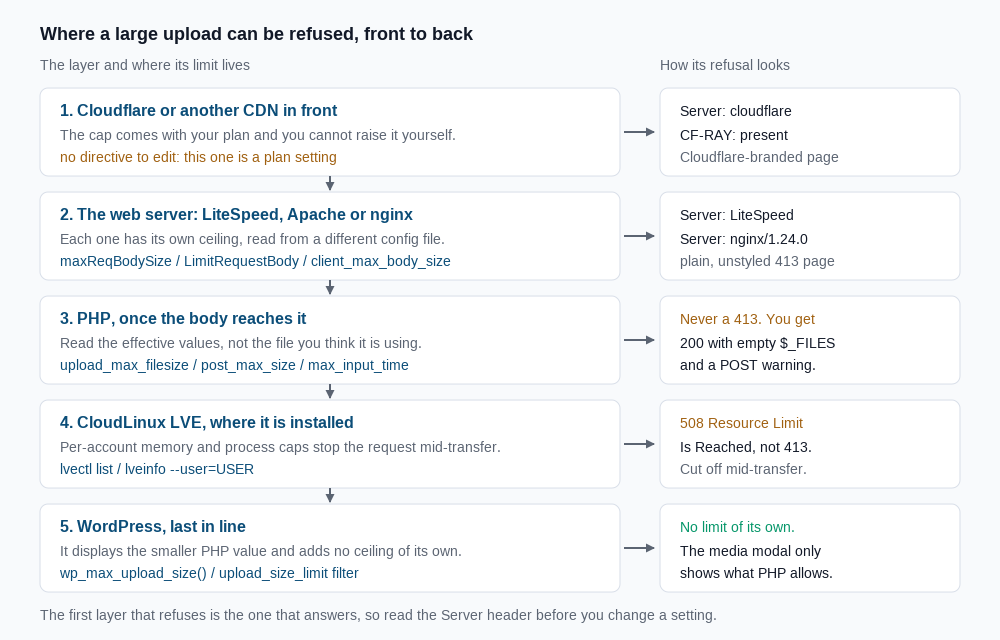
Two details in that chain do most of the damage. The first is that the layers in front of PHP refuse the body before PHP is started. No PHP setting rescues an upload that Cloudflare or the web server already dropped. The second is that PHP itself never answers with 413. When a POST is larger than post_max_size, PHP discards the body, hands your script an empty form array and logs a warning. The browser sees a normal 200 response and an upload that quietly did nothing.
Two acronyms decide where your edit goes. FPM is PHP’s FastCGI Process Manager, a pool of PHP workers the web server talks to over a socket. LSAPI is LiteSpeed’s equivalent. Under most configurations neither reads php_value lines from a .htaccess file.
Step-by-step
1. Make a test file at your target size. A file of known size turns a vague report into a measurement.
dd if=/dev/zero of=/tmp/60mb.bin bs=1M count=6060+0 records in
60+0 records out
62914560 bytes (63 MB, 60 MiB) copied, 0.031 s, 2.0 GB/sPick the count from your own target: 45 MB videos call for a 60 MB test file, the headroom described in the prerequisites.
2. Post it and read the headers to see who answered. The -D - flag dumps response headers to your terminal, and -o /dev/null throws the body away.
curl -sSD - -o /dev/null -X POST --data-binary @/tmp/60mb.bin \
  -H 'Content-Type: application/octet-stream' \
  https://example.com/upload-probe
HTTP/2 413
date: Wed, 10 Sep 2026 14:02:11 GMT
content-type: text/html
server: cloudflare
cf-ray: 8fd0c1e2ab9f4e11-YULThe server header names the software that generated the response, and cf-ray appears only on responses Cloudflare produced itself. A refusal from the origin looks different, carrying server: LiteSpeed, server: nginx/1.24.0 or server: Apache and no cf-ray line.
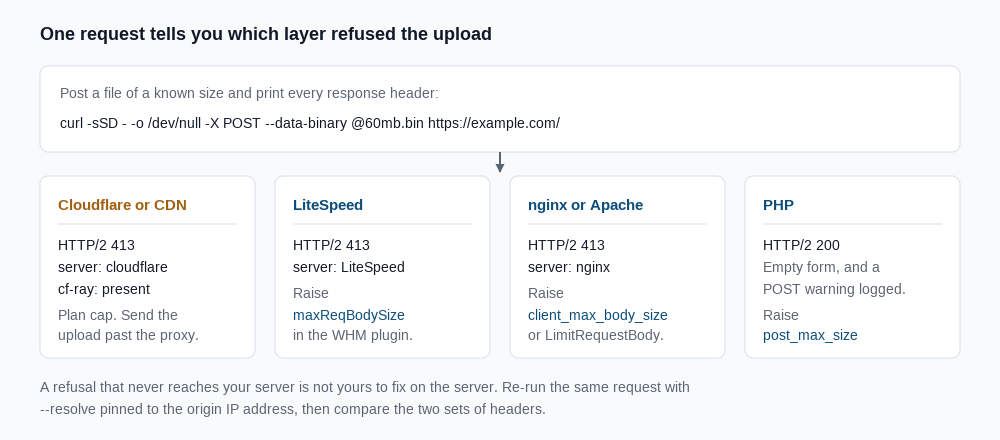
One caveat: --data-binary sends a raw body rather than the multipart/form-data encoding a browser uses. That is what you want for measuring size limits, and no substitute for the real upload test below.
3. If Cloudflare answered, compare against the origin directly. The --resolve flag pins the hostname to an IP address of your choosing, so the same request bypasses the proxy while keeping the certificate valid.
curl -sSD - -o /dev/null --resolve example.com:443:203.0.113.25 \
  -X POST --data-binary @/tmp/60mb.bin https://example.com/upload-probe
HTTP/2 200
server: LiteSpeed
content-type: text/html; charset=UTF-8If the origin accepts what Cloudflare rejected, the cap is Cloudflare’s. That ceiling comes with your plan, and the lower plans expose no control to change it. Check the current figure on Cloudflare’s own limits page rather than a number from a forum post, since it has moved over the years. From there you either route the transfer around the proxy, usually with a DNS-only hostname the admin uses for uploads, or move large transfers to SFTP. A DNS-only hostname reveals the server IP address to anyone who looks it up, so weigh that first.
4. Read the web server’s own ceiling. Use the server header from step 2 to pick the right one of the three.
For LiteSpeed Enterprise or OpenLiteSpeed, the directive is maxReqBodySize. Enterprise keeps it in an XML file and OpenLiteSpeed in a plain text one, so match both:
grep -i maxReqBodySize /usr/local/lsws/conf/httpd_config.*/usr/local/lsws/conf/httpd_config.xml: <maxReqBodySize>10M</maxReqBodySize>Change it in WHM under Plugins → LiteSpeed Web Server, or in the WebAdmin console under Server → Tuning → Max Request Body Size, then apply it:
/usr/local/lsws/bin/lswsctrl restart[OK] Send SIGUSR1 to 1284For Apache, the directive is LimitRequestBody and its value is in bytes, with no M suffix:
grep -ri LimitRequestBody /etc/apache2/conf /etc/apache2/conf.d/etc/apache2/conf.d/includes/pre_virtualhost_global.conf:LimitRequestBody 10485760Set it to your target size in bytes, so 134217728 for 128 MB. Make that change in WHM under Service Configuration → Apache Configuration → Include Editor → Pre VirtualHost Include, not in the generated httpd.conf. cPanel rewrites that file whenever /scripts/rebuildhttpdconf runs or EasyApache 4 updates the profile, and hand edits there are lost. A per-account .htaccess can carry LimitRequestBody too, and survives rebuilds because cPanel never touches account files, but it applies only where AllowOverride permits Limit directives. Check and reload:
apachectl configtest && systemctl reload httpdSyntax OKFor nginx working as a reverse proxy in front of Apache, the directive is client_max_body_size and the default is one megabyte. Print the effective configuration and search it, rather than guessing which include file is in play:
nginx -T 2>/dev/null | grep -n client_max_body_size418: client_max_body_size 1m;Raise it in a custom server include rather than in a per-account file that gets regenerated, then test and reload:
nginx -t && systemctl reload nginxnginx: configuration file /etc/nginx/nginx.conf test is successfulWhichever server you are on, keep its ceiling at or above the PHP value from the next step. The Apache core directive reference spells out the accepted syntax.
5. Read PHP’s effective values over HTTP, not from the command line. The php binary in your shell often loads a different configuration than the one serving your site. Ask the web server what it runs with, using a small probe in the document root:
<?php
foreach ( array( 'upload_max_filesize', 'post_max_size', 'max_input_time', 'max_execution_time', 'memory_limit' ) as $k ) {
	printf( "%-20s %s\n", $k, ini_get( $k ) );
}
curl -s https://example.com/limits.phpupload_max_filesize 8M
post_max_size 8M
max_input_time 60
max_execution_time 30
memory_limit 256MNow set the pair. upload_max_filesize caps a single file and post_max_size caps the whole POST body, so the second has to be larger. A working rule is upload_max_filesize at your target size and post_max_size at that value plus 8 MB. For a 60 MB target:
upload_max_filesize = 64M
post_max_size = 72M
memory_limit = 256M
On cPanel these belong in MultiPHP INI Editor, which writes them for the account’s PHP version. A per-account .user.ini in the document root works under FPM and LSAPI. One catch: PHP caches that file for user_ini.cache_ttl seconds, five minutes by default, so a change can look like it failed when it has only not been re-read yet. What does not work under FPM is a php_value upload_max_filesize 64M line in .htaccess, ignored without any error at all. LiteSpeed’s LSAPI does honour those lines, which is why the same advice works on one server and does nothing on the next. The choice between the two places is covered in MultiPHP INI Editor versus .htaccess overrides. After an INI change under FPM, reload the pool:
systemctl reload ea-php82-php-fpmRe-run the limits.php probe and confirm the new numbers appear. The PHP manual on core ini directives records which of these can be set at which level.
6. Rule out the timeouts that get mistaken for a size limit. If a small file uploads and a large one dies partway with no 413 anywhere, the problem is time, not size. max_input_time bounds how long PHP waits to receive the body, and max_execution_time bounds the script that follows. Set both to 300 for large uploads over slow links. PHP-FPM adds request_terminate_timeout in the pool file, and a proxy adds its own read timeout. Keep those above PHP’s max_execution_time, or the proxy hangs up while PHP is still working and the browser reports a failure for an upload that succeeded.
7. Check CloudLinux LVE if the server runs it. LVE, short for Lightweight Virtual Environment, is CloudLinux’s per-account resource cage for memory, processes and disk activity. When an upload trips it the visible error is 508 Resource Limit Is Reached, not a 413, and the request is cut off mid-transfer.
lveinfo --user=exampleco --period=1dFaults in that report name the resource that ran out. Raise it in WHM under CloudLinux LVE Manager, and read current values with lvectl list. If the server does not run CloudLinux, both commands are absent.
8. Confirm WordPress is only reporting the limit. WordPress displays the smaller of the two PHP values and imposes nothing of its own.
wp eval 'echo size_format( wp_max_upload_size() ), "\n";'64 MBIf that number is lower than what PHP now reports, something is hooking the upload_size_limit filter, usually a security or multisite plugin. Set it explicitly in a small plugin file:
add_filter( 'upload_size_limit', function () {
	return 64 * MB_IN_BYTES;
} );
Raising that filter above PHP’s own values changes only the label in the media modal, and the upload still fails. That is why it belongs at the end of this list rather than the start.
Validate it works
Repeat the probe from step 2 against the public hostname, with the proxy back in place if you use one:
curl -sSD - -o /dev/null -X POST --data-binary @/tmp/60mb.bin https://example.com/upload-probe | head -3HTTP/2 200
server: LiteSpeedThen prove the boundary landed where you meant it, with a file that should be refused:
dd if=/dev/zero of=/tmp/200mb.bin bs=1M count=200
curl -sSD - -o /dev/null -X POST --data-binary @/tmp/200mb.bin https://example.com/upload-probe | head -1
HTTP/2 413Seeing the 413 come back at the new threshold is the confirmation you want, because a ceiling that accepts everything is an absent one. Finish with a real upload through the media library, which adds the multipart encoding and image processing the raw probe skips, then check the stored file against the source:
ls -l wp-content/uploads/2026/09/ | tail -2-rw-r--r-- 1 exampleco exampleco 62914560 Sep 10 14:31 sample-clip.mp4Delete limits.php and the test files when you are done. A probe left in a public document root discloses more about your stack than you want.
Troubleshooting
The PHP values changed but the probe shows the old ones. The edit landed in a file the web server never reads. Or the .user.ini cache has not expired, or PHP-FPM was not reloaded. Wait five minutes, reload the pool, then trust the probe.
The upload works over --resolve and fails through the hostname. The refusal belongs to the proxy in front, and nothing on the server will move it. Go back to step 3.
The 413 is gone and now you get a timeout or a truncated response. You have moved past the size chain into the time chain. That is step 6, usually a proxy read timeout shorter than PHP’s execution time.
An Apache change worked and then stopped days later. Something rebuilt httpd.conf, most often an EasyApache 4 profile update. Move the directive into the Include Editor so the next rebuild carries it forward.
Only the media library fails, while the probe passes at the same size. The size chain is fine and the failure is further in. The bare message that path produces has its own route in the WordPress media library HTTP error guide.
Uploads fail on some requests and succeed on others at the same size. Look for more than one origin behind a load balancer, with configurations that have drifted apart. Run the --resolve probe against each backend address in turn and compare.
When this is the wrong approach
Pushing very large files through an HTTP POST stops paying off somewhere in the hundreds of megabytes. The whole body has to arrive and be buffered before any work starts, and it holds a PHP worker and a temporary file throughout. A dropped connection at 95 percent means starting again from zero. If people move multi-gigabyte assets routinely, use SFTP for one-off transfers, or an upload path that writes to object storage and hands WordPress the resulting URL.
Sometimes the limit is also doing its job. A public endpoint that accepts arbitrary bodies is a straightforward way to fill a disk, so raise the ceiling on the admin paths that need it and leave the public ones alone. And on shared hosting where you do not own the web server, none of the step 4 changes are yours to make. Send your host the output of the step 2 probe instead. A header dump naming the layer that returned the 413 turns a vague ticket into one they can act on.
If this is the kind of work you’d rather never own again, it’s the daily job of Managed Cloud Ops — book an infrastructure review.