Your cPanel & WHM server emailed you that the service apache_php_fpm appears to be down, and you need to know which PHP version broke and why. Sites that run PHP through PHP-FPM may already return errors, often a 503 “Service Unavailable” page. The alert cannot name the version, because apache_php_fpm is one name for every PHP-FPM service on the server. Find the one ea-phpXY-php-fpm service that failed, then read its own log, which usually names the cause in one line. Fix that cause in the file cPanel keeps, restart once, and confirm that the monitor and the sites agree.
What you’ll accomplish
- Tell which installed PHP version stopped, even though the alert names only
apache_php_fpm. - Read the service log and the configuration test that show why it stopped.
- Fix the six causes that come up again and again, each in the place that survives cPanel’s next rebuild.
- Confirm the service is running, the monitor is quiet and a WordPress site returns
200.
Prerequisites
- Root access to the server, over SSH or through WHM » Server Configuration » Terminal.
- cPanel & WHM with EasyApache 4, the cPanel system that installs Apache and PHP as packages, on AlmaLinux, Rocky Linux or CloudLinux. The paths below come from those systems. On cPanel for Ubuntu, some paths can differ, so trust the ones that steps 2 and 3 print.
- At least one domain set to PHP-FPM in WHM » Software » MultiPHP Manager. If no domain uses PHP-FPM, this alert is about a service you do not need, and the last section covers that case.
- The examples use
ea-php83as the broken version andboutique-lac.caas a domain. Replace both with your own.
If you are unsure which file belongs to which version, the ea-php files, php.ini and FPM map lists every path used here.
How it works
PHP-FPM, the FastCGI Process Manager, keeps a group of PHP workers running so Apache can hand them requests. FastCGI is the protocol Apache uses to pass a request to a separate program. On cPanel each PHP version has its own PHP-FPM service with one master process, such as ea-php82-php-fpm and ea-php83-php-fpm. Each master runs one pool per domain on that version, and each pool listens on a socket file, a special file that Apache opens to talk to the pool.
cPanel groups all of these masters under one service name, apache_php_fpm, with one restart script, /usr/local/cpanel/scripts/restartsrv_apache_php_fpm. The service monitor is called chkservd. It runs inside tailwatchd, cPanel’s log-watching daemon, and by default, checks each service every five minutes. When the check for apache_php_fpm fails, chkservd tries the restart script and emails you. One broken version is enough to fail the whole check. This is why the email cannot tell you which version to look at.
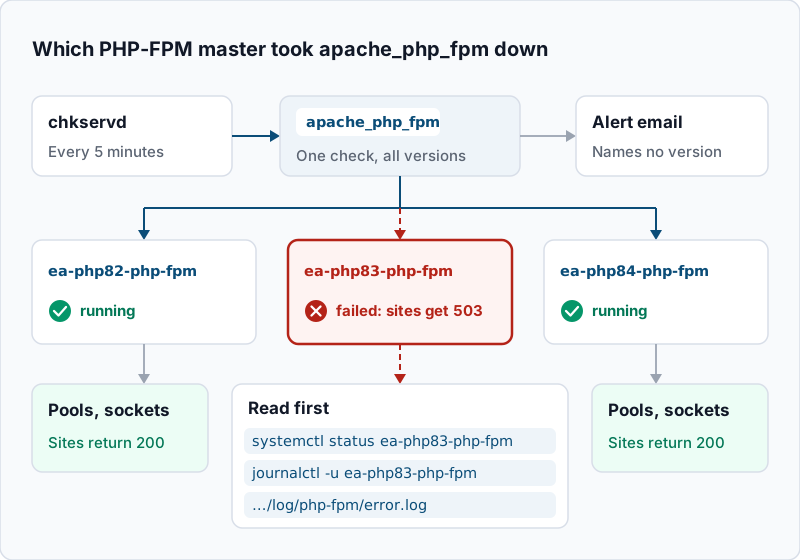
The other masters keep serving their sites while one is down. Only the domains on the failed version break, so a quick look at which sites still work is already a clue.
Step-by-step
-
Ask cPanel for the current state. The problem may have cleared, because chkservd tried a restart before it emailed you:
/usr/local/cpanel/scripts/restartsrv_apache_php_fpm --checkExpected: a message that
apache_php_fpmis running. A message that it is down or failed means the problem is still live.A healthy answer does not end the job. A flapping service, one that falls over and comes back, looks healthy between checks. Carry on to step 2 even if the check passes.
-
Find which version failed. List every ea-php PHP-FPM service with its state:
systemctl list-units 'ea-php*-php-fpm.service' --all --no-pagerExample output:
  UNIT                     LOAD   ACTIVE SUB     DESCRIPTION
  ea-php82-php-fpm.service loaded active running The PHP FastCGI Process Manager
● ea-php83-php-fpm.service loaded failed failed  The PHP FastCGI Process Manager
  ea-php84-php-fpm.service loaded active running The PHP FastCGI Process Manager
The line marked
failedis your version. If every line saysactive running, the failure has passed, so look for the time it happened in step 4. -
Read why that master stopped. Start with systemd, then the version’s own PHP-FPM log:
systemctl status ea-php83-php-fpm --no-pager
journalctl -u ea-php83-php-fpm -n 50 --no-pager
tail -n 40 /opt/cpanel/ea-php83/root/usr/var/log/php-fpm/error.log
Example output (shortened):
× ea-php83-php-fpm.service - The PHP FastCGI Process Manager
     Active: failed (Result: exit-code) since Sun 2026-11-01 03:41:17 EDT; 9min ago
[01-Nov-2026 03:41:17] ERROR: [/opt/cpanel/ea-php83/root/etc/php-fpm.d/boutique-lac.ca.conf:21] unknown entry 'pm.max_childs'
[01-Nov-2026 03:41:17] ERROR: failed to load configuration file '/opt/cpanel/ea-php83/root/etc/php-fpm.conf'
[01-Nov-2026 03:41:17] ERROR: FPM initialization failed
The first
ERRORline is the cause and the rest follow from it. The pool file name tells you which domain to fix. IfActive:says the process was killed, or showscode=dumped(a crash), the master died instead of refusing a setting. Go to causes B and D in step 6. -
See what chkservd saw, and when. The monitor writes the result of every check to its own log:
grep -n 'apache_php_fpm' /var/log/chkservd.log | tail -n 20Expected: lines that mention
apache_php_fpmnear the time of the alert. Compare those times with thesincetime from step 3. If the alerts repeat every five minutes, the restart keeps failing, and the cause is still in place. The alert email may also quote an error number from the restart script. That number does not name the cause, so take the reason from the step 3 logs instead. -
Test the configuration without touching the running service. PHP-FPM can check its main file and every pool file it includes:
/opt/cpanel/ea-php83/root/usr/sbin/php-fpm -t -y /opt/cpanel/ea-php83/root/etc/php-fpm.confExample output, after the fix:
[01-Nov-2026 03:58:02] NOTICE: configuration file /opt/cpanel/ea-php83/root/etc/php-fpm.conf test is successfulRun this after each fix in step 6. Restart only when it says
test is successful. -
Fix the cause that the log named. Match the first error line to one of these.
A. An invalid pool setting such as
unknown entryorinvalid value. It usually follows a hand edit of a domain’s PHP-FPM settings. cPanel builds each pool file from the domain’s YAML file (a plain-text settings file), so fix the YAML, here/var/cpanel/userdata/lacnord/boutique-lac.ca.php-fpm.yaml. Correct the key or value, then ask cPanel to check and rebuild that domain:/usr/local/cpanel/scripts/php_fpm_config --check /usr/local/cpanel/scripts/php_fpm_config --rebuild --domain=boutique-lac.ca; echo "exit=$?"Expected:
--checklists the configurations with no error for the domain, and the rebuild printsexit=0. If someone edited/opt/cpanel/ea-php83/root/etc/php-fpm.d/boutique-lac.ca.confby hand, the rebuild replaces it. That is the point. A pool file that cPanel does not manage can also break the start. A straywww.conf, or a copied.confleft inphp-fpm.d, is the usual one, and--checkreports it as orphaned. Move it out to/root.B. An extension that cannot load after a version change or an update. Ask the same version’s command-line PHP, which reads the same
php.dfolder:/opt/cpanel/ea-php83/root/usr/bin/php -m > /dev/nullExample output (shortened):
PHP Warning: PHP Startup: Unable to load dynamic library 'redis.so' (tried: /opt/cpanel/ea-php83/root/usr/lib64/php/modules/redis.so (/opt/cpanel/ea-php83/root/usr/lib64/php/modules/redis.so: cannot open shared object file: No such file or directory), ...) in Unknown on line 0If the command prints nothing, every extension loaded. A warning like this one does not always stop PHP-FPM, but an extension that crashes as it loads does. Move the matching
.iniout of/opt/cpanel/ea-php83/root/etc/php.d/to/root. Then reinstall that extension for this version from where it came, either WHM » Software » EasyApache 4 or WHM » Software » Module Installers.C. OPcache asked for more memory than the server can give. The log line contains
Unable to allocate shared memory segment. Put the previousopcache.memory_consumptionvalue back. Sizing the OpCache settings on cPanel explains how to choose a value from the cache’s own counters.D. The kernel’s OOM killer stopped PHP-FPM. OOM stands for out of memory. When RAM runs out, the kernel kills a process to free some. Search the kernel log:
journalctl -k --since '2 hours ago' --no-pager | grep -i 'out of memory'Example output:
Nov 01 03:41:09 cp1 kernel: Out of memory: Killed process 30418 (php-fpm) total-vm:1873412kB, anon-rss:1290844kB, file-rss:0kB, shmem-rss:6120kB, UID:1004 pgtables:2920kB oom_score_adj:0A
UIDother than 0 is a worker, which runs as the account’s user.UID:0is a master, which runs as root, and that is the kill that stops a whole version. Either way, the restart will work, but the server will run out of memory again. Lowerpm_max_children, the cap on workers per pool, in the busiest domains’ YAML files. Rebuild, then read the last section of this article.E. A full disk, or no inodes left. Inodes are the file slots a filesystem hands out, and a disk can run out of them before it runs out of space. The log shows
No space left on device, often when the master tries to create a socket or its PID file, the file that records its process ID. Check both:df -h / /opt /var /tmp df -i / /opt /var /tmpExpected: every line below 90% in the
Use%andIUse%columns. A line at 100% is your cause. Free space there, often old backups, logs or session files, and then restart.F. A PHP version removed while domains still use it. Compare what is installed with what domains ask for:
whmapi1 php_get_installed_versions
whmapi1 php_get_vhost_versions | grep -E '^ +(version|vhost): '
Every
version:in the second list must appear in the first. A domain on a version that is gone has no working PHP, andsystemctl status ea-php81-php-fpmanswersUnit ea-php81-php-fpm.service could not be found.Move those domains to an installed version in MultiPHP Manager, then run/usr/local/cpanel/scripts/php_fpm_config --rebuildfor the whole server. -
Restart through cPanel, once. The restart script starts every version and keeps chkservd in step:
/usr/local/cpanel/scripts/restartsrv_apache_php_fpmExpected: the script waits for the service, then reports that
apache_php_fpmis running. If it reports a failure, go back to step 3. The log will show a new first error.
Validate it works
-
Every master is running. Run the step 2 command again. Every line must read
active running. -
The configuration still tests clean. Run the step 5 test for the version you fixed. It must say
test is successful. -
The monitor agrees. Wait for the next check, five minutes at most by default. The step 4 command must show no new failure after your restart, and chkservd may also email a recovery notice. WHM » Server Status » Service Status must show the PHP-FPM service as up.
-
A site on the fixed version answers. Pick a WordPress domain that runs the version you repaired:
curl -s -o /dev/null -w '%{http_code}\n' https://boutique-lac.ca/
curl -s -o /dev/null -w '%{http_code}\n' https://boutique-lac.ca/wp-login.php
Expected:
200for both. A503means Apache still cannot reach the pool, which the first troubleshooting item covers. -
Domains point at installed versions. Run the two
whmapi1commands from cause F. Everyversion:must be on the installed list.
Troubleshooting
- The service is running, but sites on one version show 503. Apache cannot reach that domain’s socket. Look in
/etc/apache2/logs/error_logforAH02454lines, Apache’s code for a failed FastCGI socket connection, naming a socket under/opt/cpanel/ea-php83/root/usr/var/run/php-fpm/. Run/usr/local/cpanel/scripts/php_fpm_config --rebuild --domain=boutique-lac.ca, then restart with the step 7 script. - The alert arrives every five minutes. Each check runs the restart, and each restart fails on the same error. Stop restarting by hand. Run the step 5 test, which shows the error that the restart hits.
- The alert came once, during a reboot. The check can run while services are still stopping or starting. If step 2 shows everything running and the step 4 log is clean afterwards, you can stop here.
- The rebuild prints an exit code other than 0. The YAML file most likely has a syntax error, often a missing space after a colon or a tab used for indentation. Fix the file, then run
/usr/local/cpanel/scripts/php_fpm_config --checkbefore the rebuild again. - The same domain breaks again after a few days. Someone keeps editing the generated pool file, or a plugin installer adds a pool setting by hand. Put the setting in the domain’s YAML file or in MultiPHP Manager, so the rebuild keeps it.
When this is the wrong approach
If the OOM killer shows up in cause D more than once, this is a capacity problem, not a PHP-FPM problem. Each restart buys hours. A lasting fix means fewer workers per pool, fewer PHP versions running, or more memory. cPanel’s own php_fpm_config script page recommends at least 2 GB of available RAM, or at least 30 MB per domain, before you turn on PHP-FPM.
On CloudLinux servers where sites run through mod_lsapi, an Apache module that runs PHP without PHP-FPM, or on LiteSpeed Web Server, those sites do not use apache_php_fpm. An alert there may concern domains that are still on PHP-FPM, or a service that nobody uses. Check the step 2 list and MultiPHP Manager before you change anything. Turn monitoring off in WHM » Service Configuration » Service Manager only after you confirm that no domain uses PHP-FPM. If you rent one account on someone else’s server, you cannot run these commands. Send your host the alert time and the domains that failed. For how restarts of other cPanel services behave, see restarting cPanel services safely. cPanel’s TailWatch documentation describes how chkservd checks and restarts services.
If alerts fire into an empty room after hours, that’s exactly what 24/7 Monitoring & Response closes — book a monitoring and response review.