A WordPress site leaving Pantheon, a managed WordPress platform, for a cPanel hosting account needs more than a file copy. Pantheon gives you the site as three separate downloads: the code as a Git repository, a database dump and an archive of uploaded files. The code is set up for Pantheon itself, with a wp-config.php that reads database details from environment variables, a pantheon.yml file and a must-use plugin that talks to the platform. Pantheon also runs caching, WordPress cron, TLS and backups for you, and on cPanel each of those becomes something you install and own. Take an inventory first, strip the Pantheon-specific code, rebuild those services, then switch DNS behind a low TTL (how long resolvers cache your record) so a rollback takes minutes.
What you’ll accomplish
- A written inventory of every Pantheon platform service in use, with a named cPanel replacement beside each one.
- All three artefacts pulled down and verified — code, database, uploads — with the checksums or row counts to prove it.
- A codebase with the Pantheon-specific configuration removed and replaced by a plain
wp-config.phpplus a hand-written.htaccess. - The site running and smoke-tested on cPanel against the real hostname, before any DNS record changes.
- A cutover with a low TTL and a rollback you can execute in minutes.
Prerequisites
On the Pantheon side you need dashboard access with the ability to create and download backups, a git SSH key registered on your account, and ideally Terminus, Pantheon’s CLI. Terminus is optional — every extraction step below has a dashboard equivalent — but it makes the database and files pulls scriptable. Note that backup retention and the availability of Multidev environments vary by Pantheon plan, so what you can download and how far back you can go is not the same on every account.
On the destination you need a cPanel account with SSH access, wp (WP-CLI) available on the server, and the ability to set the PHP version per domain. cPanel versions differ in what they expose: MultiPHP Manager, Redis availability, and whether the server runs Apache or LiteSpeed are all server-level decisions your host has already made. Confirm all three before you plan the cutover, not during it.
Before you touch anything, take the inventory. The generic version of this exercise lives in the pre-migration inventory guide, and the plugin-specific half in the plugin inventory article. The Pantheon-specific questions are:
- What PHP version does
pantheon.ymldeclare? Thephp_versionkey at the repo root is the authoritative answer. Match it on cPanel before you import anything. - Is the object cache turned on? Pantheon exposes Redis credentials to the application through environment variables. If the site uses them, there is an object cache drop-in in
wp-content/that will take the site down on a server without Redis. - Is there a
private/directory in the repo, and is anything reading from it? Pantheon’s convention puts non-public files there. On cPanel that path is not automatically protected. - What does the site rely on that lives above WordPress? Redirects, header rules, and HTTPS enforcement configured in
pantheon.ymlor in the platform do not travel in the database. - Where does mail come from? Pantheon hosts no mailboxes, so your MX records already point somewhere else — and that has to stay true after the domain lands on a cPanel account that will happily try to deliver mail locally.
Then drop the TTL on the A and AAAA records to 300 seconds at least 24 hours ahead. This is the single step that converts a bad cutover from an afternoon into five minutes.
How it works
Pantheon is a managed platform, not a server you rent. The code repository is only the application; the interesting parts are the services wrapped around it. Every one of those services has a replacement on cPanel, but you build it, and nothing warns you if you forget.
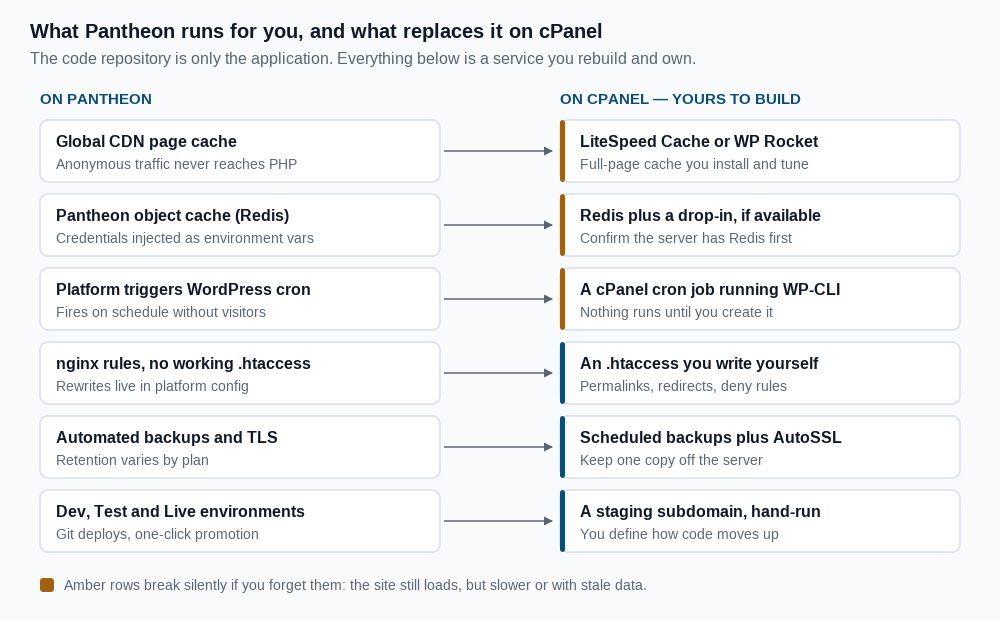
Four of those rows deserve a longer look.
The read-only filesystem. On Pantheon’s Test and Live environments, everything outside wp-content/uploads is read-only. That constraint has shaped your site: plugins that write into their own directory were either avoided or configured to write elsewhere, and updates happen through git rather than through wp-admin. On cPanel the whole document root is writable by the account user. That is more convenient and strictly less safe, and it means the update workflow you have been using no longer matches the platform you are on.
The wp-config.php that reads $_ENV. Pantheon’s WordPress upstream ships a wp-config.php that pulls DB_NAME, DB_USER, DB_PASSWORD, DB_HOST and DB_PORT from $_ENV, and branches on $_ENV['PANTHEON_ENVIRONMENT'] to behave differently in dev, test and live. On cPanel none of those variables exist. Left in place, the file produces a database connection error that looks like a credentials problem and is not.
The absence of .htaccess. Pantheon serves through nginx, so any .htaccess sitting in the repository is inert there and has probably drifted or never been maintained. On Apache or LiteSpeed it suddenly becomes live configuration. You need to author a current one — at minimum the standard WordPress permalink block — and re-express by hand any redirect or deny rule that was configured at the platform level.
Cron. Pantheon triggers WordPress cron for you on a schedule, without needing a visitor. That is why your scheduled posts, WooCommerce subscription renewals and backup plugins have been firing reliably on a low-traffic site. On cPanel, nothing does this until you create the cron job.
Step-by-step
Everything up to the read-only window is rehearsal you can repeat as often as you like. Everything after it is live.
1. Pull the code repository. Pantheon’s git URL is shown in the dashboard under the environment’s connection info. If you use Terminus, the same value is available from the CLI.
terminus connection:info <site>.dev --field=git_urlThat prints a single ssh:// URL. Clone it into a working directory:
git clone <git_url> pantheon-code
cd pantheon-code && git log --oneline -5
Success signal: five commits print. If the clone fails on authentication, your SSH public key is not registered on the Pantheon account — add it in the dashboard’s account settings and retry.
2. Create and download the database and files backups. In the dashboard, open the Live environment’s Backups tab, create a backup, and download the database and files archives separately. With Terminus the same thing is scriptable:
terminus backup:create <site>.live --element=all
terminus backup:get <site>.live --element=database
terminus backup:get <site>.live --element=files
Each backup:get prints a signed download URL valid for a limited time; pipe it to curl -o or paste it into a browser. Success signal: a .sql.gz and a .tar.gz on disk, both non-trivial in size. Note the row count of a busy table before you leave Pantheon — you will compare against it after the import.
The three artefacts travel separately and get treated differently. This diagram is the shape of the whole job.
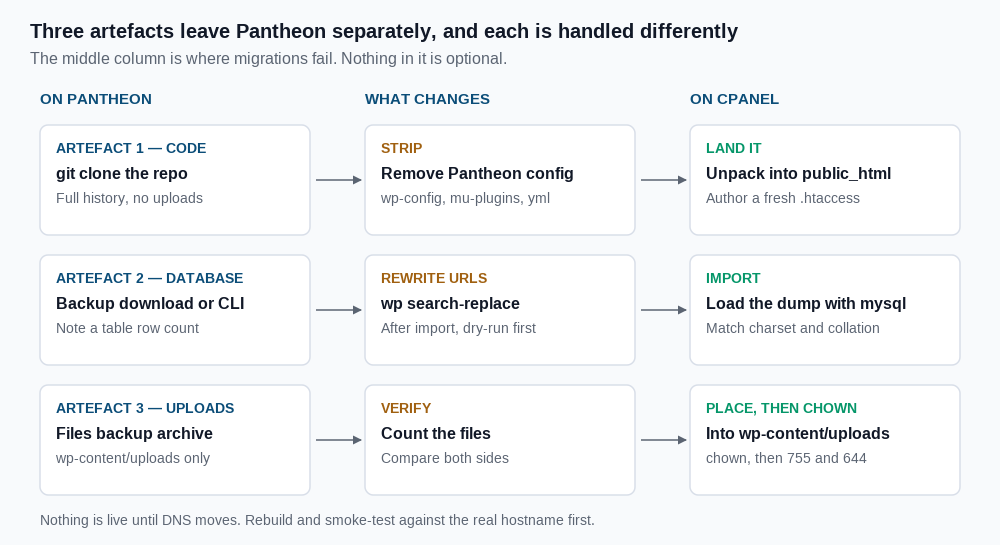
3. Strip the Pantheon-specific code. Working in your clone, remove or replace four things. Delete the Pantheon must-use plugin from wp-content/mu-plugins/ — list that directory first, because must-use plugins load unconditionally and never appear on the plugins screen. Delete any object cache drop-in at wp-content/object-cache.php. Leave pantheon.yml and pantheon.upstream.yml behind entirely; they mean nothing on cPanel. Then replace wp-config.php with a plain one that hardcodes the destination credentials, keeping your salts and any non-Pantheon constants the old file defined.
ls -la wp-content/mu-plugins/
rm -f wp-content/object-cache.php
grep -rn "PANTHEON_ENVIRONMENT\|\$_ENV\[" wp-config.php wp-content/ | head -40
Success signal: the last command returns nothing outside files you have already decided to delete. Anything else it finds is a plugin or theme reading platform variables that will not exist, and needs fixing before launch.
4. Prepare the cPanel account. Create the account (or the addon domain), set the PHP version in MultiPHP Manager to match php_version from pantheon.yml, and create a database plus a database user with all privileges on it. Note the exact database name and username — cPanel prefixes both with the account name.
5. Upload and import. Push the code to public_html, then unpack the uploads archive into wp-content/uploads and import the database.
gunzip < db.sql.gz | mysql -u <cpuser>_wpuser -p <cpuser>_wpdb
mysql -u <cpuser>_wpuser -p -e "SELECT COUNT(*) FROM wp_posts;" <cpuser>_wpdb
Success signal: the count matches what you noted on Pantheon. If the import stops on an unknown collation, the source server is a newer MariaDB than the destination — dump again with an explicit compatible charset, or ask your host about the server version.
6. Fix ownership and permissions. Files unpacked as root will not be readable by PHP-FPM running as the account user.
chown -R <cpuser>:<cpuser> ~/public_html
find ~/public_html -type d -exec chmod 755 {} \;
find ~/public_html -type f -exec chmod 644 {} \;
Success signal: ls -la ~/public_html shows the account user on every entry, no root.
7. Author the .htaccess. Create ~/public_html/.htaccess with the standard WordPress permalink block, then add back by hand each redirect that used to be handled above the application. Do not skip this; without it every URL except the homepage returns 404.
8. Search-replace the domain. Only if the site was running on a Pantheon platform hostname rather than the live domain. Always dry-run first.
wp search-replace 'https://live-<site>.pantheonsite.io' 'https://example.com' --all-tables --dry-run
wp search-replace 'https://live-<site>.pantheonsite.io' 'https://example.com' --all-tables
Success signal: the dry run reports a replacement count, and the live run reports the same number. --all-tables matters because serialized data in options and postmeta is where the old hostname hides.
9. Rebuild the platform services. Install a page cache plugin appropriate to the server — LiteSpeed Cache on LiteSpeed, WP Super Cache or WP Rocket on Apache. If the server has Redis, configure the object cache following the Redis object cache setup guide; if it does not, run without one rather than pointing a drop-in at a host that is not there. Create the cron job. Issue TLS through cPanel’s AutoSSL after DNS moves. Schedule backups, and confirm at least one copy lands off the server.
wp cron event run --due-nowSuccess signal: due events run and print their names, or WP-CLI reports there are none due. Wire that same command into a cPanel cron entry at 15-minute intervals, and set DISABLE_WP_CRON to true in wp-config.php so page loads stop triggering it.
10. Cut over. Put the Pantheon site into a read-only state — freeze publishing, pause checkout if this is a store — take one final database export, re-import it, re-run the search-replace, then change the A and AAAA records. Watch traffic on the new server before you unfreeze.
Validate it works
Confirm the destination is answering, and that it is answering as itself rather than as a cached copy of the old platform.
curl -sI https://example.com | head -20Look for HTTP/2 200, a server header matching your cPanel host, and no Pantheon-specific headers. Then check the application layer:
wp option get siteurl && wp option get home
wp core verify-checksums
wp plugin list --status=active --format=table
siteurl and home must both be the live HTTPS domain. verify-checksums should report success; a failure means a core file was modified, which is worth knowing about regardless of the migration. Finally, walk the site by hand: log into wp-admin, load a permalink deep in the archive, submit a form, and if it is a store, complete a test order end to end.
Troubleshooting
Every page but the homepage returns 404. The .htaccess is missing or AllowOverride is off. Re-save permalinks in wp-admin to have WordPress rewrite the file; if it does not appear, ask the host whether overrides are permitted on that document root.
White screen with no error, immediately after import. Almost always a leftover object-cache.php drop-in trying to reach a Redis instance that does not exist on this server. Delete the file. Enable WP_DEBUG_LOG and read the log rather than guessing.
Database connection error despite correct credentials. The old Pantheon wp-config.php is still in place, reading $_ENV values that are empty here. Replace the file rather than patching it.
Images 404 but exist on disk. Either the uploads archive unpacked one directory level too deep — check for wp-content/uploads/uploads/ — or ownership is wrong and PHP cannot read them. Both are visible from ls -la.
Scheduled posts and renewals stop firing. Pantheon was pinging cron for you. Confirm the cPanel cron entry exists and runs, then check wp cron event list for a backlog of overdue events.
When this is the wrong approach
Pantheon is a real platform doing real work, and some sites should stay. If your team depends on the Dev/Test/Live workflow with git-backed deployments and Multidev branches, cPanel offers nothing comparable and you will be rebuilding that process by hand for the rest of the site’s life. If the read-only filesystem is part of your security posture, giving it up is a genuine downgrade. If you have Advanced Global CDN, Pantheon Search, or a custom upstream shared across many sites, none of that has a cPanel equivalent at any price.
Move when the platform’s constraints cost you more than its services are worth: when you need software Pantheon cannot run, when you want mail and the site on one account, or when a single operator should own the whole stack. Otherwise, consider a like-for-like move to another managed host — the WP Engine and Kinsta runbooks cover the same terrain from the other direction, and cPanel’s own documentation at docs.cpanel.net is the reference for everything on the destination side.
Running WordPress that earns real money deserves an operator — Stack Harbor runs that stack under Enterprise WordPress; book an infrastructure consult.