You do not need Softaculous to install WordPress on cPanel, and by hand it takes about fifteen minutes. The install is five moving parts: WordPress core files in the domain’s real document root, a MySQL database plus a database user with a grant tying them together, a wp-config.php carrying those credentials and a fresh set of salts, a valid TLS certificate issued before you run the wizard, and ownership and permissions correct enough that suEXEC will execute the PHP at all. This guide covers both routes honestly — the pure File Manager route for accounts with no shell, and the faster Terminal route with wp-cli where the account allows it.
What you’ll accomplish
- Find the real document root for a primary domain, an additional (addon) domain, or a subdomain, instead of guessing
public_htmland 404ing the wizard. - Create a database and user under cPanel’s enforced
<user>_prefix, and grant the user access to that one database. - Write a
wp-config.phpwith real salts from the WordPress.org generator and a table prefix you chose. - Get the AutoSSL certificate issued first, so WordPress saves
https://intositeurlandhomeon the first write. - Finish with working permalinks, a valid
.htaccess,644/755permissions, and no installer leftovers.
Prerequisites
- A cPanel account with the domain already added and DNS resolving to the server. AutoSSL cannot validate a domain that does not point at the box yet.
- PHP: core has supported a minimum of PHP 7.4 since WordPress 7.0, but the project’s recommended minimum is PHP 8.3 or greater. Set the per-domain version in cPanel » Software » MultiPHP Manager.
- Database: WordPress recommends MariaDB 10.11+ or MySQL 8.0+. cPanel ships one or the other; which one changes the database username length limit (see below).
- The cPanel account username. Every path and identifier below substitutes it for
<user>. - Optional: shell access. cPanel » Advanced » Terminal for cPanel appears only if your host enabled the feature and gave the account a normal or jailed shell in WHM. Without it, Route A is the whole story.
- Interface names moved in cPanel & WHM version 120: MySQL Databases became Manage My Databases, MySQL Database Wizard became Database Wizard. Both sit under Databases.
How it works
Softaculous hides four independent things behind one button, and when it breaks you are debugging someone else’s abstraction. Installed by hand, each piece is visible.
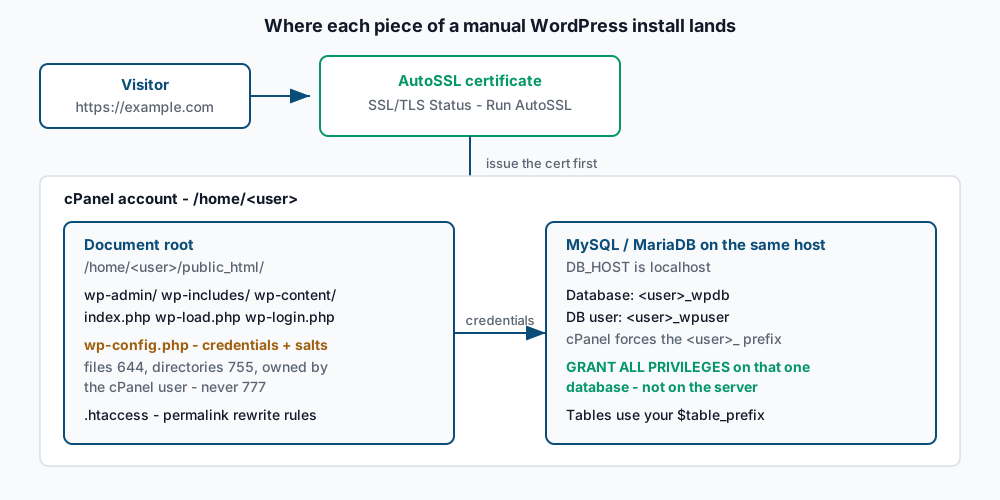
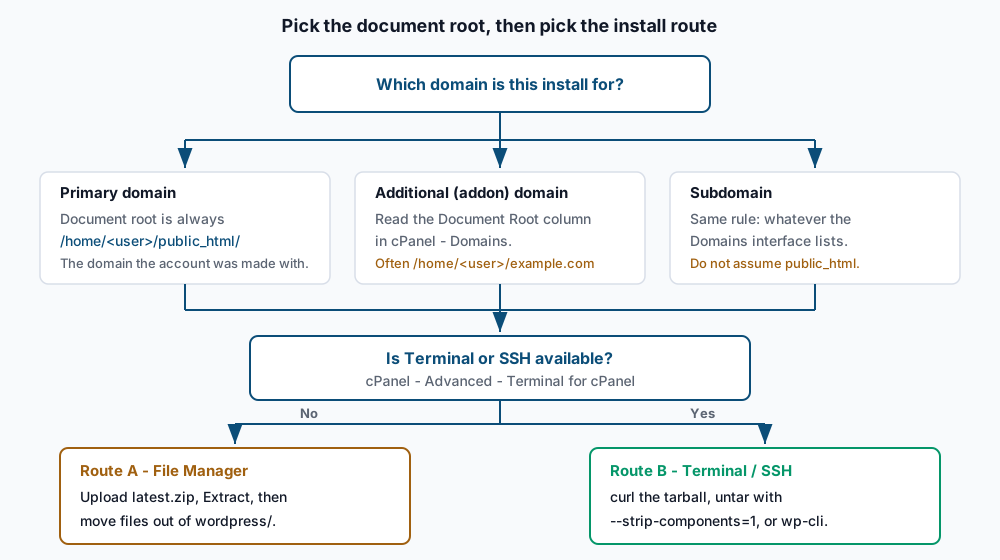
The document root is not always public_html. It is for the primary domain — the one the account was created with — and only that one. When you add a domain or subdomain through cPanel » Domains, cPanel picks a document root that, depending on your server’s WHM settings, is either /home/<user>/example.com (outside public_html entirely) or /home/<user>/public_html/example.com. The Document Root column shows the real path. Read it — guessing is the most common reason a manual install “installs” and then 404s.
cPanel forces a prefix on database and user names. You type wpdb and get <user>_wpdb. On MySQL 5.7+ the prefix is the first 16 characters of the account username plus an underscore; on MariaDB it is the whole username. Usernames cap at 32 characters total on MySQL 5.7+ and 47 on MariaDB, prefix included, so a long account name leaves little room. See why cPanel prefixes your database names.
Creating a user and creating a grant are two separate acts. The Database Wizard does both in one pass, which is why it is the route to use. Through Manage My Databases instead, the new user does nothing until you also add it to the database under Add User To Database. A user with no grant produces the same browser error as a wrong password — Troubleshooting covers how to tell them apart.
PHP runs as your account user. On any modern cPanel box — suEXEC, suPHP, or PHP-FPM with a per-account pool — the interpreter runs as <user>, so files must be owned by <user> and must not be writable by group or world. That is why 644 for files and 755 for directories is the target, and why 777 is never the answer: a world-writable file is one suEXEC refuses to execute, so you get a 500 instead of the fix you wanted. WordPress’s own hardening guidance sets exactly 644 files and 755 directories.
Order matters for the certificate. The wizard writes siteurl and home from the URL you loaded it on. Load it over http:// because the cert is not ready and both rows are wrong from birth — that is where mixed content and redirect loops come from. Issue the cert first and the first write is already https://.
Step-by-step
Two decisions front-load the whole install — which document root, and which route.
-
Confirm the document root before you touch anything. Open cPanel » Domains and read the Document Root column for your domain. With shell access, confirm it is empty:
ls -la /home/<user>/public_htmlSuccess signal: the directory holds nothing but
.and.., or at most a host-placedcgi-binand a defaultindex.html. Anything else, stop and find out what it is — extracting WordPress over an existing site is not recoverable without a backup. -
Set the PHP version for this domain. In cPanel » Software » MultiPHP Manager, select the checkbox for the domain, choose a version from the PHP Version menu, and click Apply.
php -vSuccess signal:
PHP 8.3.xor newer. One caveat:php -vreports the CLI binary, which on cPanel is frequently a different version from the one serving web requests. MultiPHP Manager is the authority for the web handler; treat the CLI number as a hint. -
Issue the certificate now, before the wizard. Go to cPanel » Security » SSL/TLS Status, select the checkbox next to the domain, and click Run AutoSSL. If the domain is marked excluded, click Include Domains During AutoSSL first.
curl -sI https://example.com/ | head -1Success signal: the domain’s row shows an “AutoSSL Domain Validated” status with an expiry date, and
curlreturns an HTTP status line rather than anSSL certificate problemerror. A 403 or 404 here is fine — you have no site yet, and what matters is that TLS negotiated. If AutoSSL fails, fix that first: AutoSSL failure triage. -
Create the database, user, and grant in one pass. Open cPanel » Databases » Database Wizard (called MySQL Database Wizard before cPanel 120). Enter a short database name — cPanel prepends
<user>_. Create a user with a generated password and record it somewhere before clicking through. On the privileges screen, select ALL PRIVILEGES and click Next Step.Success signal: the final screen confirms the user was added to the database. Trimming privileges instead, WordPress core needs at minimum
SELECT,INSERT,UPDATE,DELETE,CREATE,DROP,ALTERandINDEXon that one database — dropCREATEand the next core update that adds a table fails mid-upgrade.ALL PRIVILEGEShere is scoped to a single database, not the server, so it is a reasonable default. -
Route A — get the files in place with File Manager. Download
https://wordpress.org/latest.zipto your machine. In cPanel » Files » File Manager, open the document root, click Upload, and upload the zip. Back in the document root, selectlatest.zipand click Extract into the current directory. Use the.zip, not the.tar.gz— File Manager’s extractor handles zip natively.Success signal: a single new folder named
wordpressappears. This is the trap. Open it, select everything inside, use Move to lift it all up one level into the document root, then delete the emptywordpressfolder andlatest.zip. When you are done,index.phpandwp-adminsit directly in the document root — not insidewordpress/. -
Route B — get the files in place with Terminal. From cPanel » Advanced » Terminal for cPanel or over SSH:
cd /home/<user>/public_html
curl -O https://wordpress.org/latest.tar.gz
tar -xzf latest.tar.gz --strip-components=1
rm latest.tar.gz
ls
Success signal:
lsprintsindex.php,wp-admin,wp-config-sample.php,wp-content,wp-includesandwp-login.phpat the top level.--strip-components=1is what prevents thewordpress/nesting from Route A — omit it and you get the same one-level-too-deep problem. -
Write
wp-config.phpwith real salts. Route A: in File Manager, selectwp-config-sample.php, use Copy to makewp-config.php, then Edit. Route B:cp wp-config-sample.php wp-config.phpFill in
DB_NAME,DB_USERandDB_PASSWORDwith the prefixed values from step 4, and leaveDB_HOSTaslocalhost— on cPanel the database server is on the same host. Then replace the entire placeholder keys-and-salts block with freshly generated values. Openhttps://api.wordpress.org/secret-key/1.1/salt/in a browser, or from a shell:curl -s https://api.wordpress.org/secret-key/1.1/salt/Success signal: eight
define()lines forAUTH_KEYthroughNONCE_SALT, each with 64 random characters. Every load of that URL returns a different set — generate once, paste once, never reuse a set from another site. While you are in the file, set a table prefix that is not the default and add two hardening constants:$table_prefix = 'wp7x_'; define( 'DISALLOW_FILE_EDIT', true ); define( 'WP_AUTO_UPDATE_CORE', 'minor' ); -
Fix ownership and permissions before loading the wizard. From Terminal:
cd /home/<user>/public_html
find . -type d -exec chmod 755 {} \;
find . -type f -exec chmod 644 {} \;
chmod 640 wp-config.php
ls -la wp-config.php
Success signal:
ls -lashows-rw-r-----with owner and group both<user>. If the owner isrootor anything other than your account name, PHP will not run and you cannot fix it yourself — see Troubleshooting. File Manager always creates files as<user>, so Route A rarely hits this; Route B hits it when someone extracted the tarball as root. -
Run the install wizard. Load
https://example.com/wp-admin/install.phpin a browser, pick the language, fill in site title, admin username, a strong password and a real address, and submit.Success signal: a “WordPress has been installed” screen with a Log In button, and logging in lands you on
/wp-admin/overhttps://. Withwp-cli, the same install is one command — put the tool in your home directory first, since a cPanel account cannot write to/usr/local/bin:mkdir -p ~/bin curl -o ~/bin/wp https://raw.githubusercontent.com/wp-cli/builds/gh-pages/phar/wp-cli.phar chmod +x ~/bin/wp ~/bin/wp --infoSuccess signal:
wp --infoprints aWP-CLI version:line. Then:cd /home/<user>/public_html ~/bin/wp core install --url=https://example.com --title='Acme' --admin_user=acme_admin --admin_email=ops@example.comSuccess signal:
Success: WordPress installed successfully.and, because--admin_passwordwas omitted, a generatedAdmin password:line printed once. Copy it immediately — it is not stored anywhere retrievable. -
Set permalinks and let WordPress write
.htaccess. In the admin, go to Settings » Permalinks, choose Post name, and click Save Changes — even if it already looks selected, the save is what writes the rules. Withwp-cli:~/bin/wp rewrite structure '/%postname%/' --hardSuccess signal:
.htaccessnow exists in the document root, containing the core rewrite block:# BEGIN WordPress <IfModule mod_rewrite.c> RewriteEngine On RewriteRule .* - [E=HTTP_AUTHORIZATION:%{HTTP:Authorization}] RewriteBase / RewriteRule ^index\.php$ - [L] RewriteCond %{REQUEST_FILENAME} !-f RewriteCond %{REQUEST_FILENAME} !-d RewriteRule . /index.php [L] </IfModule> # END WordPressIf
.htaccessis missing after saving, the document root is not writable by your user — recheck step 8. -
Remove the installer leftovers. Anything that survived the install and serves no purpose is either noise or a version disclosure:
cd /home/<user>/public_html
rm -f latest.tar.gz latest.zip readme.html license.txt
rmdir wordpress 2>/dev/null
ls
Success signal: no archive, no
wordpress/directory, andcurl -sI https://example.com/readme.htmlreturns404.wp-config-sample.phpholds no secrets, so keep or delete it as you prefer. If this account previously ran Softaculous, remove any Softaculous orinstallatronmetadata directories it left behind.
Validate it works
Run all of these before you call it done:
curl -sI https://example.com/ | head -1
curl -sI https://example.com/hello-world/ | head -1
curl -sI https://example.com/readme.html | head -1
~/bin/wp option get siteurl
~/bin/wp option get home
~/bin/wp core version
~/bin/wp db check
Expected: HTTP/2 200 for the homepage and for the hello-world post — that second one is the real permalink test, and a 404 there means step 10 did not take. HTTP/2 404 for readme.html. Both siteurl and home printing https://example.com, with no trailing slash and no http://, then a version number and Success: Database checked. Without wp-cli, read the two options from Settings » General instead.
Troubleshooting
-
“Error establishing a database connection” — telling a bad password from a missing grant. Both produce an identical browser page but different MySQL errors. Test the credentials from Terminal:
mysql -u <user>_wpuser -p <user>_wpdb -e 'SELECT 1;'.ERROR 1045 (28000): Access denied for usermeans the username or password inwp-config.phpis wrong, or you dropped the<user>_prefix on one of them.ERROR 1044 (42000): Access denied for user ... to databasemeans the user authenticated but was never granted that database — go to Manage My Databases, use Add User To Database, grantALL PRIVILEGES. Full triage in Error establishing a database connection. -
A white screen or HTTP 500 instead of the wizard. Usually a PHP version mismatch: the domain is pinned to a version older than WordPress supports, or to
inheriton a server whose default is ancient. Check the per-domain version in MultiPHP Manager, then read the error log — cPanel writes it to~/logs/or to anerror_logfile in the document root.PHP Parse error: syntax error, unexpectedon a core file is the signature of too-old PHP. The same error namingwp-config.phpmeans a typo in your own edit — usually a missing semicolon or a stray quote inside a pasted salt. -
/wp-admin/install.phpreturns 404. Two causes, both about location. Either the files landed one level too deep — you extracted the zip and never moved the contents out ofwordpress/, so the real URL ishttps://example.com/wordpress/wp-admin/install.php— or you extracted intopublic_htmlwhile the domain’s document root is somewhere else. Comparels /home/<user>/public_htmlagainst the Document Root column in cPanel » Domains. For an additional domain the answer is often/home/<user>/example.com, meaning everything you did landed on the wrong site. -
Files owned by
rootafter an upload or extract. The symptom is a 500 on every request withSoftException in Application.cpp: File ... is writeable by group, or an ownership complaint in the Apache error log. It happens when someone with root extracted the archive over SSH instead of using the account’s own shell. As the cPanel user you cannot chown your way out — the fix requires root:chown -R <user>:<user> /home/<user>/public_html. If you are not the server administrator, this is a support ticket. Background in file ownership after a manual move. -
The site works but every URL is
http://. You ran the wizard before AutoSSL finished, sositeurlandhomewere written ashttp://. Fix the two options first (Settings » General, orwp option update siteurl https://example.com), then rewrite content URLs already saved withwp search-replace 'http://example.com' 'https://example.com' --skip-columns=guid --dry-runbefore running it for real. This is why step 3 precedes step 9.
When this is the wrong approach
If you are standing up one throwaway site you will never look at again, Softaculous or WP Toolkit is genuinely faster and the tradeoff is fine. If you are provisioning dozens of sites, neither manual installs nor a one-click installer is the answer — you want a scripted wp-cli provisioning template so every site starts identical, which is a different exercise. And if you are installing by hand because the last install broke in ways nobody could explain, the honest read is usually that the account itself has accumulated damage: a clean account plus a content migration beats a fresh install layered on old debris.
Running WordPress that earns real money deserves an operator — Stack Harbor runs that stack under Enterprise WordPress; book an infrastructure consult.