This guide shows you how to update WordPress core, plugins and themes across many sites from one place. It is written for the agency, freelancer or in-house team that looks after somewhere between 10 and 200 sites and currently opens each dashboard by hand. That habit is slow, it lets one site sit on an old plugin for months, and it makes pushing a broken release onto a client checkout page far too easy. The short answer is that you need a control plane, meaning one tool that can reach every site, plus a fixed routine that every update passes through. By the end you will have a site inventory, a tested restore point for each site, and a weekly update run you can finish in about an hour.
What you’ll accomplish
- Build one inventory file that lists every site you maintain, where it lives and how you reach it.
- Choose between MainWP, ManageWP and WP-CLI for each site, using a rule rather than a preference.
- Take a restore point you have actually tested, so a bad update costs you ten minutes instead of a day.
- Sort each pending update into one of three lanes, so a security patch ships today and a major version waits for staging.
- End state: every site reports no pending updates, answers with HTTP status 200, and shows a quiet error log.
Prerequisites
- WordPress 6.0 or newer on each site, and an Administrator login for each one.
- WP-CLI 2.9 or newer if you plan to use the command line. WP-CLI is the WordPress command-line tool, and it runs update commands without a browser.
- SSH access for the accounts you control. SSH, the secure shell protocol, is the encrypted remote login used by cPanel hosts. Not every shared host enables it, so check before you plan around it.
- PHP 8.1 or newer. Many 2026 plugin releases refuse to activate below that.
- Somewhere to keep database exports that is not the same server, such as an object storage bucket or your own workstation.
- Honest note on differences: on servers you administer, WP-CLI reaches everything. On client-owned hosting where you only have a WordPress login, a dashboard plugin like MainWP or ManageWP is often the only route. Most teams end up running both.
How it works
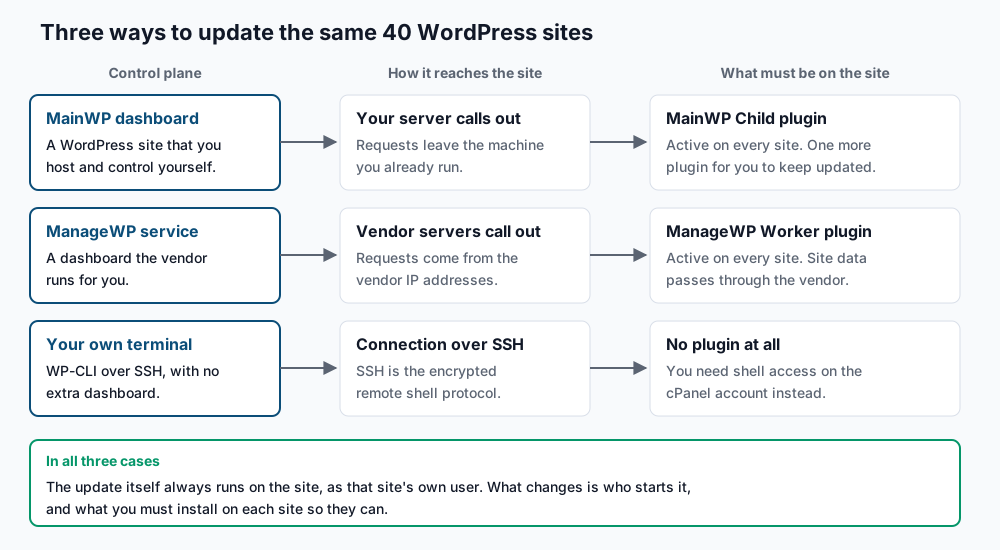
Every method does the same thing in the end. WordPress downloads a ZIP archive from the plugin or theme repository, unpacks it over the old folder, and runs any database upgrade the new version asks for. That work always happens on the site itself, under the site’s own system user. What differs is who triggers it and what has to be installed to let them.
MainWP is a self-hosted dashboard. You install the MainWP Dashboard plugin on a WordPress site you own, and the MainWP Child plugin on every site you manage. Your dashboard makes an outbound HTTPS request to each child site to read versions and apply updates. Nothing passes through a third party, and the connection is signed with a key pair the two plugins share.
ManageWP is a hosted service. You install its Worker plugin on each site, and the vendor’s servers do the calling. There is no dashboard for you to patch, but site data and update commands travel through infrastructure you do not run.
WP-CLI over SSH installs nothing extra. You log into the server and run wp inside each site folder. On a cPanel server this matters, because one server usually holds many separate cPanel accounts, each with its own home directory and its own system user. You can loop over all of them from a root shell and never open a browser.
Step-by-step
1. Build the inventory. Everything else depends on knowing what you actually maintain. On a cPanel server you administer, find every WordPress install by looking for the wp-includes folder, which only WordPress creates. Run this as root.
for u in $(ls -1 /var/cpanel/users); do
  find /home/"$u" -maxdepth 4 -type d -name wp-includes 2>/dev/null |
    while read -r d; do echo "$u $(dirname "$d")"; done
done | tee ~/wp-fleet.txt
acmeinc /home/acmeinc/public_html
acmeinc /home/acmeinc/public_html/shop
bleuclair /home/bleuclair/public_htmlEach line is one site, written as the cPanel user and the WordPress folder. For sites on hosting you do not control, add a second file listing the site address and the dashboard you reach it through. Keep both in version control so a teammate can pick up the work.
2. Choose a control plane per site. Use this rule instead of picking a favourite. If you have SSH on the server, use WP-CLI, because it is the fastest and needs no extra plugin. If you have no SSH but the client will let you install a plugin, pick between the two dashboards. Choose MainWP when you want the data to stay on your own infrastructure. Choose ManageWP when you would rather not run and patch another dashboard yourself. If neither is allowed, the site is not really under management, and you should say so in writing.
3. Confirm WP-CLI works for each account. WP-CLI refuses to run as root on purpose, so reach each site as its own cPanel user with sudo.
sudo -u acmeinc -H -- wp --path=/home/acmeinc/public_html core version6.7.2If you get a version number, that account is ready. Add the --skip-plugins --skip-themes flags to any read-only command, so a broken plugin cannot stop you from reading the site’s state.
4. Take a restore point, and test it once. Do this before the first batch of every run, not after something breaks. Export the database and archive the plugin folder.
sudo -u acmeinc -H -- wp --path=/home/acmeinc/public_html db export \
  /home/acmeinc/backups/2026-09-18-pre-update.sql --add-drop-table
tar -czf /home/acmeinc/backups/2026-09-18-plugins.tar.gz \
  -C /home/acmeinc/public_html/wp-content plugins
Success: Exported to '/home/acmeinc/backups/2026-09-18-pre-update.sql'.Test the restore once, on a staging copy, before you trust it on 40 sites. The command that reads it back is wp db import <file>. A backup you have never restored is a guess, not a restore point.
5. Read the whole fleet’s pending updates in one pass. Ask every site what it is waiting on, and write the answer to a CSV file you can sort and share.
while read -r user path; do
  sudo -u "$user" -H -- wp --path="$path" plugin list --update=available \
    --fields=name,version,update_version --format=csv \
    --skip-plugins --skip-themes 2>/dev/null |
    tail -n +2 | sed "s|^|$user,$path,|"
done < ~/wp-fleet.txt | tee ~/fleet-updates.csv
acmeinc,/home/acmeinc/public_html,wordpress-seo,24.0,24.1
acmeinc,/home/acmeinc/public_html,woocommerce,9.4.2,10.0.0
bleuclair,/home/bleuclair/public_html,akismet,5.3.5,5.3.6Swap plugin for theme to get the same list for themes, and run wp core check-update for core.
6. Sort every line into one of three lanes. WordPress plugins mostly use three-number versions, written as major.minor.patch. Use the numbers as your rule. A change in the third number, like 5.3.5 to 5.3.6, is a patch or security release, and it ships the same business day on every site. A change in the second number, like 24.0 to 24.1, is a feature release, and it waits for the weekly batch after one canary site has passed. A change in the first number, like 9.4.2 to 10.0.0, goes to staging first. Send any update to a plugin that handles payments, memberships or page layout down the staging lane too, whatever its numbers say, because those are the ones that break visibly.
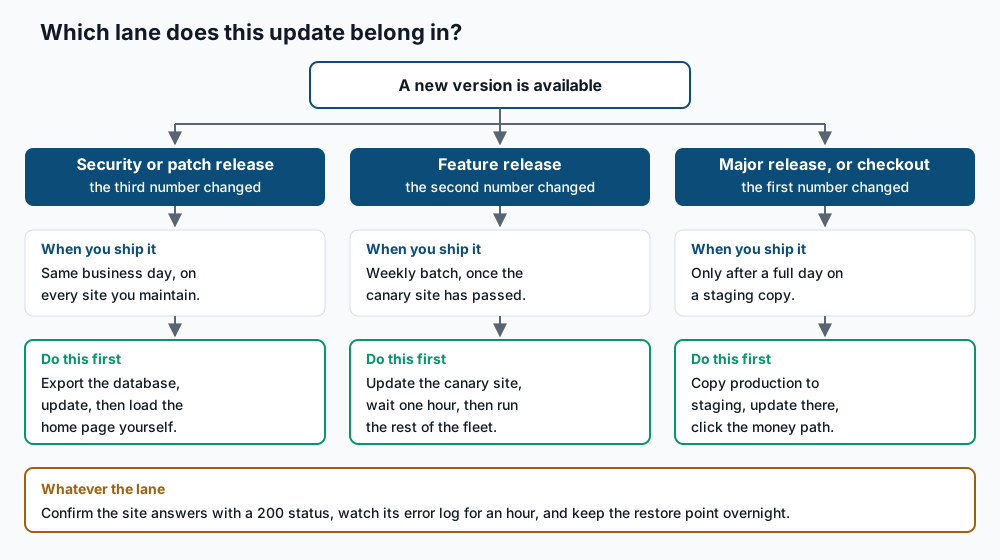
7. Update the canary site before the batch. Pick your lowest-traffic site, ideally one you own, and always run it first. Update one plugin at a time and pin the version, so you know exactly what changed.
sudo -u bleuclair -H -- wp --path=/home/bleuclair/public_html \
  plugin update wordpress-seo --version=24.1
Installing Yoast SEO 24.1
Downloading installation package from https://downloads.wordpress.org/plugin/wordpress-seo.24.1.zip...
Plugin updated successfully.
Success: Updated 1 of 1 plugins.Then load the site’s home page in a browser and click one real path, such as a contact form or a cart. Wait an hour before you run the rest. If a plugin crashes the site, WordPress sends a recovery-mode email to the admin address and keeps the site up, so make sure that address is a mailbox someone reads.
8. Run the approved batch. Build a file of approved updates from ~/fleet-updates.csv by deleting the lines that belong in the staging lane. Then apply exactly what is left.
while IFS=, read -r user path plugin from to; do
  echo "== $path $plugin $from -> $to"
  sudo -u "$user" -H -- wp --path="$path" plugin update "$plugin" --version="$to"
done < ~/approved-updates.csv | tee ~/update-run-2026-09-18.log
== /home/acmeinc/public_html wordpress-seo 24.0 -> 24.1
Success: Updated 1 of 1 plugins.Keep that log. When a client asks why their site changed on Tuesday, it is the answer.
9. Update core last, then the database. Plugins are usually built against the current core release, so updating plugins first avoids a version they have not seen. Core updates carry their own database step, and WordPress will not finish without it.
sudo -u acmeinc -H -- wp --path=/home/acmeinc/public_html core update
sudo -u acmeinc -H -- wp --path=/home/acmeinc/public_html core update-db
Success: WordPress updated successfully.
Success: WordPress database upgraded successfully from db version 59955 to 60421.10. Turn on automatic updates only where you have decided they are safe. Automatic updates are a good fit for small, stable plugins on sites with no custom code. Enable them by name, never with a blanket setting.
sudo -u acmeinc -H -- wp --path=/home/acmeinc/public_html \
  plugin auto-updates enable akismet classic-editor
sudo -u acmeinc -H -- wp --path=/home/acmeinc/public_html \
  config set WP_AUTO_UPDATE_CORE minor
Success: Enabled 2 of 2 plugin auto-updates.
Success: Updated the constant 'WP_AUTO_UPDATE_CORE' in the 'wp-config.php' file with the value 'minor'.The value minor lets WordPress apply security and maintenance releases on its own, while leaving major core versions for you.
Validate it works
Run these four checks after every batch, before you close the ticket.
First, confirm no site is still waiting on something you meant to apply.
while read -r user path; do
  n=$(sudo -u "$user" -H -- wp --path="$path" plugin list --update=available \
    --format=count --skip-plugins --skip-themes 2>/dev/null)
  echo "$n pending  $path"
done < ~/wp-fleet.txt
0 pending /home/acmeinc/public_html
0 pending /home/bleuclair/public_htmlSecond, confirm every site still answers. A site that updated cleanly and then died is the failure you most want to catch early.
while read -r user path; do
  url=$(sudo -u "$user" -H -- wp --path="$path" option get home \
    --skip-plugins --skip-themes 2>/dev/null)
  echo "$(curl -s -o /dev/null -w '%{http_code}' -L "$url")  $url"
done < ~/wp-fleet.txt
200 https://acmeinc.example
200 https://bleuclair.exampleThird, confirm the files on disk match what the repository published. This catches a download that was cut short.
sudo -u acmeinc -H -- wp --path=/home/acmeinc/public_html core verify-checksums
sudo -u acmeinc -H -- wp --path=/home/acmeinc/public_html plugin verify-checksums --all
Success: WordPress installs verify against checksums.
Success: Verified 18 of 18 plugins.Fourth, read the error logs an hour later. On cPanel the PHP error log is usually a file named error_log in the site folder.
tail -n 20 /home/acmeinc/public_html/error_logNo new lines carrying today’s date means the run is clean. If every check passes on every site, you are done, and the restore points can be deleted tomorrow.
Troubleshooting
“Error: This does not seem to be a WordPress installation.” WP-CLI is looking in the wrong folder, or wp-config.php sits one level above the document root. Point it at the folder holding wp-includes with --path, and if the config file is elsewhere, add --require or run from the parent folder. Confirm the path with ls /home/<user>/public_html/wp-config.php first.
“Error: YIKES! It looks like you’re running this as root.” WP-CLI blocks root runs on purpose. Any file it created would be owned by root, and the site’s own user could no longer write to it. Use sudo -u <user> -H -- wp ... as shown above. Avoid --allow-root on a shared server for the same reason.
The update reports success but the site still shows the old version. Something is serving cached code. Clear the WordPress object cache, then the PHP bytecode cache, which stores compiled PHP between requests.
sudo -u acmeinc -H -- wp --path=/home/acmeinc/public_html cache flush
sudo -u acmeinc -H -- wp --path=/home/acmeinc/public_html transient delete --all
If a page cache plugin or a CDN sits in front, purge that too. On cPanel, restarting PHP-FPM for the account clears the bytecode cache.
A MainWP or ManageWP child site shows as offline. Two causes cover most of these. The server firewall or ModSecurity, the web application firewall many cPanel servers run, is blocking the dashboard’s requests, so allow the dashboard IP address for that site. Or a security plugin has disabled the REST API, the interface WordPress uses to answer programmatic requests, and the child plugin depends on it. Re-enable REST access for authenticated requests rather than turning the security plugin off.
A plugin update makes the site white-screen. Roll back to the version in your CSV file, then investigate on staging.
sudo -u acmeinc -H -- wp --path=/home/acmeinc/public_html \
  plugin update woocommerce --version=9.4.2
If the plugin also changed the database, restore the export from step 4 with wp db import. This is why the restore point comes before the update and not after.
A new plugin version refuses to activate. The usual reason is a PHP version below what the plugin now requires. Check the account’s PHP version with php -v over SSH, and change it in cPanel under Select PHP Version or MultiPHP Manager. Test the site on the new PHP version on staging first, since old themes break there as often as plugins do.
When this is the wrong approach
Under about five sites, a fleet tool is more work than it saves, and a calendar reminder plus the built-in updater is honest and enough. If your sites carry real custom code, updates belong in a deployment pipeline with version control and a staging step. A dashboard button is the wrong tool there, and the staging to production shape guide covers the right one. If you are deciding whether to run this work at all, rather than how, read managed against self-managed WordPress hosting first.
Also be clear about what an update routine is not. It is not a backup service, not malware removal, and not a substitute for uptime monitoring. Each of those is its own job with its own tooling. For the full list of update commands and their flags, see the WP-CLI command reference, and for the update behaviour itself, the WordPress documentation.
Running WordPress that earns real money deserves an operator — Stack Harbor runs that stack under Enterprise WordPress; book an infrastructure consult.