This guide helps site owners and small businesses choose between WordPress.com and self-hosted WordPress, the free software from WordPress.org that you install on hosting you pick. The names are almost identical, so many people sign up for one while expecting the other, and only find out when a plugin will not install or a mailbox is missing. The short answer is this. If nobody on your side wants to handle updates, backups and security, WordPress.com is a sensible home. If you need specific plugins, a store, server access or email on the same account, self-hosted WordPress on a cPanel account usually fits better. By the end you will have tested your own requirements on both sides instead of guessing.
What you’ll accomplish
- A plain understanding of what each option is and which company runs what.
- A written list of what your site must do, split into plugins, custom code, server needs, store and email.
- A test install where you tried every plugin you need, so no requirement is left to hope.
- An export test that proves you can leave WordPress.com later with your content intact.
- A decision you can explain to a colleague in two sentences, backed by what you tested.
Prerequisites
You need a browser and about two hours. For the hands-on tests, a cPanel hosting account with SSH access helps a lot. SSH is the secure remote terminal, and it lets you run wp, which is WP-CLI, the official WordPress command line. Many cPanel hosts include it; run wp --info after logging in to check.
If you already have a WordPress.com site, keep your login handy. The export test uses its dashboard. If you do not have one yet, a free WordPress.com site with a few test posts is enough to run the same test.
WordPress.com changes its plans and their names from time to time. Anything in this guide that depends on a plan is described as “depends on your plan”. Before you decide, read the current plan comparison on WordPress.com and confirm each item you care about.
How it works
WordPress.org is the home of the open-source WordPress software. You download it from wordpress.org/download, install it on a server you rent, and you control everything on that server. The software is free. The hosting, the domain, and the time spent looking after it are what you pay for.
WordPress.com is a hosted service run by Automattic, the company founded by WordPress co-creator Matt Mullenweg. It runs the same WordPress software for you on its own platform. You sign up, pick a plan, and start writing. Automattic handles the servers, the core updates and the platform security. In exchange, what you can change depends on your plan. That includes installing your own plugins and themes, adding custom code, and reaching the files over SFTP (secure file transfer) or the database directly. On lower tiers, the site may also show WordPress.com ads or branding.
The real difference is who does the work, and the diagram below splits it task by task.
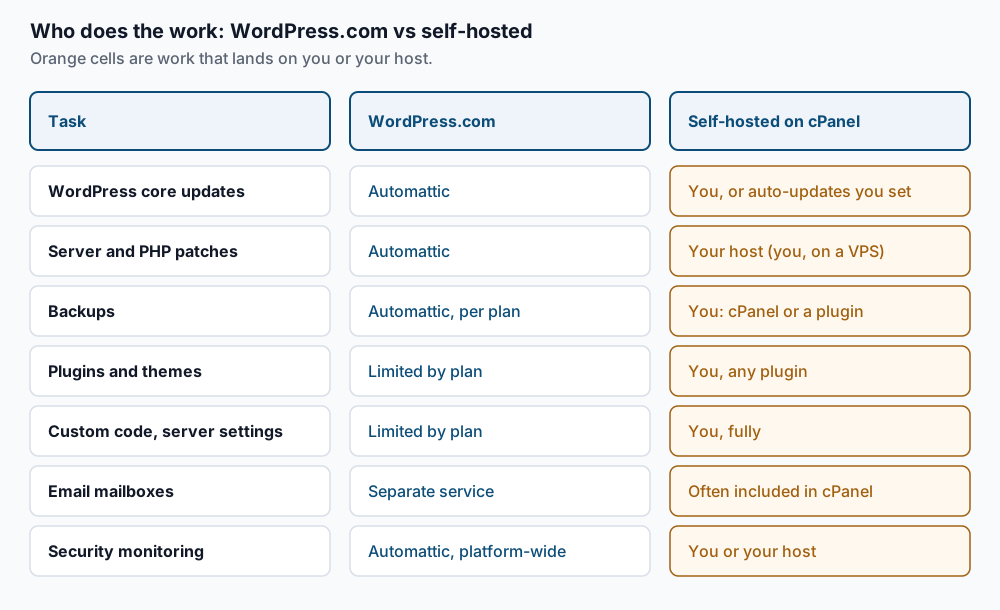
Control. Self-hosted WordPress runs any plugin or theme, including paid ones you buy as a .zip file. You can also edit server settings such as PHP version and memory limits, and add cron jobs, which are scheduled tasks the server runs for you. On WordPress.com, how much of that you get depends on your plan.
Updates, security and backups. WordPress.com handles the platform for you. Self-hosted, the work is shared between you and your host. On a typical cPanel account, the host patches the server and PHP. You keep WordPress, plugins and themes current, and you check that backups exist and restore.
E-commerce. WooCommerce, the most common WordPress store plugin, runs on any self-hosted install. On WordPress.com, running a store depends on your plan, so check the plan comparison before you design around it.
Portability. Both sides let you export your content. Self-hosted, you also own the full files and database, so moving to another host is a copy. From WordPress.com, the standard export carries posts, pages, comments and media references, while plan-specific features may not travel.
Email. A cPanel account usually includes mailboxes on your own domain. WordPress.com offers email as a separate service, so check its current options if mail matters to you.
Performance and cost. WordPress.com is tuned by Automattic, and you do not have to think about caching. Self-hosted speed depends on your host and your setup. Total cost of ownership is the plan or hosting fee plus the hours someone spends on upkeep. A cheap host with nobody watching it can cost more in the end than a plan that includes the work.
Step-by-step
The steps below turn the decision into tests. Follow them in order and write each answer down.
-
Write down what the site must do. Open a text file and list every requirement in plain words. Examples include “contact form”, “sell 20 products”, “members-only area”, “email at our domain”, and “connect to our booking system”. Nothing here needs verifying yet; the list is the input for every later step.
-
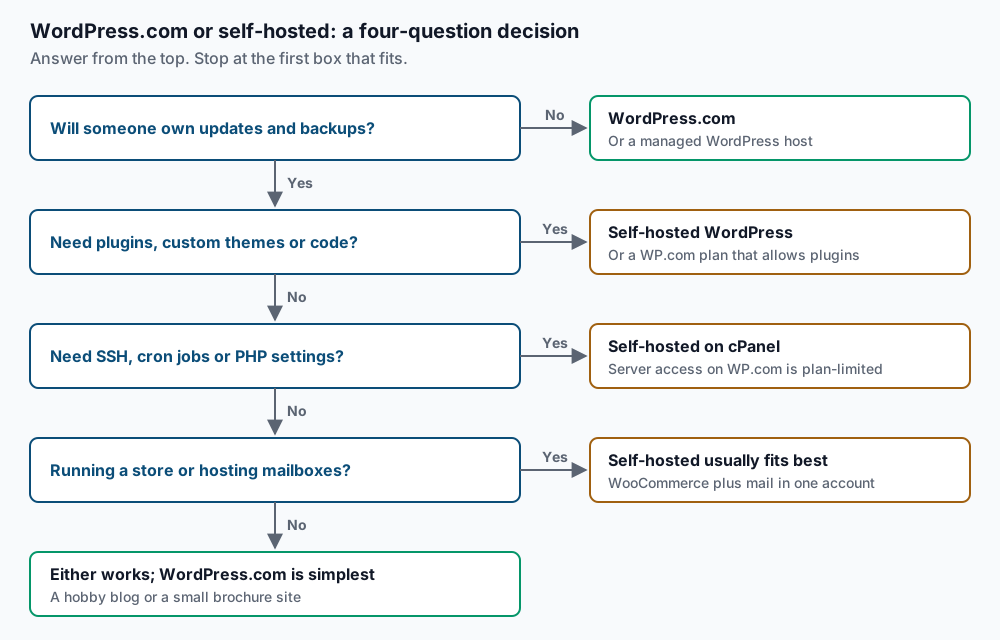
Sort the list into five groups. Put each line under plugins, custom code, server needs, store, or email. Server needs are things like SSH, cron jobs, a specific PHP version or a PHP extension. This grouping maps straight onto the decision tree below.
-
Answer the four questions in the tree. Start at the top and stop at the first box that fits. If nobody will own updates and backups, stop at WordPress.com or a managed WordPress host. Otherwise, any “yes” to plugins, server access, a store or mailboxes points to self-hosted. You can still check whether a WordPress.com plan covers it.
-
Create a test self-hosted install. In cPanel, open Manage My Databases (called MySQL Databases on older versions). Create a database and a user, and add the user to the database with all privileges. Then, over SSH, install WordPress into a test folder. Replace
CPUSERwith your cPanel username and use your real domain:mkdir -p ~/public_html/wptest && cd ~/public_html/wptest wp core download wp config create --dbname=CPUSER_wptest --dbuser=CPUSER_wptest --prompt=dbpass wp core install --url=https://example.com/wptest --title="Test site" --admin_user=testadmin --admin_email=you@example.comYou should see
Success: WordPress downloaded., thenSuccess: Generated 'wp-config.php' file., then anAdmin password:line andSuccess: WordPress installed successfully.Save that password. Ifwp config createfails with a database connection error, the user is not attached to the database yet. Go back to Manage My Databases and add it. -
Test every plugin on your list. For each one, search the free directory and install it:
wp plugin search "contact form" --fields=name,slug --per-page=5
wp plugin install contact-form-7 --activate
The search prints a line such as
Success: Showing 5 of 1200 plugins.followed by a table of names and slugs. The install ends withPlugin 'contact-form-7' activated.andSuccess: Installed 1 of 1 plugins.For a paid plugin you bought as a.zip, runwp plugin install ./your-plugin.zip --activateinstead. Mark each plugin on your list as “works” once its settings page loads in the test admin. -
Check the same plugins on WordPress.com. In your WordPress.com dashboard, open Plugins and search for each one. If the install button is available, it works on your current plan. If you see an upgrade prompt instead, write down which plan it asks for. Do the same for any custom theme and for SFTP or database access if your list needs them.
-
Run an export test from WordPress.com. In the dashboard, go to Tools, then Export, and export all content. You receive a
.zipfile, either by download or by an emailed link. Upload the.xmlfile inside it to your cPanel home folder and import it into the test install:cd ~/public_html/wptest wp plugin install wordpress-importer --activate wp import ~/wpcom-export.xml --authors=createThe import prints one line per item and ends with
Success: Finished importing from '/home/CPUSER/wpcom-export.xml' file.The file name on your side will differ; use the name of the.xmlyou uploaded. -
Compare the counts. Check that what arrived matches what you had:
wp post list --post_type=post --format=count
wp post list --post_type=page --format=count
wp post list --post_type=attachment --format=count
Each command prints a single number. Compare them with the post, page and media counts in your WordPress.com dashboard. Matching numbers mean your content can leave whenever you choose. A low attachment count means media did not download, which the troubleshooting section covers.
-
Write the decision down. Two sentences are enough. For example: “We chose self-hosted on cPanel because we need WooCommerce and mailboxes on our domain, and our agency handles updates.” Keep the plugin list with it.
Validate it works
Your choice is confirmed when every line of your requirements list has a tested “works” next to it on the platform you picked.
If you chose self-hosted, run these on the real site once it is built:
wp core version
wp plugin list --status=active --fields=name,version
curl -sI https://example.com | head -1
The first prints a version number such as 6.8.2. The second prints a table containing every plugin from your list. The third should print HTTP/2 200 or HTTP/1.1 200 OK. Then restore one file from your cPanel backups into a test folder. A backup you have never restored is only a hope.
If you chose WordPress.com, open the current plan comparison and tick each item from your list against the plan you bought. Then run the export from step 7 once more on the live site and keep the .zip somewhere safe. That file is your exit route.
Troubleshooting
WordPress.com shows no way to add a plugin. Installing your own plugins depends on your plan. Check the plan comparison for plugin support. If the plugin is essential and the plan is not an option for you, that answer points to self-hosted.
wp import stops with Error: WordPress Importer needs to be installed. The importer is a plugin, not part of WordPress itself. Run wp plugin install wordpress-importer --activate in the same folder, then repeat the import.
Posts arrive but images are missing. The importer downloads each image from its original address on WordPress.com. If that site is private, or the addresses are blocked, the downloads fail quietly. Make the site public for the test, or follow the full WordPress.com migration guide, which moves the media library separately.
A plugin does not show up in wp plugin search. It is probably a paid plugin sold outside the WordPress.org directory. Download the .zip from the vendor and install it with wp plugin install ./your-plugin.zip --activate. Check the vendor’s stated PHP and WordPress requirements while you are there.
Email stops after you point the domain at new hosting. Your mail records, called MX records, still point at the old mail provider, or no longer point anywhere. Before any DNS change, write down the current MX records and decide where mail will live.
When this is the wrong approach
WordPress.com is genuinely the better answer for many sites. A personal blog, a portfolio, or a small club site with no special plugins does well there. The same goes when nobody wants to think about servers. You avoid patching, backups and security monitoring, and that is worth a lot when the site is not your main job.
Self-hosted is also not the only way to hand off upkeep. Managed WordPress hosts sit between the two options. You get your own install with full plugin freedom, and the host takes on much of the maintenance. Managed vs self-managed WordPress hosting walks through that split in detail.
Finally, if your answer is self-hosted and you are already on WordPress.com, do not rebuild by hand. The export test above is the first half of a real migration. Moving from WordPress.com to cPanel covers the rest, including media, redirects and the domain.
Running WordPress that earns real money deserves an operator — Stack Harbor runs that stack under Enterprise WordPress; book an infrastructure consult.