This guide helps WordPress site owners and admins who can log in but then see “Sorry, you are not allowed to access this page.” instead of the dashboard. The login works, so the password is fine, yet WordPress treats your account as if it had no rights at all. Most of the time, the cause is a database detail left behind by a migration or a table prefix change. The table prefix is the short text, such as wp_, at the start of every WordPress table name. When some role data still uses the old prefix, WordPress cannot find your role. You will check that first with WP-CLI (the WordPress command-line tool), fix it with a few SQL statements, and then rule out the less common causes.
What you’ll accomplish
- Understand how WordPress decides whether your account may open an admin page.
- Find out, in a few minutes, whether a table prefix mismatch is the cause.
- Rename the old prefix keys safely, with a database backup taken first.
- Restore a missing or damaged role with
wp user set-roleandwp role reset. - Rule out plugins, stale bookmarks and multisite issues, and confirm full access is back.
Prerequisites
You need SSH or terminal access to the server that runs the site, and WP-CLI installed. Check with wp --info; any recent 2.x version works. Run every command from the WordPress root folder (the one that holds wp-config.php), as the account that owns the site files. On cPanel, that is the cPanel user, not root. If you must run as root, add --allow-root.
If you have no WP-CLI, you can run the same SQL statements in phpMyAdmin from cPanel. The logic does not change.
The examples use wp_ as the old prefix and sh7_ as the new one. Replace both with your real values everywhere. In WordPress multisite, one site’s keys carry its site number too, as in sh7_2_capabilities. The multisite section below covers that.
How it works
WordPress does not store “admin” on the user row itself. It stores it in two other places, and both names start with the table prefix.
First, each user has a row in the usermeta table (extra settings stored per user) with the key <prefix>capabilities. Its value lists the user’s roles, for example administrator. A second key, <prefix>user_level, holds an old numeric level that some code still reads.
Second, the options table holds one option named <prefix>user_roles. It defines what each role may do, such as manage_options or edit_posts. These rights are called capabilities.
When you open an admin page, WordPress reads your role from usermeta, looks up that role in the option, and checks whether the page’s capability is in the list. If any link in that chain is missing, the check fails and you see the error.
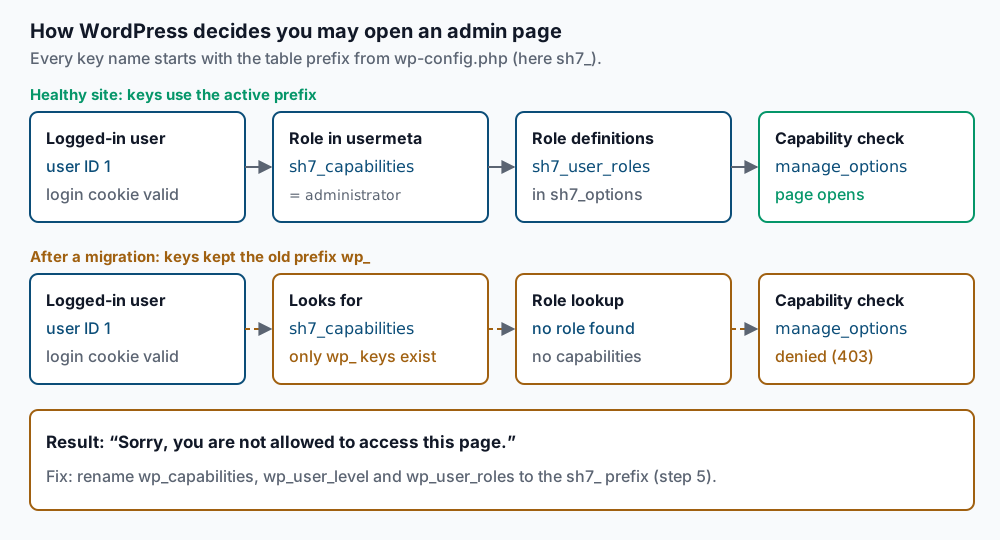
WordPress builds these key names from $table_prefix in wp-config.php. A migration tool or a manual prefix change often renames the tables but leaves the key names inside them untouched. The tables say sh7_usermeta, but the row inside still says wp_capabilities. WordPress looks for sh7_capabilities, finds nothing, and treats you as a user with no role.
Step-by-step
1. Take a database backup. Every fix below changes the database, so export it first.
wp db export ~/before-role-fix.sqlSuccess looks like Success: Exported to '/home/<user>/before-role-fix.sql'. If you see a database connection error, you are not in the right folder or wp-config.php has the wrong database details. Fix that first.
2. Read the active table prefix.
wp db prefixIt prints the prefix from wp-config.php, for example sh7_. Then list the tables to confirm they use the same prefix.
wp db tablesAll core tables, such as sh7_options and sh7_usermeta, should start with that prefix. If the tables use a different prefix than wp-config.php, you would usually see the install screen, not this error. See the last section in that case.
3. Check whether any user has a role.
wp user list --role=administrator --fields=ID,user_login,user_emailA healthy site shows at least one row. An empty table is a strong sign of a prefix mismatch. Check your own account directly too, using its ID or login.
wp user get 1 --field=rolesAn empty result means WordPress sees no role for that user.
4. Look for keys with the old prefix. This query lists every capabilities key in usermeta, whatever its prefix.
wp db query "SELECT user_id, meta_key FROM sh7_usermeta WHERE meta_key LIKE '%capabilities';"If you see wp_capabilities while the active prefix is sh7_, you have found the cause. Now check the roles option.
wp option get sh7_user_roles --format=jsonIf it prints Error: Could not get 'sh7_user_roles' option. Does it exist?, look for the old name.
wp db query "SELECT option_name FROM sh7_options WHERE option_name LIKE '%user_roles';"A result of wp_user_roles confirms the option was never renamed.
5. Rename the old keys to the new prefix. Make sure no key with the new name exists yet; the queries in step 4 show that. Then run these statements. They only touch the exact core keys, so plugin data that happens to start with wp_ stays untouched.
wp db query "UPDATE sh7_options SET option_name = 'sh7_user_roles' WHERE option_name = 'wp_user_roles';"
wp db query "UPDATE sh7_usermeta SET meta_key = 'sh7_capabilities' WHERE meta_key = 'wp_capabilities';"
wp db query "UPDATE sh7_usermeta SET meta_key = 'sh7_user_level' WHERE meta_key = 'wp_user_level';"
wp db query "UPDATE sh7_usermeta SET meta_key = 'sh7_user-settings' WHERE meta_key = 'wp_user-settings';"
wp db query "UPDATE sh7_usermeta SET meta_key = 'sh7_user-settings-time' WHERE meta_key = 'wp_user-settings-time';"
These print nothing when they succeed. Flush the object cache (a memory store some sites use to keep database results) so WordPress rereads the data.
wp cache flushRepeat step 3. Your account should now show administrator. If it does, you are done and can skip to validation.
6. Restore a missing or damaged role. Skip this if step 5 fixed things. If the prefixes match but your user still has no role, a role editor plugin or an attacker may have changed it. Give the account its role back.
wp user set-role 1 administratorExpect a line such as Success: Added admin (1) to https://example.com as administrator. If the administrator role itself lost its capabilities, compare it with a working install.
wp cap list administrator | wc -lOn current WordPress, this prints roughly 60 or more. A very low number means the role definition is damaged. Reset the default roles to their default capabilities.
wp role reset --allThis rewrites the five default roles (administrator, editor, author, contributor, subscriber). Custom roles added by plugins are left alone. Custom capabilities added to default roles are removed, so a plugin may need to be reactivated to add them back.
If the site may be hacked, list every administrator and check each one.
wp user list --role=administrator --fields=ID,user_login,user_email,user_registeredDelete or downgrade any account you do not recognize, and treat the site as compromised. Changing passwords is only the start of that cleanup.
7. Rule out plugins. Some errors come from a plugin, not from your role. The classic case is a bookmark to admin.php?page=<slug> for a plugin that is now deactivated or removed. WordPress shows the same message because no page with that slug exists anymore. Open /wp-admin/ itself to test this.
Security plugins can also block admin pages by user, IP address or country. Deactivate all plugins to test.
wp plugin list --status=active --field=name > ~/active-plugins.txt
wp plugin deactivate --all
If the dashboard now opens, turn plugins back on one at a time and reload after each.
wp plugin activate <plugin-slug>The plugin that brings the error back is the cause. The file ~/active-plugins.txt keeps your original list.
8. Check multisite access. On a multisite network, each site stores roles under its own key, such as sh7_2_capabilities for site 2, and its own option sh7_2_user_roles in the sh7_2_options table. Repeat step 4 with those names. Network-wide rights come from the super admin list instead.
wp super-admin listIf your login is missing, add it back.
wp super-admin add adminA user with no role on one site usually sees “You do not currently have privileges on this site” rather than this error. Add the role for that site with wp user set-role admin administrator --url=https://site2.example.com.
Validate it works
Run the checks from the command line first.
wp user get 1 --field=roles
wp user list --role=administrator --fields=ID,user_login
wp option get sh7_user_roles --format=json | head -c 200
You should see administrator, at least one admin row, and the start of a JSON list of roles. Then log out, clear your browser cookies for the site, and log in again. Open these pages in turn: the dashboard, Settings > General, Plugins and Users. Each one needs a different capability, so all four opening means the role is complete.
Finally, keep the backup from step 1 for a few days. You can remove it once the site has run normally for a while.
Troubleshooting
The UPDATE ran but nothing changed. Rerun the SELECT queries from step 4 to see which key names are there now. A typo in either prefix is the usual reason. Also confirm you edited the table with the active prefix, not an old leftover table.
Both wp_user_roles and sh7_user_roles exist. A plugin or a failed login may have created an empty new option. Compare their sizes with wp db query "SELECT option_name, LENGTH(option_value) FROM sh7_options WHERE option_name LIKE '%user_roles';". Keep the larger one: delete the small new one with wp option delete sh7_user_roles, then run the rename in step 5.
WP-CLI shows the role, but the browser still shows the error. A page cache or object cache is serving old data. Run wp cache flush, purge the caching plugin, and test in a private browser window. If you use a CDN that caches admin pages, bypass it for /wp-admin/.
Only one plugin page gives the error. Your role is fine. The page belongs to a plugin that is off, or it needs a capability your role lacks. Deactivate and reactivate that plugin, or check its settings for a role restriction.
Other odd problems after a migration. Wrong file owners can break updates and uploads in ways that look like permission errors. See fixing file ownership after a manual WordPress move. For the full move process, see migrating WordPress to cPanel from a generic host.
When this is the wrong approach
If you cannot log in at all, this guide does not apply. A login loop or a wrong password is a separate problem.
If you see the WordPress install screen, or “Error establishing a database connection”, the prefix in wp-config.php does not match the table names at all. Fix $table_prefix in wp-config.php rather than renaming keys.
If you find admin accounts you did not create, treat it as a security incident. Restoring your role is one step, but you also need to find how the attacker got in and clean the files.
If the site belongs to a managed platform that controls roles through single sign-on, ask the platform first. Its own login system may be what assigns your role. The WordPress developer documentation lists every WP-CLI command used here.
Running WordPress that earns real money deserves an operator — Stack Harbor runs that stack under Enterprise WordPress; book an infrastructure consult.