This guide is for editors whose scheduled posts quietly fail to go live, and for the admins who have to fix them. You set a post to publish at 9:00 in the morning, you come back at noon, and the post list shows Missed schedule where the publish date should be. WordPress has no scheduler of its own. It looks for due posts only when a visitor loads a page that runs PHP, so anything that stops those checks leaves your post sitting in the queue. You will sort your site into one of four causes, publish the posts that are already stuck, and move scheduling onto a real cron job so it stops happening.
What you’ll accomplish
- Tell in one command whether WordPress still holds a publish job for the stuck post, or lost it.
- Sort the cause into one of four groups in about five minutes, using three commands.
- Publish the posts that already missed their slot, without retyping their dates.
- Replace the visitor-driven scheduler with a system cron job, through cPanel or over SSH.
- End state: a test post scheduled two minutes ahead goes live within five minutes, with no visitor needed.
Prerequisites
- WordPress 5.3 or newer, and a login with the Administrator role.
- Shell access as the site user, either over SSH (the encrypted remote terminal protocol) or through cPanel’s Terminal. The commands assume the site lives in
~/public_html. - WP-CLI, the WordPress command-line tool, available as
wp. Check withwp --info. If your host does not offer it, step 7 gives a cPanel-only path that needs no shell. - Access to cPanel → Advanced → Cron Jobs, or permission to edit the site user’s crontab (the per-user list of scheduled commands on a Linux server).
- One honest difference between hosts: some managed platforms already run their own cron caller for you. Ask your host before adding a second one. Two callers will not break the site, but they make the logs harder to read.
How it works
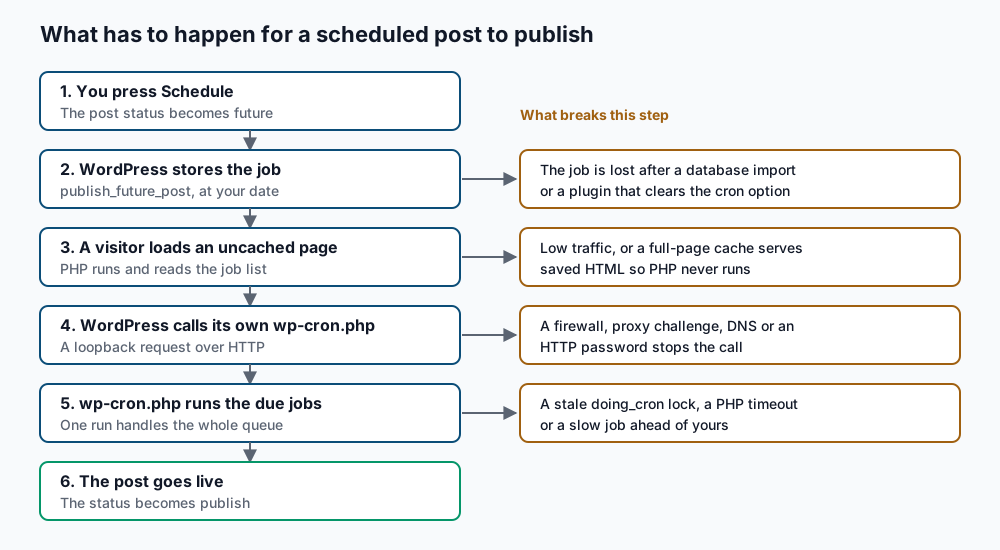
Publishing a scheduled post is a chain of five links, and every one of them can break quietly.
When you press Schedule, WordPress saves the post with the status future and stores a one-off job named publish_future_post in a database option called cron. The piece of WordPress that runs that job is WP-Cron, a scheduler that has no timer of its own. On each page load that actually reaches PHP, WordPress reads the list of jobs. If something is due, it sends a loopback request, which is an HTTP request the server makes to its own public web address, to /wp-cron.php. That script runs the due jobs, and your post flips from future to publish.
The post list shows Missed schedule for any post still sitting at future after its date has passed. The words describe the symptom, not the cause. The cause is one of the broken links below.
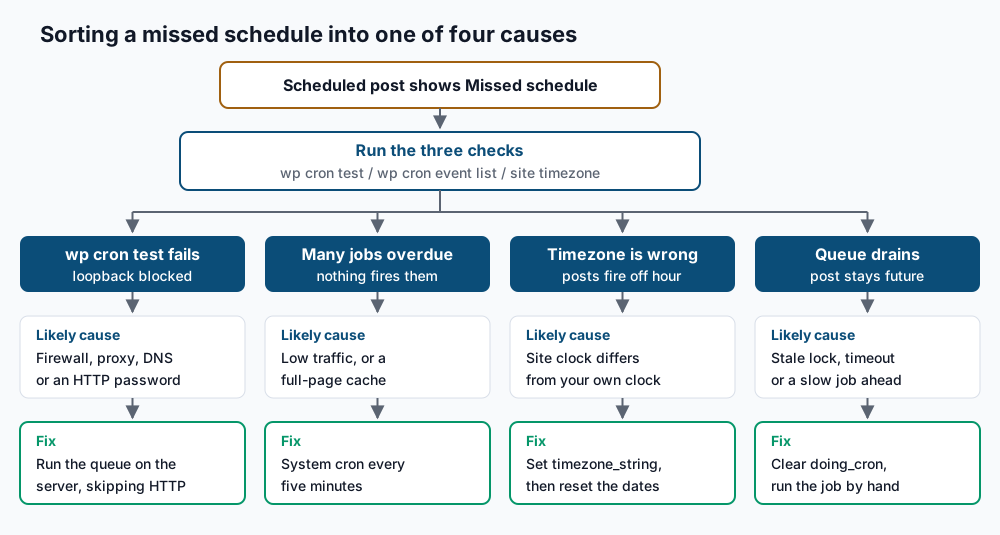
Three commands tell you which link broke: wp cron test checks whether the server can call itself, wp cron event list shows whether jobs are piling up, and wp option get timezone_string shows whether the site clock agrees with yours. The tree below turns their answers into a fix.
Step-by-step
1. Confirm the post is really stuck. Run this from the WordPress folder to list every post still waiting to go live.
cd ~/public_html
wp post list --post_status=future --fields=ID,post_title,post_date
+------+-------------------------------+---------------------+
| ID | post_title | post_date |
+------+-------------------------------+---------------------+
| 4812 | Autumn maintenance window | 2026-09-16 09:00:00 |
| 4817 | New pricing page walkthrough | 2026-09-17 14:30:00 |
+------+-------------------------------+---------------------+Any post_date in the past is a missed post. Write down the IDs. An empty table means nothing is stuck right now, and you are looking at a problem that already resolved itself, which points at group B below.
2. Ask WordPress whether it can call itself. This is the loopback test, and it separates group A from everything else.
wp cron testSuccess: WP-Cron spawning is working as expected.An Error: line instead means the loopback request failed. That is group A, and step 5 diagnoses it. Note that this command passing does not mean cron is running often enough, only that the call would succeed if something made it.
3. Look at the queue. This shows every job WordPress is holding and when each one was meant to run.
wp cron event list --fields=hook,next_run_gmt,next_run_relative --due-now+---------------------+---------------------+-------------------+
| hook | next_run_gmt | next_run_relative |
+---------------------+---------------------+-------------------+
| publish_future_post | 2026-09-16 13:00:00 | -2 days 1 hour |
| wp_version_check | 2026-09-16 14:11:02 | -2 days 0 hours |
+---------------------+---------------------+-------------------+A negative next_run_relative means the job is overdue. Several overdue jobs across unrelated hooks is group B: nothing is firing the queue at all. A single overdue publish_future_post while everything else stays current is group D, because the queue is running but that one job keeps dying.
If publish_future_post does not appear here at all, WordPress lost the job. See the first item under Troubleshooting.
4. Check the site clock against your own. A wrong timezone makes posts publish hours early or late, and can make a post look missed the moment you save it.
wp option get timezone_string
wp option get gmt_offset
wp eval 'echo wp_date( "Y-m-d H:i T" ), "\n";'
date -u '+%Y-%m-%d %H:%M UTC'
America/Toronto
0
2026-09-18 10:42 EDT
2026-09-18 14:42 UTCThe third line is the time WordPress thinks it is. It should match the clock on your own wall. If timezone_string is empty and gmt_offset carries the value instead, that is group C. A fixed offset does not follow daylight saving time, so posts drift by an hour twice a year. Set a named zone instead.
wp option update timezone_string 'America/Toronto'
wp option update gmt_offset 0
Success: Updated 'timezone_string' option.Changing the zone does not move posts that are already scheduled, because their dates are stored in both local and UTC form. Open each affected post and set its date again.
5. Test the loopback from the server itself (group A). The request that matters comes from the server, so run the test there rather than from your laptop. Replace example.com with your own domain.
curl -sS -o /dev/null -w 'status %{http_code} in %{time_total}s\n' -m 20 \
  "https://example.com/wp-cron.php?doing_wp_cron=$(date +%s).0000"
status 200 in 0.412sA 200 means the path is clear. Anything else names the obstacle:
- 403 or 503 with a challenge page: a web application firewall or a proxy is stopping the call. Read the response headers with
curl -sIand look forcf-mitigatedor aServer:value that names the proxy. - 401: the site sits behind HTTP basic authentication, common on staging copies. The loopback cannot type a password.
Could not resolve hostor a timeout: the server cannot reach its own public name. Ask your host whether outbound requests to the site’s own address are allowed.- A certificate error: the server does not trust its own TLS certificate, which happens on internal hostnames and self-signed setups.
You can work around every one of these by not using HTTP at all. Steps 7 and 8 run the queue locally, so the request never leaves the server.
6. Publish the posts that are already stuck. First clear the lock WordPress uses to stop two runs overlapping. A stale lock, usually left behind by a crashed run or a broken object cache, blocks every later run for as long as it sits there.
wp transient delete doing_cron
wp cache flush
Success: Transient deleted.
Success: The cache was flushed.Now run every due job by hand. This publishes the missed posts using their original dates.
wp cron event run --due-nowSuccess: Executed a total of 6 cron events.Confirm with the list from step 1.
wp post list --post_status=future --fields=ID,post_title,post_dateThe overdue rows should be gone. If a post ID is still listed with a past date, publish it directly with wp post update 4812 --post_status=publish, which keeps the original date on the post.
7. Switch to a real cron job in cPanel. Stop WordPress from waiting on visitors. Add this line to wp-config.php, above the line that reads /* That's all, stop editing! */.
define( 'DISABLE_WP_CRON', true );With WP-CLI you can set it without opening the file.
wp config set DISABLE_WP_CRON true --rawSuccess: Added the constant 'DISABLE_WP_CRON' to the 'wp-config.php' file with the raw value 'true'.Then open cPanel → Advanced → Cron Jobs. Under Common Settings choose Every 5 Minutes, which fills the schedule fields with */5 * * * *. Put this in the Command box, with your own cPanel username in place of <user>.
/usr/local/bin/php /home/<user>/public_html/wp-cron.php >> /home/<user>/logs/wp-cron.log 2>&1Use the PHP version the account actually runs, not the system default. On a cPanel server with PHP 8.2 selected for the account, the path is usually /opt/cpanel/ea-php82/root/usr/bin/php. Confirm it before saving.
which php/opt/cpanel/ea-php82/root/usr/bin/phpFive minutes is the right interval for a site that publishes articles. Choose one minute if the same queue also sends order emails or processes payments, because those jobs are worth the extra runs. Create the log folder first if it does not exist, with mkdir -p ~/logs.
8. Or drive it with WP-CLI over SSH. This path skips HTTP entirely, so a firewall or proxy can never touch it. Open the site user’s crontab.
crontab -eAdd one line, with your own path and the full path to wp from which wp.
*/5 * * * * cd /home/<user>/public_html && /usr/local/bin/wp cron event run --due-now >> /home/<user>/logs/wp-cron.log 2>&1Save and confirm the entry landed.
crontab -l | grep wp-cron*/5 * * * * cd /home/<user>/public_html && /usr/local/bin/wp cron event run --due-now >> /home/<user>/logs/wp-cron.log 2>&1Cron runs with a short search path, so write out full paths for both wp and the folder. The guide to replacing WP-Cron with system cron covers the interval choices and the PHP-versus-WP-CLI trade-off in more depth.
Validate it works
Prove the fix with a post that has no other reason to exist.
- Create a post dated two minutes from now.
wp post create --post_title='Cron smoke test' --post_status=future \
--post_date="$(date -d '+2 minutes' '+%Y-%m-%d %H:%M:%S')" --porcelain4821- Wait six minutes, then read the status back. Use the ID the command printed.
wp post get 4821 --field=post_statuspublish- Check that the cron log shows recent runs and no errors.
tail -n 5 ~/logs/wp-cron.logAn empty file is the healthy result for the WP-CLI line, because a clean run prints nothing. Lines mentioning command not found or No such file mean a path in the cron entry is wrong.
- Confirm the queue is current, with no overdue jobs left.
wp cron event list --due-now --format=count0- Remove the test post.
wp post delete 4821 --forceSuccess: Deleted post 4821.Five out of five means scheduled publishing now runs on the clock, whether or not anyone visits the site.
Troubleshooting
The post shows Missed schedule but has no job in the queue. Search for it with wp cron event list --fields=hook,next_run_relative | grep publish_future_post. No output means the job is gone, which happens after a database import, a plugin that clears the cron option, or a crash mid-run. Reschedule it by opening the post and saving a new date, or publish it now with wp post update <ID> --post_status=publish.
Posts publish, but an hour off. That is daylight saving time meeting a fixed offset. Set timezone_string to a named zone as in step 4 and leave gmt_offset at 0. Check the result with wp eval 'echo wp_date( "Y-m-d H:i T" ), "\n";' in both summer and winter if you want to be sure.
wp cron test passes, yet posts still miss their slot. The loopback works but nothing triggers it. This is the most common case on a site behind a full-page cache, where visitors are served saved HTML and PHP rarely runs. Steps 7 and 8 fix it for good. If the site sits behind Cloudflare, WP-Cron not firing behind Cloudflare covers the proxy-specific checks.
The queue drains but one job never finishes. A single job that takes longer than the PHP time limit kills the whole run before later jobs get their turn. Find the slow hook with wp cron event run --due-now --debug, which prints each hook as it starts. Stores with a large background task backlog often need the one-minute interval from step 7 rather than five.
Everything works from the shell but not from cron. Cron runs with a minimal environment and a different working directory. Add cd /home/<user>/public_html && to the front of the command, use absolute paths for php and wp, and read ~/logs/wp-cron.log after the next run.
When this is the wrong approach
If the whole admin area is broken or the site returns a critical error, scheduling is a symptom rather than the problem. Fix the fatal error first, using the Site Health screen in the WordPress admin and the PHP error log. If you need jobs to start within a few seconds of their target, a five-minute cron will not deliver that, and WordPress is the wrong tool for it. Move that work to a dedicated worker process with its own queue. If your host already runs a cron caller and forbids DISABLE_WP_CRON, follow their documented method rather than adding a second caller. For the full list of hooks and scheduling functions, see the WordPress cron documentation, and for every flag used above, the WP-CLI cron command reference.
Running WordPress that earns real money deserves an operator — Stack Harbor runs that stack under Enterprise WordPress; book an infrastructure consult.