This guide is for the admin or developer moving a WordPress site off Bluehost onto a cPanel/WHM server they control, and it covers the whole move. The catch is that Bluehost replaced cPanel with its own Account Manager dashboard on most plans, so WHM’s Transfer Tool has no account archive to fetch. The short answer is to first find out which interface your account shows, then move the files and the database yourself by one of three paths. After that you rebuild the cPanel account, re-create the mailboxes, fix the URLs stored in the database, and get the certificate issued by hand. By the end the site serves from your own server, tested against its real hostname before a single DNS record changes.
What you’ll accomplish
- A definite answer to which Bluehost interface your account has, and which export path that leaves open.
- A complete copy of the files and the database on your cPanel account, checked rather than assumed.
- Bluehost’s platform code removed, starting with the Endurance page cache must-use plugin, which is a plugin WordPress loads automatically with no off switch in the admin.
- Every mailbox re-created on cPanel before the MX records move. MX means mail exchanger, the DNS record naming the server that receives a domain’s mail.
- A valid AutoSSL certificate covering every hostname the site serves, issued before the flip.
Prerequisites
On the Bluehost side you need the login for the account that owns the hosting, not only a WordPress administrator. Two facts in the dashboard decide your path: whether an Advanced page of cPanel-style icons still exists, and whether your plan gives you SSH, a remote shell on the server. Confirm the second by connecting, not by reading a feature list.
On the destination you need a cPanel account for the domain, a MySQL database and database user, SSH access, and wp on the box. wp is WP-CLI, the WordPress command-line tool.
Match the PHP version before you copy anything. Read it from the dashboard’s PHP selector, then set the same version in cPanel’s MultiPHP Manager. A site on PHP 8.2 landing on an account that defaults to 7.4 fails in ways that look like a corrupt upload. While you are in the panel, write down every mailbox and forwarder on the domain, because you will use that list twice.
Then lower the TTL on the domain’s A and AAAA records to 300, at least 24 hours ahead. TTL means time to live, the number of seconds a resolver may keep a cached answer. Lowering an 86400-second TTL two hours before the flip changes nothing, because the old value is still cached. If Bluehost’s zone editor refuses a value that low, move DNS hosting a week out to a provider that accepts it. The pre-cutover TTL lowering plan has the timing.
How it works
A migration moves three things: the files, the database, and the DNS records that point visitors at them. On top of those sits whatever the old host wrapped around the site, and Bluehost’s wrapper is thicker than most. On plans that use the Account Manager, the panel is Bluehost’s own software, with a File Manager, database tools and backups but no cPanel account archive. Nothing restores itself, so each piece travels separately.
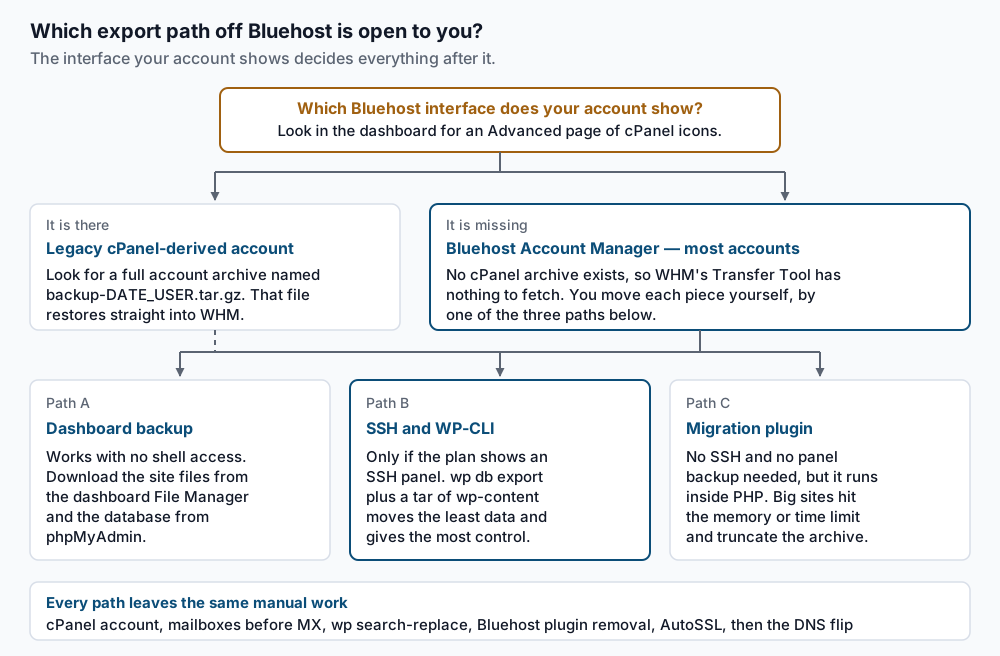
The paths differ only in how the bits leave Bluehost. Path A needs nothing beyond a browser and works on every plan, at the cost of unpacking archives by hand. Path B is cleanest when the plan includes SSH: a WP-CLI dump plus a tar of wp-content is far smaller than a whole-account backup. Path C covers Duplicator, All-in-One WP Migration and similar tools, which run inside PHP. On a large site that export can hit memory_limit or max_execution_time and leave an archive that looks finished and is not.
Bluehost’s own code comes across with the files whichever path you take, and none of it works on your server.
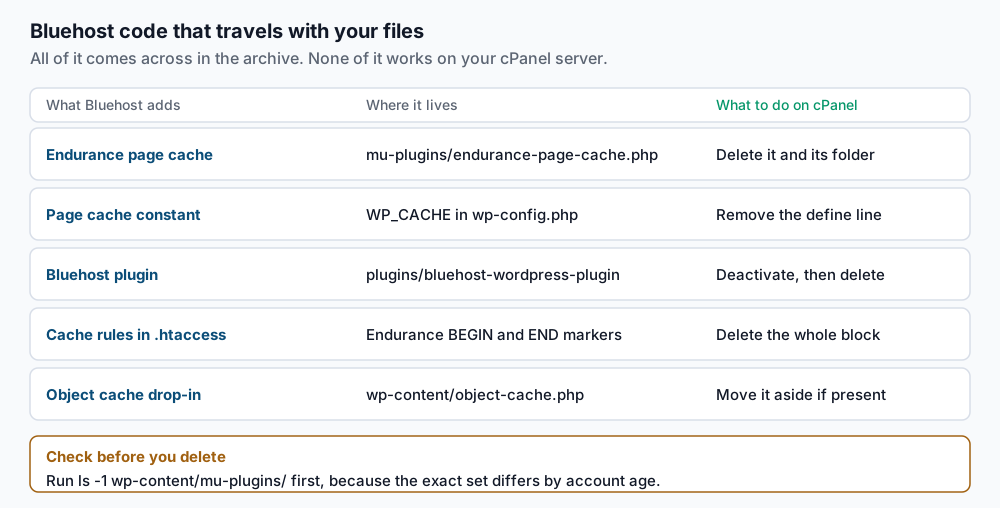
The piece that matters most is endurance-page-cache.php, which Bluehost installs in wp-content/mu-plugins/. WordPress loads must-use plugins on every request and offers no way to switch them off from the admin screens, so it keeps running after the move. Off Bluehost it caches into a directory nothing serves and rewrites an .htaccess you are trying to own. The Bluehost plugin and, on older installs, mojo-marketplace-wp-plugin both call services your account no longer has.
Step-by-step
Everything before the freeze in step 11 is rehearsal you can repeat. Everything after it is live.
-
Find out which interface you have. Sign in and look for an Advanced page of cPanel-style icon groups. If it is there, open Backup or Backup Wizard and check for a full account backup. A real one downloads under a name shaped like
backup-09.10.2026_04-00-00_bhuser.tar.gz, and that file alone restores on WHM:/usr/local/cpanel/scripts/restorepkg /home/backup-09.10.2026_04-00-00_bhuser.tar.gzRun it as root. It logs each stage and ends by naming the account it created. Confirm it:
whmapi1 accountsummary user=CPUSERThat returns a block of fields ending in
result: 1. If the dashboard offers only a zip of your files, or no full backup at all, you are on the manual path, which is the rest of this article. -
Inventory the site while it is still on Bluehost. With SSH:
wp core version
wp core verify-checksums
wp plugin list --status=active --fields=name,version
ls -1 wp-content/mu-plugins/
wp db size --tables --size_format=mb
pwd
Write down the core version, because you will reinstall exactly that one.
verify-checksumsprintsSuccess: WordPress installs verify against checksums., and anything it flags is a modified core file to account for. Keep thepwdoutput: Bluehost home directories look like/home/BHUSER/public_html, or/home1/BHUSER/public_htmlon older servers, and that string is stored in your database. Without SSH, read the version under Dashboard then Updates and use the File Manager and phpMyAdmin for the rest. -
Export the database. With SSH:
wp db export bh-bulk.sql --add-drop-tableExpect
Success: Exported to 'bh-bulk.sql'.Without WP-CLI, open phpMyAdmin, select the database, then Export, then Custom, and tick “Add DROP TABLE / VIEW / PROCEDURE / FUNCTION / EVENT”. Either way, check the tail:tail -3 bh-bulk.sqlIt must end on a complete statement, not partway through an
INSERT. A truncated dump imports without complaint and quietly loses the end of your largest table. For a gzip file, usegunzip -c bh-bulk.sql.gz | tail -3. -
Package the files. From the site root over SSH:
tar -czf ~/bh-files.tar.gz wp-content wp-config.php .htaccessCore files are not worth moving, since step 6 downloads a clean copy.
tarprints nothing on success, so checkls -lh ~/bh-files.tar.gzagainst the disk usage the dashboard reports. On Path A the File Manager’s compress-then-download replaces this step; on Path C, the plugin’s archive. -
Move the archive to the cPanel server. Pull rather than push, running this on the destination as the cPanel account user:
scp -P SSHPORT BHUSER@BHHOST:bh-bulk.sql BHUSER@BHHOST:bh-files.tar.gz ~/Take
SSHPORTandBHHOSTfrom the dashboard’s SSH panel.scpprints one progress line per file, each ending at100%. Never run it as root, or the ownership problem in Troubleshooting becomes yours. -
Rebuild the account and restore into it. Create the database and database user in cPanel’s MySQL Database Wizard first, then put those credentials into
wp-config.phponce the file is in place. The Bluehost ones will not work here.cd ~/public_html wp core download --version=WPVERSION --skip-content tar -xzf ~/bh-files.tar.gz -C ~/public_html wp db import ~/bh-bulk.sqlSubstitute the version from step 2.
--skip-contentleaveswp-contentempty so the tarball fills it. ExpectSuccess: WordPress downloaded.thenSuccess: Imported from 'bh-bulk.sql'. -
Remove Bluehost’s platform code. List what is there first, because the set differs by how old the account is:
ls -1 wp-content/mu-plugins/
wp plugin list --fields=name,status
Then remove the pieces the listing showed:
rm -f wp-content/mu-plugins/endurance-page-cache.php
rm -rf wp-content/endurance-page-cache
wp plugin deactivate bluehost-wordpress-plugin
wp plugin delete bluehost-wordpress-plugin
Those return
Success: Deactivated 1 of 1 plugins.andSuccess: Deleted 1 of 1 plugins.If one was never installed, WP-CLI warns that it could not be found, which is fine. Now clean the files that hold the rest:grep -n "WP_CACHE\|ndurance" wp-config.php .htaccess ls -l wp-content/object-cache.php wp-content/advanced-cache.phpThe
grepgives line numbers fordefine('WP_CACHE', true);inwp-config.phpand for any Endurance block in.htaccess. Delete the constant, and delete that block from its BEGIN marker to its END marker. Thelsshould answerNo such file or directorytwice; a surviving object cache drop-in points at a service this server does not run. -
Rewrite the URLs and paths in the database. Dry run first, with the exact string
pwdgave you in step 2:wp search-replace '/home1/BHUSER/public_html' '/home/CPUSER/public_html' --all-tables --dry-run --report-changed-onlyRead the per-table counts and the closing
Success: N replacements to be madeline, then run the same replacement for real:wp search-replace '/home1/BHUSER/public_html' '/home/CPUSER/public_html' --all-tables --precise--all-tableswalks every table, including any a plugin created under a different prefix that the default scan skips.--precisemakes WP-CLI unserialise and re-serialise in PHP instead of using the faster raw SQL path, which keeps serialised arrays valid when a replacement changes a string’s length. The WP-CLI search-replace reference documents every flag. -
Create the mailboxes now, before MX moves. From the list in the prerequisites, create each address in cPanel’s Email Accounts screen with the same local part, plus the forwarders and autoresponders. Then copy the mail down while Bluehost still holds it and MX still points there:
imapsync --host1 mail.example.com --user1 you@example.com --password1 OLDPASS --host2 localhost --user2 you@example.com --password2 NEWPASSUse whatever incoming server the dashboard’s email settings name as
--host1.imapsyncends with a transfer summary and a line readingDetected 0 errors. For two or three mailboxes, adding both accounts to a desktop IMAP client and dragging folders across works as well. -
Get the certificate issued, then test on the real hostname. AutoSSL is cPanel’s free certificate service, and it proves you control the domain over HTTP or over DNS. HTTP validation cannot pass until the domain resolves to the new server, so use the DNS method: add the TXT record it asks for while Bluehost still serves traffic. cPanel’s documentation portal covers the DCV choices, DCV being domain control validation.
uapi SSL installed_hosts | grep -i domains
curl -sI --resolve example.com:443:NEWIP https://example.com/ | head -1
The apex domain,
www, and every subdomain must appear in the first command’s output. The second sends the request toNEWIPwhile still asking forexample.com, so you see what a visitor will see once DNS moves. ExpectHTTP/2 200and no certificate warning. -
Freeze, sync the delta, then move DNS. Put the Bluehost site into maintenance mode so no order, comment or form entry lands after your final export. Re-run steps 3 and 4, import, re-run the search-replace pair, then change the A and AAAA records. Move MX in the same pass only if step 9 finished.
-
Flush the rewrite rules.
wp rewrite flush --hard
wp cache flush
Expect
Success: Rewrite rules flushed.andSuccess: The cache was flushed.The--hardform rewrites the WordPress block in.htaccess, not only the copy in the database. That matters here, because step 7 cut a chunk out of the.htaccessBluehost supplied.
Validate it works
About an hour after the flip, check from the inside:
wp option get siteurl
wp option get home
wp db check
wp core verify-checksums
Both options must return the final domain, wp db check should report OK on every table, and checksums should verify. Then put your twenty busiest URLs in a file and sweep them:
while read -r u; do code=$(curl -o /dev/null -s -w '%{http_code}' "$u"); echo "$code $u"; done < top-urls.txtEvery line should read 200, or 301 where you deliberately redirect. Then confirm resolution, TLS and mail routing:
dig +short example.com @1.1.1.1
dig +short MX example.com @1.1.1.1
curl -sI https://example.com/ | head -1
The first must return your cPanel server’s address from a public resolver, the second your intended mail host, and the third HTTP/2 200 with no certificate error. Then send a real message to each mailbox and reply from it, and exercise site-sent mail too: a password reset, a contact form, an order confirmation. Watch the error log and Search Console for 72 hours.
Troubleshooting
A fatal error or a warning mentioning endurance appears above the page. The must-use plugin from step 7 is still in wp-content/mu-plugins/. Delete the file and reload. Output printed before headers also breaks the Set-Cookie that logs you in, so this often looks like a login failure.
Every page except the homepage returns 404. The rewrite rules are missing, usually because the .htaccess edit in step 7 took the WordPress block with it. Run wp rewrite flush --hard, confirm the block reappears in ~/public_html/.htaccess, and check that the account allows overrides.
Uploads fail with 403 and WordPress cannot write to wp-content. You unpacked the archive as root, so the files belong to root:
chown -R CPUSER:CPUSER ~/public_html
find ~/public_html -type d -exec chmod 755 {} \;
find ~/public_html -type f -exec chmod 644 {} \;
Mail bounces or vanishes after cutover. If the mailboxes were not created before MX moved, mail arrives at a server with nowhere to put it. If MX still points at an external provider, cPanel treats a domain on its own account as a local mail exchanger and swallows the message. Set Remote Mail Exchanger in Email Routing.
The import stops on an unknown collation. A dump written by a newer MySQL carries a collation your destination does not know. Rewrite it before importing:
sed -i 's/utf8mb4_0900_ai_ci/utf8mb4_unicode_ci/g' bh-bulk.sqlSerialised data is still broken although search-replace ran cleanly. A plugin created tables the default scan does not walk. Re-run with --all-tables --precise. Hand-written SQL UPDATE statements corrupt serialised arrays every time, because the stored length prefixes stop matching. Search-replace on serialised data explains why.
When this is the wrong approach
If you are leaving because the site felt slow and nobody wants to own performance, know what you are giving up. Bluehost runs a page cache above WordPress, so a theme that felt quick there was measured with much of PHP bypassed. On an unmanaged cPanel account that layer does not exist until you build it, with LiteSpeed Cache on a LiteSpeed host or WP Rocket on Apache.
If the domain’s mail is the business, split the move in two. Migrate the website to cPanel, leave mail where it is, and set the domain to Remote Mail Exchanger. That takes the riskiest lane out of the cutover.
If the domain is also registered at Bluehost and you plan to transfer the registration, do not do both in the same week. A registrar transfer has its own multi-day window and its own failure modes. Move the hosting first, prove it, then the registration.
Running WordPress that earns real money deserves an operator — Stack Harbor runs that stack under Enterprise WordPress; book an infrastructure consult.