This guide walks you through updating every WordPress site on one cPanel/WHM server in a single planned window, for the hosting admin or agency looking after twenty to two hundred installs. Once the count is that high, opening each site’s wp-admin dashboard and clicking Update stops being a plan, and the installs nobody wrote down are usually the ones that break. The recommendation is a five-stage pipeline built on WP-CLI, the command-line tool for WordPress, and run once per account rather than once per fleet. You discover every install, sort the sites into waves, snapshot each account, update as that account’s own user, then verify that site before the next. By the end you will have a weekly window you can repeat and a rollback you can aim at a single site without disturbing the other hundred and ninety-nine.
What you’ll accomplish
- Build a complete inventory of WordPress installs on the server, including the ones in subfolders and addon domains that were never documented.
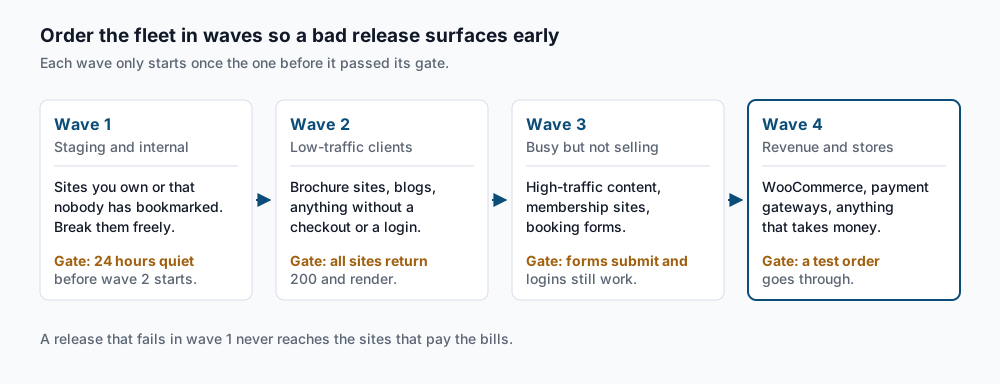
- Sort that inventory into update waves so a bad plugin release shows up on a site nobody will phone you about.
- Take a per-account snapshot that actually contains everything a rollback needs.
- Run the updates as each account’s own Linux user, so no file ends up owned by root.
- Verify each site with an HTTP check, a checksum check, and a look at that account’s error log.
- Roll back one broken site to its previous plugin version without reversing the whole wave.
Prerequisites
You need root or reseller shell access on the WHM server, because the discovery and the account-switching both read across /home. Everything that touches a site still runs as the unprivileged account user, which is the point of the su form used throughout.
WP-CLI must be installed system-wide and executable by ordinary users. Check with wp --info as a normal account; if the binary lives somewhere only root can read, fix that before you start.
You need a snapshot mechanism you have restored from at least once. On most cPanel servers that is JetBackup, the backup product these hosts commonly bundle. If you have never done a restore with it, walk through the JetBackup account restore once on a throwaway account first. A backup you have never restored is not a rollback plan.
Finally, you need a named maintenance window and a way to reach site owners. That sounds like paperwork until the first time a client notices a change before you do.
How it works
The pipeline has five stages, and every one of them runs against a single account before the next account starts. Discovery finds the installs. Ordering decides who goes first. The snapshot creates the thing you restore from. The update applies core, plugin and theme changes. Verification decides whether that site passed.
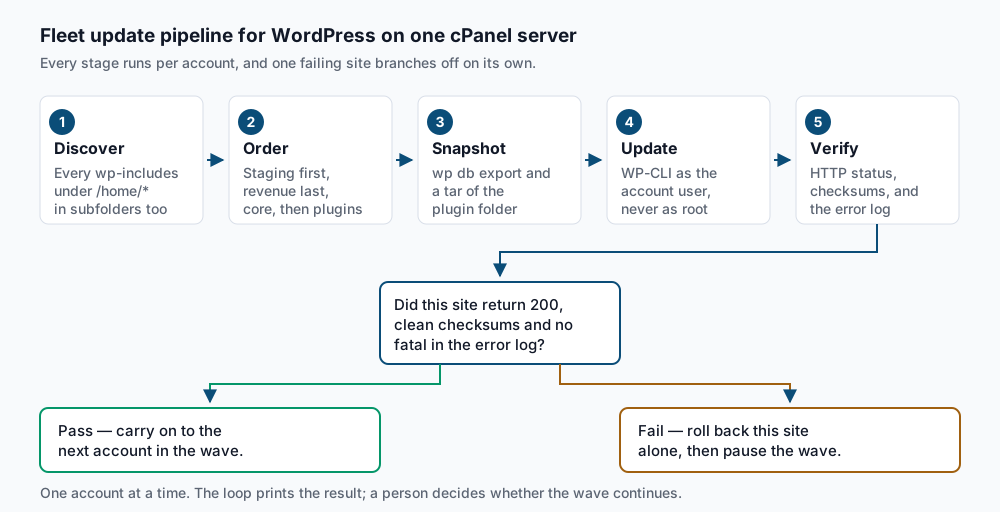
The branch at the bottom of that diagram is the part that makes the whole thing survivable. A site that fails verification does not get “fixed later” — it gets rolled back immediately, on its own, while you still remember exactly what changed on it.
Ordering matters for a reason that has nothing to do with tidiness. When a plugin ships a release that fatals under PHP 8.2, that release will fatal identically on every site running it. If your first ten sites are staging copies and brochure sites, you learn about it there. If your first ten are stores, you learn about it from the client.
One mechanical detail underpins the whole procedure. WP-CLI will run as root if you pass --allow-root, and it will work, once. Any file it creates or replaces is then owned by root instead of the cPanel account user. The next automatic update and the next plugin install from the dashboard will then hit permission errors. So will PHP-FPM, the process manager that runs PHP under each account’s own user. So the account user runs the command, every time.
Step-by-step
-
Discover every WordPress install on the server. A WordPress install always contains a
wp-includesdirectory, so that directory is a more reliable marker than a domain list. This finds them, including installs in subfolders and in the docroots (the folder a domain serves from) that addon domains create:find /home/*/public_html -maxdepth 3 -name wp-includes -type d -printf '%h\n' | sortYou get one docroot per line:
/home/acmecorp/public_html
/home/acmecorp/public_html/shop
/home/bakerysite/public_html
/home/bakerysite/public_html/blog.bakery.ca
Raise
-maxdepthto 4 or 5 if your accounts nest domains more deeply. Each of those paths is exactly what you pass to WP-CLI as--path=. -
Turn that list into an account-and-path inventory file. WP-CLI needs the path, and
suneeds the account name. The account name is the second path segment under/home:find /home/*/public_html -maxdepth 3 -name wp-includes -type d -printf '%h\n' \ | sort | awk -F/ '{print $3"\t"$0}' > /root/wp-inventory.tsvacmecorp /home/acmecorp/public_html acmecorp /home/acmecorp/public_html/shop bakerysite /home/bakerysite/public_htmlNow drop the dead ones. A directory with
wp-includesbut nowp-config.phpis an abandoned copy, and running an update against it wastes a window:while IFS=$'\t' read -r user path; do [ -f "$path/wp-config.php" ] && printf '%s\t%s\n' "$user" "$path" done < /root/wp-inventory.tsv > /root/wp-live.tsvIf your server runs WP Toolkit, the WordPress management add-on cPanel ships, it keeps its own inventory of the installs it manages and can list them for you. Use it as a second opinion rather than the only one. It lists what it knows about, and a forgotten install in a subfolder is often exactly what it does not know about. Check the current cPanel documentation for the command shape on your build rather than guessing at flags.
-
Sort the inventory into waves and write them down. Split
/root/wp-live.tsvinto four files:wave1.tsvthroughwave4.tsv, following the diagram above. Staging and internal sites first, low-traffic client sites next, busy non-transactional sites third, anything that takes payment last. The rule for deciding: if the site going down for an hour would cost the owner money or bookings, it belongs in wave 4.Within a single site, run core first, then plugins, then themes. Core changes the application programming interfaces that plugins call, so a plugin updated against old core and then left there is the combination that surprises you.
-
Snapshot the account before you touch it. A rollback needs three things: the database, the plugin files, and the version numbers you had before. Miss any one and the restore is guesswork. Run all of it as the account user:
su -s /bin/bash - acmecorp -c "cd /home/acmecorp/public_html && \
  wp db export ~/pre-update-2026-09-10.sql && \
  wp plugin list --fields=name,version --format=csv > ~/pre-update-2026-09-10-plugins.csv && \
  tar -czf ~/pre-update-2026-09-10-plugins.tar.gz wp-content/plugins"
Success: Exported to '/home/acmecorp/pre-update-2026-09-10.sql'.The
-s /bin/bashmatters on cPanel. Many accounts have their login shell set tojailshellornoshell, andsu - <user>alone will either land you somewhere unexpected or refuse outright. Forcing bash for the duration of the command sidesteps that without changing the account’s shell setting.That plugin CSV is the file you will be glad about at step 6. It is the only record of which version each plugin was on before the run.
-
Dry-run the update, then run it. Look at core first:
su -s /bin/bash - acmecorp -c "wp --path=/home/acmecorp/public_html core check-update"+---------+-------------+-------------------------------------------------------------+ | version | update_type | package_url | +---------+-------------+-------------------------------------------------------------+ | 6.8.2 | minor | https://downloads.wordpress.org/release/wordpress-6.8.2.zip | +---------+-------------+-------------------------------------------------------------+Success: WordPress is at the latest version.means there is nothing to do for core. If there is an update, apply it and then run the database migration, which is a separate step thatwp core updatedoes not do for you:su -s /bin/bash - acmecorp -c "wp --path=/home/acmecorp/public_html core update && \ wp --path=/home/acmecorp/public_html core update-db"Now preview the plugin work before committing to it:
su -s /bin/bash - acmecorp -c "wp --path=/home/acmecorp/public_html plugin update --all --dry-run"Available plugin updates: +---------------------+----------+-----------+----------------+ | name | status | update | update_version | +---------------------+----------+-----------+----------------+ | wordpress-seo | active | available | 24.4 | | contact-form-7 | active | available | 6.0.6 | +---------------------+----------+-----------+----------------+Read that list before you run it for real. A major version jump on a plugin that owns the site’s checkout is a decision, not a routine. When the list looks sane, drop
--dry-runand repeat for themes:su -s /bin/bash - acmecorp -c "wp --path=/home/acmecorp/public_html plugin update --all && \ wp --path=/home/acmecorp/public_html theme update --all" -
Verify the site before moving to the next account. Three checks, in this order. First, does the site answer:
curl -sSo /dev/null -w '%{http_code}\n' --max-time 20 https://acmecorp.example/200Anything other than
200or an expected301stops the wave. Second, do the core files still match what WordPress.org published, which catches a half-finished unpack:su -s /bin/bash - acmecorp -c "wp --path=/home/acmecorp/public_html core verify-checksums"Success: WordPress installation verifies against checksums.Third, read the account’s own PHP error log, which cPanel writes into the docroot:
tail -n 30 /home/acmecorp/public_html/error_logYou are looking for
PHP Fatal errorentries timestamped after the update ran. A fatal there with a200at the front door usually means one page template broke while the home page still renders. -
Roll back only the site that broke. Find the version that plugin was on from the CSV you saved in step 4:
grep contact-form-7 /home/acmecorp/pre-update-2026-09-10-plugins.csvcontact-form-7,6.0.5Then reinstall that exact version.
--forceis required because the installed version is now higher than the one you are asking for:su -s /bin/bash - acmecorp -c "wp --path=/home/acmecorp/public_html \ plugin install contact-form-7 --version=6.0.5 --force"Success: Installed 1 of 1 plugins.Reinstalling files does not undo a database migration the new version already ran. If the plugin altered its own tables, import the dump instead, and accept that you also lose any content published since the export. For an HTTP 500 that survives both, the fault isolation in HTTP 500 after a plugin update picks up where this leaves off.
-
Run the wave as a loop, with you at the keyboard. This does one wave, prints one line per site, and stops on nothing:
while IFS=$'\t' read -r user path; do
  url=$(su -s /bin/bash - "$user" -c "wp --path='$path' option get siteurl" 2>/dev/null)
  su -s /bin/bash - "$user" -c "wp --path='$path' db export ~/pre-update.sql --quiet" \
    || { printf '%s\t%s\tSKIP no-dump\n' "$user" "$path"; continue; }
  su -s /bin/bash - "$user" -c "wp --path='$path' plugin update --all" >/dev/null 2>&1
  code=$(curl -sSo /dev/null -w '%{http_code}' --max-time 20 "$url")
  printf '%s\t%s\t%s\n' "$user" "$url" "$code"
done < /root/wave2.tsv
bakerysite https://bakery.example 200 clientfoo https://clientfoo.example 500 clientbar SKIP no-dumpBe honest about what this does not do. It checks a status code and nothing else, so a site that returns
200with a blank page passes. It does not read error logs, does not verify checksums, and does not stop when a site fails. It is a way to see the whole wave quickly, and then you go and look at the500yourself. Watching the output as it scrolls is the job; that is why this is a loop you run and not a cron entry you schedule.
Validate it works
Count the sites. The number of lines the loop printed should equal the number of lines in the wave file, and every one should show a status code. A missing line means a site hung past the twenty-second timeout, and that is a result too.
Re-run the discovery command from step 1 after the window closes and diff it against the inventory you started with. New paths mean somebody installed WordPress during your window, or an install you skipped is still there waiting.
Spot-check two sites by hand, one from wave 2 and one from wave 4. Log into wp-admin, load a page that is not the home page, and submit a form. Automated checks confirm the server answered; a person confirms the site works.
Troubleshooting
su: Authentication failure or the command lands in a jail. The account’s shell is set to noshell in WHM. su -s /bin/bash - <user> overrides the shell for that one command and is the form used throughout this guide. If it still fails, check whether the account is suspended.
Error: This does not seem to be a WordPress installation. The --path= value points at a directory without wp-load.php, usually because the install lives one level deeper than discovery guessed. Re-run step 1 with a higher -maxdepth.
WP-CLI runs under the wrong PHP version. WP-CLI uses whichever php resolves first in the shell PATH, and it does not read the account’s MultiPHP setting. This bites hard on a fleet where accounts run different PHP versions. An update that succeeds under PHP 8.3 in your shell can fatal under the PHP 8.1 the site actually serves. The pre-flight for this is covered in updating WordPress via WP-CLI on cPanel.
Files owned by root after a previous run. Somebody used --allow-root. Fix ownership across the account, then never do it again:
chown -R acmecorp:acmecorp /home/acmecorp/public_htmlSites keep updating themselves between your windows. WordPress auto-updates are still on somewhere, and they will change plugin versions your snapshot no longer matches. Turning them off across the fleet is covered in disabling plugin and theme auto-update.
When this is the wrong approach
If any of these sites is deployed from git or managed by Composer, wp plugin update is the wrong tool for it. It writes files the deployment pipeline does not know about, and the next deploy quietly reverts them. Pull those accounts out of the inventory and update them through their repository.
If the fleet spans several servers, a per-server shell loop stops scaling around the third box. That is the point to move to a configuration management tool or a managed-updates service, where the inventory lives in one place and the results come back to one dashboard.
And if a site has no staging copy and a major core version is waiting, do not put it in a wave at all. Clone it, run the upgrade on the clone, and schedule it separately. This procedure makes a routine update defensible; it does not make an untested major upgrade safe. If a previous automatic update already left an install half-finished, start with recovering from a failed automatic update before adding that account back to a wave.
Worth keeping open while you work: the WP-CLI command reference for exact flag behaviour on your version, and the cPanel documentation for account shell and MultiPHP specifics.
Running WordPress that earns real money deserves an operator — Stack Harbor runs that stack under Enterprise WordPress; book an infrastructure consult.