For most WordPress sites on a cPanel account, WP Toolkit should handle routine updates, as long as your host has turned it on for you. WP Toolkit is the WordPress manager built into cPanel, and it can save a restore point before each update so you can undo it. Use WP-CLI, the WordPress command line you reach over SSH, when an update is large, the dashboard keeps timing out, or you want to script the work. The WP-Admin “Update now” button is fine for a quick plugin update on a small site, provided a recent backup exists. All three install the same WordPress files. What differs is where the work runs, what you get back when something breaks, and who is allowed to use each one.
What you’ll accomplish
- Understand where each update method actually runs, and why that decides how it fails.
- Compare WP Toolkit, WP-Admin and WP-CLI on the criteria that matter for one site or a handful of sites.
- Check which of the three your cPanel account really gives you, with exact commands.
- Pick one owner for automatic updates so two tools never fight over the same site.
- Know the fix for the five failures people hit most often after an update.
Prerequisites
You need a cPanel account with at least one WordPress site. WP Toolkit appears as an icon in cPanel only when your host has enabled it for your account. If you cannot find it, ask your host before planning around it.
WP Toolkit comes in a free edition and a paid edition, usually called WP Toolkit Deluxe. Smart Updates, the feature that tests updates on a copy of your site first, requires the paid tier on most licences. Which edition you get depends on your host and their cPanel licence, so check with your host.
WP-CLI needs SSH access to your account, plus the wp command installed on the server. Many hosts provide it. If yours does not, ask them, or install it in your home directory.
How each method works
All three methods download the same release from WordPress.org and copy it over your existing files. The difference is the process doing that copy, and what is waiting for you if the copy stops halfway.
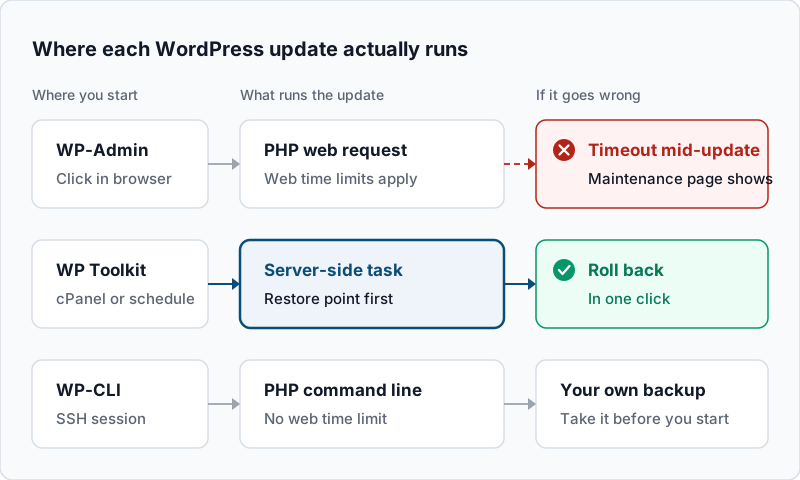
WP-Admin runs the update inside the web request your click started. That request is subject to limits set by PHP, by the web server, and by any proxy in front of the site, such as a CDN (content delivery network). If one of them cuts the request off mid-copy, WordPress leaves a file named .maintenance in the site root. Visitors then see “Briefly unavailable for scheduled maintenance. Check back in a minute.” WordPress ignores that file once it is ten minutes old, but some files may already be half replaced. Recent WordPress versions do protect you a little here. Since WordPress 6.3, a plugin or theme update that fails while copying restores the previous version. Since 6.6, a plugin auto-update that causes a fatal PHP error is rolled back automatically.
WP Toolkit runs the update on the server as a task, outside your browser’s page load. Before it starts, it can create a restore point, a saved copy of what the update is about to change. If the site looks wrong afterwards, you roll back from the site’s card in WP Toolkit. A restore point is meant as a quick undo for that one update, not a replacement for your account backups. With the paid tier, Smart Updates goes further. It copies the site, updates the copy, compares pages before and after, and shows you the result before anything touches the live site.
WP-CLI runs the update as command-line PHP in your SSH session. No web server or proxy sits in the middle, so web time limits do not apply. You also get exact messages and exit codes, which is what makes it scriptable. The trade-off is that WP-CLI saves nothing for you. The backup is yours to take before you start.
The criteria compared
| What you care about | WP Toolkit | WP-Admin dashboard | WP-CLI |
|---|---|---|---|
| Where it runs | Server-side task started from cPanel | Inside a web request from your browser | Command-line PHP over SSH |
| Who can use it | cPanel users, if the host enabled it | Any WordPress administrator | Anyone with SSH access and wp installed |
| Undo after a bad update | Restore point, if you keep the option on | None of its own; restore a backup | None of its own; restore a backup |
| Tests the update first | Smart Updates, on the paid tier | No | No, unless you script a staging copy |
| Automatic updates | Per-site settings for core, plugins and themes | Per-plugin and per-theme toggles, core minor updates on by default | Only through your own cron job |
| Sensitive to web timeouts | No | Yes | No |
| Shows exactly what failed | Task log in WP Toolkit | Message on screen, sometimes cut off | Full output and exit code |
| Many sites at once | Yes, on the same server | One site at a time | Yes, with a loop or script |
Two rows deserve a note. “Who can use it” often decides the question by itself: a client with a WordPress login but no cPanel access only has the dashboard. And automatic updates exist in all three places, which is exactly why they can conflict. The section on combining them below explains how to choose one owner.
Check which options you have
Start by confirming what your account actually offers. In cPanel, search the tools page for “WP Toolkit”. If the icon is there, open it and check that your site appears in the list. If your site is missing, use the scan option inside WP Toolkit, which finds WordPress installs it did not create.
For WP-CLI, connect over SSH and run these from the folder that holds the site, usually ~/public_html.
cd ~/public_html
wp core version
wp core check-update
Example output when an update is waiting:
6.8.2
+---------+-------------+-----------------------------------------------------------------------+
| version | update_type | package_url                                                           |
+---------+-------------+-----------------------------------------------------------------------+
| 6.8.3   | minor       | https://downloads.wordpress.org/release/wordpress-6.8.3-partial-2.zip |
+---------+-------------+-----------------------------------------------------------------------+
When the site is current, the second command prints Success: WordPress is at the latest version. instead. If the shell answers wp: command not found, WP-CLI is not installed for your account.
To see which plugins are behind, ask for only those with an update available:
wp plugin list --update=available --fields=name,version,update_versionExample output:
+----------------+---------+----------------+
| name           | version | update_version |
+----------------+---------+----------------+
| contact-form-7 | 6.0.6   | 6.1            |
| wordpress-seo  | 25.4    | 25.7           |
+----------------+---------+----------------+
If you manage the whole server, WP Toolkit also has its own command line for root. Run wp-toolkit --help to see what your build supports, and wp-toolkit --list to print every WordPress install it manages. A regular cPanel user cannot run these.
Who should pick which
Pick WP Toolkit if you look after one site or a few sites on the same cPanel account and want updates with an undo button. Turn on the restore point option and let WP Toolkit own the automatic updates. If your host includes the paid tier, use Smart Updates on any site that takes orders or bookings. It is the only option of the three that tests an update before your visitors see it.
Pick WP-Admin if you are updating one plugin on a small site and you know a backup from today exists. It is also the right tool for a client or editor who has a WordPress login but no cPanel or SSH access. Avoid it for large updates, such as a major WordPress release or a page builder, on a slow or heavily loaded site.
Pick WP-CLI if you have SSH and the dashboard has already timed out once, or you want the same update steps every time. It suits developers, agencies and anyone who keeps the site’s code in Git. With code under version control, update in development, commit, and deploy, because an update made directly on the server is overwritten by the next deploy.
Use more than one if your sites differ. A common, sensible split is WP Toolkit for routine updates and WP-CLI for the big ones. Use the dashboard only for urgent one-off fixes.
How to combine them
The rule that prevents most trouble is simple to state: each site gets exactly one owner for automatic updates. WordPress has its own automatic updates, and WP Toolkit has per-site settings for core, plugins and themes. If both are on, you lose track of which one changed the site overnight. Pick WP Toolkit as the owner when it is available, then review the plugin and theme auto-update toggles in WP-Admin under Plugins and Appearance, Themes so they match.
For a large update you want to run by hand over SSH, take a backup first, then update in this order. The order matters, because plugins are tested against the WordPress version they will run on.
cd ~/public_html
wp db export ~/pre-update-$(date +%F).sql
wp core update
wp core update-db
wp plugin update --all
wp theme update --all
wp core verify-checksums
Example output from the core update and checksum lines:
Updating to version 6.8.3 (en_US)...
Downloading update from https://downloads.wordpress.org/release/wordpress-6.8.3-partial-2.zip...
Unpacking the update...
Cleaning up files...
No old files were removed.
Success: WordPress updated successfully.
Success: WordPress database already at latest db version 60421.
Success: WordPress installation verifies against checksums.
The checksum check compares every core file with the official copy, so it confirms the update landed completely. The wp db export file covers the database only. Your cPanel backups, or a WP Toolkit restore point, cover the files. The full WP-CLI procedure, including plugin checksums and rollback, is in updating WordPress with WP-CLI on cPanel. The WP-CLI reference for wp core update lists every option.
If you want to test a risky update before it reaches the live site but do not have Smart Updates, use a staging copy instead. WP Toolkit staging on cPanel explains what a clone copies, what it leaves behind, and how to push changes back safely.
Troubleshooting
The site shows “Briefly unavailable for scheduled maintenance”. An update stopped partway, usually a dashboard update that timed out. Delete the .maintenance file in the site root with the cPanel File Manager or rm ~/public_html/.maintenance. Then run wp core verify-checksums, or repeat the update in WP Toolkit, to make sure no core file was left half copied.
WP-Admin says “Another update is currently in progress.” WordPress sets a lock while a core update runs, and an interrupted update leaves the lock behind. It clears itself after about 15 minutes. Wait that long, then check with wp core check-update that nothing is still pending.
WordPress asks for FTP credentials before updating. WordPress could not write to its own files, which on cPanel almost always means some files are owned by another user. That often happens after a migration or a restore done as root. Ask your host to give the files back to your cPanel user instead of entering FTP details.
WP Toolkit says the update succeeded, but the site looks wrong. Roll back from the restore point on the site’s card. Then repeat the update one plugin at a time to find the culprit. If you turned the restore point option off, restore from your cPanel or host backup instead.
Automatic updates change the site when you did not expect it. Two owners are probably active. Check the site’s auto-update settings in WP Toolkit and the plugin and theme toggles in WP-Admin, then switch off the ones you are not using.
When this is the wrong approach
Choosing between these three tools is the wrong question in a few cases.
- The site is deployed from Git. Update plugins and core in your repository and deploy them. Any of the three tools would put the server ahead of your code, and the next deploy would undo the update.
- You manage many sites across many servers. At that scale the question becomes fleet policy, not a single update. Compare the fleet tools, such as WP Toolkit and Softaculous, on how they find installs and roll them back.
- There is no backup you have tested. No update method is safe without one. Take a full cPanel backup and restore it once on a test account before you trust any update path.
- The real problem is an abandoned plugin. A plugin that has not been updated in years needs replacing, not updating. No tool will fix that for you.
WP Toolkit’s own settings and limits can change between cPanel releases. The cPanel documentation is the place to check what your version supports.
Running WordPress that earns real money deserves an operator — Stack Harbor runs that stack under Enterprise WordPress; book an infrastructure consult.