Your WooCommerce checkout shows “There are no shipping options available. Please ensure that your address has been entered correctly, or contact us if you need any help.” and the customer cannot place the order. WooCommerce shows this message whenever it ends up with zero shipping rates, which happens when the address fails one of four checks: the country, the zone, the method, or the rate itself. Turn on shipping debug mode to see which zone the address matched, then walk the four checks in order until one fails. The address the customer typed is usually fine, and the fix is usually a single store setting.
What you’ll accomplish
- Know which of the four shipping checks fails for a real customer address.
- Fix the zone, postcode list, method, cost field or carrier plugin behind it.
- Clear stale rates stored in shopper sessions so the fix shows right away.
- Confirm that the cart and checkout pages are not page-cached.
- See real rates at checkout in a private window, with debug mode off again.
Prerequisites
You need an administrator login for WordPress. Menu labels below match WooCommerce 11.1. In older versions the Shipping settings tab was called Shipping options, and the rest is the same.
SSH access with WP-CLI, which lets you read store settings from a terminal, makes steps 4, 5, 7 and 8 faster. WooCommerce’s own CLI commands need an admin account to act as, so each one ends with --user=1. Replace 1 with your admin user ID if it differs, and replace example.com with your domain.
Have one failing address ready: country, province or state, and postcode.
How it works
Every rate has to pass four checks, in this order. A failure at any one produces the same message.
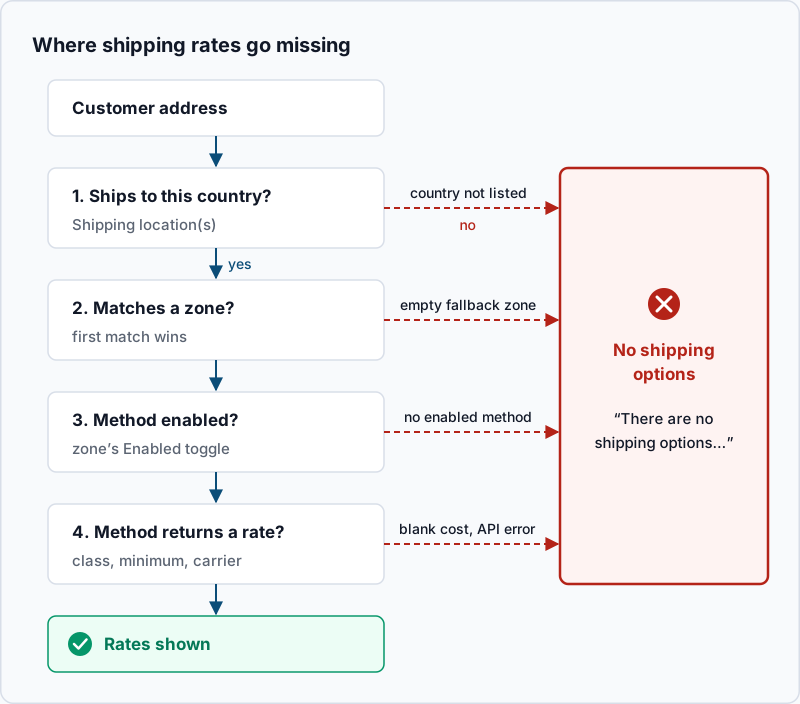
1. The country. The shipping country must be allowed by Shipping location(s) under WooCommerce → Settings → General.
2. The zone. A shipping zone is a group of places (countries, provinces or postcodes) sharing the same methods. WooCommerce reads zones top to bottom and stops at the first match. An address that matches none lands in Locations not covered by your other zones, which has no methods on a fresh store. Our article on WooCommerce shipping zone pitfalls covers zone order and design in depth.
3. The method. The matched zone needs at least one method, such as Flat rate, Free shipping or a carrier plugin, with its Enabled toggle on.
4. The rate. Each method then decides whether it applies to this cart. Free shipping may need a minimum order amount, and Flat rate may have a blank cost. A carrier plugin may get an error from the carrier’s API (the web service that returns live prices).
WooCommerce also stores calculated rates in the shopper’s session and reuses them until the cart, the address or the shipping settings change. Saving a zone or method resets them, but fixing a product weight or a carrier plugin’s own settings may not, so a fix can look like it did nothing.
Step-by-step
1. Read the exact message first. The wording tells you which cart or checkout the shopper is using, and whether an address was entered at all.
| What the shopper sees | Where | What it means |
|---|---|---|
| “There are no shipping options available. Please ensure that your address has been entered correctly, or contact us if you need any help.” | Classic checkout | An address was entered and zero rates came back |
| “No shipping options were found for” followed by the address | Classic cart | Same result, shown in the cart’s shipping calculator |
| “No shipping options are available for this address. Please verify the address is correct or try a different address.” | Checkout block | Same result in the block-based checkout |
| “Enter your address to view shipping options.” | Cart or checkout | No address yet; this is expected, not a fault |
2. Turn on shipping debug mode. Go to WooCommerce → Settings → Shipping → Shipping settings. Next to Debug mode, tick Enable debug mode and save. Debug mode does two things. It shows a notice naming the zone the address matched, and it recalculates rates on every page load instead of reusing the stored ones.
Add a product to the cart, open the cart page, and enter the failing address in the shipping calculator. Reload the cart page if no notice appears. The notice shows on the cart page, not during checkout.
Example output:
Customer matched zone "Locations not covered by your other zones"A wrong or fallback zone points to step 4. The right zone points to steps 5 to 7. If rates now appear with debug mode on, a stale stored rate was the problem; go to step 8.
Every shopper sees this notice, so switch debug mode off again once you finish testing.
3. Check that you ship to the customer’s country. Open WooCommerce → Settings → General. Look at Selling location(s) and Shipping location(s). If Shipping location(s) is set to Ship to specific countries only, the customer’s country must appear in Ship to specific countries.
One trap: when Ship to a different address? is unticked, WooCommerce ships to the billing address. A billing country you sell to but do not ship to gets zero rates. The same applies when Shipping destination is set to Force shipping to the customer billing address.
4. Check which zone the address matches. List your zones in the order WooCommerce reads them.
wp wc shipping_zone list --fields=id,name,order --user=1Example output:
+----+-------------------------------------------+-------+
| id | name                                      | order |
+----+-------------------------------------------+-------+
| 0  | Locations not covered by your other zones | 0     |
| 3  | Montreal island                           | 0     |
| 1  | Quebec                                    | 1     |
| 2  | Canada                                    | 2     |
+----+-------------------------------------------+-------+
Zone 0 always prints first, but WooCommerce checks it last. The others are read by order, lowest first. Then list the regions of the zone you expected the address to match.
wp wc shipping_zone_location list 3 --fields=code,type --user=1Example output:
+--------+----------+
| code   | type     |
+--------+----------+
| CA:QC  | state    |
| H1*    | postcode |
| H2*    | postcode |
| H3*    | postcode |
+--------+----------+
A zone that lists both a region and postcodes needs both to match. Compare the failing address against these rules:
- Postcode format. WooCommerce puts the customer’s postcode in capitals and tries two forms: compact (
H2X1Y4) and the country’s usual format (H2X 1Y4). A zone line without*must equal one of them. - Wildcards.
H2*matches every postcode starting withH2. Wildcards are compared against the formatted version, so for Canadian and UK codes a wildcard longer than three characters needs the space.H2X 1*matchesH2X 1Y4, butH2X1*does not. - Ranges. The zone screen documents ranges such as
90210...99000for fully numeric postcodes only. Ranges with letters are converted to numbers and can miss addresses near the top, so use wildcards for Canadian and UK postcodes. - Province or state. A zone limited to
CA:QCneeds the province field filled in. A checkout field plugin that hides the Province field breaks this match.
Fix the regions in WooCommerce → Settings → Shipping → Shipping zones → edit the zone. To decide what should happen to addresses outside all your zones, add a method to Locations not covered by your other zones, or leave it empty on purpose.
5. Check that the matched zone has an enabled method. Use the zone ID from step 4.
wp wc shipping_zone_method list 3 --fields=instance_id,method_id,title,enabled --format=json --user=1Example output:
[{"instance_id":7,"method_id":"flat_rate","title":"Standard","enabled":false},{"instance_id":9,"method_id":"free_shipping","title":"Free shipping","enabled":true}]An empty list [] means the zone has no methods. Here, only Free shipping is enabled, so everything now depends on its conditions. Turn a method on with the Enabled toggle on the zone’s screen.
6. Check the conditions on each method. Open each enabled method with Edit.
- Free shipping. Read Free shipping requires. With A minimum order amount, a cart below Minimum order amount gets nothing from this method. WooCommerce compares the minimum against the cart after coupon discounts, unless Apply minimum order rule before coupon discount is ticked. With A valid free shipping coupon, the coupon must have Allow free shipping ticked in its settings.
- Flat rate. If the main Cost field is blank, WooCommerce builds the price only from Shipping class costs. When the cart’s shipping class has a blank cost too, flat rate returns no rate at all. Enter
0rather than leaving a field blank;0is a cost, and blank is not.
A zone holding only Free shipping with a minimum leaves small carts with nothing. Add a paid Flat rate to that zone.
7. Check carrier plugins. Live-rate plugins for carriers such as Canada Post, UPS or FedEx send the cart’s weight and size to the carrier’s API. They need a weight on every product, your store address, and valid API credentials.
Find products that have no weight.
wp wc product list --fields=id,name,weight --per_page=100 --format=csv --user=1 | grep ',$'Example output:
412,"Gift card, printed",
1088,Canvas tote bag,
Each line is a product with no weight. Add --page=2 for the next 100. Variations with a blank weight use the parent’s weight. Also confirm Store Address under WooCommerce → Settings → General, since carriers price from that origin postcode.
Then open the newest log named after the carrier plugin under WooCommerce → Status → Logs. Look for authentication errors, timeouts, or messages about missing weight or dimensions. Many carrier plugins only write a log after you turn on their own debug or logging option in the method’s settings.
8. Clear stale rates. Rates stored in shopper sessions are tied to a shipping version number that WooCommerce keeps as a transient (a temporary value WordPress stores in the database). Resetting that number forces fresh rates.
wp wc tool run clear_transients --user=1Example output:
Success: Updated system_status_tool clear_transients.The same Clear transients button sits in WooCommerce → Status → Tools, on the WooCommerce transients row. Shoppers get fresh rates on their next page load. For carrier plugins that cache their own prices, wp transient delete --all clears every transient. With Redis or another object cache, also run wp cache flush.
9. Confirm the cart and checkout are not page-cached. A cached cart page shows whatever the first visitor saw, including an empty shipping section. WooCommerce sends no-cache headers on the cart, checkout and account pages. Check what your server and CDN actually return.
curl -s -o /dev/null -D - https://example.com/cart/ | grep -iE '^(cache-control|age|cf-cache-status|x-litespeed-cache|x-cache):'Example output:
cache-control: no-cache, must-revalidate, max-age=0, no-store, private
cf-cache-status: DYNAMIC
That is healthy. A HIT in any of these headers, or an age: header, means a cache is serving the page. Exclude the cart and checkout pages in your caching plugin or CDN rule. Our article on WooCommerce cache bypass cookies shows the Cloudflare side.
10. Rule out a plugin conflict. If every check passes and rates are still missing, another plugin may be removing them, often a conditional shipping plugin, checkout field editor or currency switcher. Install the Health Check & Troubleshooting plugin and turn on its Troubleshooting mode, which disables plugins for your session only. Enable WooCommerce, then your shipping plugins, then the rest one at a time, and test the address after each one.
Validate it works
Switch Enable debug mode off and save. Open a private browser window so you start with no session. Add the product from the failing order and enter the same address at checkout.
You should see at least one rate with a price, and no error message. Place a test order you can refund. The order screen should list the shipping method under the items.
If you ship to a limited area, also test one address you expect to fail. It should still show the message, which proves the zones do what you intended.
Troubleshooting
Rates show in the cart but disappear at checkout. The checkout uses the shipping address, while the cart calculator uses whatever you typed there. Compare the two addresses. Check Ship to a different address? and any checkout field plugin that changes the Province or Postcode fields.
It works when you are logged in but not for guests. Page caches usually skip logged-in users, so rerun the curl check from step 9.
Only some products trigger it. Look at that product’s shipping class and weight in its Product data → Shipping tab. A class with a blank flat rate cost, or a missing weight with a carrier plugin, affects only carts that contain it.
It fails for a few minutes, then works again. That pattern points at the carrier API rather than your settings. Look for timeouts in the carrier log from step 7. Many carrier plugins offer a fallback rate setting that shows a fixed price when the API does not answer.
When this is the wrong approach
If the address is outside every area you serve, the message is doing its job. Change the wording rather than the zones; developers can replace the classic checkout text with the woocommerce_no_shipping_available_html filter. You can also add a method to Locations not covered by your other zones that tells customers to contact you.
If the products never ship, such as services or downloads, tick Virtual on each one. A cart with only virtual products skips shipping entirely, so no zone is needed.
If your zones overlap heavily, patching one address at a time will keep causing new gaps. Redesign them from most specific to most general, using the official WooCommerce guide to setting up shipping zones and our zone article linked above.
Running WordPress that earns real money deserves an operator — Stack Harbor runs that stack under Enterprise WordPress; book an infrastructure consult.