Stripe is the best default for most WooCommerce stores that sell online only, because its official plugin handles cards, Apple Pay, Google Pay and WooCommerce Subscriptions in one place. Add PayPal beside it when many of your buyers want to pay from a PayPal account, including shoppers who would rather not type a card number into a store they just found. Pick Square when you also sell in person, since it keeps products and stock counts in step between your shop counter and your website. WooPayments, WooCommerce’s own gateway, runs on Stripe and suits owners who want payouts and disputes inside WordPress. Whichever you choose, plan ahead for a possible switch, because saved cards stay with the provider that stored them.
The gateways side by side
Every option here is free to install, and each provider charges per transaction. Fees change and differ by country, card type and volume, so compare them on each provider’s own pricing page. The plugin facts below were checked on 14 October 2026 against each plugin’s WordPress.org page and WooCommerce’s documentation. Versions checked: WooCommerce Stripe Payment Gateway 11.0.1, WooCommerce PayPal Payments 4.1.3, WooCommerce Square 5.5.1 and WooPayments 11.2.0.
| Criterion | Stripe (official plugin) | WooPayments | PayPal Payments | Square |
|---|---|---|---|---|
| Who you sign the account with | Stripe, directly | Stripe, through an account WooPayments creates for you (needs a WordPress.com login) | PayPal | Square |
| Merchants in Canada | Yes | Yes | Yes | Yes |
| Checkout block | Supported | Supported | Described as experimental in the plugin FAQ | Supported |
| Apple Pay and Google Pay | Included | Included as express buttons | Available in eligible countries | Included; test them on subscription products |
| PayPal balance and Pay Later | No | No | Yes, Pay Later in eligible countries | No |
| WooCommerce Subscriptions | Supported | Supported | Supported, with vaulting needing account approval | Supported |
| Saved cards | Yes | Yes | Yes, through PayPal vaulting | Yes |
| In-person sales | Stripe card reader or Tap to Pay | Tap to Pay and card readers through the WooCommerce mobile app | Not in the plugin | Square POS, with product and stock sync |
| Disputes handled in | Stripe Dashboard | WordPress admin | PayPal account | Square Dashboard |
| Refund from the WooCommerce order | Yes | Yes | Yes | Yes |
An express wallet is a button such as Apple Pay that fills in the card and address in one tap. A dispute (also called a chargeback) is a customer asking their bank to reverse a payment, after which you upload proof that the order was real.
All four plugins show card fields that the provider hosts inside your checkout, so the card number goes from the shopper’s browser to the provider and never reaches your server. Stripe calls its version Elements, and the Square plugin page says it is SAQ A-level compliant. SAQ A is the shortest PCI DSS self-assessment questionnaire, the yearly form card brands expect from stores that outsource card handling. Hosted fields shrink your PCI scope (the part of your setup the card security rules cover), but they don’t remove it. Your provider tells you which questionnaire applies to you, and it still expects you to keep the checkout page itself free of injected scripts.
Stripe and WooPayments
Pick Stripe when the store sells online and you want one provider for cards, wallets and subscriptions. Canadian merchants can use it and receive payouts in Canadian dollars to a Canadian bank account. The plugin page also lists in-person payments with a Stripe card reader or Tap to Pay on a phone. Test mode works with its own set of API keys, so you can rehearse a whole checkout without moving money.
Stripe confirms most card payments while the shopper is still on the page. Some events only reach WooCommerce later, through a webhook, which is a request Stripe’s servers send to a fixed address on your site. That covers delayed payment methods, refunds you start in the Stripe Dashboard, and disputes. If your firewall or a security plugin blocks that address, those events never arrive, and orders can sit on Pending payment even though the customer paid. That failure, and the fix, are covered in orders stuck on Pending payment.
WooPayments uses Stripe behind the scenes, but the account is one WooCommerce creates for you. Signing up needs a free WordPress.com account, which connects your store to the service. Pick it when you want payouts, refunds and dispute responses on one screen in WordPress, or when you plan to take card payments in person with the WooCommerce mobile app. Pick the Stripe plugin when you already hold a Stripe account, or when other tools such as accounting or billing need to read from that same account. WooPayments can’t connect to a Stripe account you already have, so the two are separate accounts and saved cards don’t carry across between them.
PayPal Payments
Pick PayPal Payments when a meaningful share of your buyers ask for PayPal, or when you sell to shoppers who will only pay through an account they already trust. The plugin adds the PayPal button, Pay Later in eligible countries, and card fields of its own. Venmo is offered to shoppers in the United States only.
PayPal often runs next to Stripe instead of replacing it. Its branded button sits apart from the card form, so shoppers can tell the two options apart. Two details are worth checking before you rely on it. The plugin’s FAQ still describes its Cart and Checkout block support as experimental, so test the block checkout with your theme before launch. Saving payment methods for subscriptions goes through PayPal vaulting (storing the buyer’s payment method with PayPal for later charges), which PayPal must approve on your account first. If the PayPal button stops showing, payment gateways not showing at checkout walks through the usual causes.
Square
Pick Square when you also sell at a counter, a market stall or a pop-up. The plugin syncs product names, prices, stock levels, categories and images between WooCommerce and Square POS. In its sync settings you choose which side is in charge. The plugin’s documentation recommends Square when you sell in several places, and WooCommerce when you sell mainly online. When Square is in charge, stock edits made in WooCommerce can be overwritten by the next sync, so staff should change inventory in Square only.
Square also sells and accepts Square gift cards online. Three limits matter. Gift cards and Cash App Pay can’t pay for subscription products, because those need a saved card for later charges. Cash App Pay is available only in the United States. Store owners have also reported that the Apple Pay and Google Pay buttons don’t show for subscription products, so test that on your store before you count on it. If you sell online only, Square has little to offer over Stripe, and its stock sync is one more moving part to watch.
Who should pick which
- Stripe if you sell online only, run subscriptions or memberships, or already use Stripe for other billing.
- WooPayments if you would rather manage payouts and disputes inside WordPress, and don’t already have a Stripe account that other tools depend on.
- PayPal Payments, added beside Stripe or WooPayments, if customers ask for PayPal or you sell to first-time buyers in many countries.
- Square if a physical shop or stall shares stock with the website.
- No change if your current gateway works and nobody complains. A switch carries real risk for subscription stores, and the benefit is often small.
How a switch really works
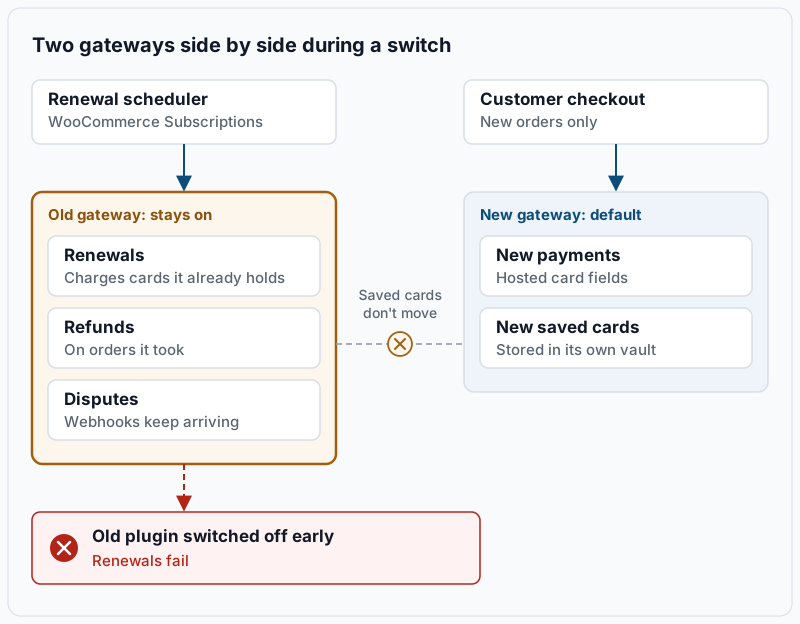
A gateway switch is really a period where two gateways run side by side. New orders go to the new one. The old one keeps working for everything tied to orders it already took. Renewals for existing subscriptions charge the card token the old provider holds. A token is the stand-in code a provider gives you in place of the card number, and only that provider can charge it. Refunds on old orders are issued through the old plugin, and disputes on them still arrive as webhooks to the old plugin’s address.
Tokens don’t move automatically. Stripe, for example, accepts card data imports from another processor through a formal migration request, and the old processor sends the data directly. Stripe’s documentation says the old processor can take days to several weeks to hand it over. Afterwards each subscription’s stored payment method needs updating to the new IDs. The simpler path for most stores is to leave the old gateway on for renewals. Ask subscribers to update their card on the My Account page, which saves it with the new gateway.
Adding or switching a gateway
The commands below use WP-CLI, the wp command that runs WordPress tasks from the terminal. The wp wc commands act as a WooCommerce user, so they take --user=1. Use the ID of any administrator. The SQL queries assume the default wp_ table prefix; wp config get table_prefix shows yours. Rehearse on a staging copy first, with every gateway in test mode.
1. Record which gateways are active today.
wp wc payment_gateway list --user=1 --fields=id,enabled --format=jsonExample output:
[{"id":"bacs","enabled":false},{"id":"cheque","enabled":false},{"id":"cod","enabled":false},{"id":"stripe","enabled":true}]The IDs you will see most are stripe, woocommerce_payments, ppcp-gateway for PayPal and square_credit_card for Square. Keep this output, since it is your record of the starting point.
2. Count what depends on the old gateway. Saved cards live in the wp_woocommerce_payment_tokens table, tagged with the gateway that created them:
wp db query "SELECT gateway_id, COUNT(*) FROM wp_woocommerce_payment_tokens GROUP BY gateway_id"Example output:
+------------+----------+
| gateway_id | COUNT(*) |
+------------+----------+
| stripe     |     1287 |
+------------+----------+
If you run WooCommerce Subscriptions, count active subscriptions by gateway too. First check whether the store uses HPOS (High-Performance Order Storage, the newer order tables):
wp option get woocommerce_custom_orders_table_enabledExample output:
yesWith yes, subscriptions live in wp_wc_orders:
wp db query "SELECT payment_method, COUNT(*) FROM wp_wc_orders WHERE type = 'shop_subscription' AND status = 'wc-active' GROUP BY payment_method"Example output:
+----------------+----------+
| payment_method | COUNT(*) |
+----------------+----------+
| stripe         |      412 |
+----------------+----------+
With no, the same data sits in wp_posts and wp_postmeta under the _payment_method key. Any number above zero means the old gateway must stay enabled after the switch.
3. Install the new plugin and connect it in test mode. Each plugin has an onboarding screen under WooCommerce, Settings, Payments. Finish it with the provider’s sandbox or test keys first. Then check that the provider lists a webhook pointing at your site, either on the plugin’s settings page or in the provider’s dashboard, before you go further.
4. Place a test order and read its status. Pay with the provider’s published test card or sandbox buyer account, then check the order:
wp wc shop_order get 48213 --user=1 --fields=id,status,payment_method,transaction_idExample output:
+----------------+---------------------+
| Field          | Value               |
+----------------+---------------------+
| id             | 48213               |
| status         | processing          |
| payment_method | ppcp-gateway        |
| transaction_id | 7KX40912MB3385021   |
+----------------+---------------------+
processing with a transaction ID means the payment reached WooCommerce. pending means the confirmation did not arrive, which is almost always a blocked webhook. Refund that test order from the WooCommerce order screen, and confirm the refund shows in the provider’s dashboard.
5. Go live and set the order. Switch the new gateway to live keys, then drag it to the top of the list under WooCommerce, Settings, Payments. Leave the old plugin active and its gateway enabled if step 2 found saved cards or active subscriptions. It still shows at checkout, so move it below the new one and give it a clear title such as “Saved card”.
6. Switch the old gateway off only when nothing depends on it. Re-run the step 2 queries each month. When active subscriptions on the old gateway reach zero and the dispute window for its last orders has passed, you can disable it.
Check that it worked
A day after going live, list recent orders that are still waiting for payment:
wp wc shop_order list --user=1 --status=pending --fields=id,date_created,payment_method --format=tableExample output:
+-------+---------------------+----------------+
| id    | date_created        | payment_method |
+-------+---------------------+----------------+
| 48390 | 2026-10-15T09:41:27 | ppcp-gateway   |
+-------+---------------------+----------------+
A few abandoned checkouts are normal. Many rows from one gateway, each matching a successful payment in that provider’s dashboard, mean its webhooks aren’t reaching the site. Then watch the first renewal date on the subscriptions screen, and confirm those renewals still complete through the old gateway.
Troubleshooting
Renewals fail right after the switch. The old gateway was disabled or its API keys were removed, so nothing can charge the saved tokens. Turn it back on with the same keys. Then open each failed renewal order and run the Retry Renewal Payment order action.
Orders sit on Pending payment though the customer paid. The provider’s webhook can’t reach your site, often because a firewall, Cloudflare rule or security plugin blocks it. Check the delivery log in the provider’s dashboard, then follow orders stuck on Pending payment.
The new gateway doesn’t appear at checkout. Usual causes are unfinished onboarding, a store currency the account doesn’t accept, or a checkout block the plugin doesn’t fully support. Compare the shortcode checkout with the block checkout to narrow it down.
Square stock counts drift. Stock was edited on the side that isn’t in charge, or a sync job failed. Check WooCommerce, Status, Scheduled Actions for failed actions that mention Square, and make stock changes only on the side that is in charge.
When this is the wrong approach
Don’t switch gateways to fix a decline problem without checking where declines come from. Card testing, where bots try stolen card numbers on your checkout, causes waves of declines on any provider. A new gateway won’t stop it, and providers can close accounts that see a lot of it.
Don’t choose on per-transaction fees alone. Payout timing, dispute handling and how well the plugin fits your checkout cost more in staff time than a small fee difference. Check each provider’s current pricing page for the numbers.
For complex billing such as usage-based plans or invoicing for business accounts, compare against the provider’s own billing tools as well. A WooCommerce gateway is built around checkout, not accounts receivable.
For each plugin’s setup screens, see the WooCommerce Stripe documentation and the PayPal Payments documentation.
Running WordPress that earns real money deserves an operator — Stack Harbor runs that stack under Enterprise WordPress; book an infrastructure consult.