This guide helps WooCommerce store owners and developers fix orders that stay on Pending payment even though the customer was charged. You see a successful payment in Stripe or PayPal, but the order never moves to Processing, and an hour later WooCommerce cancels it. The cause is almost always a webhook, the message the payment gateway sends back to your site to say “this payment succeeded”, that never reaches WooCommerce or gets rejected on arrival. By the end you will know which layer is blocking it, you will have fixed it, and the stuck orders will be reconciled safely.
What you’ll accomplish
- A clear picture of how a payment confirmation travels from the gateway back to your order.
- The exact HTTP status code your webhook endpoint returns, and which layer produced it.
- A fix for the blocker, whether it is Cloudflare, a server firewall, a redirect, a plugin or a wrong secret.
- A test event that arrives with a
200response and moves an order to Processing. - Stuck orders checked against the gateway and updated, with a note explaining why.
Prerequisites
You need an administrator login on WordPress and access to your gateway dashboard (Stripe or PayPal). SSH access to the server and WP-CLI, the official WordPress command line tool, make several steps faster. Run wp --info after you log in; if it prints a version, you are ready.
The steps use the WooCommerce Stripe Payment Gateway plugin and the WooCommerce PayPal Payments plugin as examples. Other gateways follow the same pattern. On cPanel, the ModSecurity step needs root access or your host’s help. ModSecurity is a web application firewall module for Apache and LiteSpeed.
Replace example.com with your domain in every command. Commands that use --user=1 assume user ID 1 is an administrator; change it if not.
How it works
When a customer clicks Place order, WooCommerce creates the order right away with the status Pending payment. That status means “the order exists, but we have not been told it is paid”. Our guide to WooCommerce order statuses covers every status in detail.
The customer then pays on the gateway. The final result often arrives separately, especially after 3D Secure (the extra bank approval step). The gateway sends it as a webhook, an HTTPS POST request from the gateway’s servers to a fixed address on your site. PayPal’s older name for the same idea is IPN, Instant Payment Notification. The gateway plugin reads the message, checks that it is genuine, and marks the order paid, which moves it to Processing.
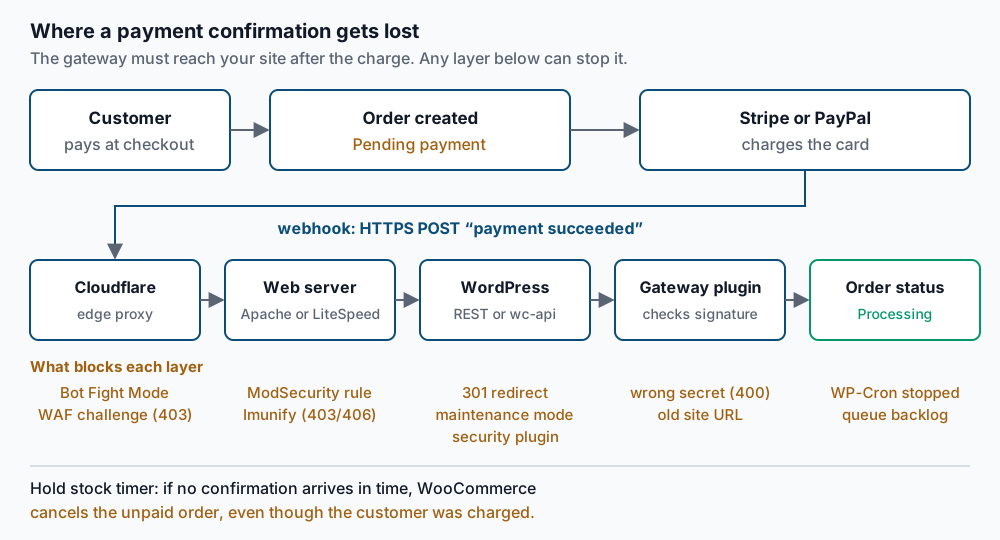
The webhook passes through every layer that protects your site, and each one can stop it. The last check is the signing secret, a shared key that proves the message came from the gateway. The gateway plugin rejects any message whose signature does not match it.
A second timer makes the problem worse. Under WooCommerce, Settings, Products, Inventory, the Hold stock (minutes) setting reserves stock for unpaid orders, and the default is 60. When that time runs out, WooCommerce cancels any order still on Pending payment. It adds the note “Unpaid order cancelled - time limit reached.” So a broken webhook turns a paid order into a cancelled one within an hour.
Step-by-step
1. Confirm the payment really succeeded. Note one stuck order’s total and customer email. Search for that email under Payments in Stripe, or under Activity in PayPal. A payment marked Succeeded (Stripe) or Completed (PayPal) confirms this guide applies. If the payment is Incomplete or failed, the customer did not finish paying, and the order status is correct.
To list every stuck order at once, use WP-CLI.
wp wc shop_order list --status=pending --user=1 --fields=id,date_created,total,payment_method --format=tableYou should see a table with one row per Pending payment order. Keep this list for step 9.
2. Read the gateway log in WooCommerce. Open WooCommerce, Status, Logs. Choose the newest log whose name starts with the gateway, such as woocommerce-gateway-stripe or woocommerce-paypal-payments. In the Stripe plugin, turn on the debug log setting first if no log exists, then wait for the next order.
Look for lines about incoming webhooks. A webhook that “failed validation” reached WordPress with the wrong secret; go to step 7. No incoming webhooks at all means something stops the request before WordPress runs. Continue with step 3.
3. Read the delivery attempts in the gateway dashboard. In Stripe, open Developers, then Webhooks (newer accounts show this under Workbench). Select the endpoint and open its recent event deliveries. Each attempt shows the HTTP status code your site returned and the start of the response body.
Check the endpoint URL first. The Stripe plugin shows the exact webhook URL on its settings page, and it usually looks like https://example.com/?wc-api=wc_stripe. The URL in Stripe must match it exactly, including https and the www choice. For PayPal Payments, open the plugin’s settings and find the webhook status section, which lists the subscribed webhook and offers a button to resubscribe.
Read the status codes this way:
| Code | What it usually means | Go to |
|---|---|---|
| 403 with a Cloudflare page | Cloudflare challenged or blocked the request | Step 5 |
| 403 or 406 with a server page | ModSecurity or Imunify rejected it | Step 6 |
| 301 or 302 | A redirect; Stripe treats it as a failed delivery | Step 6 |
| 503 | Maintenance mode or an overloaded server | Step 6 |
| 400 | WordPress answered; the signature check failed | Step 7 |
4. Reproduce the request yourself with curl. This shows what the gateway sees. Use the exact URL from the plugin settings.
curl -s -o /dev/null -D - -X POST -H 'Content-Type: application/json' -d '{}' 'https://example.com/?wc-api=wc_stripe'The first line of output is the status. A healthy Stripe endpoint answers an unsigned test like this with HTTP/2 400, because the plugin rejects any request without a valid signature. That 400 is good news here: the request travelled through every layer and reached the plugin.
Any other answer points to a blocker. A cf-mitigated: challenge header means Cloudflare issued a challenge. A location: header means a redirect. A 403 or 406 with server: Apache or server: LiteSpeed points at ModSecurity or Imunify.
5. Let the webhook through Cloudflare. Open Cloudflare, Security, Events, and filter by the webhook path. If Bot Fight Mode or a WAF rule (a web application firewall rule) blocked it, the event says so. On paid Cloudflare plans you can skip those checks for the webhook path with a custom rule. On the Free plan, Bot Fight Mode cannot be exempted per path. Our guide to Bot Fight Mode blocking webhooks covers the exact options for each plan.
6. Clear server and WordPress blockers. Work through the one that matches your status code.
- ModSecurity or Imunify (403 or 406). On cPanel, search the Apache error log for the request.
grep -i modsecurity /etc/apache2/logs/error_log | grep wc-api | tail -n 5Each match shows a rule ID such as [id "949110"]. Disable that rule for this domain in WHM, under ModSecurity Tools, or ask your host to do it. The same method is explained in our guide to ModSecurity blocking wp-admin. No output means ModSecurity did not block it. Check the incident list in Imunify360, a security suite common on cPanel servers, instead.
- Redirects (301 or 302). When a POST follows a 301 redirect, most clients resend it as a GET, and the payment data is lost. Stripe does not follow redirects at all. Put the final address, with the correct
httpsandwwwform, into the gateway dashboard so no redirect happens. - Maintenance or coming soon mode (503). A maintenance plugin, or a leftover
.maintenancefile from an interrupted update, answers every visitor with a holding page. Turn the mode off, or delete the file from the site’s root folder. - Security plugins. Some settings block the WordPress REST API (the built-in web interface other services call) or unknown query strings. PayPal Payments uses the REST API for its webhooks. Allow the gateway’s endpoint in the plugin, or turn that setting off.
After each change, run the curl command from step 4 again. Stop when you get HTTP/2 400 for Stripe.
7. Fix the signing secret or site URL. Each Stripe webhook endpoint has its own signing secret, starting with whsec_. Test mode and live mode have separate endpoints and separate secrets. Staging clones, migrations and restores often leave the wrong one in WooCommerce.
Check which address WordPress thinks it lives at.
wp option get home
wp option get siteurl
Both should print your live address, such as https://example.com. If they show a staging or old domain, fix that first. Then open the endpoint in Stripe, reveal its signing secret, and paste it into the webhook secret field in the Stripe plugin settings. Newer plugin versions can create the webhook for you when you reconnect the account. For PayPal Payments, use the resubscribe button so PayPal registers the webhook for the current domain.
8. Check that background jobs run. WooCommerce uses WP-Cron (WordPress’s built-in task scheduler) and Action Scheduler (WooCommerce’s background job queue) for follow-up work. That work includes the unpaid order cancellation and some gateway tasks.
wp cron testA healthy site prints Success: WP-Cron spawning is working as expected. If it says the DISABLE_WP_CRON constant is set, that is fine only when a server cron job calls WP-Cron instead. Any other error means scheduled work, including Action Scheduler, may never run. Then open WooCommerce, Status, Scheduled Actions and filter by Past-due. Hundreds of past-due actions mean the queue has stalled. Our guide to the Action Scheduler backlog shows how to drain it and run cron from the server instead.
9. Reconcile the orders that are already stuck. Never mark an order paid without first checking the gateway. For each order from step 1, find the matching payment and confirm it says Succeeded or Completed with the same total.
For Stripe, the easiest safe fix is to resend the event. In the endpoint’s event list, open the failed payment_intent.succeeded delivery and click Resend. The plugin then updates the order exactly as it would have, including the transaction ID. In live mode, Stripe keeps retrying failed deliveries for up to three days, so recent orders may even fix themselves once step 5, 6 or 7 is done.
If resending is not possible, update the order by hand and leave a note.
wp wc shop_order update 1234 --status=processing --user=1
wp wc order_note create 1234 --note="Payment verified in Stripe (pi_XXXX) on 2026-09-24. Webhook was blocked; status set manually." --user=1
Moving an order to Processing sends the usual processing email. If the order was already cancelled, it also takes the stock back out, because cancelling had returned it. If a cancelled order’s item has since sold out, contact the customer before you change the status.
Validate it works
Use a real test event. In Stripe test mode, with the site’s test keys and test webhook endpoint in place, install the Stripe CLI (Stripe’s command line tool) and sign in.
stripe login
stripe trigger payment_intent.succeeded
The trigger creates a test payment and prints lines such as Trigger succeeded! Check dashboard for event details. Stripe then delivers the event to your registered test endpoint. Open that endpoint in the dashboard; the newest delivery should show 200. The plugin log from step 2 should show the incoming webhook. It may add that no matching order was found, which is expected for a triggered test.
To watch events live while you test, run stripe listen in a second terminal window. Finally, place a small real order in live mode and pay with your own card. The order should reach Processing within a few seconds. Refund it from the order screen afterwards.
Troubleshooting
The curl test returns 400, but Stripe still shows failures. Stripe may be calling a different URL than the one you tested. Compare the endpoint URL in Stripe with the plugin’s settings page character by character. Also check that you are looking at live mode, not test mode.
Deliveries succeed with 200, but orders still stay pending. The webhook reached the plugin, but it could not match the payment to an order. This happens after a restore from backup, when the order IDs in Stripe no longer match the database. Check the plugin log for the order ID it looked for.
Only some deliveries fail. Cloudflare and Imunify score requests by IP address and behaviour, so only some gateway servers may be challenged. Look for intermittent 403 responses in the delivery list, then apply the fixes from steps 5 and 6.
Orders are cancelled before slow payment methods finish. Bank debits and some local payment methods can take days to confirm. Most gateway plugins place these orders On hold instead of Pending payment. If yours does not, raise the hold stock value, or leave it empty to turn automatic cancellation off. Our guide to WooCommerce emails that never arrive covers a related case where the order is fine but nobody hears about it.
When this is the wrong approach
If Stripe or PayPal shows the payment as incomplete or declined, the order status is correct. The customer did not finish paying, and the fix is on the checkout side. Our guide to a payment gateway that does not show at checkout is a better starting point for checkout problems.
If you cannot change Cloudflare or the server firewall, send your host the curl output from step 4 and the status codes from step 3. Those two items are usually enough for them to find the blocking rule.
The official Stripe webhooks documentation explains retries and signatures in depth, and the WooCommerce documentation covers each gateway plugin’s settings.
Running WordPress that earns real money deserves an operator — Stack Harbor runs that stack under Enterprise WordPress; book an infrastructure consult.