WooCommerce decides what a shopper is allowed to buy from four values, not one: the store-wide Manage stock switch, the product’s own _manage_stock flag, its _stock quantity, and its _backorders mode. Line those four up and the catalog behaves. Let them drift — a parent product managing stock while its variations also carry quantities, or a _stock of 0 sitting next to a _stock_status of instock — and the store either sells what it does not have or hides what it does. This guide walks the Inventory settings screen top to bottom, spells out exactly what each backorder mode changes at the product page, cart, checkout and order, and ends with a WP-CLI audit you can run across the entire catalog.
What you’ll accomplish
- Set the store-wide inventory options — Manage stock, Hold stock (minutes), thresholds, notification recipients, out-of-stock visibility, stock display format — and know what each one costs you.
- Decide, per product, whether stock lives on the parent or on the variations, and stop the two from fighting.
- Pick a backorder mode on purpose, with a clear picture of what the shopper sees at every stage.
- Read
_stock,_stock_statusand_backordersdirectly, spot rows where they disagree, and repair thewc_product_meta_lookupmirror. - Bulk-edit stock from the products list or a CSV without silently skipping half the catalog.
Prerequisites
WooCommerce 8.0 or later on WordPress 6.4+, PHP 8.1+, and an administrator account. Older WooCommerce releases behave the same way for the settings described here, but the low-stock and out-of-stock notifications moved into WooCommerce → Settings → Emails as their own entries in recent releases; on older installs they are sent directly and only the Inventory screen controls them.
Shell access with WP-CLI available as wp, run as the site user from the WordPress root. Every wp wc subcommand goes through the REST controllers, which run capability checks, so those commands need a --user= flag naming an administrator. --user=1 is used throughout — substitute your own admin ID.
One schema note. High-Performance Order Storage changes where orders live (wp_wc_orders instead of wp_posts), but products are unaffected either way: _stock, _stock_status, _manage_stock and _backorders stay in wp_postmeta regardless. Every product query below works on any store.
How it works
Stock resolution runs in a fixed order. The store-wide Manage stock option (woocommerce_manage_stock) is a master switch: with it off, the per-product quantity fields disappear from the admin and every product falls back to a plain in-stock / out-of-stock status. With it on, each product still opts in individually through its own _manage_stock meta. A product with _manage_stock set to no ignores its _stock value entirely — the number can sit there from a previous configuration and mean nothing.
When a product does manage stock, _stock holds the quantity and _stock_status holds the derived state: instock, outofstock, or onbackorder. The important word is derived. WooCommerce recalculates _stock_status from the quantity and the backorder mode every time it saves the product through its own data layer. Write _stock with raw SQL and nothing recalculates — that is the single most common cause of a product that shows “In stock” at zero units, or “Out of stock” at forty.
There is a second copy of that state. The wc_product_meta_lookup table mirrors stock_quantity and stock_status into indexed columns so that catalog queries, sorting and filtering do not have to join wp_postmeta repeatedly. Shop pages read the mirror. If the mirror is stale, the product page and the category listing will disagree with each other, which is a useful diagnostic signal on its own.
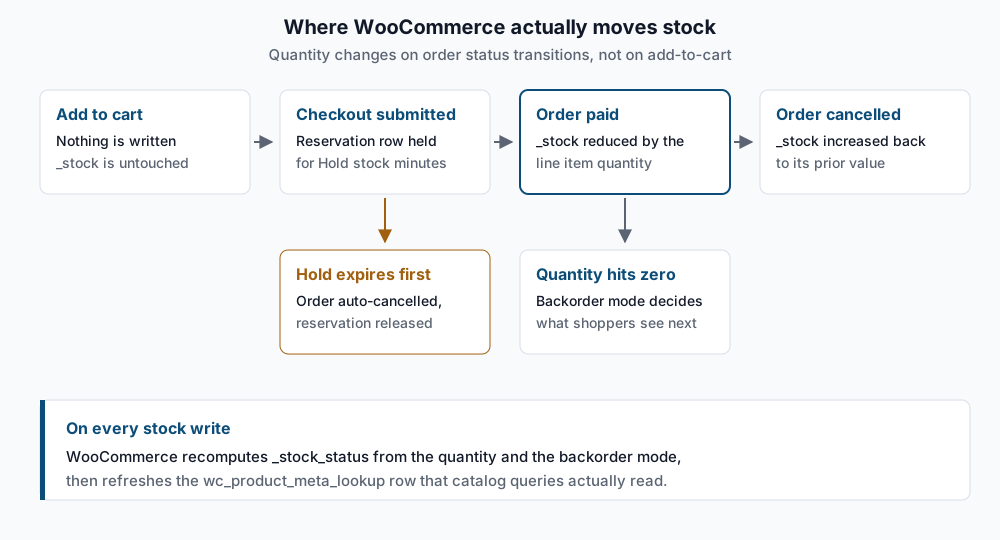
Hold stock (minutes) (woocommerce_hold_stock_minutes) governs the gap between “customer started checkout” and “order was paid”. WooCommerce writes a short-lived reservation row so that a second shopper cannot claim the same unit while a payment is in flight, and it schedules unpaid pending orders older than the hold window for automatic cancellation. Cancellation is why stock comes back: cancelling an order that had already reduced stock puts the quantity back, using the _reduced_stock value recorded on each order line item so it restores exactly what was taken.
Step-by-step
- Read what the store is actually set to. The admin screen shows labels; these are the values behind them.
wp option get woocommerce_manage_stock
wp option get woocommerce_hold_stock_minutes
wp option get woocommerce_notify_low_stock_amount
wp option get woocommerce_notify_no_stock_amount
wp option get woocommerce_stock_email_recipient
wp option get woocommerce_hide_out_of_stock_items
wp option get woocommerce_stock_format
Expect yes, a number of minutes (60 is the default), two thresholds (2 and 0 by default), an email address, yes or no, and one of three values for the display format: empty for “Always show quantity”, low_amount for “Only show quantity when low”, no_amount for “Never show quantity”. An empty result for woocommerce_stock_format is normal, not a fault.
- Turn stock management on and size the hold window. Under WooCommerce → Settings → Products → Inventory, tick Manage stock. Then set Hold stock (minutes) to something longer than your slowest payment method takes to confirm. Sixty minutes is fine for cards; if you accept direct bank transfer or cheque, those orders sit unpaid for days, and a 60-minute hold will cancel them out from under you. Set it to
0to disable automatic cancellation entirely — the reservation behaviour goes with it.
wp option update woocommerce_manage_stock yes
wp option update woocommerce_hold_stock_minutes 90
Success looks like Success: Updated 'woocommerce_manage_stock' option. for each.
- Set the thresholds and say who hears about them. Low stock threshold fires a notification when a product drops to that quantity; Out of stock threshold is the quantity at or below which a product is treated as out of stock — normally
0, but raise it to2if you always want a safety buffer unsellable. Notification recipient takes a comma-separated list, and it is the one field people forget when the person who set the store up leaves the company.
wp option update woocommerce_notify_low_stock_amount 5
wp option update woocommerce_stock_email_recipient "inventory@example.com,ops@example.com"
Individual products can override the low-stock threshold through their own Low stock threshold field, stored as _low_stock_amount; leave it empty to inherit the store value.
-
Choose out-of-stock visibility and display format deliberately. Ticking Out of stock visibility hides sold-out products from the shop, category and search listings. It does not unpublish them — the product URL still resolves, which keeps existing links and search-engine results alive rather than turning them into 404s. That is usually what you want. Stock display format controls whether shoppers see “12 in stock” or just “In stock”, and it is a merchandising decision: exact counts create urgency but also tell competitors your inventory position.
-
Set stock on a simple product. Three fields matter on the Inventory tab: the Stock management checkbox, Quantity, and Allow backorders.
wp wc product update 431 --manage_stock=true --stock_quantity=24 --user=1
wp post meta get 431 _stock
wp post meta get 431 _stock_status
You should see 24 and instock. Going through wp wc product update rather than wp post meta update is the point: it runs the product through the data layer, so _stock_status and the lookup table are both recalculated.
- Decide where variable-product stock lives — parent or variations, not both. This is where most stores get confused. If you tick Stock management on the parent product, the parent holds one shared quantity and every variation draws from it; the per-variation quantity fields are ignored. If you instead leave the parent unmanaged and tick Manage stock? on each variation, each variation carries its own
_stockand the parent’s_stock_statusis derived from whether any child is purchasable. Mixing the two — a leftover quantity on the parent from before you added variations — produces a product that looks in stock on the archive page and refuses to add to cart.
wp post meta get 512 _manage_stock
wp wc product_variation list 512 --user=1 --fields=id,sku,manage_stock,stock_quantity,stock_status --format=table
If the parent prints yes, every row in that table should show manage_stock as false. If the parent prints no or nothing at all, the variations are in charge.
- Pick a backorder mode.
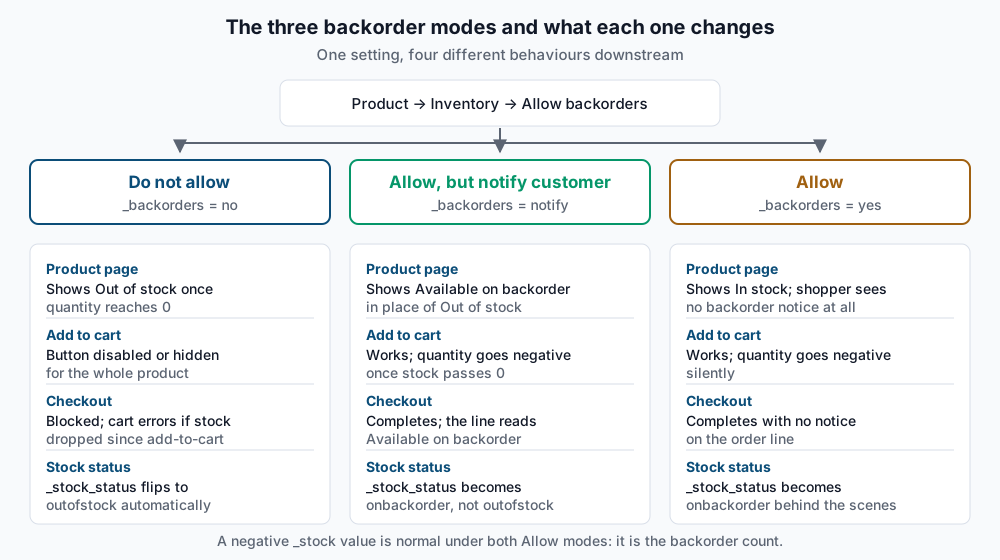
_backorderstakes exactly three values, and the difference between the two permissive ones is entirely about what the customer is told.
wp wc product update 431 --backorders=notify --user=1
wp post meta get 431 _backorders
Expect notify. Once the quantity passes zero under either Allow mode, _stock goes negative and _stock_status becomes onbackorder — a negative number here is correct, and it is your backorder count. Under Allow, none of that reaches the customer: the product page still reads “In stock” and the order line carries no notice, so your fulfilment team finds out from the packing list. Under Allow, but notify customer, the product page, cart and order line all say the item is on backorder. Choose Allow only when the backorder is invisible to the customer by design, such as a made-to-order item.
- Bulk-edit across the catalog. From Products, select rows, then Bulk actions → Edit. The panel exposes Backorders?, In stock? and a Stock qty control whose dropdown offers Change to, Increase existing stock by and Decrease existing stock by — the last two are the ones worth knowing, because they apply a delta rather than flattening every product to the same number. Quantity changes are ignored for products that are not managing stock, silently, which is why step 6 comes first. For larger sets, the CSV importer in Products → Import handles the
Stock,In stock?,Backorders?andLow stock amountcolumns; the mechanics of the importer are covered in importing products from CSV.
Validate it works
Dump the catalog’s inventory state in one pass and read it:
wp wc product list --user=1 --per_page=100 \
  --fields=id,name,manage_stock,stock_quantity,stock_status,backorders \
  --format=csv > /tmp/stock-audit.csv
Then hunt for the disagreement that actually causes support tickets — meta and mirror out of step:
wp db query "SELECT l.product_id, l.stock_quantity, l.stock_status, m.meta_value AS meta_status
  FROM $(wp config get table_prefix)wc_product_meta_lookup l
  JOIN $(wp config get table_prefix)postmeta m
    ON m.post_id = l.product_id AND m.meta_key = '_stock_status'
  WHERE l.stock_status <> m.meta_value"
An empty result is the pass condition. Any rows returned are products whose catalog listing and product page will contradict each other.
Finally, confirm the unpaid-order sweep is actually scheduled — if WP-Cron is broken, Hold stock (minutes) never fires:
wp cron event list --fields=hook,next_run_relative | grep cancel_unpaidYou should see woocommerce_cancel_unpaid_orders with a next run inside your hold window.
Troubleshooting
Quantities on variations do nothing. The parent product has _manage_stock set to yes. Untick Stock management on the parent, save, then re-enter the per-variation quantities. The parent’s leftover _stock value stays in the database but stops being consulted.
A product shows “In stock” at zero units. Something wrote _stock outside the data layer — a raw SQL update, an old sync integration, or a bulk tool that skipped the product object. Re-save the product once through wp wc product update to force recalculation, then rebuild the mirror from WooCommerce → Status → Tools → Regenerate the product lookup tables, or:
wp wc tool run regenerate_product_lookup_tables --user=1If an external system is the writer, fix it at the source — see keeping WooCommerce inventory in sync with an external system.
Low stock emails never arrive. Check three things in order: woocommerce_notify_low_stock is yes, woocommerce_stock_email_recipient is a mailbox someone reads, and the site can actually send mail (wp eval 'var_dump( wp_mail( "you@example.com", "test", "test" ) );' returning bool(true) proves the handoff, not delivery). Notifications also only fire for products that manage stock, so a catalog where most products have _manage_stock off will look silent even when it is working.
Unpaid orders cancel too aggressively. Hold stock (minutes) applies to every unpaid pending order, including bank transfer and cheque. Either raise the window well past your slowest method or set it to 0 and cancel stale orders on your own schedule.
Stock did not come back after a refund. Cancellation restores stock automatically; refunds do not, unless you use the restock control on the refund form. That is a separate mechanism — see partial refunds and restocking.
When this is the wrong approach
If two shoppers can realistically hit the last unit within the same second — a drop, a flash sale, a ticket release — configuration alone will not save you. That is a concurrency problem with its own failure modes and its own fixes; the settings here narrow the window but do not close it, and the stock race condition guide is the right starting point instead.
If quantities are authoritative in an ERP or a warehouse system, do not manage them in WooCommerce at all. Let the external system own the number and push it in; two systems both convinced they hold the truth will diverge within a week.
And if you are selling a service, a booking, or anything where “how many are left” is really “how many slots on which date”, stock quantities are the wrong model entirely — availability is a scheduling problem, not an inventory one. The official WooCommerce product management documentation and the WP-CLI post meta reference cover the underlying fields if you need to go deeper.
Running WordPress that earns real money deserves an operator — Stack Harbor runs that stack under Enterprise WordPress; book an infrastructure consult.