If you manage a WordPress site, you can turn off the block editor for one or two post types while every other type keeps it. Post types are the kinds of content WordPress stores, such as posts, pages or products. The cleanest fix is WordPress’s own per-type switch: a ten-line must-use plugin (a file WordPress always loads) that returns false from the use_block_editor_for_post_type filter for the types you name. You then confirm the result from WP-CLI and on the edit screens themselves.
Teams usually ask for this when a custom type is built around meta boxes, the panels of extra fields on the edit screen. The Classic Editor plugin is the usual answer, but its main setting covers the whole site, and its per-user option spreads the choice across every author.
What you’ll accomplish
- Find the exact internal name of each post type you want to change.
- See what WordPress decides for each type today, and why.
- Send the chosen types to the classic edit screen with a must-use plugin that no one can switch off from the admin.
- Optionally, add a rule for single posts, such as pages built on an old template.
- Prove the change from the shell and in the browser, and confirm the REST API still serves those types.
Prerequisites
- WordPress 6.1 or newer for the WP-CLI checks as written. That release moved
use_block_editor_for_post_type()anduse_block_editor_for_post()out ofwp-admin, sowp evalcan call them directly. The filters themselves date from 5.0. On an older site, start eachwp evalwithrequire_once ABSPATH . "wp-admin/includes/post.php";(double quotes, because the whole command sits inside single quotes). - WP-CLI, which runs WordPress tasks from the shell, used over SSH as the site’s own user. Run commands from the WordPress root, the folder that holds
wp-config.php. - Write access to
wp-content/mu-plugins/. A must-use plugin is a PHP file in that folder that WordPress always loads, and that nobody can deactivate from the Plugins screen. - An admin login that can edit the post types involved, for the browser check.
- A staging copy if you have one. The change is easy to undo (delete one file), but editors notice a different screen right away.
How it works
When someone opens post.php (edit an item) or post-new.php (add one), WordPress calls use_block_editor_for_post(). That function first asks use_block_editor_for_post_type() for the type’s answer, which goes through four checks in order:
- The post type must exist.
- It must support
editor, the main content field set in thesupportslist ofregister_post_type(). - It must have
show_in_restset totrue, because the block editor reads and saves through the REST API. - The
use_block_editor_for_post_typefilter runs, starting fromtrue.
If any of the first three fails, the answer is false and the filter never runs. Back in use_block_editor_for_post(), the type’s answer goes through one more filter, use_block_editor_for_post, which receives the post itself. Whatever that last filter returns decides the screen: true loads the block editor, false loads the classic form with its content box and meta boxes.
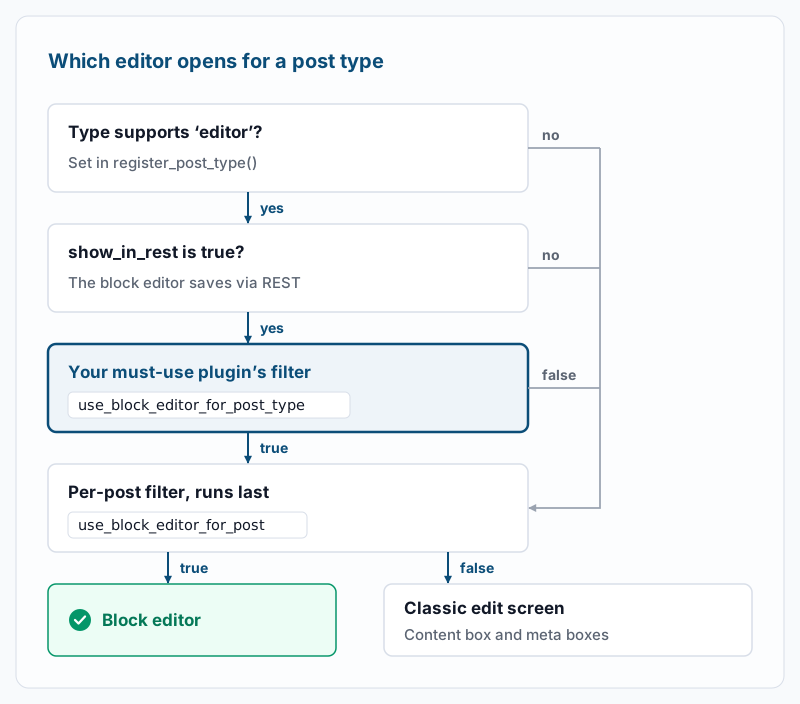
The figure shows why the per-type filter is the right place for your rule. It runs only for types that could use the block editor, it sees nothing but the type name, and it leaves everything else alone.
Two other actors can change the result:
- The Classic Editor plugin. With “Default editor for all users” set to Classic and user switching turned off, it adds
__return_falsetouse_block_editor_for_post_typeat priority 100. Every type then gets the classic screen, whatever your plugin says at priority 10. With user switching on, it filtersuse_block_editor_for_postat priority 100 instead and follows each author’s choice. Even then, it never offers the block editor for a type whose per-type answer isfalse, so your rule holds. - Themes and other plugins that hook the same filters. Step 7 shows how to list every callback.
Why show_in_rest => false is the wrong lever
Setting show_in_rest to false does turn off the block editor for a type, because it fails check 3. It also removes the type from the REST API. Its /wp-json/wp/v2/... routes disappear and return a 404 error with the code rest_no_route. The editor’s link search stops finding those items, since the search endpoint only covers public types that are in the REST API. A headless front end, an import script or a reporting tool that reads the type over REST breaks too. The filter changes the edit screen and nothing else.
Step-by-step
- Find the post type’s internal name. Menus show labels such as “Books”, but the filter needs the name the type was registered with. List the types that have an admin screen:
wp post-type list --show_ui=1 --fields=name,label,publicExample output:
+---------------+-------------------+--------+
| name          | label             | public |
+---------------+-------------------+--------+
| post          | Posts             | 1      |
| page          | Pages             | 1      |
| attachment    | Media             | 1      |
| wp_block      | Patterns          |        |
| wp_navigation | Navigation Menus  |        |
| book          | Books             | 1      |
| listing       | Property Listings | 1      |
+---------------+-------------------+--------+
Use the name column. Here the type labelled “Property Listings” is called listing. Another way to read it: open the type’s list in the admin and look at the address bar, where edit.php?post_type=listing shows the name. If your type is missing from the output, the plugin or theme that registers it is inactive.
- Check what WordPress decides today. This prints each check from the ladder for the types you care about. Put your own names in the array:
wp eval 'foreach ( array( "post", "page", "book", "listing" ) as $t ) { if ( ! post_type_exists( $t ) ) { echo "$t: not registered\n"; continue; } printf( "%-8s editor=%-3s rest=%-3s block=%s\n", $t, post_type_supports( $t, "editor" ) ? "yes" : "no", get_post_type_object( $t )->show_in_rest ? "yes" : "no", use_block_editor_for_post_type( $t ) ? "yes" : "no" ); }'Example output:
post     editor=yes rest=yes block=yes
page     editor=yes rest=yes block=yes
book     editor=yes rest=yes block=yes
listing  editor=yes rest=yes block=yes
block=yes means the type opens in the block editor today. If a type shows editor=no or rest=no, it already gets the classic screen and needs no filter. See Troubleshooting if that surprises you. If every row shows block=no, something already filters all types, most often the Classic Editor plugin; step 7 finds it.
- Create the must-use plugin. Create the folder if it does not exist, then save this as
wp-content/mu-plugins/classic-editor-for-types.php, with your own type names in the list:
<?php
/**
 * Plugin Name: Classic edit screen for chosen post types
 * Description: Loads the classic edit screen for the post types listed below. Every other type keeps the block editor.
 */

// Post type names (not labels) that should open in the classic edit screen.
function sh_classic_post_types() {
	return array( 'book', 'listing' );
}

function sh_classic_for_post_types( $use_block_editor, $post_type ) {
	if ( in_array( $post_type, sh_classic_post_types(), true ) ) {
		return false;
	}
	return $use_block_editor;
}
add_filter( 'use_block_editor_for_post_type', 'sh_classic_for_post_types', 10, 2 );
The function returns the incoming value for every other type, so it never forces the block editor anywhere. Named functions, rather than anonymous ones, make the callback easy to spot in step 7. The file must sit directly in mu-plugins/; WordPress does not load files from subfolders there. A theme’s functions.php would also work, but a theme switch would silently undo it.
Confirm WordPress sees the file:
wp plugin list --status=must-use --fields=name,statusExample output:
+--------------------------+----------+
| name                     | status   |
+--------------------------+----------+
| classic-editor-for-types | must-use |
+--------------------------+----------+
If the row is missing, check the folder and the file name. A PHP syntax error shows up as a PHP Parse error line naming the file the next time any wp command runs.
- Optionally, add a per-post rule. Some teams want classic editing for a subset of one type, such as pages built on an old landing-page template. Add this to the same file, with your template’s path:
// Pages built on the old landing template also open in the classic screen.
function sh_classic_for_legacy_template( $use_block_editor, $post ) {
	if ( 'page' === $post->post_type && 'templates/legacy-landing.php' === get_page_template_slug( $post ) ) {
		return false;
	}
	return $use_block_editor;
}
add_filter( 'use_block_editor_for_post', 'sh_classic_for_legacy_template', 10, 2 );
The rule needs the value WordPress stores for the template. List the active theme’s page templates:
wp eval 'print_r( wp_get_theme()->get_page_templates() );'Example output:
Array
(
    [templates/legacy-landing.php] => Legacy landing
    [templates/full-width.php] => Full width
)
The key on the left is the value to use. On a block theme the stored value is the template’s slug, such as legacy-landing, with no folder or .php. Then list the pages that use it:
wp post list --post_type=page --meta_key=_wp_page_template --meta_value=templates/legacy-landing.php --fields=ID,post_titleExample output:
+-----+-------------------+
| ID  | post_title        |
+-----+-------------------+
| 812 | Spring open house |
| 640 | Downtown condos   |
+-----+-------------------+
No rows means no page uses that value yet. Keep per-post rules for cases like this one. A new page starts as an empty draft with no template, so Add New still opens the block editor. The rule takes effect once the page is saved with the template and reopened.
- Repeat the check from step 2. Run the same
wp evalcommand again. Example output:
post     editor=yes rest=yes block=yes
page     editor=yes rest=yes block=yes
book     editor=yes rest=yes block=no
listing  editor=yes rest=yes block=no
Only the types in your list should change to block=no, and rest=yes should stay. For a per-post rule, check one matching item and one that should not match:
wp eval 'var_dump( use_block_editor_for_post( 812 ), use_block_editor_for_post( 2 ) );'Example output:
bool(false)
bool(true)
Use one ID from step 4 and the ID of an ordinary page. A bool(true) for the first means the template path in the rule does not match the stored value.
- Open the edit screens. Log in and load the add screen for each changed type, for example
/wp-admin/post-new.php?post_type=book, then open an existing item from its list. The classic screen shows the title field, the content box with its formatting toolbar, and meta boxes in the right column. Then open a post to confirm it still loads the block editor’s full-screen canvas. For a precise answer, open the browser’s developer console on each screen and run:
document.body.classList.contains( 'block-editor-page' )WordPress adds that class to the page only when the block editor loads. Expect false on your types and true on a post. Purge any page cache first if your host caches wp-admin (most do not).
Validate it works
- List every callback on both filters. This shows your plugin and anything else that hooks the same filters, with priorities:
wp eval 'global $wp_filter; foreach ( array( "use_block_editor_for_post_type", "use_block_editor_for_post" ) as $h ) { echo "== $h\n"; if ( empty( $wp_filter[ $h ] ) ) { continue; } foreach ( $wp_filter[ $h ]->callbacks as $prio => $cbs ) { foreach ( $cbs as $id => $cb ) { echo "$prio $id\n"; } } }'Example output:
== use_block_editor_for_post_type
10 sh_classic_for_post_types
== use_block_editor_for_post
10 sh_classic_for_legacy_template
Callbacks run from the lowest priority to the highest, and the last one wins. Your functions should be the only ones here, or the others should not return true for your types. A line such as 100 __return_false under the per-type filter means the Classic Editor plugin is forcing the classic screen everywhere. A long hexadecimal ID is an anonymous function from a theme or plugin; search for it with grep -rn "use_block_editor_for_post" wp-content/themes wp-content/plugins wp-content/mu-plugins.
- Confirm the REST API still serves the type. Ask WordPress for the type’s route, then request it:
wp eval 'echo rest_get_route_for_post_type_items( "book" ), PHP_EOL;'
curl -s -o /dev/null -w '%{http_code}\n' https://example.com/wp-json/wp/v2/book
Example output:
/wp/v2/book
200
Use your domain and the route the first command prints. An empty first line, or a 404 from curl, means the type is not in the REST API. That was the case before your change; your plugin does not touch it.
Troubleshooting
A listed type still opens in the block editor. First compare the name in your list with step 1; a label or a typo fails without any error. Next, run step 7. If another callback at a higher priority returns true, raise your priority above it, for example from 10 to 110, in the add_filter() line. If step 7 does not show your function at all, the file is not loading; recheck step 3.
Every type now opens the classic screen, including posts. The Classic Editor plugin is set to Classic for all users with switching off, and step 7 shows 100 __return_false. Either deactivate it, since your plugin now does the per-type part, or set its default back to the block editor:
wp option update classic-editor-replace blockIt prints Success: Updated 'classic-editor-replace' option. Posts return to the block editor and your types stay classic. On a multisite network, the plugin may follow the network setting instead, under Settings in the Network Admin.
The classic screen has no content box. The type does not support editor, so step 2 shows editor=no. The block editor never loads for such a type, and you do not need the filter for it. If editors should write body text, add add_post_type_support( 'listing', 'editor' ); to the same must-use file, inside a function hooked to init at priority 20 so it runs after the type is registered.
WP-CLI says block=no, but the browser still shows the block editor. Three causes are common. Some plugins add their filters only when is_admin() is true, and it is always false under WP-CLI, so the browser sees a callback that wp eval misses. A per-post filter can return true for that item; check it with use_block_editor_for_post() as in step 5. And if PHP’s OPcache has opcache.validate_timestamps off, it keeps serving the old copy of an edited file until PHP-FPM is reloaded. Ask your host to reload it, or check with php -i | grep validate_timestamps, keeping in mind the command-line value can differ from the web server’s.
Authors can still pick the block editor for posts. That comes from the Classic Editor plugin’s “Allow users to switch editors” setting. It adds “Edit (block editor)” and “Edit (classic editor)” links to post lists, but skips them on your types, where only one editor is available. If you want no choice anywhere, set that option to No, or deactivate the plugin.
When this is the wrong approach
If the whole team wants the classic editor for every type, the Classic Editor plugin is the simpler tool. When to keep the Classic Editor covers that decision and its settings.
If a type has no body text at all, removing editor support may describe it better than a filter. Editors then get a title, meta boxes and no empty content field.
If the complaint is that meta boxes look out of place, know that the block editor also shows classic meta boxes, in panels below the content or in the sidebar. Moving the fields to register_post_meta() with show_in_rest lets you rebuild them as sidebar panels later. Registration choices like these are covered in custom post type best practices.
On a multisite network, a file in mu-plugins/ loads on every site. If only one site needs the rule, add a get_current_blog_id() check inside the function, or use a regular plugin activated on that site.
Running WordPress that earns real money deserves an operator — Stack Harbor runs that stack under Enterprise WordPress; book an infrastructure consult.