Reusable blocks and synced patterns are one feature: WordPress 6.3 renamed reusable blocks to synced patterns and added a second kind, the unsynced pattern. So the real decision is synced or unsynced. Use a synced pattern for content that must be identical everywhere and change everywhere at once, such as a legal disclaimer, a newsletter signup or an opening-hours box. Use an unsynced pattern for a starting layout that each page then adapts, such as an event announcement or a product feature row. If you picked the wrong one, the usual symptoms are an edit that changed fifty pages when you meant one, or a correction you have to repeat on every page by hand.
What you’ll accomplish
- Understand where each kind of pattern is stored and what an edit actually changes.
- Compare synced patterns, unsynced patterns and theme patterns on the criteria that matter day to day.
- List every pattern on a site with its sync status, and find every page that uses a given synced pattern.
- Pick the right kind for a new piece of shared content.
- Move content from one kind to the other without losing pages.
Prerequisites
- WordPress 6.3 or later. On 6.2 and older you only have reusable blocks, which behave like the synced patterns below.
- An account that can edit posts. The Patterns screen under Appearance needs the Administrator role; Editors can manage patterns at
/wp-admin/edit.php?post_type=wp_blockinstead. - WP-CLI on the server for the inventory commands. Every check also has a dashboard route.
- Per-page edits inside a synced pattern, called overrides, need WordPress 6.6 or later.
How each kind works
All patterns you create in the editor are stored as posts of the wp_block post type. One post meta field, wp_pattern_sync_status, decides how WordPress treats them. When it is empty, the pattern is synced. When it says unsynced, it is not.
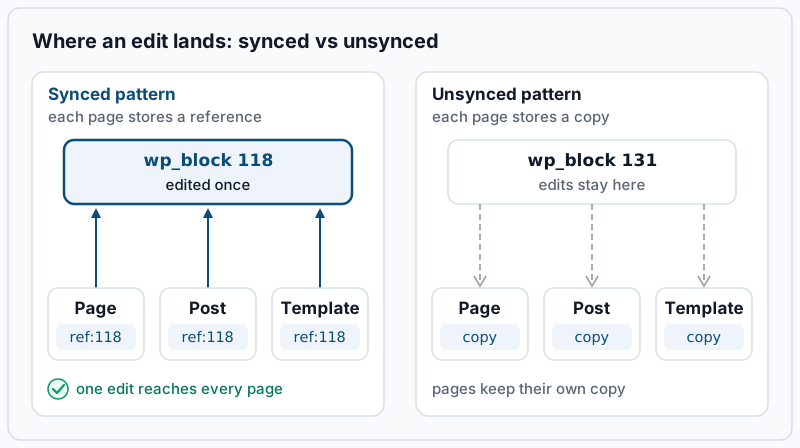
A synced pattern is inserted as a pointer, not a copy. The page stores one short block, <!-- wp:block {"ref":118} /-->, where 118 is the pattern’s post ID. On every page view, WordPress looks up post 118 and prints its current content. Edit the pattern once and every page that points to it shows the new version on its next load.
An unsynced pattern is a template for blocks. Inserting it copies its blocks into the page, and from then on those blocks belong to the page. Edit the pattern later and nothing already published changes; only future insertions get the new version.
Theme patterns are a third source. A theme ships them in its patterns/ folder, and a plugin can register them in PHP. They always insert as copies, like unsynced patterns, and you cannot edit them from the dashboard because they live in files.
The criteria compared
| What you care about | Synced pattern (formerly reusable block) | Unsynced pattern | Theme pattern |
|---|---|---|---|
| What the page stores | A reference to the pattern’s ID | A full copy of the blocks | A full copy of the blocks |
| An edit to the pattern changes | Every page using it, immediately | Only future insertions | Only future insertions, after a theme update |
| Per-page changes | Only in blocks with overrides enabled (6.6+) | Anything, freely | Anything, freely |
| Where it lives | Database (wp_block post) | Database (wp_block post) | Theme or plugin files |
| Who can change it | Anyone allowed to edit patterns | Anyone allowed to edit patterns | A developer, through a deploy |
| If the pattern is deleted | Pages show nothing in its place | Pages are unaffected | Pages are unaffected |
| Moving one page to another site | Breaks: the ID points to nothing there | Works: the content is in the page | Works: the content is in the page |
Two rows decide most cases. “An edit changes” is the whole point of syncing: one correction fixes every page. “If the pattern is deleted” is its price: a synced pattern is a dependency, and every page that uses it now depends on one row in the database staying published.
Check what your site has
1. List every pattern with its sync status. WP-CLI has no column for the meta field, so print it with a short wp eval:
wp eval 'foreach ( get_posts( array( "post_type" => "wp_block", "numberposts" => -1, "post_status" => "any" ) ) as $p ) { $s = get_post_meta( $p->ID, "wp_pattern_sync_status", true ); printf( "%d\t%s\t%s\t%s\n", $p->ID, $s ? $s : "synced", $p->post_status, $p->post_title ); }'Example output:
118	synced	publish	Pricing disclaimer
131	unsynced	publish	Event announcement layout
140	synced	draft	Newsletter signup
No output at all means the site has no editor-created patterns; theme patterns are not wp_block posts and will not appear. A synced pattern in draft is worth noticing: pages that use it print nothing in its place until it is published.
In the dashboard, administrators find the same list under Appearance > Editor > Patterns on a block theme, or Appearance > Patterns on a classic theme. Editors use /wp-admin/edit.php?post_type=wp_block. Some recent versions label that classic-theme entry Design when the theme supports editor styles. In the block inserter, synced patterns are marked with a small rhombus icon.
2. Find every page that uses a synced pattern. Replace 118 with the ID from step 1. The pattern [,}] stops 118 from also matching 1180:
wp db query "SELECT ID, post_type, post_status, post_title FROM $(wp db prefix)posts WHERE post_content REGEXP '\"ref\":118[,}]' AND post_type <> 'revision'"Example output:
+-----+-------------+-------------+-----------------------+
| ID  | post_type   | post_status | post_title            |
+-----+-------------+-------------+-----------------------+
| 52  | page        | publish     | Pricing               |
| 207 | post        | publish     | Spring plans are live |
| 233 | wp_template | publish     | Single Posts          |
+-----+-------------+-------------+-----------------------+
This is the list of pages an edit to pattern 118 will change. Note the wp_template row: a synced pattern inside a template reaches every page that template renders, not one page. An empty result means nothing references the pattern, so editing or deleting it affects no published content.
3. Count the unsynced copies, if you need to. Unsynced insertions leave no trace back to the pattern, so there is no exact query for them. The practical method is to search for a distinctive phrase from the pattern’s content:
wp post list --post_type=page,post --s="Doors open at" --fields=ID,post_titleExample output:
+-----+---------------------------+
| ID  | post_title                |
+-----+---------------------------+
| 301 | Autumn open house         |
| 322 | Winter workshop series    |
+-----+---------------------------+
Who should pick which
Pick a synced pattern when the content must never differ between pages and a single correction must reach all of them. Legal text, a pricing disclaimer, a signup form embed, contact details and opening hours all fit. On WordPress 6.6 and later, you can also enable overrides on chosen blocks inside it, such as the heading and the button text. That gives you a card whose layout stays locked while each page fills in its own words.
Pick an unsynced pattern when the pattern is a starting point. An event announcement, a team-member row or a case-study layout all get edited per page, and a later change to the pattern should not rewrite pages that are already published.
Leave it to the theme when the arrangement is part of the brand and changes only with a release. Theme patterns are versioned in code and cannot be altered from the dashboard by accident. The trade-offs of keeping a curated set of them are covered in building and managing a patterns library.
A mixed site is normal. A common split is brand layouts in the theme and a handful of synced patterns for text that must stay identical. Everything editors adapt goes into unsynced patterns.
How to move between them
WordPress sets the type when you create a pattern, with the Synced toggle in the dialog that Create pattern opens. Synced is on by default. Current versions offer no switch to change the type later, so moving content means creating a pattern of the other kind and changing the pages that use the old one. The quickest way to get that second pattern is Duplicate on the Patterns screen: it opens the same dialog, with its own Synced toggle.
From synced to unsynced (stop one edit changing every page). Run step 2 to list the pages. Open each one, select the pattern, and choose Detach from the block’s options menu (the three dots). Detach replaces the reference with a copy of the blocks, so the page keeps the same content and no longer follows the pattern. When step 2 returns no rows, delete the synced pattern or keep it for new pages. If you want the layout to stay available as a starting point, create an unsynced pattern from the same blocks before you detach the last copy.
From unsynced to synced (make one correction reach every page). Open the pattern’s layout on one page, select its blocks, and choose Create pattern from the options menu with Synced turned on. Then, on each page from step 3, delete the old copy and insert the new synced pattern in its place. Check each page as you go: any local edits that page had made to its copy are lost, because the synced pattern shows the same content everywhere.
Moving patterns to another site. On the Patterns screen, each pattern’s actions menu has Export as JSON, and the target site’s Patterns screen can import that file. The JSON keeps the sync status. The imported pattern gets a new ID, so pages copied across separately still point to the old ID: re-insert the pattern on those pages.
Troubleshooting
A synced pattern shows on some pages and is blank on others. The front end prints nothing when the pattern post is not published, is password-protected, or was deleted. Run step 1 and check the status column. If the ID is missing from the list altogether, the pattern was deleted; the editor shows “Block has been deleted or is unavailable” in its place.
An edit meant for one page changed every page. The pattern was synced. Restore the previous version from the pattern’s revisions if the content matters, then detach that one page as described above before editing it.
You cannot edit text inside a synced pattern on a page. Synced content is locked inside a page on purpose. Either edit the original, which changes every page, or enable overrides on that block in the original (WordPress 6.6 or later) so each page can fill it in.
A pattern inserted on a copied page shows nothing. The page was moved from another site or from staging, and its ref points to an ID that does not exist here. Export the pattern from the source site, import it, and re-insert it on the page.
Patterns fail to insert or show validation errors. That is a different problem, usually a missing block or a theme change. Fixing broken block patterns walks through it.
When this is the wrong approach
For a header, footer or sidebar that appears on every page of a block theme, use a template part instead of a synced pattern. Template parts are made for site-wide regions and can be assigned to templates; template part conflicts explains how their file and database copies interact. Some content must vary by user, date or query, such as the latest three posts. A pattern of either kind is static, so use the core query blocks or a custom block there. WordPress’s own patterns documentation shows the dialogs step by step.
Running WordPress that earns real money deserves an operator — Stack Harbor runs that stack under Enterprise WordPress; book an infrastructure consult.