Menus in a WordPress block theme live in the Navigation block, not under Appearance > Menus. Here is how to manage them if you maintain a site built on one. The usual trouble starts after a theme switch or a copy from staging, when the header suddenly shows every page or the footer’s menu. The cause is almost always the same: the Navigation block points to a saved menu by its ID, and when that ID is missing it quietly falls back to another menu. Name each menu, pin your header and footer to them, and check the ID whenever you move a site.
What you’ll accomplish
- See every menu stored on the site and find the one your header actually displays.
- Turn a classic menu into a block menu, and edit items and submenus.
- Give menus clear names and remove leftover copies safely.
- Set how the menu behaves on phones.
- Copy a menu from staging to production with WP-CLI, and fix the links that break on the way.
Prerequisites
- WordPress 6.5 or later with an active block theme. Menu labels below are those of WordPress 7.x. Where 6.x uses a different name, it is noted.
- An Administrator account. Menus need the
edit_theme_optionscapability, which Editors do not have by default. - WP-CLI on the server for the inspection and copy steps, and
curlon any machine. - For the copy step, both sites reachable over SSH and a backup of the target database.
How it works
Each block menu is saved as a post of the type wp_navigation. Its content is a list of blocks: Page Link and Custom Link items, Submenu items, and sometimes a Page List block that shows every published page. The Navigation block in your header does not hold the menu itself. It holds a reference, an attribute such as "ref":123, that names the wp_navigation post to display. Your header lives in a template part, either the theme’s parts/header.html file or a copy saved in the database once someone edits it in the Site Editor.
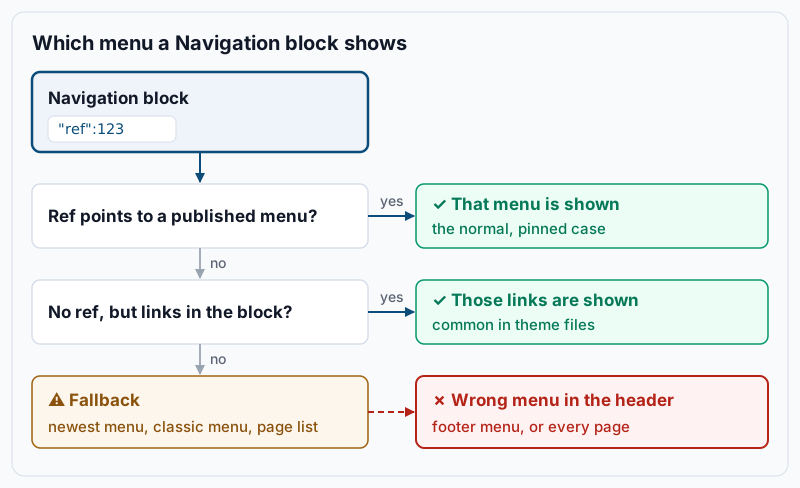
The diagram shows the order WordPress follows on every page load. A reference to a published menu wins. With no reference at all, links saved directly in the block markup are used. A reference that points to a missing or unpublished menu skips those saved links. If neither gives any items, WordPress picks a fallback: the most recently created published menu, then a converted copy of a classic menu, then a Page List. When there is no menu at all, WordPress can create one titled “Navigation” for the fallback, which is where unexplained duplicates come from.
The key point is that a broken reference does not show an error to visitors. A deleted menu, a menu in the trash, or an ID copied from another site all lead to the fallback. That is why the wrong menu appears with no warning.
Step-by-step
-
List the menus on the site. From the WordPress directory on the server:
wp post list --post_type=wp_navigation --post_status=any --fields=ID,post_title,post_status,post_dateExample output:
+-----+--------------+-------------+---------------------+
| ID  | post_title   | post_status | post_date           |
+-----+--------------+-------------+---------------------+
| 214 | Navigation 2 | publish     | 2026-09-30 13:48:07 |
| 187 | Footer       | publish     | 2026-08-12 10:21:44 |
| 123 | Header       | publish     | 2026-06-03 09:05:31 |
+-----+--------------+-------------+---------------------+
An empty table means the site has no block menus yet, and every Navigation block is using fallback content. In the dashboard, the same list is under Appearance > Editor > Navigation.
-
Find the menu your header uses. If anyone edited the header in the Site Editor, the saved copy is a
wp_template_partpost. List those copies, then read the reference from the header:wp post list --post_type=wp_template_part --fields=ID,post_name,post_modified wp post get 231 --field=post_content | grep -o '"ref":[0-9]*'Example output:
+-----+-----------+---------------------+
| ID  | post_name | post_modified       |
+-----+-----------+---------------------+
| 231 | header    | 2026-10-14 16:32:09 |
+-----+-----------+---------------------+
"ref":123
Here the header shows menu 123, “Header”. A synced pattern (a
wp:blockreusable block) also stores aref, so if you get more than one line, the menu is the ID that appears in the list from step 1. If there is noheaderrow, the header comes from the theme file. Check it the same way:grep -o '"ref":[0-9]*' "$(wp theme path "$(wp theme list --status=active --field=name)" --dir)/parts/header.html"No output from either command means the block has no reference, and the fallback or links stored in the theme decide what shows. If the ID you find is not in the list from step 1, you have found your wrong-menu bug.
-
Bring over a classic menu, if you are coming from a classic theme. In the Site Editor, open the header and select the Navigation block. In the sidebar, open the menu selector, the three-dot button next to the menu name. Under Import Classic Menus, choose your old menu. WordPress copies it into a new
wp_navigationpost and points the block at it. It is a one-time copy, so later edits under Appearance > Menus do not reach the block. -
Edit the items. Select the Navigation block and use the + button at the end of the menu to add a page or a Custom Link. WordPress 6.9 and later also put an Add page button in the block toolbar. To nest an item, select it and choose Add submenu in the toolbar. If the menu still shows a Page List, select it and click Edit to turn it into separate page links you can reorder. After that, new pages are no longer added automatically, which is usually what you want for a header. Save from the top right.
-
Name every menu and remove strays. Select the Navigation block, open the Advanced panel, and set Menu name to “Header” (or “Footer” in the footer). Names like “Navigation 2” are what make the wrong one easy to pick later. Before deleting a stray menu, check that no template or template part refers to it:
for id in $(wp post list --post_type=wp_template,wp_template_part --format=ids); do wp post get "$id" --field=post_content | grep -o '"ref":[0-9]*'; done | sort -uExample output:
"ref":123
"ref":187
Also check the theme’s
parts/andtemplates/files with thegrepfrom step 2. A menu whose ID appears nowhere, here 214, is safe to delete from Appearance > Editor > Navigation using its Delete action. Deleting a menu never deletes the pages it links to. -
Set the phone behaviour. With the Navigation block selected, open the Settings tab. Set Overlay Visibility to Mobile, which collapses the menu into a menu icon on small screens. Set Submenu Visibility to Click if your submenus hold more than a few links, since hover menus are hard to use on touch screens. In WordPress 6.x these settings are Overlay Menu and the Open on click checkbox.
-
Copy a menu to another environment. A full database copy keeps every menu ID. You only need this step to move one menu on its own, such as a new header built on staging. On the source site, export the menu’s content:
wp post get 123 --field=post_content > header-menu.htmlMove the file to the target server, then create the menu there. Replace
adminwith an administrator login on that site:wp post create header-menu.html --post_type=wp_navigation --post_title='Header' --post_status=publish --user=admin --porcelainExample output:
356The number is the new menu ID on the target. Open the header in the target’s Site Editor, select the Navigation block, and pick Header under Menus in its menu selector. Then check the page links inside the file, because they store page IDs from the source site:
grep -o '"id":[0-9]*' header-menu.html | cut -d: -f2 | paste -sd, - | xargs -I{} wp post list --post_type=page --post__in={} --fields=ID,post_title,post_statusEvery ID should come back as a published page with the expected title. A missing ID, or a page with a different title, means the target site numbered its pages differently. Select each of those items in the editor and choose the right page again from its link settings (the Link to field in WordPress 7.x).
Validate it works
Compare the labels saved in the menu with the labels on the live page. First, the saved labels:
wp post get 123 --field=post_content | grep -oE '"label":"[^"]+"'Example output:
"label":"Services"
"label":"Pricing"
"label":"About"
"label":"Contact"
Then the labels the header actually renders:
curl -s https://www.example.com/ | grep -oE 'wp-block-navigation-item__label">[^<]+' | head -n 10Example output:
wp-block-navigation-item__label">Services
wp-block-navigation-item__label">Pricing
wp-block-navigation-item__label">About
wp-block-navigation-item__label">Contact
Labels from a footer menu on the same page appear after these, which is why the output is capped at 10 lines. You are done when the header’s labels match the menu in the same order and the reference from step 2 points at a published menu. On a phone-width window, the menu should also collapse into the icon. Clear any page cache before the curl check, or you may be comparing against an old copy.
Troubleshooting
- The header shows every page on the site. The block reached the last fallback, a Page List. Its reference is missing, points to a deleted menu, or points to a menu in the trash. Select the block and choose the right menu under Menus in its menu selector. If the menu is in the trash, restore it with
wp post update 123 --post_status=publish. - The header shows the footer menu, or an old one. Same cause, earlier fallback step: WordPress chose the most recently created published menu. Fix the reference as above, then rename menus so the choice is obvious.
- New menus called “Navigation” keep appearing. A block with no reference and no menu to fall back on can make WordPress create one. Each click on Create new Menu also makes one. Pin every Navigation block to a named menu, then delete unused copies after the check in step 5.
- A link disappeared after a copy or a page change. A Page Link only renders while the page it stores by ID exists and is published. Republish the page, or re-pick the link target in the editor.
- Changes under Appearance > Menus do nothing. Block themes do not read classic menus at render time. Import the classic menu once (step 3) and edit it in the Site Editor from then on.
When this is the wrong approach
If your site still runs a classic theme, keep using Appearance > Menus and the theme’s menu locations. Block menus are made for the templates and template parts of a block theme, and a classic theme’s header never reads them. Our comparison of block themes and classic themes helps if you are weighing the switch.
Menus with more than a hundred items, or large mega menus, strain the Navigation block’s editor much as they strained the classic one. The structural fixes are in managing WordPress menus at scale. If edits to your header seem to vanish after a theme update, the template part itself may have been overridden; see template part conflicts. Every block and setting named above is described in the Navigation block documentation.
Running WordPress that earns real money deserves an operator — Stack Harbor runs that stack under Enterprise WordPress; book an infrastructure consult.