The Query Loop block lists posts anywhere in a WordPress block theme other than the main blog page. Here is how site builders and theme developers set one up so it shows the right posts. Typical cases are a News page that shows one category, the three latest posts on the home page, or a grid of case studies. Block themes have no PHP template for a hand-written WP_Query loop, so you build the listing from blocks in the Site Editor (Appearance > Editor, where block themes edit templates). One setting decides whether it works: the query type. Use Default in archive and search templates so the list follows the URL, and Custom everywhere else so the block runs its own filters.
What you’ll accomplish
- Build a News page that lists posts from one category, six per page, newest first.
- Lay out each post with an image, a linked title and a date, in a three-column grid.
- Add working pagination and a message for when the category is empty.
- Know when to choose the Default query type and when to choose Custom.
- Prove the page shows exactly the posts WordPress says it should, by post ID.
Prerequisites
- WordPress 6.5 or later with an active block theme, such as Twenty Twenty-Four or Twenty Twenty-Five. The Site Editor labels below are those of WordPress 6.7 and later, 7.x included.
- An account with the Administrator role, or another role allowed to edit pages and templates.
- A category that already has a few published posts. The examples use one with the slug
news. - WP-CLI on the server for the checks, and
curlon any machine.
WordPress 6.5 and 6.6 show the query type as a toggle named Inherit query from template. Toggle on means Default and toggle off means Custom. Everything else in this article works the same way.
How it works
The Query Loop block is a container with three jobs. It holds the query settings: post type, filters, order and how many items per page. Inside it, the Post Template block is a layout that WordPress repeats once for every post the query returns. The blocks you place in it, such as Post Title or Post Date, read their content from whichever post is being repeated. Next to it sit the optional Pagination block, which links to further pages of results, and No Results, which only renders when the query finds nothing.
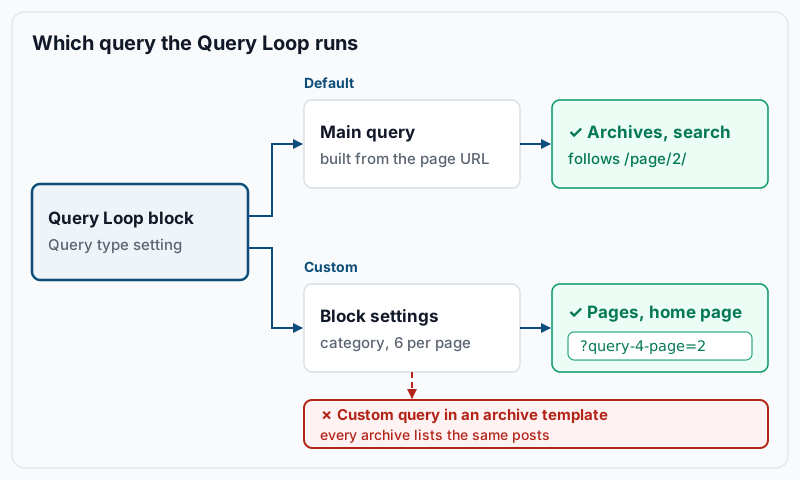
The query type decides where the list of posts comes from. Default reuses the main query, the one WordPress already ran to answer the URL. On /category/news/page/2/ that means the second page of News posts, with no settings needed in the block. Custom ignores the URL and runs the filters you set on the block. Its pagination uses its own URL parameter, query-4-page, where 4 is the block’s queryId attribute and differs from block to block.
That split explains the two most common bugs. A Custom query placed in a category archive template shows the same posts on every category. A Default query placed on a regular page shows only that page, because the page itself is the main query’s only result.
Step-by-step
-
Create the page that will hold the listing. In the dashboard, go to Pages > Add New Page and title it “News”. You are building the list in the page body, so it applies to this page only. To show the list on every page of one type, such as the home page template, open Appearance > Editor > Templates instead and edit that template.
-
Find the category’s term ID. You need it for the validation later, and it shows up in the block markup. On the server, from the WordPress directory:
wp term get category news --by=slug --fields=term_id,name,countExample output:
+---------+-------+
| Field   | Value |
+---------+-------+
| term_id | 7     |
| name    | News  |
| count   | 14    |
+---------+-------+
If WP-CLI answers
Error: Term doesn't exist., the slug is different. Runwp term list category --fields=term_id,slug,nameto find it. -
Insert a Query Loop block. In the page editor, add a Query Loop block. Its placeholder offers Choose, which opens ready-made patterns, and Start blank. Select Start blank, then Title & Date. You now have a Post Template with two blocks inside it, repeated for the latest posts.
-
Switch the query type to Custom. Select the Query Loop block itself, not a block inside it. The List View button in the top toolbar helps you pick the right level. In the Settings sidebar, set Query type to Custom. On a page this is the only setting that gives you a real list, so do it first.
-
Set the filters and order. Still in the Query Loop’s settings, set:
- Post type: Posts.
- Order by: Newest to oldest.
- Items per page: 6.
- Filters: add Taxonomies, then type “News” in the Categories field and pick it.
Leave Offset at 0 and Max pages to show at 0, which means no limit. The editor preview updates as you change each value. If the preview shows posts from other categories, the filter did not save; select the category again from the suggestion list rather than typing it in full.
-
Design the repeated layout. Select the Post Template block. In its toolbar, choose Grid view and set the column count to 3 in the sidebar. Then add a Post Featured Image block above the title, and on the Post Title block turn on Make title a link. Anything you add here repeats for every post, so add only what each card needs.
-
Add pagination and an empty message. Select the Query Loop block and, from the inserter inside it, add a Pagination block below the Post Template. It contains Previous, page numbers and Next by default. Then add a No Results block and put a paragraph in it, such as “No news yet. Check back soon.” Visitors only see that paragraph when the category is empty.
-
Check the block markup. Open the Options menu (three dots, top right) and choose Code editor. The Query Loop part should look close to this, with your own IDs:
Example output:
<!-- wp:query {"queryId":4,"query":{"perPage":6,"pages":0,"offset":0,"postType":"post","order":"desc","orderBy":"date","author":"","search":"","exclude":[],"sticky":"","inherit":false,"taxQuery":{"include":{"category":[7]}}}} -->
<div class="wp-block-query"><!-- wp:post-template {"layout":{"type":"grid","columnCount":3}} -->
<!-- wp:post-featured-image /-->
<!-- wp:post-title {"isLink":true} /-->
<!-- wp:post-date /-->
<!-- /wp:post-template -->

<!-- wp:query-pagination -->
<!-- wp:query-pagination-previous /-->
<!-- wp:query-pagination-numbers /-->
<!-- wp:query-pagination-next /-->
<!-- /wp:query-pagination -->

<!-- wp:query-no-results -->
<!-- wp:paragraph -->
<p>No news yet. Check back soon.</p>
<!-- /wp:paragraph -->
<!-- /wp:query-no-results --></div>
<!-- /wp:query -->
Three values carry the whole setup:
"inherit":falseis the Custom query type,"perPage":6the page size and"category":[7]the term ID from step 2. Your copy may hold extra attributes or list them in another order. WordPress 6.x saves the filter without theincludelevel, as"taxQuery":{"category":[7]}; theincludekey arrived in 7.0 alongside term exclusion. If you see"inherit":true, go back to step 4. Leave the code editor with Exit code editor and publish the page. -
Ship it in the theme, if you are the theme author. To reuse the listing across sites, paste the same markup into a theme file such as
templates/home.htmlor a pattern inpatterns/. Replace the term ID with the right one on each site, because term IDs differ between installs. Our guide to block theme file structure shows where those files go.
Validate it works
Ask WordPress for the same six posts the block should show. category__in matches the block’s behaviour, which does not include child categories:
wp post list --post_type=post --post_status=publish --category__in=7 --posts_per_page=6 --orderby=date --order=DESC --fields=ID,post_title,post_dateExample output:
+-----+--------------------------------+---------------------+
| ID  | post_title                     | post_date           |
+-----+--------------------------------+---------------------+
| 418 | Fall maintenance window        | 2026-10-21 09:40:12 |
| 405 | New support hours              | 2026-10-08 15:03:55 |
| 397 | Office closed for Thanksgiving | 2026-10-02 11:27:40 |
| 371 | Backup policy update           | 2026-09-17 08:58:06 |
| 366 | Team changes                   | 2026-09-09 16:12:31 |
| 352 | Quarterly review               | 2026-08-28 10:45:19 |
+-----+--------------------------------+---------------------+
Now read the post IDs from the live page. Each card is an li element whose class includes post-<ID>:
curl -s https://www.example.com/news/ | grep -oE 'wp-block-post post-[0-9]+'Example output:
wp-block-post post-418
wp-block-post post-405
wp-block-post post-397
wp-block-post post-371
wp-block-post post-366
wp-block-post post-352
The IDs and their order should match the WP-CLI table. Then check page 2 with the block’s own parameter, using the queryId from step 8:
curl -s 'https://www.example.com/news/?query-4-page=2' | grep -oE 'wp-block-post post-[0-9]+'It should list the next six IDs, the ones you get by adding --paged=2 to the WP-CLI command. You are done when both pages match, the pagination links point to ?query-4-page=2, and the No Results text is absent while the category has posts.
Troubleshooting
- The page shows only itself, or nothing. The query type is still Default, so the block reused the page’s own main query. Recent versions may also show a warning under the setting saying the block cannot inherit the template query here. Select the Query Loop block and set Query type to Custom, or look for
"inherit":truein the code editor. - Every category archive lists the same posts. The reverse problem: an archive template holds a Custom query. Open Appearance > Editor > Templates, edit the Category template, and set the Query Loop to Default. Archive, search and blog-home templates should almost always use Default.
- Page 2 shows the same posts as page 1. A page cache that ignores query strings is serving page 1 for
?query-4-page=2. Open page 2 in a browser where you are logged in, since most page caches skip logged-in users. If it is correct there, add thequery-*-pageparameters to the cache key of your caching layer. A non-zero Offset also shifts every page, so check that too. - Posts from a subcategory are missing. The block’s category filter does not include child categories. Add each child category to the Categories filter, or move those posts into the parent.
- Edits to the theme file have no effect. Someone saved that template in the Site Editor, so WordPress now serves the database copy instead of the file.
wp post list --post_type=wp_template --fields=ID,post_name,post_modifiedshows the saved copies. Our article on template part conflicts explains how to compare and reset them.
When this is the wrong approach
If you want the full blog with all categories, do not rebuild it on a page. Set a posts page under Settings > Reading and let the Default query in the theme’s Index or Home template handle it, pagination included.
The Query Loop settings cover post type, taxonomy, author, keyword, order, offset and sticky posts. They cannot filter or sort by custom field values, combine several post types, or order by a field from a plugin. For that, register a block variation of the Query Loop and adjust its query vars in PHP with the query_loop_block_query_vars filter. The WordPress handbook shows the pattern in extending the Query Loop block. For the editor-side settings, see the Query Loop block documentation.
On a classic theme, the Query Loop block only works inside post content, and a WP_Query loop in a PHP template is still the simpler tool. Our comparison of block themes and classic themes can help you decide whether moving is worth it.
Running WordPress that earns real money deserves an operator — Stack Harbor runs that stack under Enterprise WordPress; book an infrastructure consult.