Sometimes you need a block that WordPress does not ship, such as a branded notice box your editors can drop into any post. You can build it as a small plugin in under an hour. The official scaffolding tool, @wordpress/create-block, writes the whole plugin for you: a block.json file that describes the block, the JavaScript for the editor, the styles, and the PHP that registers it. Your job is to understand which file does what, then change three of them. Below, you scaffold a block called Notice Box, give it a message and a tone setting, build it, and prove that WordPress registers it and prints it on a live page.
What you’ll accomplish
- Generate a working block plugin with one
npxcommand and read every file it creates. - Add two attributes to
block.json, the saved settings of a block, and wire them to the editor. - Build the JavaScript and CSS, activate the plugin with WP-CLI, and confirm the block is registered.
- Check the markup the editor saves, so you know what lives in the database.
- Know when a dynamic block, rendered by PHP on each page view, is the better choice.
Prerequisites
- WordPress 6.8 or later on a local or staging site. The current scaffold (version 5.0 of
@wordpress/create-block, released October 2026) registers blocks with a function added in 6.8. Step 3 shows the two changes for 6.5 to 6.7. - Node.js 22.22.2 or later (or 24.15 or later) and npm on the machine where you build. Check with
node --version. The build tools the scaffold installs,@wordpress/scripts37, declare that floor, and npm warns withEBADENGINEon older versions. - WP-CLI on the WordPress host, for activation and the checks.
- Write access to
wp-content/plugins/. Running the scaffold inside that folder on a local site means the plugin is in place the moment it finishes. - Comfort reading modern JavaScript. The editor side of a block is a React component, written in JSX (HTML-like tags inside JavaScript), but you will only edit the parts shown here.
Production servers rarely have Node installed, and they should not need it. You build on your own machine or in continuous integration (CI, an automated build service), then ship the built plugin.
How it works
A block has two lives. In the editor, WordPress loads your JavaScript, which draws the block and lets people change it. When the post is saved, the block’s save function turns its attributes into plain HTML, and that HTML goes into post_content wrapped in a comment that names the block. On the front end, no block JavaScript runs at all for a static block like this one: WordPress prints the saved HTML and loads your stylesheet.
block.json is the single source of truth between those two lives. PHP reads it to register the block and its assets. JavaScript imports it so the editor uses the same name and attributes. The build step, wp-scripts build, compiles src/ into build/, copies block.json across, and writes build/blocks-manifest.php, a PHP array of every block’s metadata so WordPress does not have to parse JSON on each request.
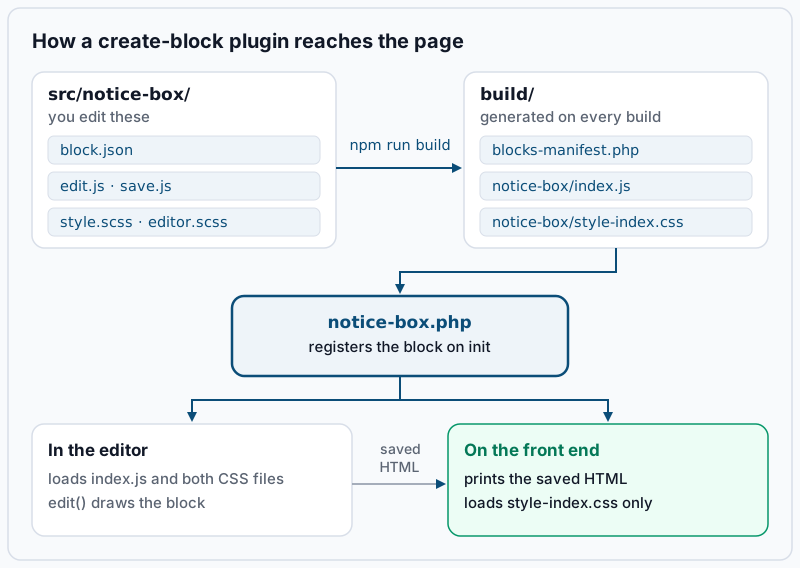
The asset file matters more than it looks. index.asset.php lists the WordPress script packages your code imports, such as wp-blocks and wp-block-editor, plus a version hash. WordPress uses it to load those dependencies first and to bust the browser cache when your code changes. This is why you never enqueue block scripts by hand.
Step-by-step
1. Scaffold the plugin. From the plugins folder of your local site, run the tool with a slug and a namespace. The namespace is the prefix in the block’s name (acme/notice-box); pick something unique to you, because two plugins cannot register the same name.
cd wp-content/plugins
npx @wordpress/create-block@latest notice-box \
  --namespace=acme \
  --title="Notice Box" \
  --short-description="A highlighted notice with an info or warning tone."
Passing a slug skips the interactive questions and uses the defaults, including the static variant. npx asks once before downloading the tool; answer y. The run takes one to three minutes because it installs @wordpress/scripts and runs a first build.
Example output (shortened):
Need to install the following packages:
@wordpress/create-block@5.0.0
Ok to proceed? (y) y

Creating a new WordPress plugin in the /home/you/site/wp-content/plugins/notice-box directory.

Creating a "block.json" file.

Creating a "package.json" file.

Installing `@wordpress/scripts` package. It might take a couple of minutes...

Formatting JavaScript files.

Compiling block and generating blocks manifest.

Done: WordPress plugin Notice Box bootstrapped in the /home/you/site/wp-content/plugins/notice-box directory.

You can run several commands inside:
...
Code is Poetry
If the Done: line is missing, scroll up for the first red line. A Node version error appears as Minimum system requirements not met! at the very start.
2. Read what it generated. List the files, leaving out node_modules:
cd notice-box
find . -path ./node_modules -prune -o -type f -print | sort
Example output:
./.editorconfig
./.gitignore
./build/blocks-manifest.php
./build/notice-box/block.json
./build/notice-box/index-rtl.css
./build/notice-box/index.asset.php
./build/notice-box/index.css
./build/notice-box/index.js
./build/notice-box/style-index-rtl.css
./build/notice-box/style-index.css
./build/notice-box/view.asset.php
./build/notice-box/view.js
./notice-box.php
./package-lock.json
./package.json
./readme.txt
./src/notice-box/block.json
./src/notice-box/edit.js
./src/notice-box/editor.scss
./src/notice-box/index.js
./src/notice-box/save.js
./src/notice-box/style.scss
./src/notice-box/view.js
You edit only what is in src/ and, rarely, the main PHP file. Everything in build/ is regenerated on every build, so changes there are lost.
| File | What it does |
|---|---|
notice-box.php | Plugin header plus one init hook that registers every block listed in the manifest |
src/notice-box/block.json | Name, title, category, icon, attributes, supports and asset paths |
src/notice-box/index.js | Calls registerBlockType() with the edit and save functions |
src/notice-box/edit.js | What the block looks like and does inside the editor |
src/notice-box/save.js | The HTML written into the post when it is saved |
src/notice-box/style.scss | Styles for the front end and the editor, built to style-index.css |
src/notice-box/editor.scss | Editor-only styles, built to index.css |
src/notice-box/view.js | Front-end JavaScript; a placeholder that logs to the console |
package.json | npm scripts: start, build, format, lint:css, lint:js, plugin-zip, packages-update |
The -rtl.css files are right-to-left copies the build makes for languages such as Arabic and Hebrew. WordPress picks them automatically.
3. Match the plugin to your WordPress version. On WordPress 6.8 or later, skip this step and leave the generated code alone. The scaffold writes Requires at least: 6.8 into the header of notice-box.php, so WordPress 6.5 to 6.7 refuses to activate the plugin with a warning that the site does not meet its minimum requirements. The generated init hook also calls wp_register_block_types_from_metadata_collection(), a function added in 6.8. Lower the header first:
sed -i 's/Requires at least: 6.8/Requires at least: 6.5/' notice-box.php
grep 'Requires at least' notice-box.php
* Requires at least: 6.5Then replace the body of the registration function with the classic call, which reads the built block.json directly:
function acme_notice_box_block_init() {
	register_block_type( __DIR__ . '/build/notice-box' );
}
add_action( 'init', 'acme_notice_box_block_init' );
4. Activate it and confirm WordPress sees the block.
wp plugin activate notice-box
wp eval 'var_dump( WP_Block_Type_Registry::get_instance()->is_registered( "acme/notice-box" ) );'
Plugin 'notice-box' activated.
Success: Activated 1 of 1 plugins.
bool(true)bool(false) means the init hook did not register it. Check that build/blocks-manifest.php exists; if it does not, run npm run build from the plugin folder. A warning about minimum requirements means step 3 applies to your site.
5. Declare the attributes in block.json. Replace src/notice-box/block.json with the version below. It adds a message attribute, read back from the saved p element, and a tone attribute limited to two values. It also turns on padding controls and drops viewScript, because this block needs no front-end JavaScript.
{
	"$schema": "https://schemas.wp.org/trunk/block.json",
	"apiVersion": 3,
	"name": "acme/notice-box",
	"version": "0.1.0",
	"title": "Notice Box",
	"category": "widgets",
	"icon": "info",
	"description": "A highlighted notice with an info or warning tone.",
	"example": {},
	"attributes": {
		"message": {
			"type": "string",
			"source": "html",
			"selector": "p"
		},
		"tone": {
			"type": "string",
			"enum": [ "info", "warning" ],
			"default": "info"
		}
	},
	"supports": {
		"html": false,
		"spacing": {
			"padding": true
		}
	},
	"textdomain": "notice-box",
	"editorScript": "file:./index.js",
	"editorStyle": "file:./index.css",
	"style": "file:./style-index.css"
}
Then delete the placeholder script so the build stops producing it:
rm src/notice-box/view.jsThere is no output when it succeeds. apiVersion: 3 tells WordPress the block is ready for the editor’s iframe, the isolated frame the editor has drawn content in since WordPress 6.3. Keep it.
6. Wire the attributes to the editor and the saved HTML. Replace src/notice-box/edit.js:
import { __ } from '@wordpress/i18n';
import {
	useBlockProps,
	RichText,
	InspectorControls,
} from '@wordpress/block-editor';
import { PanelBody, SelectControl } from '@wordpress/components';
import './editor.scss';

export default function Edit( { attributes, setAttributes } ) {
	const { message, tone } = attributes;
	const blockProps = useBlockProps( { className: `is-tone-${ tone }` } );

	return (
		<>
			<InspectorControls>
				<PanelBody title={ __( 'Notice settings', 'notice-box' ) }>
					<SelectControl
						__next40pxDefaultSize
						__nextHasNoMarginBottom
						label={ __( 'Tone', 'notice-box' ) }
						value={ tone }
						options={ [
							{ label: __( 'Info', 'notice-box' ), value: 'info' },
							{ label: __( 'Warning', 'notice-box' ), value: 'warning' },
						] }
						onChange={ ( value ) => setAttributes( { tone: value } ) }
					/>
				</PanelBody>
			</InspectorControls>
			<div { ...blockProps }>
				<RichText
					tagName="p"
					value={ message }
					onChange={ ( value ) => setAttributes( { message: value } ) }
					placeholder={ __( 'Write the notice…', 'notice-box' ) }
				/>
			</div>
		</>
	);
}
Replace src/notice-box/save.js. It must produce the same wrapper and class as the editor, or the editor will not recognise saved content later:
import { useBlockProps, RichText } from '@wordpress/block-editor';

export default function save( { attributes } ) {
	const { message, tone } = attributes;

	return (
		<div { ...useBlockProps.save( { className: `is-tone-${ tone }` } ) }>
			<RichText.Content tagName="p" value={ message } />
		</div>
	);
}
Replace src/notice-box/style.scss:
.wp-block-acme-notice-box {
	border-left: 4px solid #0b4d78;
	background: #eef4f9;
	padding: 1rem 1.25rem;

	&.is-tone-warning {
		border-left-color: #a06010;
		background: #fdf6ec;
	}
}
@wordpress/components was not in the scaffold’s dependency list. The build maps it to the copy WordPress already loads, but declare it so your code editor and the linter can resolve it:
npm install @wordpress/componentsIt is usually already installed as a dependency of @wordpress/block-editor, so npm may report up to date. Success means no npm ERR! lines, and package.json now lists @wordpress/components under dependencies:
grep -o '"@wordpress/components": "[^"]*"' package.jsonExample output:
"@wordpress/components": "^43.0.0"7. Build. For one-off builds use npm run build. While you work, npm start rebuilds on every save.
npm run buildExample output (last lines):
> notice-box@0.1.0 build
> wp-scripts build --blocks-manifest

webpack 5.111.0 compiled successfully in 3184 ms
Any ERROR in line means the bundle was not written, and the block keeps its old code. The line names the file and the line number; a missing closing tag in edit.js is the usual culprit.
8. Insert the block and read what was saved. Open a draft post and add Notice Box from the inserter, where it sits under Widgets. Type a message and set Tone to Warning in the sidebar. Save, then open the Code editor from the Options menu (the three dots, top right) or press Ctrl+Shift+Alt+M. You should see:
<!-- wp:acme/notice-box {"tone":"warning"} -->
<div class="wp-block-acme-notice-box is-tone-warning"><p>Maintenance window tonight at 22:00.</p></div>
<!-- /wp:acme/notice-box -->
The comment carries tone because it has no source. The message has "source": "html", so WordPress reads it back out of the p element and does not repeat it in the comment. Pick Info instead and tone disappears from the comment, because it equals the default.
Validate it works
Create a post from the command line with the saved markup, then fetch it as an anonymous visitor:
ID=$(wp post create --post_status=publish --post_title='Notice test' --porcelain \
  --post_content='<!-- wp:acme/notice-box {"tone":"warning"} --><div class="wp-block-acme-notice-box is-tone-warning"><p>Test notice</p></div><!-- /wp:acme/notice-box -->')
curl -s "$(wp eval "echo get_permalink( $ID );")" | grep -oE 'class="wp-block-acme-notice-box[^"]*|acme-notice-box-style-(inline-)?css'
Example output:
acme-notice-box-style-inline-css
class="wp-block-acme-notice-box is-tone-warning
Two lines mean the job is done. The first is the stylesheet WordPress attached because the block is on the page: -inline-css when WordPress printed a small stylesheet straight into the page, -css when it linked the file. The second is your saved HTML reaching the visitor. If only the second line appears, the stylesheet is not registered; check the style field in build/notice-box/block.json. Remove the test post afterwards with wp post delete "$ID" --force.
Bump version in block.json whenever you ship a change. WordPress adds it to the stylesheet URL as ?ver=, so browsers fetch the new CSS instead of a cached copy. Scripts need nothing from you: their ?ver= comes from the hash in index.asset.php, which changes with every build.
To ship, run npm run plugin-zip. It writes notice-box.zip with the PHP file, the readme and build/, without src/ or node_modules, ready to upload in Plugins > Add New Plugin.
Troubleshooting
The block is missing from the inserter. Run the step 4 check first. If it prints bool(true), the editor is probably holding an old bundle: confirm build/notice-box/index.js changed after your last build, then hard-reload the editor. If it prints bool(false), the plugin is inactive or build/ is missing.
“This block contains unexpected or invalid content” on existing posts. You changed save.js after content was saved, so the stored HTML no longer matches what save produces now. Do not edit old posts by hand. Add a deprecated entry that keeps the old save, as explained in fixing the unexpected or invalid content error.
Styles show in the editor but not on the front end. Front-end styles must come from style.scss, imported in index.js, and reach style-index.css. Styles in editor.scss never leave the editor. Check that block.json still has "style": "file:./style-index.css".
The editor turns blank after activating the plugin. A JavaScript error in your bundle can stop the whole editor. Open the browser console; an error naming notice-box/index.js points at your code. The wider checklist is in the block editor loads blank or white.
The plugin works locally but staging refuses it. Staging runs WordPress older than 6.8, so the upload or the activation stops with a message that the plugin requires WordPress 6.8. Apply step 3 before you build the zip, or upgrade WordPress.
When this is the wrong approach
A custom block is code you now maintain through every WordPress release. If the goal is a fixed arrangement of core blocks, such as a heading, a paragraph and a button with your colours, a pattern is cheaper and needs no build step. Keep the block for things core cannot express: custom attributes, controls, or markup.
Choose the dynamic variant (--variant dynamic) when the output depends on data at view time, such as the latest posts or the logged-in user. It renders through render.php on every request, so changing the markup never invalidates saved content. The cost is a PHP render on each page view. For the history of the tooling and older blocks that need moving to apiVersion 3, see the modern block development workflow. The create-block reference and the block.json metadata reference list every option.
Running WordPress that earns real money deserves an operator — Stack Harbor runs that stack under Enterprise WordPress; book an infrastructure consult.