On WP Engine, pushing staging to production is one button — Copy environment in the User Portal — and nearly all of the risk sits in one option on that screen. A copy is a directional overwrite of the destination, never a merge: the files you send replace the files that were there, and if you include the database, every row production has written since your staging snapshot goes with them — orders, customer accounts, comments, form entries, with no partial restore afterwards. So for a site that earns money the answer is almost always a files-only copy plus a targeted migration of just the tables and options your release changed, with a full copy reserved for sites where nobody but you writes rows. This guide is the WP Engine-specific runbook; for the host-agnostic shape of the same problem, see what actually moves between staging and production.
What you’ll accomplish
- A promotion you can run on a live WP Engine site without losing what production wrote while you worked on staging.
- A clear rule for when a full copy including the database is acceptable and when it is not.
- A files-only promotion plus a targeted migration of only the tables and options the release touched.
- A reconcile list for everything the copy does not carry: redirect rules, caches, cron, API keys, webhooks,
robots.txt, SSL and domain mapping. - Verification over the WP Engine SSH gateway, and a rollback that is still cheap if it fails.
Prerequisites
- Access to both environments in the WP Engine User Portal, with permission to run a copy — permissions are per user, so the button may simply be absent for you.
- Your SSH public key added to your WP Engine user profile. The gateway target is
<environment-name>@<environment-name>.ssh.wpengine.net. - Know your environments’ default hostnames before you start. Current accounts get
<environment-name>.wpenginepowered.com; older ones get<environment-name>.wpengine.com. The examples below use the older form — substitute whichever your account issues. - The SSH gateway is scoped, not a general shell. It runs WP-CLI,
rsync,gitand a short list of related commands inside your install — nosudo, no package manager, no access outside the site. Every command below is therefore a one-shotssh <target> "wp ...". - WP-CLI is provided by the platform; you do not install it. Confirm with
ssh <target> "wp --info". - Environment count and some portal controls vary by plan. Most plans give production plus staging and development, but check your account rather than assuming three.
How it works
WP Engine models a site as up to three separate installs — development, staging and production — each with its own file tree, database, domain and cache. They are not branches of a single thing: nothing is shared and nothing syncs on its own. The only sanctioned movement between them is a copy, and a copy replaces the destination.
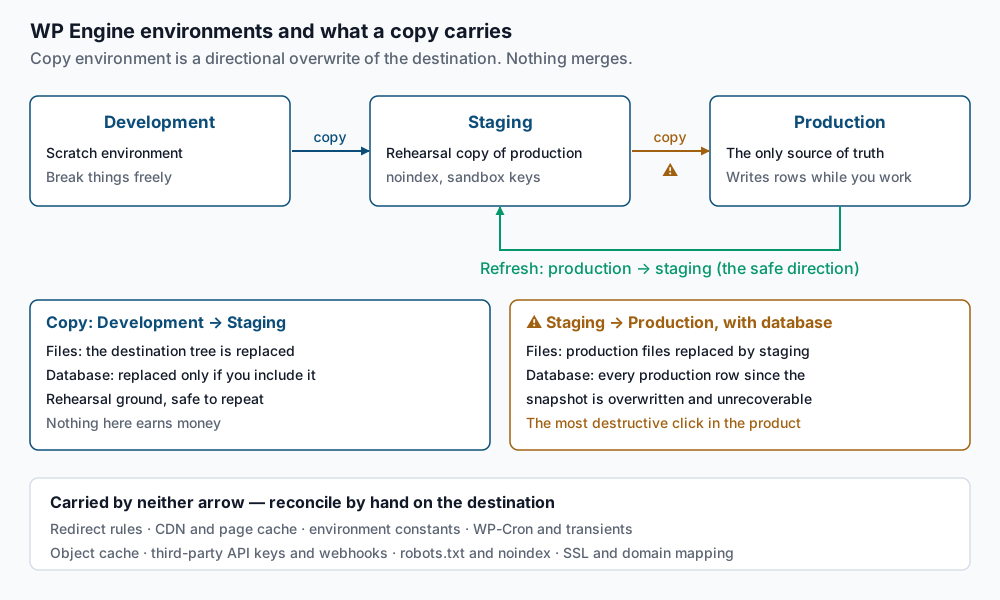
Two consequences follow, and they are the whole article. First, a copy never merges: there is no three-way comparison between the two databases, only replacement, table for table. Second, a copy rewrites the site domain in the database it just moved, because a staging database is full of the staging hostname.
The copy options, in plain terms
| What you choose | What happens to the destination | Safe on live production? |
|---|---|---|
| All files | The destination file tree is replaced by the source’s, wp-content included. Do not assume files that exist only on the destination — uploads added since your snapshot — survive it. | Only if uploads are unchanged or backed up |
| Themes and plugins only | Code under wp-content/themes and wp-content/plugins is replaced; uploads are left alone. | Usually yes |
| Database included | The destination database is replaced by the source’s, then the domain is rewritten. | Almost never |
| Database excluded | Files move, the destination’s data is untouched. | Yes — the default choice |
Labels on that screen have changed across portal revisions and some choices are plan-dependent, so match what is on your screen to the behaviour column rather than to the wording here. If it asks you to type the destination environment name to confirm, that is the platform telling you the step is irreversible.
What a database copy destroys on the target
A full push replaces production’s rows with a snapshot taken when you copied production down to staging, possibly days ago. Everything recorded in between is deleted:
- Orders. Under WooCommerce’s high-performance order storage they live in
wp_wc_ordersand its companion tables; on older stores they areshop_orderrows inwp_postsandwp_postmeta. Either way they go, with their payment metadata. - Users, comments and form entries. Every account and submission since the snapshot.
- Sequential IDs. Auto-increment counters roll back with the tables, so new orders reuse numbers already emailed to real customers — duplicate invoice numbers and reconciliation problems that outlast the technical fault.
- Scheduled work. Action Scheduler rows, renewals, anything queued in the database.
- Editorial changes. Posts edited in the admin during your staging window exist only on production and have no automatic merge.
An active store should essentially never receive a full database push. If you need one, the release is the problem: something is configured in an admin screen that should have been code or a migration script.
The domain rewrite and the serialized-data trap
WordPress stores many option and meta values as PHP-serialized arrays, where every string carries its byte length: s:23:"https://old.example.com". A plain SQL UPDATE ... REPLACE() changes the string but leaves the 23 behind. PHP then refuses to unserialize the value and silently returns nothing — widgets vanish, theme settings reset, page-builder layouts come back empty.
wp search-replace exists for exactly this: it walks each column, unserializes, replaces inside the structure, and re-serializes with corrected lengths. Run it with --dry-run first, always. The WP-CLI search-replace reference documents the flags.
What the copy does not carry
These are per-environment and must be reconciled by hand after every promotion:
- Redirect rules configured in the User Portal belong to the environment, not to the copied site.
- Page cache and CDN. The destination serves the old response until you purge from the portal.
- Environment-specific configuration. WP Engine manages parts of the platform config per environment; verify constants afterwards rather than assuming
wp-config.phptravelled intact. - Cron state. Events copied inside a database can hold arguments from the wrong environment, and a stale
doing_cronlock stalls the queue. - Transients and the object cache. Both hold values computed for a different site.
- Third-party API keys and webhooks. A database copy brings staging’s sandbox keys onto production and leaves your payment or CRM provider posting webhooks at the wrong hostname.
robots.txtand the noindex flag. WP Engine serves non-production environments with a noindex response header, butblog_publiclives in the database — a staging database landing on production takes the live site out of the index.- SSL and domain mapping. Custom domains, certificates, SFTP users and SSH keys stay with the environment.
Step-by-step
Read this before running anything. A copy that includes the database replaces production’s tables outright. There is no merge, no partial undo and no per-row rollback: orders, accounts, comments and form entries written since your staging snapshot are gone, and the auto-increment counters go back with them. Restoring a WP Engine backup point does not walk that back either — it is another full-environment overwrite, and it will discard whatever landed after it. So step 2 is not optional, and the export it produces has to live somewhere off the platform.
Steps 1 to 4 are reversible. Step 5 onward is not.
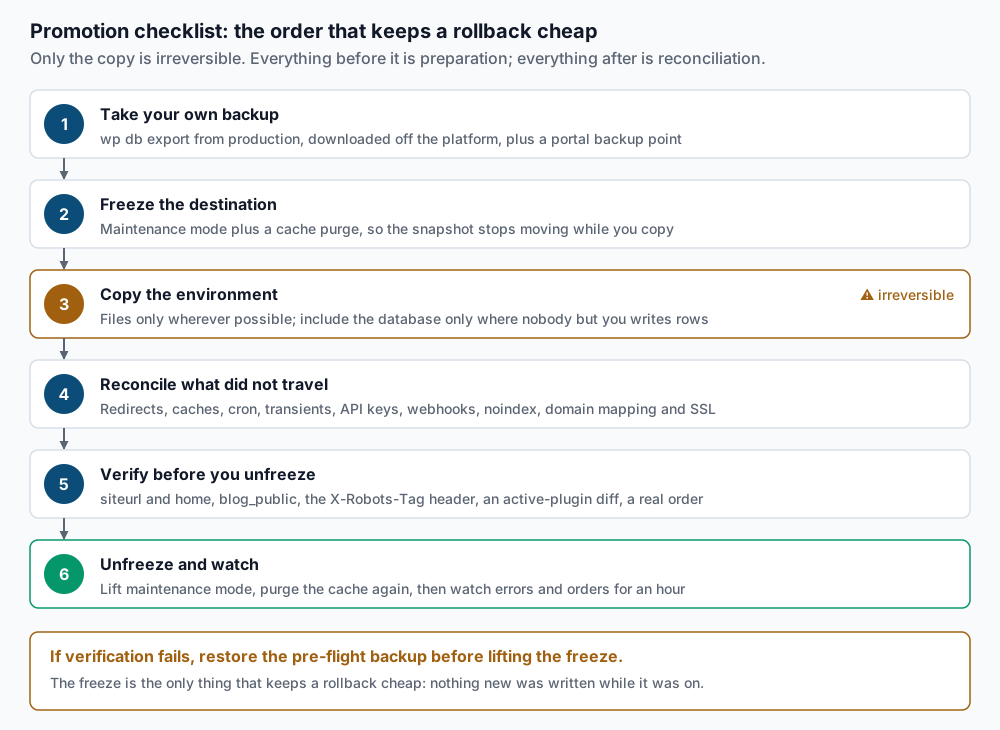
-
Confirm which environment you are pointed at. Every destructive command below is one typo away from the wrong install.
ssh exampleprod@exampleprod.ssh.wpengine.net "wp option get siteurl; wp option get home"https://example.com https://example.comIf either line prints a WP Engine default hostname —
.wpenginepowered.comon current accounts,.wpengine.comon older ones — you are on staging or development, so fix the target before continuing. On premium plans staging can carry a custom domain too, in which case the hostname alone will not tell you: check the environment name in the SSH target against the portal. -
Take your own backup, off the platform. Create a portal backup point as well, but do not let it be your only copy.
ssh exampleprod@exampleprod.ssh.wpengine.net "wp db export - --add-drop-table" > prod-preflight-2026-09-09.sql
ls -lh prod-preflight-2026-09-09.sql
tail -1 prod-preflight-2026-09-09.sql
-rw-r--r-- 1 deploy deploy 412M Sep 9 09:14 prod-preflight-2026-09-09.sql -- Dump completed on 2026-09-09 9:14:07wp db export -writes SQL to standard output and deliberately prints no success line, so a silent first command is the correct result. The two checks after it are the real signal: a plausible size, and a closing-- Dump completed on ...line. An export that ends anywhere else was cut off — do not proceed on it, and keep the file somewhere off the platform. -
Record a baseline you can diff against afterwards.
ssh exampleprod@exampleprod.ssh.wpengine.net "wp plugin list --status=active --field=name" | sort > prod-plugins-before.txt
ssh exampleprod@exampleprod.ssh.wpengine.net "wp user list --format=count; wp comment count"
1284 approved: 3312 spam: 41 trash: 2 post-trashed: 0 all: 3355 moderated: 0 total_comments: 3355user list --format=countprints one integer;comment countprints onekey: valueline per bucket, ending intotal_comments. For a store add an order count —wp db query "SELECT COUNT(*) FROM wp_wc_orders;"on high-performance order storage,wp post list --post_type=shop_order --post_status=any --format=counton the older layout. Confirm the table prefix first. -
Freeze the destination. A snapshot that keeps moving cannot be reconciled.
ssh exampleprod@exampleprod.ssh.wpengine.net "wp maintenance-mode activate; wp maintenance-mode status"Enabling Maintenance mode... Success: Activated Maintenance mode. Maintenance mode is active.Purge the page cache from the portal immediately, or cached pages keep serving and shoppers keep checking out. Maintenance mode does not abort a payment in flight, so pick a genuinely quiet hour.
-
Run the copy — files only, wherever you can. In the User Portal, start the copy from the source environment, select production as the destination, choose the file option you decided on above, and leave the database out. Confirm by typing the destination environment name. Then diff the plugin list:
ssh exampleprod@exampleprod.ssh.wpengine.net "wp plugin list --status=active --field=name" | sort > prod-plugins-after.txt
diff prod-plugins-before.txt prod-plugins-after.txt
Expect no output. That is correct, and it is the trap: plugin activation state lives in the database, so a new plugin arrives as files but stays inactive. Activate it explicitly:
ssh exampleprod@exampleprod.ssh.wpengine.net "wp plugin activate example-release-plugin"Plugin 'example-release-plugin' activated. Success: Activated 1 of 1 plugins. -
Migrate only the data the release changed. Export the tables your release created or altered, and import just those:
ssh examplestg@examplestg.ssh.wpengine.net "wp db export - --tables=wp_examplerelease_rules,wp_examplerelease_map" > release-tables.sql
ssh exampleprod@exampleprod.ssh.wpengine.net "wp db import -" < release-tables.sql
Success: Imported from '-'.Move single settings one option at a time rather than touching
wp_optionswholesale — it also holdssiteurl,home,blog_publicand every credential:ssh examplestg@examplestg.ssh.wpengine.net "wp option get example_theme_settings --format=json" > settings.json ssh exampleprod@exampleprod.ssh.wpengine.net "wp option update example_theme_settings --format=json" < settings.jsonSuccess: Updated 'example_theme_settings' option. -
Only if you included the database: verify the rewrite first. This path is for low-traffic sites where nobody but you writes rows.
ssh exampleprod@exampleprod.ssh.wpengine.net "wp option get siteurl; wp option get home; wp option get blog_public"https://example.com https://example.com 1A
0on the last line is staging’s noindex flag on your live site. If a staging hostname survives elsewhere, dry-run the fix first:ssh exampleprod@exampleprod.ssh.wpengine.net "wp search-replace 'https://examplestg.wpengine.com' 'https://example.com' --all-tables --precise --dry-run --report-changed-only"+-------------+--------------+--------------+------+ | Table | Column | Replacements | Type | +-------------+--------------+--------------+------+ | wp_options | option_value | 27 | PHP | | wp_postmeta | meta_value | 214 | PHP | +-------------+--------------+--------------+------+ Success: 241 replacements to be made.Read the list before removing
--dry-runand running it for real. Never do this with a SQLREPLACE(). -
Reconcile what the copy did not carry.
ssh exampleprod@exampleprod.ssh.wpengine.net "wp transient delete --all"
ssh exampleprod@exampleprod.ssh.wpengine.net "wp cache flush"
ssh exampleprod@exampleprod.ssh.wpengine.net "wp cron event list --fields=hook,next_run_relative --format=table"
transient delete --allreports how many it removed.cache flushprintsSuccess: The cache was flushed.when an object cache is present and a notice when none is; both are fine. The cron table should show core hooks with sensible relative times, and entries far in the past mean the queue is stalled. Then, in the portal: purge all caches, re-check redirect rules, restore live API keys, re-point provider webhooks at the production hostname, and confirm the domain mapping, certificate and PHP version match what production had. -
Unfreeze, then watch.
ssh exampleprod@exampleprod.ssh.wpengine.net "wp maintenance-mode deactivate"Disabling Maintenance mode... Success: Deactivated Maintenance mode.Purge the cache once more so visitors get the new pages, then watch the error log and the order stream for an hour before declaring it done.
Validate it works
Production must not carry a noindex header, and staging must:
curl -sI https://example.com/ | grep -i -E '^HTTP|x-robots-tag'HTTP/2 200curl -sI https://examplestg.wpengine.com/ | grep -i x-robots-tagx-robots-tag: noindex, nofollowAn x-robots-tag on the production response is the failure this article exists to prevent. The exact value on non-production environments can differ, so treat “present on staging, absent on production” as the signal rather than the wording. Then confirm the database agrees with the header:
ssh exampleprod@exampleprod.ssh.wpengine.net "wp option get blog_public"
ssh exampleprod@exampleprod.ssh.wpengine.net "wp plugin list --status=active --field=name" | sort | diff prod-plugins-before.txt -
curl -s https://example.com/robots.txt | head -5
blog_public must print 1, the diff must show only plugins you deliberately activated in step 5, and robots.txt must not disallow everything. Finally, do the thing the site is for: place a real order or submit the contact form, then re-run the step 3 counts and confirm they went up rather than back.
Troubleshooting
The admin redirects to the staging domain, or logging in loops. siteurl and home still hold the staging hostname, or constants override them. Check both layers: wp option get siteurl and wp config get WP_HOME --type=constant. Constants win, so fixing the option alone will not help.
Widgets, theme options or page-builder layouts come back empty. Serialized values were broken by a byte-length-unaware replace. There is no repair pass — restore the step 2 export and redo the rewrite with wp search-replace --precise.
The live site disappears from search results a few days later. A staging database landed on production and brought blog_public = 0 with it. Set it back with wp option update blog_public 1, purge caches and request re-indexing; recovery is not instant.
search-replace reports zero replacements. The search string does not match exactly. Get the real form with wp option get home on the source — scheme, www and trailing slash all matter.
wp db export is refused or times out on a large site. The gateway is scoped and long-running commands can be cut off. Fall back to a portal backup point and split the export with --tables=.
When this is the wrong approach
A busy store should not use a full environment copy at all. If orders arrive during the window you cannot make one, and the answer is a deployment pipeline: code in Git, schema changes as idempotent migration scripts, settings changed through code rather than through admin screens on staging. A copy is a rehearsal and rescue tool, not a release process.
It is also wrong when editors treat staging as a second production. If people draft content there expecting it to go live, a promotion loses one side of the work whichever way you push.
Finally, if what you want is control WP Engine does not offer — cron screens, mailboxes, arbitrary PHP extensions, a real shell — that is a hosting decision, and moving the site to a cPanel host is the runbook instead. WP Engine’s support documentation is the authority on current portal behaviour, which does change.
Running WordPress that earns real money deserves an operator — Stack Harbor runs that stack under Enterprise WordPress; book an infrastructure consult.