This guide is for WordPress site owners on budget shared hosting, such as Bluehost, Hostinger or GoDaddy, who wonder whether it is time to move. Shared hosting means your site runs on one server alongside hundreds of other customers’ sites, and everyone shares its CPU, memory and disk. The warning signs are familiar: pages that load slowly at busy times, “508 Resource Limit Is Reached” errors, and a renewal invoice much higher than the first one. The short answer is to measure before you move, because a slow site is often a site problem that follows you to any host. If the host really is the bottleneck, the next step is usually a better shared plan or a small cPanel server, not the most powerful option on offer.
What you’ll accomplish
- A three-file speed test that shows whether the delay comes from the server, from PHP, or from WordPress itself.
- A reading of your account’s resource limits and how often the site hits them.
- A check of your error logs and your outgoing email, the two places shared hosting problems hide.
- A clear decision: stay and fix the site, move to a better shared host, or step up to a VPS, managed WordPress or a managed cPanel server.
- A link to the migration runbook for the host you are leaving, if you decide to go.
Prerequisites
You need a computer with curl, which comes with macOS, Windows 10 and later, and most Linux systems. You also need a way to put two small files in your site’s main folder. The file manager in your hosting dashboard works, and so does SFTP (secure file transfer).
Each of the three hosts uses a different dashboard. GoDaddy shared plans usually include cPanel, the most common hosting control panel. Hostinger uses its own panel, called hPanel. Bluehost has moved most plans to its own Account Manager, so some cPanel tools mentioned below may be missing there. Where a step depends on cPanel, the text says what to look for instead.
All three are popular hosts that serve millions of small sites well. Plans and limits change often, so this guide never quotes them. Check your own plan page when a number matters.
How it works
On most shared hosts, each account lives inside a fenced-off share of the server. Many hosts use CloudLinux for this. It gives every account an LVE (Lightweight Virtual Environment), a set of hard caps on CPU, memory and disk activity. One cap is EP (entry processes), the number of requests your site can handle at the same moment. When your site reaches a cap, the server slows it down on purpose. If it stays at the cap, visitors see a 508 error until the load drops.
This design protects your neighbours from you and you from them, but only partly. A busy server still shares its disks and network. That is why a site can be slow even when its own usage looks low.
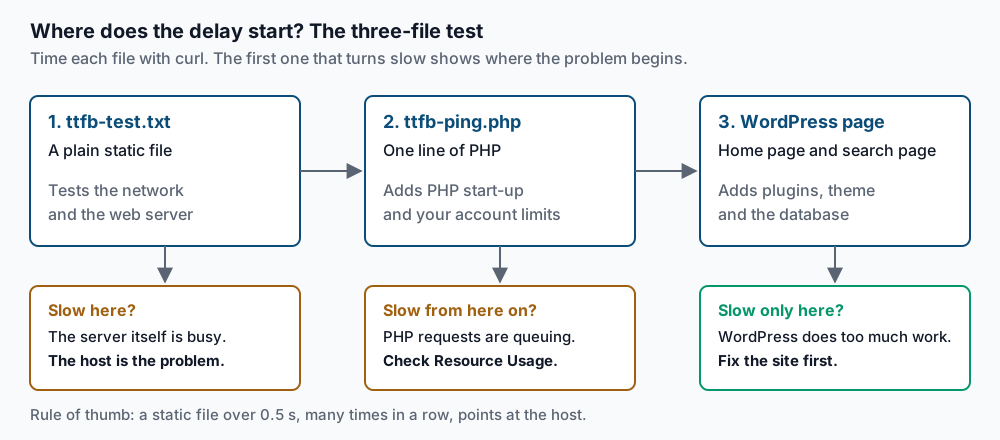
To find out where the delay comes from, you time three things on the same host. First a plain text file, then a one-line PHP file, then real WordPress pages. Each one adds a layer, so the first one that turns slow tells you where the problem starts.
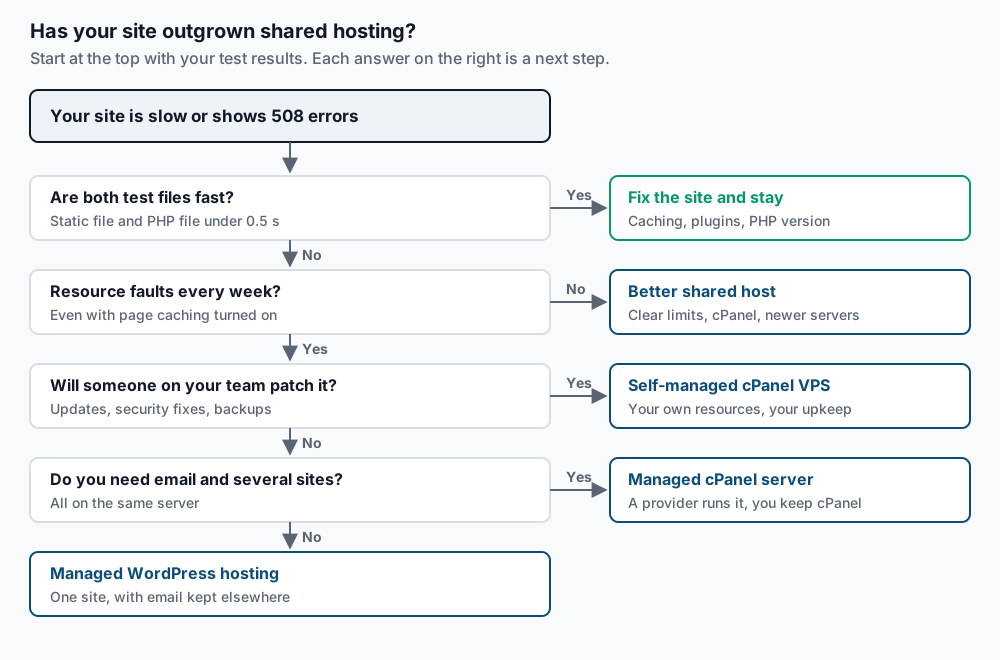
Once you know where the delay starts, the decision tree below points to the next step. Notice that the first branch keeps you where you are. Many small sites belong on shared hosting, and moving them adds cost without making them faster.
Step-by-step
-
Upload two test files. In your site’s main folder, usually
public_html, create a text file namedttfb-test.txtcontaining the wordok. Create a second file namedttfb-ping.phpwith this single line:<?php echo "ok";Open
https://example.com/ttfb-ping.phpin your browser, replacingexample.comwith your domain. You should see the wordokand nothing else. If you see the code itself, PHP is not running for that folder; ask your host why. -
Time the three layers. TTFB (time to first byte) is how long the server takes to start answering. Run this from your own computer:
for u in ttfb-test.txt ttfb-ping.php "" "?s=test"; do curl -o /dev/null -s -w "%{time_starttransfer} /$u\n" "https://example.com/$u"; doneYou should see four lines, each a time in seconds followed by the path:
0.084  /ttfb-test.txt
0.121  /ttfb-ping.php
0.412  /
1.380  /?s=test
The third line is your home page, often served from a cache. The fourth is a search page, which WordPress must build from scratch each time. Run the loop five times in a row during a quiet hour, then again during your busiest hour. Ignore the first run of each set, since it often warms up a cache. The option is documented in the curl manual under
--write-out. -
Read the result. Use these rules of thumb, measured from the same country as the server:
- The text file is often over 0.5 seconds. The server or its network is busy. Your site cannot fix this, so the host is the problem.
- The text file is fast, but the PHP file is often over 0.5 seconds. PHP requests are waiting in line. That usually means your account is hitting its limits, which step 4 confirms.
- Both test files are fast, but WordPress pages take over 1.5 seconds. WordPress itself is doing too much work. Heavy plugins, no page cache or an old PHP version are the usual causes, and they will follow you to a new host.
-
Check your resource usage. In cPanel, open Metrics » Resource Usage. This page appears on CloudLinux servers and lists recent faults, meaning moments when your account hit a cap. Look at the CPU, EP, physical memory and IO columns for the last week. A fault count of zero is healthy. Faults every day at the same busy hour mean the site regularly needs more than the plan gives. If you use hPanel or Bluehost’s Account Manager, look for a resource or usage page in the dashboard, or ask support for your account’s limit history. The CloudLinux documentation explains each limit in detail.
-
Read the error logs. In cPanel, Metrics » Errors shows recent web server errors. If you have SSH (secure remote terminal) access, list the PHP error logs WordPress has written:
find ~/public_html -name error_log -size +0 -exec ls -lh {} \;
tail -n 20 ~/public_html/error_log
The first command lists each non-empty log with its size. The second shows the latest entries. A line containing
Allowed memory size of 268435456 bytes exhaustedmeans a PHP script ran out of memory. The same plugin name repeating in many lines usually points to your culprit. Iffindprints nothing, there are no PHP error logs, which is good news. -
Check your outgoing email. On shared hosting, mail from your site often leaves from an IP address shared with other customers. If one of them sends spam, your mail can land in spam folders too. Trigger an email from your site, such as a password reset, and send it to a Gmail address. In Gmail, open the message, choose Show original, and read the summary at the top. You want
PASSnext to SPF, DKIM and DMARC, the three checks that prove a message really came from your domain. AFAILthere is usually a DNS record you can fix at any host. Good results that still land in spam point more toward the shared IP. -
Check the renewal terms. Open your billing page and find the renewal date and renewal amount. Introductory prices on shared hosting often apply only to the first term, and renewals can cost noticeably more. Note any paid extras you did not choose on purpose, such as site security or backup add-ons. This number matters when you compare options, because a better plan may cost less than you expect next to your real renewal.
-
Pick the next step. Follow the decision tree above with your results from steps 3 to 7. The options, from smallest change to largest, are:
- Stay and fix the site. Turn on page caching, remove plugins you do not use, and move to a supported PHP version. Then run step 2 again.
- A better shared host. Choose one that shows its CloudLinux limits openly, includes cPanel, and uses current hardware. This suits sites whose own tests are fast but whose server is busy.
- A self-managed cPanel VPS. A VPS (virtual private server) is a slice of a server reserved for you alone. You get your own resources, but someone on your team must apply updates, watch security and check backups.
- Managed WordPress hosting. The provider runs the server and WordPress updates. It suits a single site with email kept elsewhere. Our guide to managed WordPress host alternatives covers choosing within that category.
- A managed cPanel server. A provider runs a server that is yours alone, and you keep cPanel, email and several sites in one place. It suits businesses with many sites or mailboxes and no one to run a server.
-
Migrate with the matching runbook. Once you have chosen, follow the runbook for the host you are leaving. Each one covers the export, email and a safe DNS change.
- Migrate WordPress from Bluehost to cPanel
- Migrate WordPress from Hostinger to cPanel
- Migrate from GoDaddy shared hosting to cPanel
- Migrate from GoDaddy Managed WordPress to cPanel
Delete
ttfb-test.txtandttfb-ping.phpfrom the old host when you finish testing.
Validate it works
Your decision holds up when the evidence points one way. The three-file test, the resource faults and the error logs should all tell the same story.
After a move, run the same timing loop against the new host:
for u in ttfb-test.txt ttfb-ping.php "" "?s=test"; do curl -o /dev/null -s -w "%{http_code} %{time_starttransfer} /$u\n" "https://example.com/$u"; doneEach line should start with 200, meaning the request succeeded. The times should be at or below your old numbers at the same hour, especially for the search page. Check the new host’s resource page after a week of normal traffic, and expect zero faults. Send one more test email to Gmail and confirm SPF, DKIM and DMARC still show PASS.
Troubleshooting
The PHP test file downloads instead of showing ok. An old handler rule in .htaccess may point PHP at a version the server no longer has. In cPanel, open MultiPHP Manager and set a current PHP version for the domain, then test again.
Times jump around from run to run. Your home connection may be the noisy part. Run the loop from a second network, such as a phone hotspot, and compare. If the text file is slow from both, the delay is on the server side.
Resource Usage is missing from cPanel. Your host may not use CloudLinux, or may hide the page. Ask support for your account’s CPU, EP and memory limits and how often you hit them. Our guides to the 508 resource limit error and the entry process limit explain what each fault means.
Faults continue after you turn on caching. Check whether logged-in users, a store cart or search pages make up most of your traffic. Those pages skip the cache and run PHP every time. If that is your normal traffic, your site has outgrown the plan, and a VPS or managed server is the sensible next step.
Email fails SPF after a move. Your SPF record still lists only the old host. Update the TXT record so it includes the new server, then send the Gmail test again.
When this is the wrong approach
If your site is a brochure site with a few thousand visits a month and the tests look fine, stay where you are. Shared hosting is built for exactly that, and a move costs time and adds risk.
If you are unhappy only about the renewal price, compare a longer term, a different plan or a different shared host first. A VPS costs more to run properly and adds work someone must own.
If the slow part is WordPress itself, fix the site before you move. The problem will travel with it, and a bigger server only hides it for a while.
Running WordPress that earns real money deserves an operator — Stack Harbor runs that stack under Enterprise WordPress; book an infrastructure consult.