This guide is for the admin or developer moving a WordPress site off Hostinger onto a cPanel/WHM server they control. Hostinger runs its own control panel, called hPanel, so no cPanel-format account archive exists for WHM’s Transfer Tool to fetch. The short answer is that you move the files, the database and the mail yourself, along one of three routes. Which route is open to you depends on whether your plan includes SSH, a remote shell on the server. By the end the site answers on your own server, tested against its real hostname, before a single DNS record moves.
What you’ll accomplish
- A clear decision on which export route your Hostinger plan leaves open.
- A complete copy of the files and the database on your cPanel account, checked rather than assumed.
- Every mailbox re-created on cPanel before the MX records move. MX means mail exchanger, the DNS record naming the server that receives a domain’s mail.
- Hostinger’s platform code removed, including any must-use plugin the panel injected. A must-use plugin is one WordPress loads on every request, with no off switch in the admin.
- LiteSpeed Cache settings and
.htaccessrules reviewed against the web server your cPanel box runs.
Prerequisites
On the Hostinger side you need the login for the account that owns the hosting, not only a WordPress administrator. One fact decides your export route: whether the plan gives you SSH. Hostinger offers it on business and cloud plans, and the cheapest shared plans may not. Confirm by connecting, rather than by reading a feature table.
On the destination you need a cPanel account for the domain, a MySQL database and database user, SSH access, and wp on the box. wp is WP-CLI, the WordPress command-line tool, documented in the WP-CLI command reference.
Match the PHP version before you copy anything. Read it from hPanel’s PHP configuration screen, then set the same version in cPanel’s MultiPHP Manager. A site on PHP 8.2 that lands on an account defaulting to 7.4 fails in ways that look like a corrupt upload. Handling a PHP version jump during migration covers the cases where the versions cannot match.
Write down every mailbox, alias and forwarder on the domain while you are still in hPanel. Hostinger sells mail as a separate product, under the Hostinger Email and Titan names, so mailboxes and their contents do not travel with the files and database. Decide now whether mail follows the site to cPanel or stays put. That one decision causes most of the pain in this kind of move.
Then lower the TTL on the domain’s A, AAAA and MX records to 300, at least 24 hours ahead. TTL means time to live, the number of seconds a resolver may keep a cached answer. Lowering an 86400-second TTL two hours before the flip changes nothing, because the old value is still cached.
How it works
A migration moves three things: the files, the database, and the DNS records that point visitors at them. Around those sits whatever the old host wrapped about the site. On Hostinger that is hPanel plus a LiteSpeed web server, and neither packages your account the way WHM expects. hPanel’s backup tool gives you a ZIP of your files and, separately, an SQL dump. Neither is a cpmove archive, the cPanel-format bundle the Transfer Tool restores, so each piece travels on its own.
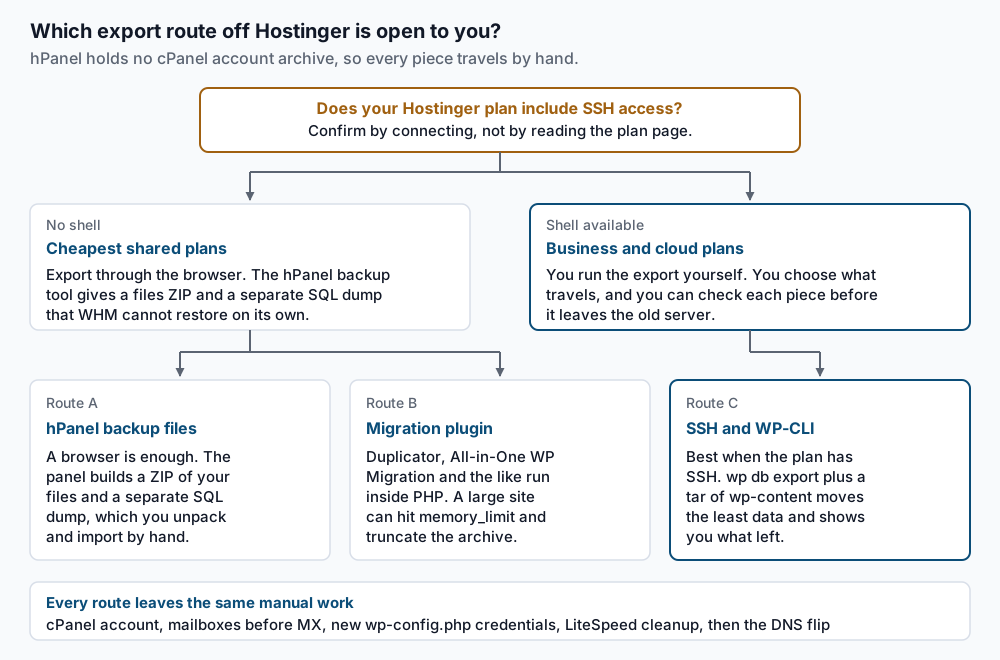
The routes differ only in how the bits leave Hostinger. Route A needs nothing but a browser and works on every plan, at the cost of unpacking archives by hand. Route B covers Duplicator, All-in-One WP Migration and similar tools, which run inside PHP. On a large site that export can hit memory_limit and leave an archive that looks finished and is not. Route C is cleanest when the plan has SSH, because a WP-CLI dump plus a tar of wp-content is small and checkable before it moves.
Two Hostinger-shaped things come across with the files on any route. The first is the panel’s own plugin, installed on every new site it builds. The second is the LiteSpeed Cache configuration, which fits a LiteSpeed web server and does nothing useful on an Apache one. Most cPanel servers run EA4, short for EasyApache 4, cPanel’s Apache build. Other own-panel hosts have the same shape, and migrating WordPress from SiteGround to cPanel covers that one.
Step-by-step
Everything before the freeze in step 13 is rehearsal you can repeat. Everything after it is live.
-
Confirm SSH, then pick your route. Try the connection with the host, port and username hPanel’s SSH section shows:
ssh -p SSHPORT USER@HOSTNAME 'wp --info'A working shell prints the WP-CLI version block, starting with
OS:and ending withWP-CLI version:. Take Route C. If the connection is refused, or the plan shows no SSH section, take Route A and use hPanel’s backup tool plus its database export. Take Route B only when Route A is blocked too. -
Inventory the site while it is still on Hostinger. With SSH:
wp core version
wp core verify-checksums
wp plugin list --status=active --fields=name,title,version
ls -1 wp-content/mu-plugins/
wp db size --tables --size_format=mb
pwd
Write down the core version, because you will reinstall exactly that one.
verify-checksumsprintsSuccess: WordPress installs verify against checksums., and anything it flags is a modified core file. Keep thepwdoutput: Hostinger home directories look like/home/u123456789/domains/example.com/public_html, and that string sits in your database. Without SSH, read the version under Dashboard then Updates and use phpMyAdmin instead. -
Export the database. With SSH:
wp db export hostinger.sql --add-drop-tableExpect
Success: Exported to 'hostinger.sql'.Without WP-CLI, use hPanel’s database export, or phpMyAdmin’s Export screen with the option that addsDROP TABLEstatements. Either way, check the tail:tail -3 hostinger.sqlIt must end on a complete statement, not partway through an
INSERT. A truncated dump imports without complaint and quietly loses the end of your largest table. For a gzip file, usegunzip -c hostinger.sql.gz | tail -3. -
Package the files. From the site root over SSH:
tar -czf ~/hostinger-files.tar.gz wp-content wp-config.php .htaccessCore files are not worth moving, because step 6 downloads a clean copy.
tarprints nothing on success, so comparels -lh ~/hostinger-files.tar.gzagainst the disk usage hPanel reports. On Route A the backup ZIP replaces this step; on Route B, the plugin’s archive. -
Move the archive to the cPanel server. Pull rather than push, running this on the destination as the cPanel account user:
scp -P SSHPORT USER@HOSTNAME:hostinger.sql USER@HOSTNAME:hostinger-files.tar.gz ~/scpprints one progress line per file, each ending at100%. Run it as the cPanel account user. As root, every file lands owned by root and WordPress cannot write towp-content. On Route A, upload both files through cPanel’s File Manager. -
Rebuild the site on cPanel. Create the database and database user in cPanel’s MySQL Database Wizard first, and note the three values. Then:
cd ~/public_html
wp core download --version=WPVERSION --skip-content
tar -xzf ~/hostinger-files.tar.gz -C ~/public_html
wp db import ~/hostinger.sql
Substitute the version from step 2.
--skip-contentleaveswp-contentempty so the tarball fills it. ExpectSuccess: WordPress downloaded.thenSuccess: Imported from 'hostinger.sql'. -
Rewrite the database credentials in
wp-config.php. The Hostinger values in the file you copied point at a database this server does not have. Replace them with the ones cPanel gave you in step 6:wp config set DB_NAME CPUSER_wpdb wp config set DB_USER CPUSER_wpuser wp config set DB_PASSWORD 'THEPASSWORD' wp config set DB_HOST localhost wp db checkEach
config setanswersSuccess: Updated the constant ... in the 'wp-config.php' file.wp db checkthen reportsOKfor every table, which proves the credentials work and the import landed. -
Remove Hostinger’s platform code. List what is there first, since the set differs with how the site was built:
wp plugin list --fields=name,title,status
ls -1 wp-content/mu-plugins/
Anything whose title names Hostinger is panel code, not site code. Remove it by the slug in the
namecolumn:wp plugin deactivate PLUGINSLUG wp plugin delete PLUGINSLUGThose return
Success: Deactivated 1 of 1 plugins.andSuccess: Deleted 1 of 1 plugins.Files inwp-content/mu-plugins/have no admin toggle, so delete them withrm -f. Read each first, because a developer may have put real site code there. -
Decide what happens to LiteSpeed Cache. Find out what your destination runs:
curl -sI --resolve example.com:443:NEWIP https://example.com/ | grep -i '^server:'A reply of
server: LiteSpeedmeans the plugin still has a server to talk to, so keep it and clear its settings once. A reply ofserver: Apachemeans its cache has nothing behind it, so deactivate it and clean the rules it wrote:wp plugin deactivate litespeed-cache grep -n "LSCACHE\|LiteSpeed" ~/public_html/.htaccess ls -l wp-content/advanced-cache.php wp-content/object-cache.phpThe
grepgives line numbers for each block. Delete every block from its# BEGINmarker to its matching# ENDmarker, and nothing outside them. Then delete anyadvanced-cache.phporobject-cache.phpdrop-in thelsfinds, since both call caching services this server does not run. -
Create the mailboxes now, before MX moves. Work from the list you made in the prerequisites. Create each address in cPanel’s Email Accounts screen with the same local part, then add the forwarders. Copy the mail across while the old provider still holds it:
imapsync --host1 OLDIMAPHOST --user1 you@example.com --password1 OLDPASS --host2 localhost --user2 you@example.com --password2 NEWPASSUse whatever incoming server your mail provider’s settings page names as
--host1.imapsyncends with a transfer summary and a line readingDetected 0 errors. For two or three mailboxes, adding both accounts to a desktop mail client and dragging folders across works too. -
Validate on a temporary hostname before DNS moves. The diagram below shows where this sits in the sequence.
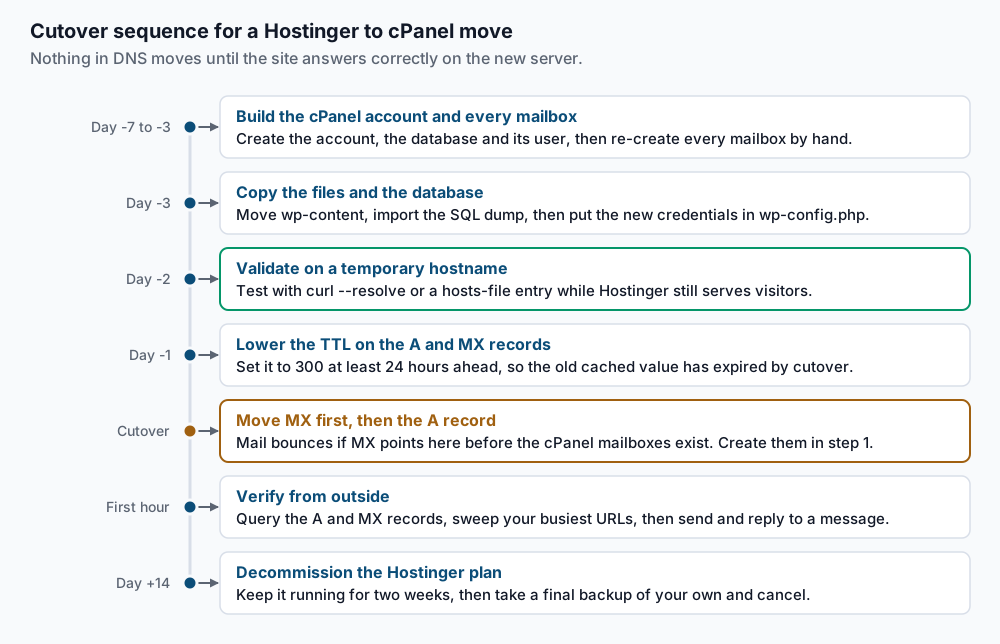
Point your own machine at the new server without changing anything public:
curl -o /dev/null -s -w '%{http_code} %{time_total}s\n' --resolve example.com:443:NEWIP https://example.com/
curl -sI --resolve example.com:443:NEWIP https://example.com/wp-login.php | head -1
Both should answer
200.--resolvesends the request toNEWIPwhile still asking forexample.com, so you see what a visitor will see after the flip. To click around in a browser, add the same mapping to your hosts file. Get the certificate issued in this window too, using AutoSSL’s DNS validation, because HTTP validation cannot pass until the domain resolves here. cPanel’s documentation portal covers it. -
Fix the stored paths, and the URLs only if the domain changes. Most moves keep the domain, so the URLs in the database are already right and you should leave them alone. The absolute file path from step 2 does change. Dry run first:
wp search-replace '/home/u123456789/domains/example.com/public_html' '/home/CPUSER/public_html' --all-tables --dry-run --report-changed-only wp search-replace '/home/u123456789/domains/example.com/public_html' '/home/CPUSER/public_html' --all-tables --precise--all-tableswalks every table, including any a plugin created under a different prefix.--precisekeeps serialised arrays valid when a replacement changes a string’s length, because WP-CLI unserialises in PHP instead of using raw SQL. Running search-replace across a migration covers a domain change. -
Freeze, sync the delta, then move DNS. Put the Hostinger site into maintenance mode so no order, comment or form entry lands after your final export. Re-run steps 3 and 4, import, re-run step 12, then flush:
wp rewrite flush --hard
wp cache flush
Expect
Success: Rewrite rules flushed.andSuccess: The cache was flushed.The--hardform rewrites the WordPress block in.htaccess, not only the copy in the database. That matters because step 9 cut a chunk out of that file. Now change MX first, then A and AAAA.
Validate it works
About an hour after the flip, check from the inside:
wp option get siteurl
wp option get home
wp db check
wp core verify-checksums
Both options must return the final domain, wp db check should report OK on every table, and checksums should verify. Then put your twenty busiest URLs in a file and sweep them:
while read -r u; do code=$(curl -o /dev/null -s -w '%{http_code}' "$u"); echo "$code $u"; done < top-urls.txtEvery line should read 200, or 301 where you redirect on purpose. Then check resolution, certificate and mail routing from outside:
dig +short example.com @1.1.1.1
dig +short MX example.com @1.1.1.1
curl -sI https://example.com/ | head -1
The first must return your cPanel server’s address, the second your mail host, and the third HTTP/2 200 with no certificate warning. Then send a real message to each mailbox and reply from it, and exercise site-sent mail with a password reset and a contact form. Post-migration monitoring in the first 72 hours lists what to watch next.
Troubleshooting
Mail bounces or disappears right after cutover. If the mailboxes were not created before MX moved, mail arrives at a server with nowhere to put it. If MX still points at Titan or another provider, cPanel treats a domain on its own account as a local mail exchanger and swallows the message. Set Remote Mail Exchanger in cPanel’s Email Routing screen.
The hPanel backup ZIP will not restore in WHM. That is expected. It is a plain archive of your files rather than a cpmove account bundle, so the Transfer Tool has no use for it. Unpack it into ~/public_html yourself and import the SQL dump separately, as steps 6 and 7 describe.
Every page except the homepage returns 404. The rewrite rules are gone, usually because the .htaccess edit in step 9 took the WordPress block out with the LiteSpeed blocks. Run wp rewrite flush --hard, confirm the block between # BEGIN WordPress and # END WordPress reappears in ~/public_html/.htaccess, and check that the account allows overrides.
A white screen, or a warning about a missing cache class. A drop-in from the old stack is still in place, usually wp-content/object-cache.php or wp-content/advanced-cache.php. Both load before your plugins and both call services this server does not run. Delete them, then reload.
When this is the wrong approach
If you are leaving because the site felt slow and nobody wants to own performance, know what you are giving up. Hostinger runs LiteSpeed with a server-level page cache, so a theme that felt quick there was measured with much of PHP bypassed. On an unmanaged cPanel account that layer does not exist until you build it.
If the domain’s mail is the business, split the move in two. Migrate the website, leave the mailboxes with Titan or Hostinger Email, and set the domain to Remote Mail Exchanger. That takes the riskiest lane out of the cutover, and mail can follow later.
If the domain is also registered at Hostinger and you plan to move the registration, do not do both in the same week. A registrar transfer has its own multi-day window and its own failure modes. Move the hosting first, prove it, then the registration.
Running WordPress that earns real money deserves an operator — Stack Harbor runs that stack under Enterprise WordPress; book an infrastructure consult.