This guide walks you through moving a website off Wix and onto self-hosted WordPress running on a cPanel/WHM server. Start with the fact that shapes everything else: Wix is a closed platform with no full-site export. There is no file archive, no database dump and no cPanel-format account backup, so WHM’s Transfer Tool, which normally pulls an account from another cPanel server, has nothing to fetch. The practical answer is to treat this as a rebuild rather than a restore, moving each kind of content by its own route and putting a redirect map in front of the result. By the end you will have WordPress serving the domain, every old Wix address answering with a 301 redirect, and mail still arriving.
What you’ll accomplish
- Build an inventory of every live Wix URL from the sitemap, so you know the size of the job before you start.
- Stand up a cPanel account with WordPress on a temporary hostname while Wix keeps serving real visitors.
- Move blog posts, pages, images and store products by the route that actually works for each.
- Install a 301 redirect map in
.htaccessthat maps Wix’s/post/<slug>paths to your new permalinks. - Sequence the DNS cutover so mail is never left without a mailbox to land in.
Prerequisites
- Admin access to the Wix site. You need it to read content and to export store products.
- Access to the domain’s DNS. That means either the registrar login or the nameserver control panel, depending on who holds the nameservers today.
- A cPanel account on a server you control, or WHM root access to create one.
- SSH access with WP-CLI, the command-line tool for WordPress. Check with
wp --info. If your host does not offer SSH, every WP-CLI step below has a slower equivalent in the WordPress admin, and the.htaccesswork can be done in cPanel’s File Manager. digandcurlon your own machine. Both ship with macOS and most Linux distributions; on Windows use WSL or Git Bash.- Clarity on who owns the mailboxes. Wix resells Google Workspace, and whether mail can move at all depends on whose subscription it is. Confirm this before you touch anything.
- cPanel servers run Apache or LiteSpeed. Both read
.htaccesswith the same syntax, so the redirect work below applies either way.
How it works
Nothing crosses in one piece. Each kind of content leaves Wix by a different door, and one of them does not open at all unless the billing is in your name.
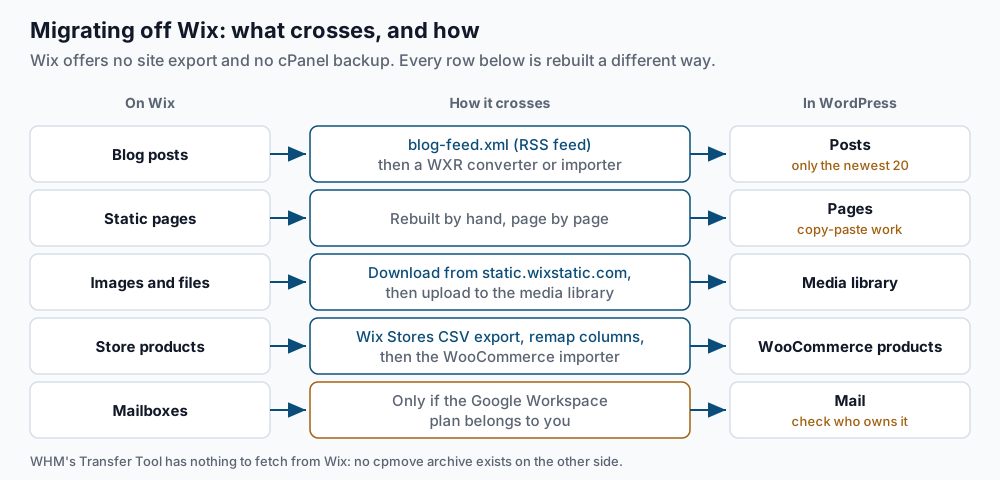
Blog posts are the one piece with a machine-readable source. Wix publishes an RSS feed, commonly at /blog-feed.xml. WordPress’s built-in importers under Tools > Import do not read RSS in a way that gives you usable posts. You need one of two routes instead: convert the feed into WXR, or use a purpose-built importer plugin that reads the feed for you. WXR stands for WordPress eXtended RSS, WordPress’s own XML export format and the file its importer is designed to read. The catch is that the Wix feed carries only the most recent posts, commonly the newest 20. Anything older is copied by hand.
Static pages have no export at all. You rebuild them page by page, copying text and re-creating layout in the WordPress editor. That sounds open-ended, which is why the inventory step matters: 31 pages is a finite afternoon, while “the pages” has no edge.
Images and files live on Wix’s own static domain, static.wixstatic.com. They have to be downloaded and re-uploaded into the WordPress media library. Leaving the Wix URLs in place appears to work, and that is the trap: they load until the Wix site closes, then break all at once.
Store products are the friendliest case. Wix Stores offers a CSV export and WooCommerce has a CSV importer, though the column names do not line up, so you remap them in the importer’s field-mapping screen.
The part that costs the most if you skip it is URL structure. Wix serves blog posts at /post/<slug>. WordPress will not produce that shape on its own, so unless you tell it otherwise, every inbound link and every ranked search result lands on a 404. A 301 redirect map from old paths to new permalinks is mandatory: it is the difference between keeping your traffic and starting over. If rankings matter here, read our guide on preserving rankings through a migration alongside this one.
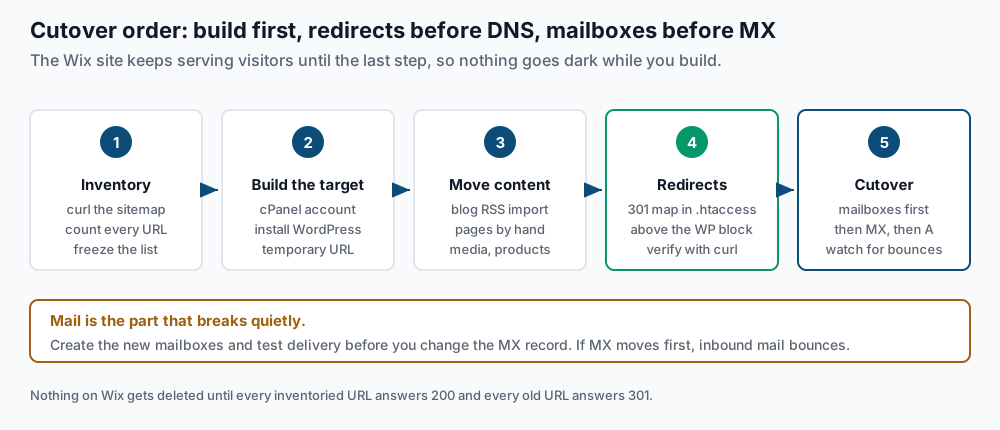
Order matters too, because two steps can fail silently.
Step-by-step
-
Inventory the site from its sitemap. Wix publishes a sitemap index that points at one child sitemap per content type.
curl -s https://example.com/sitemap.xmlExpected output:
<?xml version="1.0" encoding="UTF-8"?>
<sitemapindex xmlns="http://www.sitemaps.org/schemas/sitemap/0.9">
  <sitemap><loc>https://example.com/pages-sitemap.xml</loc></sitemap>
  <sitemap><loc>https://example.com/blog-posts-sitemap.xml</loc></sitemap>
  <sitemap><loc>https://example.com/store-products-sitemap.xml</loc></sitemap>
</sitemapindex>
Fetch the children and flatten them into one list:
for s in pages blog-posts store-products; do
  curl -s "https://example.com/$s-sitemap.xml" \
    | grep -o '<loc>[^<]*</loc>' | sed 's|</*loc>||g'
done | sort -u > ~/wix-urls.txt
wc -l < ~/wix-urls.txt
grep -c '/post/' ~/wix-urls.txt
Expected: a total such as
73, then the blog share such as41. Those two numbers are your project size. A child sitemap that 404s means that content type does not exist, so drop it from the plan. Our pre-migration inventory guide covers what else to record before you start. -
Find out what the DNS actually says. This determines whether you are moving nameservers or a single record.
dig +short NS example.com
dig +short A example.com
dig +short MX example.com
Expected, for a domain where Wix holds the nameservers:
ns6.wixdns.net.
ns7.wixdns.net.
185.230.63.171
1 aspmx.l.google.com.
5 alt1.aspmx.l.google.com.
Read it like this. Wix nameservers mean Wix holds the whole zone, so at cutover you move nameservers and re-create every record by hand on the new side, including MX, SPF and DKIM. Registrar nameservers with a Wix IP in the A record mean you change only that record, which is far less risky. Google MX records mean the mailboxes are Google Workspace, so your next call is to Wix billing to learn whether the subscription is yours or theirs.
-
Create the cPanel account and install WordPress on a temporary hostname. In WHM, use Account Functions > Create a New Account. Then point a subdomain such as
new.example.comat the new server with an A record, and build there. The temporary hostname lets you work on a real HTTPS address while Wix keeps serving visitors.Install with WP-CLI rather than a one-click installer, since the same tool does the database rewriting you need later:
cd ~/public_html
wp core download
wp config create --dbname=exmpl_wp --dbuser=exmpl_wp --dbpass='REPLACE_ME'
wp core install --url=https://new.example.com --title='Example Inc' \
  --admin_user=admin --admin_email=you@example.com --skip-email
wp core version
wp option get siteurl
Expected:
Success: WordPress installed successfully., then a version such as6.8.2, thenhttps://new.example.com. Ifwp option get siteurlprints anything else, stop and fix it now, because every link WordPress generates comes from that value.Set permalinks to match what your redirect map will target:
wp rewrite structure '/%postname%/' --hardExpected:
Success: Rewrite structure set.The--hardflag writes the rules into.htaccessinstead of keeping them in the database only. -
Move the content. Start with the blog, because it is the only part a machine can do. Check what the feed actually holds:
curl -s https://example.com/blog-feed.xml | grep -c '<item>'Expected:
20. Compare that with the41from step 1. The gap is the number of posts you will copy by hand. Run the feed through a third-party RSS-to-WXR converter, then import the result under Tools > Import > WordPress and count what landed:wp post list --post_type=post --format=countExpected: a number matching your import. Rebuild static pages by hand in the block editor, and export store products as CSV before mapping the columns in WooCommerce’s importer.
-
Re-host the media. First find out how much is still pointing at Wix:
wp db query "SELECT COUNT(*) FROM wp_posts WHERE post_content LIKE '%wixstatic.com%';" --skip-column-namesExpected: a count such as
18. For a handful of images, pull each in directly:wp media import 'https://static.wixstatic.com/media/abc123~mv2.jpg' --post_id=14 --title='Storefront'Expected:
Success: Imported file ... as attachment ID 212.For a larger site, an import-external-images plugin does the same in bulk. Once the files exist locally, confirm how many references remain before changing any text:wp search-replace 'static.wixstatic.com' 'example.com' --dry-run --all-tables--dry-runchanges nothing; it prints a table of how many replacements each column would receive, ending in a line such asSuccess: 24 replacements to be made.--all-tablesincludes tables WP-CLI would otherwise skip, such as those from plugins with their own prefix. Use WP-CLI for this rather than a SQLREPLACE, because WordPress stores many settings as PHP serialized data, where each string carries its own length prefix. WP-CLI unserializes, replaces, then re-serializes, so the lengths stay correct. A raw SQL replace leaves the old lengths behind and silently corrupts those rows.Run it for real without
--dry-runonly after the files exist at the matching path on your server. A string swap does not move a file. Any reference that still breaks afterwards needs a re-import, not more substitution. -
Build and install the 301 map. Turn the Wix post URLs from step 1 into redirect lines:
grep '/post/' ~/wix-urls.txt \
  | sed -E 's#https://example\.com/post/([^/]+)/?#Redirect 301 /post/\1 https://example.com/\1/#' \
  > ~/redirects.conf
head -2 ~/redirects.conf
Expected:
Redirect 301 /post/spring-maintenance-checklist https://example.com/spring-maintenance-checklist/
Redirect 301 /post/choosing-a-contractor https://example.com/choosing-a-contractor/
Add a line by hand for each static page whose slug changed, then paste the block into
~/public_html/.htaccessabove the# BEGIN WordPressmarker:# --- Wix legacy paths: keep this block above the WordPress block --- Redirect 301 /post/spring-maintenance-checklist https://example.com/spring-maintenance-checklist/ Redirect 301 /about-1 https://example.com/about/ RedirectMatch 301 ^/post/(.*)$ https://example.com/$1/ # --- end Wix legacy paths --- # BEGIN WordPress <IfModule mod_rewrite.c> RewriteEngine On RewriteBase / RewriteRule ^index\.php$ - [L] RewriteCond %{REQUEST_FILENAME} !-f RewriteCond %{REQUEST_FILENAME} !-d RewriteRule . /index.php [L] </IfModule> # END WordPressTwo rules about that placement. The WordPress block ends with a catch-all that hands every unmatched request to
index.php, so redirect lines below it never get their turn and WordPress answers 404. And WordPress rewrites everything between theBEGIN/ENDmarkers whenever you save permalink settings, so anything inside them disappears without warning. TheRedirectMatchline is the safety net for posts you missed, so specific lines come first and it goes last.Verify against the temporary hostname before DNS moves:
curl -sI https://new.example.com/post/spring-maintenance-checklist | head -3Expected:
HTTP/1.1 301 Moved Permanently
Date: Fri, 12 Sep 2026 14:02:11 GMT
Location: https://example.com/spring-maintenance-checklist/
A
200here means the redirect block is below the WordPress rules or in the wrong file. A404means the same thing with a slug that does not exist yet on the new side. -
Cut over, in this order: mailboxes, then MX, then the A record. A day ahead, drop the TTL on the records you will change to 300 seconds so mistakes expire in five minutes.
If mail is moving to cPanel, create every mailbox first and confirm each one accepts a message:
uapi --user=exmpl Email add_pop email=info@example.com password='REPLACE_ME' quota=2048Expected: a YAML block ending in
status: 1. Log in at the server’s webmail and send a test to and from an outside address before you change anything in DNS. If Google Workspace stays where it is, leave the MX records exactly asdigreported them in step 2 and change nothing about mail.Then change MX, wait for the TTL, and only then point the A record at the new server. Finish by rewriting the temporary hostname out of the database:
wp search-replace 'new.example.com' 'example.com' --all-tables
wp option get siteurl
Expected: a replacement count, then
https://example.com.
Validate it works
Crawl every new URL and show only what is not a 200:
sed 's#/post/##' ~/wix-urls.txt > ~/new-urls.txt
while read -r u; do
  printf '%s  %s\n' "$(curl -s -o /dev/null -w '%{http_code}' "$u")" "$u"
done < ~/new-urls.txt | grep -v '^200'
Expected: no output at all. Every line that appears is a page you still owe.
Confirm nothing references Wix any more, in the database and in the rendered page:
wp db query "SELECT COUNT(*) FROM wp_posts WHERE post_content LIKE '%wix%.com%';" --skip-column-names
curl -s https://example.com/ | grep -c 'wixstatic'
Expected: 0 from both. A non-zero count is an image that will break the day the Wix site closes.
Spot-check at least three old URLs, mixing blog posts and pages:
for p in /post/spring-maintenance-checklist /post/choosing-a-contractor /about-1; do
  printf '%s  %s  %s\n' \
    "$(curl -s -o /dev/null -w '%{http_code}' "https://example.com$p")" "$p" \
    "$(curl -sI "https://example.com$p" | awk -F': ' '/^[Ll]ocation/{print $2}' | tr -d '\r')"
done
Expected: three lines each beginning 301 and ending with the new address. If mail moved, confirm the records resolve and then prove delivery with a real message:
dig +short MX example.comExpected: your new mail host, not the old one. Send a message from an outside account to each mailbox and confirm it arrives before calling the cutover done. Our post-migration smoke tests list the rest of what to check on day one.
Troubleshooting
- Images still load from Wix, and the site looks fine. This is the failure that waits. The page renders because
static.wixstatic.comis still serving those files, and it keeps doing so until the Wix subscription lapses. Run the two counts in the validation section while the old site is still up. Any non-zero result means those images were never downloaded, so re-import the files rather than search-replacing the URLs. - Imported posts have today’s date and the wrong author. The RSS route carries a limited set of fields, and converters differ in how well they map dates and bylines. Check a handful before fixing hundreds:
wp post list --post_type=post --fields=ID,post_date,post_author --posts_per_page=10. Correct dates in bulk withwp post update <ID> --post_date='2024-03-11 09:00:00', and reassign authorship withwp post update <ID> --post_author=2. Getting dates right matters for archive pages and for how search engines read the site’s history. - Old URLs return 404 even though the redirects are in
.htaccess. Almost always placement. Confirm your block sits above# BEGIN WordPress: anything below the WordPress rules is never reached, and anything between the markers is erased when permalinks are saved. Confirm withgrep -n 'BEGIN WordPress' ~/public_html/.htaccessand compare the line number with your firstRedirectline. - Mail bounces right after the cutover. The MX record moved before the mailboxes existed, so the new server rejected mail for addresses it had never heard of. Those messages are gone. Create every mailbox and test delivery first, then change MX. If it already happened, create the missing mailboxes now and ask senders to resend; nothing recovers a message the server already refused.
When this is the wrong approach
A five-page brochure site with no blog is usually faster to rebuild from scratch than to migrate. There is no post import to run, the images are few, and you would hand-copy every page regardless. Pick a theme, rebuild the five pages, and keep only the redirect map from this guide, which you still need.
The other case is a site whose real value is a Wix-native app: bookings, memberships, a course area or a paid community. Those have no equivalent you can export into WordPress. The migration is not truly planned until you have chosen the plugin that replaces the functionality and confirmed it handles your existing members or appointments. A site that looks right but cannot take a booking is worse than the one you left.
If your source is a traditional host rather than a closed platform, our generic host migration guide is the better starting point. The reference docs for the two tools doing the heavy lifting are WP-CLI’s search-replace command and Apache’s mod_alias module, which defines Redirect and RedirectMatch.
Running WordPress that earns real money deserves an operator — Stack Harbor runs that stack under Enterprise WordPress; book an infrastructure consult.