This guide shows you how to run a Node.js application on a cPanel server using cPanel’s Setup Node.js App tool. If you have ever started an app by hand with node server.js over SSH and found it dead the next morning, this is the supported fix for that. That tool is CloudLinux’s Node.js Selector, and it runs your app behind Phusion Passenger, an application server that Apache hands matching requests to and that starts and supervises your process for you. It only appears on servers running CloudLinux with the selector installed, so a plain AlmaLinux cPanel box will not show the icon at all, and step 1 tells you which one you have. By the end you will have a small Express app answering on a real URL, with its dependencies, environment variables and restarts all handled the supported way.
What you’ll accomplish
- A definite answer to whether this feature exists on your server, and a named alternative if it does not.
- A Node.js application created with an application root, an application URL and a startup file that you understand rather than guess at.
- Dependencies installed inside the application’s own environment, which is the single most common thing people get wrong.
- Environment variables that the running process can actually read, proven with a request rather than assumed.
- A restart you can trigger from the shell, and a check that tells you the new code is live.
Prerequisites
You need a cPanel account with SSH access, and curl on your own machine for the checks at the end. The examples use CPUSER for the cPanel account name and example.com for the domain. Replace both.
You need a server running CloudLinux with the Node.js Selector installed. Step 1 checks this. CloudLinux is an operating system built on the same base as AlmaLinux, with per-account isolation and per-account interpreter versions added; if the difference is new to you, see CloudLinux or vanilla AlmaLinux on cPanel.
You do not need root for anything in this guide except one optional check in step 1 and one log path in the validation section. Everything else runs as the account user.
One version note: the Node.js versions you can pick are the ones the server administrator installed, so your list may not include the version your laptop runs. Pick the closest available major version and test rather than assuming.
How it works
Nothing here runs node in a terminal that stays open. Apache receives the request, sees that the URL belongs to a Passenger application, and hands the request to Passenger. Passenger starts your app the first time a request arrives, keeps it running, and restarts it when you ask. Your app talks to Passenger over a socket that Passenger creates, not over a public port.
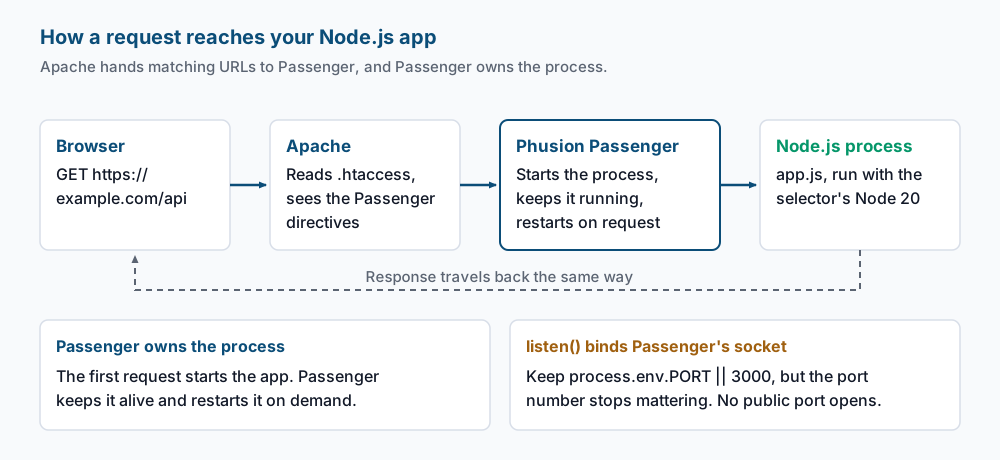
Three fields in the create form do all the work, and mixing them up causes most of the failures in this article:
- Application root is a directory path relative to your home directory. Enter
nodeappand your code lives in/home/CPUSER/nodeapp. - Application URL is the public address, chosen as a domain plus an optional path. Pick
example.comand typeapi, and the app answers athttps://example.com/api. - Application startup file is the file Passenger loads, written relative to the application root. Enter
app.jsand Passenger loads/home/CPUSER/nodeapp/app.js.
Two behaviours surprise people, so they are worth saying outright.
Passenger does not run your npm start script. It loads the startup file directly with the Node binary from the application’s environment. An app whose start script also builds assets, runs migrations or exports variables will behave differently here than it does on your laptop, because none of that setup work happens. Move that work into a command you run yourself over SSH, or into the top of the startup file.
Your startup file still calls listen() as normal, but the port number stops mattering. Passenger replaces the socket that call binds to, so the app attaches to Passenger’s socket instead of a public port. Write process.env.PORT || 3000 and do not build URLs from the port number or open a second listener on a fixed port. Phusion documents this behaviour in the Passenger documentation.
Step-by-step
-
Check that the feature exists on this server. Over SSH as the account user:
cat /etc/redhat-release
ls -d /opt/alt/alt-nodejs* 2>/dev/null
The first command should print a line beginning
CloudLinux release, with a version and a codename after it. The second should print one directory per installed Node major version, such as/opt/alt/alt-nodejs20. If the release line says AlmaLinux, Rocky or CentOS, and the second command prints nothing, the Node.js Selector is not on this server and no amount of looking in cPanel will produce the icon. With root you can confirm from the other side:cloudlinux-selector get --json --interpreter nodejsThat prints JSON listing the available versions.
command not foundmeans the selector package is not installed.If the feature is missing, the working alternative is to run your app as a service on a port bound to
127.0.0.1and put a reverse proxy in front of it, which needs root on the server. Node.js behind an Nginx reverse proxy covers that shape. Ask your host which of the two they support before you build either. -
Create the application. In cPanel, open Software, then Setup Node.js App, then CREATE APPLICATION. Fill in exactly these fields:
- Node.js version: the version you chose in step 1, for example
20. - Application mode:
Production. - Application root:
nodeapp. - Application URL: domain
example.com, pathapi. - Application startup file:
app.js.
Click CREATE. A green message confirms the application was created, and it appears in the list with its status shown as started. Now look at what the tool wrote for you:
ls -a /home/CPUSER/nodeapp
grep -rl PassengerAppRoot /home/CPUSER --include=.htaccess 2>/dev/null
The first shows a
tmpdirectory and usually an.htaccess. The second prints the path of every.htaccesscarrying Passenger directives, which is the file Apache reads to route your URL. Open it and you will seePassengerAppRoot,PassengerBaseURI,PassengerNodejsandPassengerStartupFile, each matching a field you typed. If nothing is printed, the application was not created, whatever the screen said. - Node.js version: the version you chose in step 1, for example
-
Activate the environment and install dependencies. The application’s detail page shows a command near the top, in a box you can click to copy. It looks like this, with your account name, application root and version in it:
source /home/CPUSER/nodevenv/nodeapp/20/bin/activate && cd /home/CPUSER/nodeappRun it over SSH. Your shell prompt gains a prefix naming the environment, along the lines of
(nodeapp:20). That prefix is the signal that the next commands use this application’s Node and this application’snode_modules. Confirm it:which node node -vExpect
/home/CPUSER/nodevenv/nodeapp/20/bin/nodeand a version startingv20. Ifwhich nodeprints/usr/bin/nodeor nothing at all, the activate line did not take effect, and anything you install now lands in the wrong place. Fix that before continuing. With the prompt showing the prefix, install:npm init -y npm install expressnpm init -yprints the generatedpackage.json.npm installends with a line likeadded 69 packages in 2s. If you are deploying an existing repository that already has apackage-lock.json, runnpm ciinstead, because it installs the exact versions the lock file names and clears out stale ones. Usenpm installonly when you are adding or upgrading a dependency, because that command rewrites the lock file. A complaint thatnpm ci can only install packages when your package.json and package-lock.json are in syncmeans the lock is out of date: runnpm installonce, commit the updated lock, then go back tonpm ci. -
Write the startup file. Create
/home/CPUSER/nodeapp/app.jswith this content:'use strict'; const express = require('express'); const app = express(); app.get('/', (req, res) => { res.json({ ok: true, greeting: process.env.APP_GREETING || 'unset', node: process.version }); }); app.get('/health', (req, res) => res.type('text/plain').send('ok')); // Temporary: shows the path the app was handed, so you can see whether your // routes need the /api prefix on this server. Remove it once you know. app.use((req, res) => { res.status(404).json({ seenByApp: req.url, originalUrl: req.originalUrl }); }); const port = process.env.PORT || 3000; app.listen(port, () => { console.log('app started, listening via Passenger (port value ' + port + ')'); });The catch-all at the bottom is there on purpose. Whether Passenger strips the
/apiprefix before your routes see it depends on how the directives were written for your domain, and the catch-all answers that question on your own server in one request instead of making you guess. Keep it until the validation step, then delete it. -
Set an environment variable. Passenger does not read a
.envfile on its own, which catches out anyone used to local development. On the application’s page in cPanel, find the environment variables section, click the button to add one, enter the nameAPP_GREETINGand the valuehello from cPanel, then save. If you want.envfile support as well, add thedotenvpackage and load it in the first lines ofapp.js; that is your code doing it, not the platform.The running process reads its environment once, when it starts, so a saved variable changes nothing until the app restarts. That is the next step.
-
Restart from the shell. The cPanel page has a restart button. The equivalent over SSH is one command, and it is the one to use in a deploy script:
mkdir -p /home/CPUSER/nodeapp/tmp
touch /home/CPUSER/nodeapp/tmp/restart.txt
Both commands print nothing when they work. Passenger watches the modification time of
tmp/restart.txtinside the application root. When that time changes, it shuts down the current process and starts a fresh one on the next request that arrives. There is no output to read, so the proof comes from the checks below.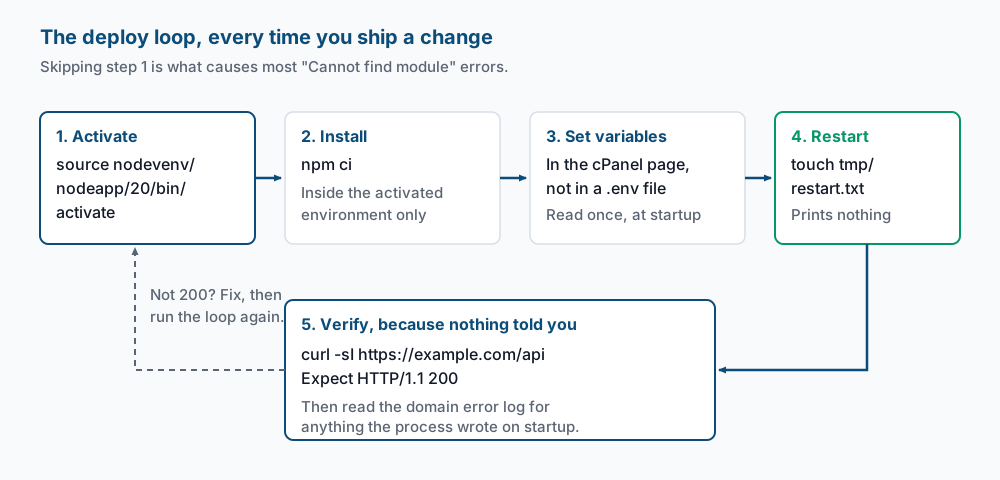
Validate it works
Run these from your own machine, then from the server. First, the headers:
curl -sI https://example.com/apiExpect a status line of HTTP/1.1 200 OK, or HTTP/2 200 if the server negotiated HTTP/2, and an X-Powered-By: Express header. That header is the useful part: it can only come from the Express process, so it rules out Apache quietly serving a stale static file from the same path. A 404 or a 403 with no X-Powered-By means the request never reached your app, and troubleshooting item 3 is the likely cause.
Now the body, which proves the environment variable arrived:
curl -s https://example.com/apiExpect something close to {"ok":true,"greeting":"hello from cPanel","node":"v20.19.5"}. A greeting of unset means the variable was saved but the process was not restarted, so repeat step 6. Then check what the app sees for a sub-path:
curl -s https://example.com/api/does-not-existThe JSON it returns shows seenByApp, which is the path your routes are matched against. If it reads /does-not-exist, define routes without the /api prefix. If it reads /api/does-not-exist, include the prefix. Delete the catch-all once you know, then restart again.
Confirm a real process is running, on the server:
ps -u CPUSER -o pid,etime,cmd | grep -i nodeYou should see at least one line naming either the environment’s Node binary or the application root; Passenger renames process titles, so it may read along the lines of Passenger NodeApp: /home/CPUSER/nodeapp. The etime column is elapsed run time, and it resets to seconds after a restart, which is how you prove a touch took effect rather than trusting it.
Finally, the logs. Anything your app writes to standard output or standard error is captured by Passenger and written to Apache’s error log, along with any startup failure:
ls -lt /home/CPUSER/logs/ | head -5
ls -l /etc/apache2/logs/error_log /usr/local/apache/logs/error_log 2>/dev/null
The first lists the per-domain logs your account can read. The second shows which Apache log path exists on this server, since EasyApache 4 servers keep it under /etc/apache2/logs/ (usually a symbolic link into /var/log/apache2/) while older builds used /usr/local/apache/logs/. Reading the full error log needs root. Without root, cPanel’s Metrics area has an Errors page showing the recent entries for your account, which is where the console.log line from step 4 shows up.
Troubleshooting
The URL returns 500 or 503 immediately after creating the app. The startup file path is wrong relative to the application root. Passenger resolves it from the application root, so an entry of src/app.js means /home/CPUSER/nodeapp/src/app.js. Run ls -l /home/CPUSER/nodeapp/app.js; if the file is not there, either move it or correct the field on the application page. The error log carries a matching line about being unable to find the file.
The log says Cannot find module 'express'. npm install ran outside the activated environment, so the packages went next to a different Node. Check with which node before anything else: it has to print the path under nodevenv. The fix is to activate, clear the directory and install again, then restart:
source /home/CPUSER/nodevenv/nodeapp/20/bin/activate && cd /home/CPUSER/nodeapp
rm -rf node_modules
npm ci
touch tmp/restart.txt
A directory listing or an old page appears instead of your app. The application URL points at a path that also exists as a real folder with content in it. Apache serves the file it finds before Passenger ever gets involved. Run ls -la /home/CPUSER/public_html/api and remove or rename any index.html or index.php sitting there, keeping the .htaccess that holds the Passenger directives.
Your code changes do not show up. The old process is still running, because editing a file does not restart anything. Run touch /home/CPUSER/nodeapp/tmp/restart.txt, make one request, then re-run the ps check and confirm etime reset. Make the touch the last line of whatever deploy script you use.
Custom .htaccess rules vanish. The Node.js Selector owns that file and rewrites it when the application is edited or recreated. Copy it before you change anything with cp /home/CPUSER/nodeapp/.htaccess /home/CPUSER/nodeapp/htaccess.bak, then re-apply your own rules afterwards. Better still, keep rules that belong to the site in the document root’s own .htaccess rather than the application’s.
When this is the wrong approach
Node.js Selector is built for request-driven web applications on a shared account, and it is honest about very little else.
A long-running worker is a poor fit. Passenger starts a process when a request arrives and stops idle processes to free resources, so a queue consumer or a scheduler that must run continuously does not belong here. Those want a virtual private server with a systemd unit, or a container platform with a worker process type.
A websocket-heavy application is a poor fit too. Passenger can carry websocket connections, but a shared cPanel account is capped by LVE, the CloudLinux per-account resource container, on how many processes and concurrent entry processes it may hold. A few hundred long-lived connections will meet those caps well before your code is the problem.
Memory is the third boundary. If your application’s heap needs more than the account’s physical memory limit allows, the kernel stops the process, and the symptom looks like random restarts rather than an out-of-memory error. Measure the heap under real traffic, compare it with the limit on the account, and move to a server you control if the numbers do not fit.
For the fields and screens themselves, the cPanel documentation stays current with each release.
If this is the kind of work you’d rather never own again, it’s the daily job of Managed Cloud Ops — book an infrastructure review.