This guide shows you how to move a website from Squarespace to self-hosted WordPress on a cPanel/WHM server. The good news is that Squarespace has a built-in export that produces a file WordPress can read, so your blog posts and basic pages cross over with one import. The catch is that the export leaves a lot behind, and the images it does reference stay on Squarespace’s servers until you pull them in yourself. The short answer is to import the file, copy every image into WordPress, rebuild the skipped parts and redirect the old addresses. Do all of it while the Squarespace site is still live. You cancel the Squarespace subscription last, after a validation pass proves nothing still depends on it.
What you’ll accomplish
- Export your Squarespace content and know exactly which parts the file carries and which it does not.
- Import posts and pages into WordPress on a temporary hostname while Squarespace keeps serving visitors.
- Copy every image from the Squarespace CDN into your own media library, so nothing breaks when the subscription ends.
- Install a 301 redirect map that covers Squarespace’s URL shapes, including
/s/file links and?tag=filters. - Move the domain’s DNS in an order that keeps mail flowing, then cancel Squarespace with confidence.
Prerequisites
- Owner or administrator access to the Squarespace site. The export tool is only offered to those roles.
- Access to the domain’s DNS. If the domain is registered through Squarespace Domains, you manage DNS there. That includes domains that came across when Google Domains registrations moved to Squarespace in 2023.
- A cPanel account on a server you control, or WHM root access to create one.
- SSH access with WP-CLI, the command-line tool for WordPress. Check with
wp --info. Without SSH, the import and redirect steps have slower equivalents in the WordPress admin and cPanel’s File Manager. curlanddigon your own machine. Both ship with macOS and most Linux distributions; on Windows use WSL or Git Bash.- Enough time before the next Squarespace renewal date. Plan for at least two weeks of overlap, because the image step depends on the old site staying online.
- cPanel servers run Apache or LiteSpeed. Both read
.htaccesswith the same syntax, so the redirect rules below work on either.
How it works
Squarespace’s export writes a WXR file. WXR stands for WordPress eXtended RSS, the XML format WordPress uses for its own exports and the only format its importer is built to read. That makes Squarespace friendlier than most hosted builders, but the file is selective.
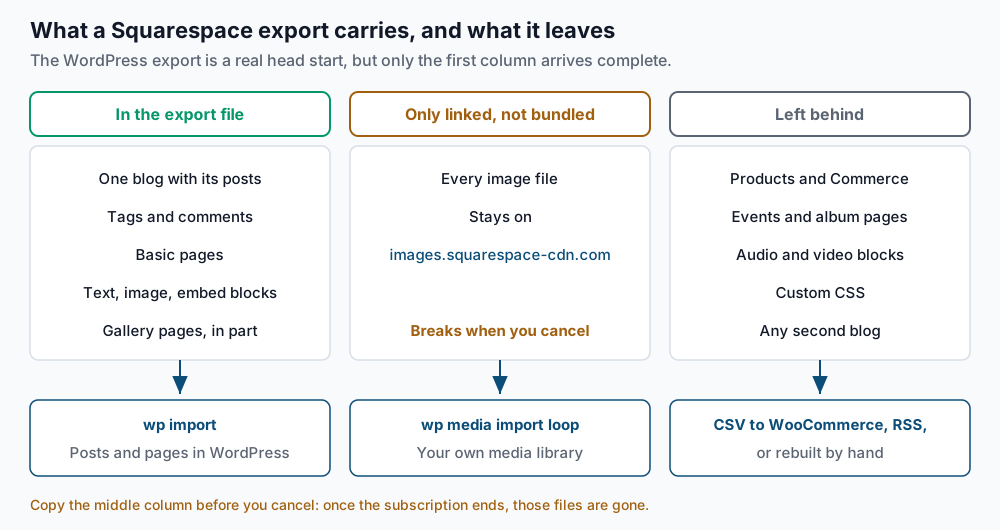
What the export carries. One blog collection with its posts, comments and tags. Basic pages. Text, image and embed blocks inside them. Gallery pages come across in part, usually as a page with the images listed rather than the gallery layout you designed.
What it only points at. Images are not bundled into the file. The XML holds links to images.squarespace-cdn.com, Squarespace’s content delivery network (the servers that store and serve your uploaded files). After import, your WordPress pages still load their pictures from Squarespace. They look fine today and break once the site is gone.
What it leaves behind. Product pages and the rest of Squarespace Commerce, event pages, album pages, audio and video blocks, custom CSS, and most of the newer block types. If the site has more than one blog, the export asks you to pick one, so every other blog needs its own route.
The URL shapes also differ. Squarespace serves posts under the blog’s own path, such as /blog/<post-slug>. Older 7.0 templates sometimes put a date in that path too. Uploaded files use /s/<filename>. Tag and category filters are often query strings like /blog?tag=recipes. WordPress produces none of these on its own, so a redirect map is part of the job, not an extra.
Order matters most at the end, because two mistakes only show up after it is too late to undo them.
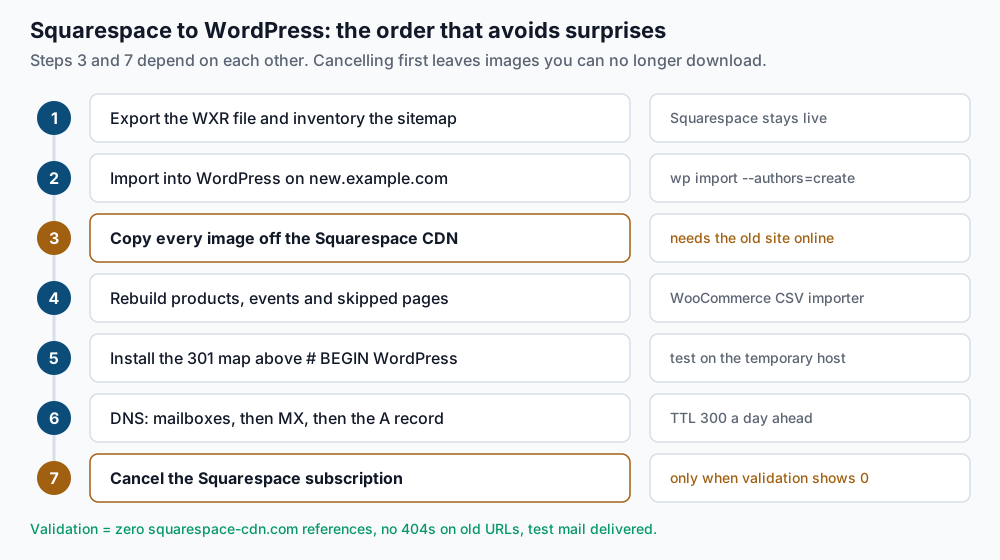
Step-by-step
-
Inventory the live site from its sitemap. Squarespace publishes one flat sitemap that lists every public page, post and product.
curl -s https://example.com/sitemap.xml \
  | grep -o '<loc>[^<]*</loc>' | sed 's|</*loc>||g' \
  | sort -u > ~/sq-urls.txt
wc -l < ~/sq-urls.txt
grep -c '/blog/' ~/sq-urls.txt
Expected: a total such as
96, then a blog count such as58. If your blog lives somewhere other than/blog/, such as/journal/or/news/, use that path instead. Also scan the list for product URLs and event URLs, since those need their own plan. While you are in Squarespace, open the URL Mappings panel (under the site’s advanced or developer settings) and copy any existing redirects into a text file. They are not part of the export. -
Export the WordPress file. In Squarespace, open Settings and find Import & Export. Squarespace has moved this menu between versions, so if you do not see it, search the settings panel for “export”. Choose Export, pick WordPress, and select the blog you want if the site has more than one. Download the file when Squarespace says it is ready, then copy it to the server:
# on your own machine
scp Squarespace-Wordpress-Export.xml exmpl@server.example.net:~/
# on the server
grep -c '<item>' ~/Squarespace-Wordpress-Export.xml
grep -c 'images.squarespace-cdn.com' ~/Squarespace-Wordpress-Export.xml
Expected: an item count such as
74, which covers posts, pages and attachment entries together, and a non-zero CDN count. The second number is a preview of the image work in step 5. The exact file name varies, so use whatever Squarespace gave you. -
Create the cPanel account and install WordPress on a temporary hostname. In WHM, use Account Functions > Create a New Account. Point a subdomain such as
new.example.comat the new server with an A record, and build there so you have real HTTPS while Squarespace keeps serving visitors. Create the empty database and its user first in cPanel’s Manage My Databases tool, then use those names below.cd ~/public_html wp core download wp config create --dbname=exmpl_wp --dbuser=exmpl_wp --dbpass='REPLACE_ME' wp core install --url=https://new.example.com --title='Example Studio' \ --admin_user=admin --admin_email=you@example.com --skip-email wp rewrite structure '/%postname%/' --hard wp option get siteurlExpected:
Success: WordPress installed successfully., thenSuccess: Rewrite structure set., thenhttps://new.example.com. The--hardflag writes the permalink rules into.htaccessas well as the database. -
Import the export file. WP-CLI’s import command needs the WordPress Importer plugin installed first.
wp plugin install wordpress-importer --activate
wp import ~/Squarespace-Wordpress-Export.xml --authors=create
Expected: a line per item such as
-- Imported post as post_id #37, ending withSuccess: Finished importing from '/home/exmpl/Squarespace-Wordpress-Export.xml' file.The--authors=createflag creates a WordPress user for each author in the file. Use--authors=skipif you want everything assigned to the current admin instead. The importer also tries to download the attachment entries listed in the file. Some of those downloads can fail, and images placed inline in post text are not attachments at all, so the next step catches both.Count what landed and compare it with your sitemap numbers:
wp post list --post_type=post --format=count
wp post list --post_type=page --format=count
Expected: a post count close to the blog count from step 1. A big gap usually means you exported a different blog than the one with most of your posts.
-
Copy every image off the Squarespace CDN. First build the list of image addresses still referenced in your content:
wp db query "SELECT post_content FROM wp_posts WHERE post_content LIKE '%squarespace-cdn.com%';" --skip-column-names \
  | grep -oE 'https://images\.squarespace-cdn\.com/[^"?) ]+' \
  | sort -u > ~/sq-images.txt
wc -l < ~/sq-images.txt
Expected: a count such as
212. Each line is one unique image. Now import each one and swap its address in the post content:while read -r old; do id=$(wp media import "$old" --porcelain < /dev/null) || { echo "FAILED $old"; continue; } new=$(wp eval "echo wp_get_attachment_url($id);" < /dev/null) wp search-replace "$old" "$new" wp_posts --include-columns=post_content --quiet < /dev/null done < ~/sq-images.txt 2>&1 | tee ~/sq-images.log grep -c FAILED ~/sq-images.logExpected:
0failures. Each< /dev/nullstops a WP-CLI command from swallowing the rest of the image list as its own input, which would silently skip images.--porcelainmakeswp media importprint only the new attachment ID, which the loop uses to look up the local file address.wp search-replaceis used instead of a SQLREPLACEbecause WordPress stores some values as PHP serialized data, where each string records its own length. WP-CLI keeps those lengths correct, while a raw SQL replace can silently corrupt the row. Squarespace often adds a size hint such as?format=1500wafter the file name. The loop leaves that behind on the new address, and your web server ignores it, so the image still loads.Run the step while Squarespace is still online. Once the subscription ends, those CDN files are no longer yours to download.
-
Rebuild what the export skipped. Work through these in order of business value:
- Products. In the Squarespace Commerce inventory panel, export your products as CSV. Import that file with WooCommerce’s product importer and match the columns on its mapping screen. The product image columns hold CDN links, and the importer downloads them into the media library as it goes. Rerun the step 5 query afterwards anyway, to catch any download that failed. Order history is a separate CSV export and is best kept as an archive, not imported.
- A second blog. Squarespace blogs publish an RSS feed at
/<blog-path>?format=rss. It usually lists only recent posts, so compare its item count with the sitemap and copy the rest by hand. - Events, albums, audio and video blocks. Rebuild these in the block editor. Video blocks become embed blocks with the original YouTube or Vimeo link.
- Custom CSS. Copy it from Squarespace’s custom CSS panel into a text file now. Class names will not match your WordPress theme, so treat it as a reference for the look, not as code to paste.
-
Build and install the 301 map. Turn the blog URLs from step 1 into redirect lines:
grep '/blog/' ~/sq-urls.txt \
  | sed -E 's#https://example\.com/blog/([^/]+)/?$#Redirect 301 /blog/\1 https://example.com/\1/#' \
  | grep '^Redirect' > ~/redirects.conf
head -2 ~/redirects.conf
Expected:
Redirect 301 /blog/sourdough-starter-guide https://example.com/sourdough-starter-guide/
Redirect 301 /blog/studio-open-house https://example.com/studio-open-house/
Date-based 7.0 post URLs do not match this pattern and are left out, so add those by hand. Then place the block, plus lines for renamed pages,
/s/files and query-string filters, into~/public_html/.htaccessabove# BEGIN WordPress:# --- Squarespace legacy paths: keep above the WordPress block --- Redirect 301 /blog/sourdough-starter-guide https://example.com/sourdough-starter-guide/ Redirect 301 /s/price-sheet.pdf https://example.com/wp-content/uploads/2026/09/price-sheet.pdf RewriteEngine On RewriteCond %{QUERY_STRING} ^format=rss$ RewriteRule ^blog/?$ /feed/ [R=301,L,QSD] RewriteCond %{QUERY_STRING} ^tag=([^&]+)$ RewriteRule ^blog/?$ /tag/%1/ [R=301,L,QSD] # --- end Squarespace legacy paths --- # BEGIN WordPressThe plain
Redirectdirective cannot see query strings, which is why the?format=rssand?tag=cases useRewriteCond.%1inserts the tag captured by the condition, andQSD(query string discard) drops the old query string from the new address. The block sits above the WordPress rules because their catch-all sends every unmatched request toindex.php. Keep it outside theBEGIN/ENDmarkers too, since WordPress rewrites that section when permalinks are saved.Upload each
/s/file to the media library first, so the redirect target exists. Then test on the temporary hostname:curl -sI https://new.example.com/blog/sourdough-starter-guide | head -3Expected:
HTTP/1.1 301 Moved Permanentlyand aLocation:header with the new address. A200or404means the block is below the WordPress rules or in the wrong file. -
Cut over DNS: mailboxes, then MX, then the A record. Check the current state first:
dig +short A example.com
dig +short CNAME www.example.com
dig +short MX example.com
Expected for a site on Squarespace: A records such as
198.185.159.144and198.49.23.144, awwwCNAME such asext-sq.squarespace.com., and MX records for your mail provider. A day ahead, lower the TTL (time to live, how long resolvers cache a record) on those records to 300 seconds. If mail is moving to cPanel, create and test every mailbox before touching MX. If mail stays with Google Workspace or another provider, leave MX exactly as it is. Our DNS prep checklist walks through the TTL and record audit in detail.Then replace the Squarespace A records with your server’s IP and point
wwwat the root domain. You can keep the domain registered with Squarespace Domains and edit the records there. A registrar transfer can wait until the site is settled. Finish by rewriting the temporary hostname:wp search-replace 'new.example.com' 'example.com' --all-tables wp option get siteurlExpected: a replacement count, then
https://example.com.
Validate it works
Confirm nothing in the database or the rendered page still loads from Squarespace:
wp db query "SELECT COUNT(*) FROM wp_posts WHERE post_content LIKE '%squarespace-cdn.com%';" --skip-column-names
wp db query "SELECT COUNT(*) FROM wp_postmeta WHERE meta_value LIKE '%squarespace-cdn.com%';" --skip-column-names
curl -s https://example.com/ | grep -c 'squarespace'
Expected: 0 from all three. Any other number is an image or script that will break when you cancel.
Check that every old URL now answers with a 200 or a 301, never a 404:
while read -r u; do
  printf '%s  %s\n' "$(curl -s -o /dev/null -w '%{http_code}' "$u")" "$u"
done < ~/sq-urls.txt | grep -vE '^(200|301)'
Expected: no output. Each line that appears is an address you still need to redirect or rebuild.
Test the query-string and feed redirects, which are easy to miss:
curl -sI 'https://example.com/blog?format=rss' | grep -i '^location'
curl -sI 'https://example.com/blog?tag=recipes' | grep -i '^location'
Expected: Location: https://example.com/feed/ and Location: https://example.com/tag/recipes/. Then send a message from an outside account to each mailbox and confirm it arrives. Our post-migration smoke tests cover the rest of what to check on day one. Only after all of this passes should you cancel the Squarespace site subscription.
Troubleshooting
wp importsays the importer is missing. The error tells you WordPress Importer needs to be installed. Runwp plugin install wordpress-importer --activateand try again. The import command is a wrapper around that plugin.wp media importfails with “Sorry, you are not allowed to upload this file type.” Some CDN addresses end without a file extension, so WordPress cannot tell what the file is. Download the image withcurl -o image.jpg "<url>", import the local file withwp media import image.jpg, and run the samewp search-replacefor that one address.- Posts imported, but images still load from Squarespace. The step 5 loop did not run, or some downloads failed. Check
~/sq-images.logforFAILEDlines, then rerun the query in step 5. Anything it lists still lives only on Squarespace. - A post shows raw block markup or empty sections. Squarespace blocks that WordPress does not recognize arrive as leftover HTML or nothing at all. Open the post in the block editor, use “Convert to blocks” on the classic content, and rebuild the missing section by hand. Check the most-visited posts first.
- Old tag links still 404. The
RewriteRulepattern expects the blog at/blog. If yours lives at/journal, change^blog/?$to^journal/?$in each rule. Also confirm the tags exist in WordPress withwp term list post_tag --fields=slug.
When this is the wrong approach
If the store is the business, this guide is the smaller half of the job. Products cross via CSV, but customer accounts, subscriptions, digital downloads and payment setup do not. Plan the WooCommerce build as its own project, and consider keeping Squarespace Commerce live until that store is tested.
A small portfolio built mostly from gallery and album pages gains little from the export, since those are the parts it handles worst. Rebuilding the pages directly in a WordPress theme is often faster, and you still use steps 1, 7 and 8 from this guide.
If your site uses Squarespace Member Areas or Scheduling, choose and test the WordPress plugins that replace them before you set a cutover date. For the WP-CLI side, the reference documentation for the import command lists every flag. If you are weighing Squarespace against a similar builder, our Wix migration guide shows how a platform with no export at all compares.
Running WordPress that earns real money deserves an operator — Stack Harbor runs that stack under Enterprise WordPress; book an infrastructure consult.