This guide walks you through moving a Joomla website to WordPress when both live on a cPanel/WHM hosting account. Many site owners reach this point with an old Joomla 3 site that no longer gets security fixes, and they worry the move means rebuilding everything by hand. It does not, because Joomla and WordPress both keep their content in a MySQL database you fully control. The practical answer is a data conversion. You build WordPress next to the live Joomla site, an importer plugin reads the Joomla database and copies the content across, and a 301 redirect map keeps old links working. By the end, WordPress serves the domain, and the Joomla files and database sit safely archived beside it.
What you’ll accomplish
- Identify your Joomla version, table prefix and installed extensions, so you know what converts automatically and what you rebuild.
- Build WordPress on a subdomain of the same cPanel account while Joomla keeps serving visitors.
- Import articles, categories and images from the Joomla database with the FG Joomla to WordPress plugin.
- Write a 301 redirect map in
.htaccessthat covers Joomla’s three URL shapes, including query-string links. - Swap the new site into
public_htmlin a short maintenance window and confirm nothing broke.
Prerequisites
- A cPanel account holding the Joomla site, with access to cPanel’s MySQL Databases and Subdomains screens (or WHM root access).
- SSH access with WP-CLI, the command-line tool for WordPress. Check with
wp --info. Without SSH, most steps have a slower equivalent in cPanel’s File Manager and phpMyAdmin. - Enough disk space for a second copy of your images. Check the
imagesfolder size withdu -sh ~/public_html/images. - Admin access to the Joomla backend, so you can read its global configuration and extension list.
- A full cPanel backup taken before you start. Nothing in this guide modifies the Joomla database, but the cutover step moves files.
curlon your own machine for testing redirects.
The steps assume Joomla sits in public_html and the cPanel username is exmpl. Swap in your own values wherever you see those.
How it works
Joomla is self-hosted PHP and MySQL, the same foundation WordPress uses. That means the source data is sitting in a database on your own server, readable by anything you grant access to. You do not need the Joomla site to keep working on a newer PHP version, and you do not need to upgrade Joomla first. The importer only reads its tables.
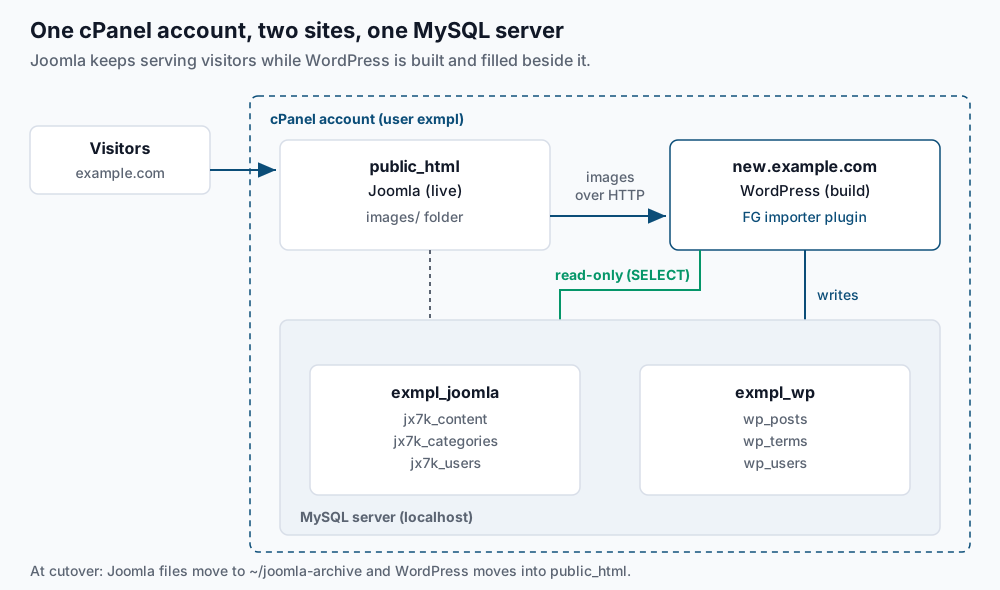
Joomla tables share a prefix, written #__ in Joomla’s own documentation. On a real install it is a short random string such as jx7k_, so articles live in jx7k_content, categories in jx7k_categories and users in jx7k_users. The importer needs that prefix, and you find it in configuration.php as $dbprefix.
Why the Joomla version still matters. Joomla 3.x reached its end of life (EOL, the date security fixes stop) in August 2023, and Joomla 4 followed in October 2025. Two things follow from that. First, an unpatched Joomla 3 site may already be compromised, so check for planted files before you copy anything. Second, the table layout shifted between versions. Joomla 4 stores intro and full-article image values with an extra #joomlaImage:// suffix, for example. Confirm that the importer version you install lists your Joomla version as supported.
What converts and what does not. The free FG Joomla to WordPress plugin, written by Frédéric Gilles, imports categories, articles and the images inside them. The paid Premium edition adds more, including users and tags, and separate add-ons exist for some third-party components. Check the plugin page for the current list rather than assuming. Some things never convert, whichever route you pick:
- Templates. A Joomla template is PHP written for Joomla. You pick or build a WordPress theme instead.
- Modules. Sidebar and footer blocks become WordPress widgets or blocks, placed by hand.
- Extensions with their own data. K2 articles, VirtueMart stores and Community Builder profiles need a matching add-on or a rebuild on WordPress equivalents such as WooCommerce.
- Menus. Premium handles some menu items; custom links to components usually need redoing.
The alternative to a plugin is writing your own SQL that copies rows from jx7k_content into wp_posts. It works for a tiny site with plain articles and no images. For anything larger, you would be rewriting what the importer already handles: category trees, image paths, intro text and publish states.
Step-by-step
-
Record the version, prefix and database details. Read them straight from the files.
grep -m1 '<version>' ~/public_html/administrator/manifests/files/joomla.xml
grep -E 'public \$(host|db|dbprefix|user) ' ~/public_html/configuration.php
Expected output:
	<version>3.10.12</version>
	public $host = 'localhost';
	public $user = 'exmpl_jml';
	public $db = 'exmpl_joomla';
	public $dbprefix = 'jx7k_';
Write those down. If
$hostshows anything other thanlocalhost, the database lives on a remote server, and you use that hostname in the importer instead. If the first command finds no file, you are on Joomla 1.5, which the rest of this guide does not cover. -
Check for planted PHP files. Joomla’s
imagesfolder should hold only media. A PHP file in it is a strong sign of a past break-in.find ~/public_html/images -name '*.php'Expected: no output. Any path printed here needs investigating before you migrate, since the importer copies media into WordPress and you do not want to carry a backdoor across.
-
Size the content and list the extensions. Log in to MySQL with the Joomla database user and password from step 1.
mysql -u exmpl_jml -p exmpl_joomla -e "SELECT state, COUNT(*) FROM jx7k_content GROUP BY state;"Expected:
+-------+----------+
| state | COUNT(*) |
+-------+----------+
|    -2 |       14 |
|     0 |        9 |
|     1 |      412 |
|     2 |       37 |
+-------+----------+
State
1is published,0unpublished,2archived and-2trashed. The published and archived counts are the numbers you check against WordPress later. Now list active components:mysql -u exmpl_jml -p exmpl_joomla -N -e "SELECT element FROM jx7k_extensions WHERE type='component' AND enabled=1 ORDER BY element;"Most names are core, such as
com_content,com_usersandcom_menus. Look for the others.com_k2,com_virtuemart,com_comprofiler(Community Builder) orcom_jeventseach mean a block of content that the free importer will not bring across. Our pre-migration inventory covers what else to record. -
Create the WordPress build on a subdomain. In cPanel, open Domains and create
new.example.com. On current cPanel versions its document root defaults to~/new.example.com; check the Document Root field and use whatever it shows. Then create an empty database and user for WordPress in MySQL Databases, for exampleexmpl_wpandexmpl_wpuser. Install WordPress there:cd ~/new.example.com wp core download wp config create --dbname=exmpl_wp --dbuser=exmpl_wpuser --dbpass='REPLACE_ME' wp core install --url=https://new.example.com --title='Example Inc' \ --admin_user=admin --admin_email=you@example.com --skip-email wp rewrite structure '/%postname%/' --hardExpected:
Success: WordPress installed successfully.thenSuccess: Rewrite structure set.The/%postname%/structure gives each post a URL built from its slug, which is what the redirect map targets. -
Give the WordPress database user read-only access to Joomla. Both databases are on the same MySQL server under the same cPanel account, so one grant is enough. Reading is all the importer needs.
uapi Mysql set_privileges_on_database user=exmpl_wpuser database=exmpl_joomla privileges=SELECTRun it over SSH as the cPanel user; if you are logged in as root, add
--user=exmplafteruapi. Expected: a YAML block containingstatus: 1. ASELECT-only grant means a wrong setting in the importer cannot change a single Joomla row. -
Run the importer. Install and activate the plugin:
wp plugin install fg-joomla-to-wordpress --activateExpected:
Plugin 'fg-joomla-to-wordpress' activated.followed bySuccess: Installed 1 of 1 plugins.In the WordPress admin, open Tools > Import and choose the Joomla (FG) importer. Fill in the Joomla site URL (https://example.com), database hostlocalhost, databaseexmpl_joomla, userexmpl_wpuser, its password, and table prefixjx7k_. Test the connection, which should report success, then start the import.The importer downloads images from the live Joomla URL, which is why Joomla stays up during this step. A few hundred articles typically take several minutes. When it finishes, count what landed:
wp post list --post_type=post --post_status=publish --format=count
wp term list category --format=count
Expected: a post count close to your published total from step 3, and a category count close to Joomla’s. Whether archived articles import as published depends on the importer settings, so compare against both numbers. Spot-check that slugs match Joomla aliases, since the redirect map depends on it:
wp post list --post_type=post --fields=ID,post_name --posts_per_page=3Expected: slugs such as
spring-maintenance-checklistthat match thealiascolumn injx7k_content. If your Joomla database usesutf8and WordPress usesutf8mb4, accented characters may come through garbled; our charset and collation guide explains the fix. -
Check for image paths the importer left relative. Joomla often stores images as
images/photo.jpgwith no leading host.wp db query "SELECT COUNT(*) FROM wp_posts WHERE post_content LIKE '%src=\"images/%';" --skip-column-namesExpected:
0. A non-zero count means those images were not re-hosted. Re-run the importer’s media step, or copy the files intowp-content/uploadsand fix the paths withwp search-replace --dry-runfirst. -
Collect the URLs people actually use. Joomla serves the same article at up to three addresses, depending on its SEF (search engine friendly URL) settings:
/index.php?option=com_content&view=article&id=42&catid=8, with SEF off./index.php/blog/42-spring-maintenance-checklist, with SEF on but URL rewriting off./blog/42-spring-maintenance-checklistor/component/content/article/42-spring-maintenance-checklist, with rewriting on. Some sites add.html.
See which ones your traffic uses from the cPanel access log:
awk '$9==200 {print $7}' ~/access-logs/example.com-ssl_log \
  | grep -vE '\.(css|js|png|jpe?g|gif|svg|woff2?|ico)' \
  | sort | uniq -c | sort -rn | head -5
Expected: a ranked list such as
318 /blog/42-spring-maintenance-checklist. Export your top pages from Google Search Console as well, since the log only covers recent days.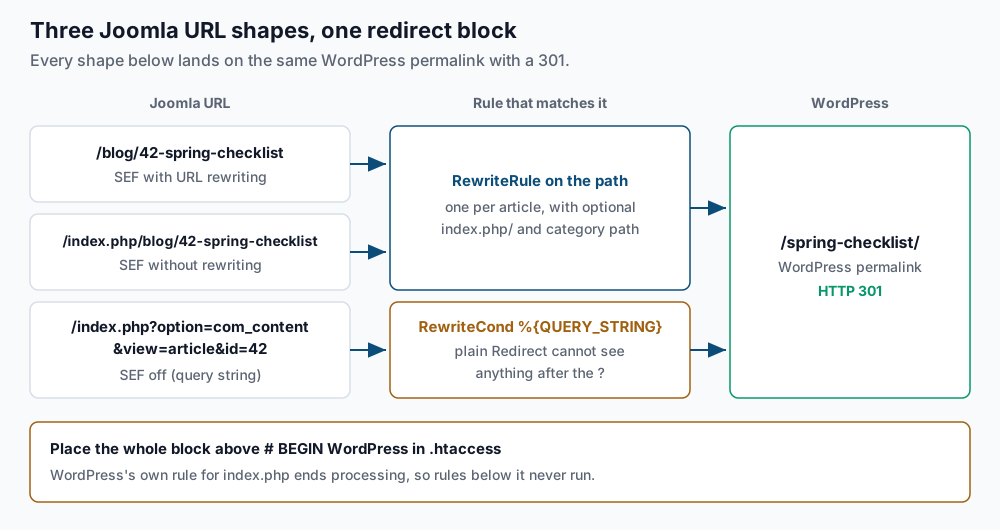
-
Generate the redirect map. Export article IDs and aliases, then turn each into rules:
mysql -u exmpl_jml -p exmpl_joomla -N -e "SELECT id, alias FROM jx7k_content WHERE state IN (1,2) ORDER BY id;" > ~/joomla-articles.tsv
awk -F'\t' '{
  printf "RewriteRule ^(index\\.php/)?(.+/)?%s-%s(\\.html)?/?$ https://example.com/%s/ [R=301,L]\n", $1, $2, $2
  printf "RewriteCond %%{QUERY_STRING} (^|&)id=%s(:|&|$)\n", $1
  printf "RewriteCond %%{QUERY_STRING} (^|&)option=com_content(&|$)\n"
  printf "RewriteRule ^(index\\.php)?$ https://example.com/%s/? [R=301,L]\n", $2
}' ~/joomla-articles.tsv > ~/joomla-redirects.conf
head -4 ~/joomla-redirects.conf
Expected:
RewriteRule ^(index\.php/)?(.+/)?42-spring-maintenance-checklist(\.html)?/?$ https://example.com/spring-maintenance-checklist/ [R=301,L]
RewriteCond %{QUERY_STRING} (^|&)id=42(:|&|$)
RewriteCond %{QUERY_STRING} (^|&)option=com_content(&|$)
RewriteRule ^(index\.php)?$ https://example.com/spring-maintenance-checklist/? [R=301,L]
The first rule catches every path shape, with or without
index.php, a category path or.html. The next three handle query-string links. Apache’s plainRedirectdirective only compares the path and never sees anything after?, so those links needRewriteCond %{QUERY_STRING}. The trailing?in the target drops the old query string. The(:|&|$)part matters because Joomla sometimes writes the ID asid=42:spring-maintenance-checklist.If your Joomla URLs have no numeric ID, write the category path literally, such as
^(index\.php/)?blog/spring-maintenance-checklist/?$. Never make that prefix optional, or the rule matches the new WordPress address and loops.Paste the file into
~/new.example.com/.htaccessabove# BEGIN WordPress, wrapped like this, with hand-written lines for category pages:# --- Joomla legacy URLs: keep above the WordPress block --- RewriteEngine On RewriteRule ^(index\.php/)?blog/?$ https://example.com/category/blog/ [R=301,L] RewriteRule ^(index\.php/)?(.+/)?42-spring-maintenance-checklist(\.html)?/?$ https://example.com/spring-maintenance-checklist/ [R=301,L] # ...rest of joomla-redirects.conf... # --- end Joomla legacy URLs --- # BEGIN WordPressPlacement is not optional. The WordPress block starts with
RewriteRule ^index\.php$ - [L], which stops processing for anyindex.phprequest, so query-string rules below it never run. WordPress also rewrites everything between its markers when you save permalinks. -
Cut over. Put a short notice on the Joomla site if it takes comments or orders, then swap the directories. Moving files within the same account is near-instant.
cd ~
mkdir joomla-archive
mv public_html/* public_html/.htaccess joomla-archive/
mv new.example.com/* new.example.com/.htaccess public_html/
ls public_html | head -3
Expected:
index.php,license.txt,readme.html. Then rewrite the build hostname out of the WordPress database:cd ~/public_html wp search-replace 'https://new.example.com' 'https://example.com' --all-tables wp option get siteurlExpected: a table of replacements ending in a line such as
Success: Made 1284 replacements., thenhttps://example.com. Use WP-CLI rather than a SQLREPLACE, because WordPress stores some settings as PHP serialized data. WP-CLI keeps the length markers in that data correct. -
Handle user accounts. Joomla 3.2 and later store passwords as bcrypt hashes. WordPress 6.8 also moved to bcrypt, but it formats and checks hashes its own way, so do not assume an imported hash will work. If you imported users, test one account. If that login fails, send everyone a reset link:
wp user list --role=subscriber --field=ID | xargs wp user reset-passwordExpected: one
Reset password for ...line per user, then aSuccess:line. Warn your members before the emails go out, so they are not mistaken for phishing.
Validate it works
Test each URL shape against a known article:
for u in '/blog/42-spring-maintenance-checklist' '/index.php/blog/42-spring-maintenance-checklist' '/index.php?option=com_content&view=article&id=42&catid=8'; do
  printf '%s  %s\n' "$(curl -s -o /dev/null -w '%{http_code} %{redirect_url}' "https://example.com$u")" "$u"
done
Expected: three lines, each starting 301 https://example.com/spring-maintenance-checklist/. Then feed your top URLs from step 8 through the same loop and look for anything that is not a 301 or 200. Confirm no content still points at the old Joomla paths:
wp db query "SELECT COUNT(*) FROM wp_posts WHERE post_status='publish' AND (post_content LIKE '%index.php?option=%' OR post_content LIKE '%src=\"images/%');" --skip-column-namesExpected: 0. A non-zero count is internal links or images that still target Joomla. Our post-migration smoke tests cover forms, mail and caching on day one.
Troubleshooting
- The importer cannot connect to the database. The WordPress user lacks the grant from step 5, or the prefix is wrong. Check with
mysql -u exmpl_wpuser -p exmpl_joomla -e "SHOW TABLES LIKE 'jx7k_content';". It should print the table name. If it prints nothing, the prefix does not match$dbprefix. - Posts imported but images are missing. The importer fetches media over HTTP from the Joomla URL you entered. A redirect from
httptohttps, a Cloudflare challenge, or.htaccesshotlink protection can block that. Enter the exacthttps://address and temporarily disable hotlink protection in cPanel, then re-run the media import. - Old URLs return 404 after cutover. The redirect block landed below
# BEGIN WordPressor was left behind in the archived Joomla.htaccess. Comparegrep -n 'BEGIN WordPress\|Joomla legacy' ~/public_html/.htaccess. The legacy line number must be smaller. - A redirect loops. A rule without an ID or a fixed category prefix matches its own target. Run
curl -sILon the URL to see the loop, then make that rule’s prefix mandatory. - Accented characters look garbled. The Joomla tables use a different character set than WordPress. Fix the source charset before re-importing rather than patching posts one at a time.
When this is the wrong approach
If most of the site’s value lives in a Joomla extension, the article import is the easy part. A VirtueMart store with order history or a Community Builder membership needs its own migration plan onto WooCommerce or a membership plugin. Settle that first, because a site with its articles moved but no working checkout is not ready to launch.
A small brochure site with ten pages and no blog is often quicker to rebuild by hand in WordPress. Keep the redirect map from step 9 either way.
And if the site works well, has no security issues and your team is comfortable in Joomla, upgrading to a supported Joomla 5 release may cost less than a platform change. Migrate because WordPress fits the next few years, not only because Joomla 3 is old. The FG Joomla to WordPress plugin page lists supported versions, and Apache’s mod_rewrite reference documents RewriteCond and RewriteRule.
Running WordPress that earns real money deserves an operator — Stack Harbor runs that stack under Enterprise WordPress; book an infrastructure consult.