This guide is for the admin or developer moving a WordPress site off IONOS shared or Managed WordPress hosting onto a cPanel/WHM server they control. IONOS runs its own control panel rather than cPanel, so no cPanel-format account archive, called a cpmove file, exists for WHM’s Transfer Tool to restore. The short answer is that you copy the files and the database by hand, rebuild the account and every mailbox on cPanel, and move DNS last. Mail is the part that most often hurts the client, because IONOS Mail is a separate product that stays behind when the files and the database leave. By the end the site serves from your own server, tested on its real domain name before a single DNS record changes.
What you’ll accomplish
- A confirmed answer to where WordPress actually lives on IONOS, which is often a subfolder rather than the top of the home directory.
- A complete copy of the files and the database on your cPanel account, checked rather than assumed.
- A
wp-config.phppointing at the local database, because IONOS gives the database a hostname of its own instead oflocalhost. - Every mailbox and forwarder rebuilt on cPanel before the MX records move. MX means mail exchanger, the DNS record naming the server that receives a domain’s mail.
- A cutover you can rehearse, with the site answering on its real domain name before the first DNS change.
Prerequisites
On the IONOS side you need the login for the contract that owns the hosting, not only a WordPress administrator account. Every IONOS plan offers SFTP, which is file transfer over an SSH connection, and most Linux hosting plans also offer SSH, a remote shell on the server. Confirm SSH by connecting rather than by reading a feature list.
You also need the database credentials. IONOS reaches MariaDB or MySQL through phpMyAdmin, and through the mysqldump client where SSH exists. Write down the database hostname exactly as wp-config.php shows it, because on IONOS it is usually a hostname of its own rather than localhost.
On the destination you need a cPanel account for the domain, a MySQL database and database user, SSH access, and wp on the box. wp is WP-CLI, the WordPress command-line tool, documented in the WP-CLI command reference.
Match the PHP version before you copy anything. Read it from the IONOS panel’s PHP setting for that domain, then set the same one in cPanel’s MultiPHP Manager, which drives EA4. EA4 is EasyApache 4, the build system supplying the PHP versions a cPanel server offers. A site on PHP 8.2 landing on an account that defaults to 7.4 fails in ways that look like a broken upload.
Finally, list every mailbox, forwarder and autoresponder on the domain while the panel is open. You will use that list twice.
How it works
A migration moves two things that travel well and three that do not. The files and the database copy across with ordinary tools. Mailboxes, DNS records and the TLS certificate each have to be rebuilt on the other side. TLS is transport layer security, the encryption behind an https address.
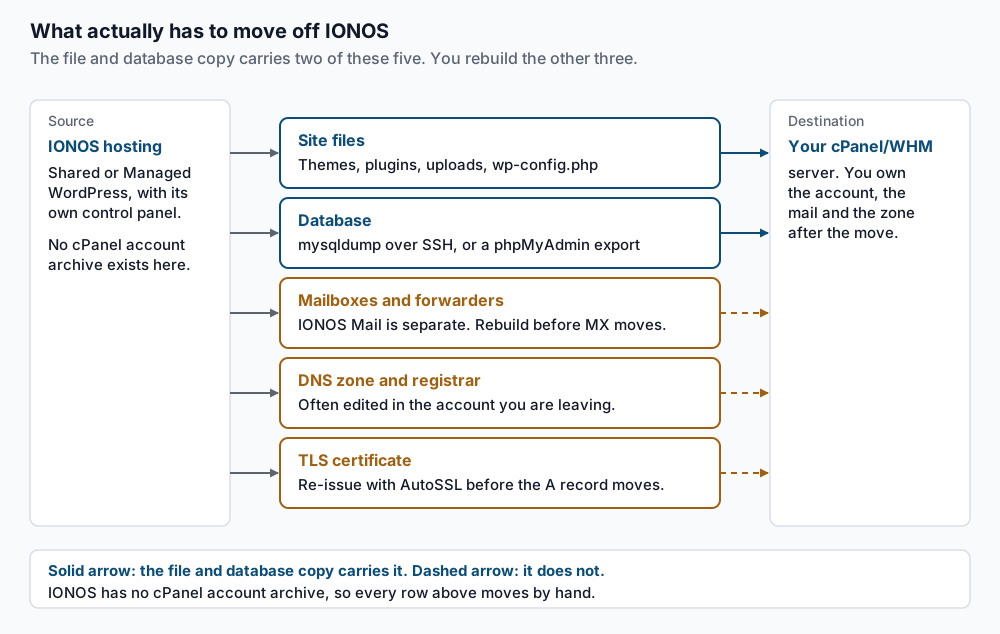
Nothing restores itself here, and the control panel is why. IONOS built its own, so there is no cPanel account archive to hand to WHM. You get a file manager, phpMyAdmin, SFTP credentials and, on most Linux plans, SSH.
Managed WordPress adds one more layer. That product runs caching above WordPress and ships plugins that talk to the platform, and on your server they call services your account no longer has. Step 7 takes them out.
Step-by-step
Everything before the freeze in step 11 is rehearsal you can repeat. Everything after it is live.
-
Find where WordPress lives, and read its credentials. IONOS often gives each site a subfolder, so confirm the path instead of guessing:
pwd ls -1 wp core version ls -1 wp-content/mu-plugins/ wp config get DB_HOST wp config get DB_NAME wp config get DB_USERpwdprints the real document root, commonly shaped like/homepages/NN/dNNNNNNNNN/htdocswith a per-site folder below it. Keep that string, because a plugin may have stored it in the database.ls -1should showwp-admin,wp-contentandwp-includesside by side, and if it does not you are one directory too high. WatchDB_HOST: anything butlocalhostmeans the database sits on a separate IONOS host, and step 6 changes it. Without SSH, read the domain’s target folder in the panel and openwp-config.phpin the file manager. -
Export the database. With SSH and WP-CLI:
wp db export ionos.sql --add-drop-tableExpect
Success: Exported to 'ionos.sql'.With SSH but no WP-CLI, use the client directly with the values from step 1:mysqldump -h DBHOST -u DBUSER -p DBNAME --single-transaction --default-character-set=utf8mb4 --add-drop-table > ionos.sqlIt asks
Enter password:and prints nothing else when it works. Either way, check the tail:tail -3 ionos.sqlThe last line should read
-- Dump completed. A truncated dump imports without complaint and quietly loses the end of your largest table. Without SSH, use phpMyAdmin: pick the database, choose Export, then Custom, and tick the option that addsDROP TABLEstatements. -
Package the files. From the document root you confirmed in step 1:
ls -a | grep htaccess
tar -czf ~/ionos-files.tar.gz wp-content wp-config.php .htaccess
ls -lh ~/ionos-files.tar.gz
Run the
grepfirst. Managed WordPress sites often have no.htaccess, andtarstops withCannot stat: No such file or directoryif you name a missing file.taris silent on success, so check the sizels -lhreports against the disk usage the panel shows. Core files stay behind, because step 5 downloads a clean copy. -
Build the cPanel side before you copy anything. Create the account in WHM, then the database and database user in cPanel’s MySQL Database Wizard. Set the PHP version in MultiPHP Manager to the one from the prerequisites. Then create every mailbox, forwarder and autoresponder from your list, keeping the same local part. Empty mailboxes cost nothing while MX still points at IONOS, and they are what keeps mail from bouncing later.
-
Move the bytes. Pull rather than push, running these on the cPanel server as the account user:
wp core download --version=WPVERSION --skip-content --path=/home/CPUSER/public_html
rsync -avz -e 'ssh -p 22' IONOSUSER@IONOSHOST:DOCROOT/wp-content/ /home/CPUSER/public_html/wp-content/
scp -P 22 IONOSUSER@IONOSHOST:ionos.sql IONOSUSER@IONOSHOST:wp-config.php /home/CPUSER/
Use the version step 1 printed, and the host and port the IONOS SSH panel shows, which is 22 unless it says otherwise.
--skip-contentleaveswp-contentempty sorsyncfills it.rsyncends with asent ... received ...summary, andscpprints a progress line per file ending at100%. Never run either as root, or the ownership problem in Troubleshooting becomes yours. With SFTP only:echo 'get -r DOCROOT ionos-files' | sftp -b - IONOSUSER@IONOSHOSTThat prints a
Fetching ...line per directory and exits quietly. -
Import the database and point
wp-config.phpatlocalhost. Put the oldwp-config.phpin the document root first, then correct it:cd /home/CPUSER/public_html wp db import /home/CPUSER/ionos.sql wp config set DB_HOST localhost wp config set DB_NAME CPUSER_wp wp config set DB_USER CPUSER_wpuser wp config set DB_PASSWORD 'THEPASSWORDYOUSET' wp db checkThe import answers
Success: Imported from '/home/CPUSER/ionos.sql'.Eachwp config setanswers with the constant and its new value, andwp db checkprints one line per table ending inOK. Leave the IONOS hostname in place and the site keeps reading the old database across the network, which looks like a working migration until the contract ends. -
Remove the platform code Managed WordPress left behind. List what is there before deleting anything, because the set differs by account age:
ls -1 wp-content/mu-plugins/
wp plugin list --fields=name,status
ls -l wp-content/object-cache.php wp-content/advanced-cache.php
grep -n "WP_CACHE" wp-config.php
Anything named for the host, or for its assistant or performance tooling, belongs to the platform you are leaving. Remove each by name:
wp plugin deactivate PLUGINNAME
wp plugin delete PLUGINNAME
rm -f wp-content/object-cache.php wp-content/advanced-cache.php
wp config delete WP_CACHE
Expect
Success: Deactivated 1 of 1 plugins.thenSuccess: Deleted 1 of 1 plugins.Thermclears drop-in caching files pointing at services this server does not run.wp config delete WP_CACHEanswers with the constant it removed, and you skip it if thegrepfound nothing. -
Fix stored paths, and URLs only if the domain changes. When the domain stays the same, the site URL needs no rewriting, and a search-replace on it churns rows for nothing. The absolute path is different, because some plugins store it. Replace the string
pwdgave you in step 1, dry run first:wp search-replace '/homepages/NN/dNNNNNNNNN/htdocs' '/home/CPUSER/public_html' --all-tables --dry-run --report-changed-only wp search-replace '/homepages/NN/dNNNNNNNNN/htdocs' '/home/CPUSER/public_html' --all-tables --preciseThe dry run prints per-table counts and a closing
Success: N replacements to be madeline.--all-tableswalks tables a plugin created under a different prefix, which the default scan skips.--precisemakes WP-CLI unserialise and re-serialise in PHP instead of using raw SQL, which keeps serialised arrays valid when a replacement changes a string’s length. Run the same pair on the old and new domain only if the domain is changing. -
Copy the mail down while IONOS still holds it. The mailboxes from step 4 are empty and MX still points at IONOS, so both sides are readable at once.
imapsynccopies messages over IMAP, the protocol a mail client uses to read mail kept on the server:imapsync --host1 IONOSIMAPHOST --user1 you@example.com --password1 OLDPASS --host2 localhost --user2 you@example.com --password2 NEWPASSTake
IONOSIMAPHOSTfrom the incoming server name on the IONOS mail settings page. It finishes with a transfer summary and a line readingDetected 0 errors. For two or three mailboxes, adding both accounts to a desktop mail client and dragging folders across works as well. -
Prove the site on its real name before DNS moves. On your workstation, add a line to
/etc/hostsreadingNEWIP example.com www.example.com. Your browser then reaches the new server while the rest of the world still sees IONOS.curlcan do the same for a single request:curl -sI --resolve example.com:80:NEWIP http://example.com/ | head -1Expect
HTTP/1.1 200 OK, or a301if the site redirects tohttps. Then get the certificate issued. AutoSSL is cPanel’s free certificate service, and it proves you control the domain through DCV, or domain control validation. HTTP validation cannot pass while the domain still resolves to IONOS, so use the DNS method and add the TXT record it asks for in the IONOS DNS panel. The cPanel documentation portal covers those choices. Then retest over TLS:uapi SSL installed_hosts | grep -i domains curl -sI --resolve example.com:443:NEWIP https://example.com/ | head -1The apex domain,
www, and every subdomain the site serves must appear in the first output. The second should returnHTTP/2 200with no certificate warning. -
Lower the TTL, freeze, sync the delta, then move the records. TTL is time to live, the number of seconds a resolver may keep a cached answer. Lower the A, AAAA and MX records to 300 at least 24 hours before the flip, in whichever panel holds the zone. For most of these domains that panel is IONOS, because IONOS is also the registrar. Check what resolvers hand out:
dig +noall +answer example.com @1.1.1.1
dig +noall +answer MX example.com @1.1.1.1
The second column of each answer line is the TTL in seconds, and it has to read
300before you go further. Then put the IONOS site into maintenance mode so no order, comment or form entry lands after your final export. Re-run steps 2, 3 and 5 to catch the delta, re-import, and move MX first, then A and AAAA.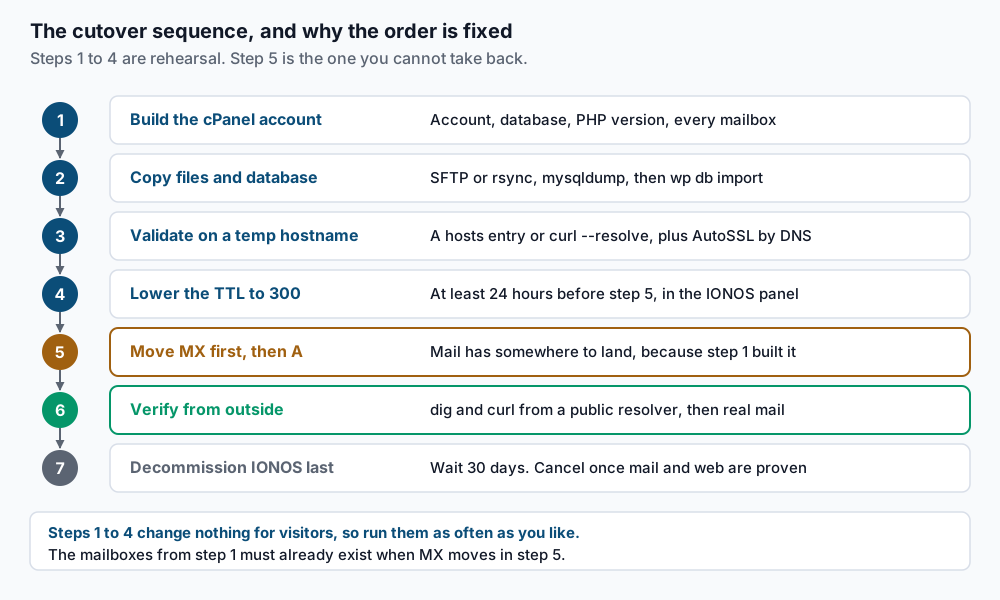
Finish by flushing the rules the old host shaped:
wp rewrite flush --hard
wp cache flush
Expect
Success: Rewrite rules flushed.andSuccess: The cache was flushed.The--hardform writes the WordPress block into.htaccessas well as the copy in the database, which matters when the site arrived without an.htaccessat all.
Validate it works
About an hour after the flip, check from inside the account:
wp option get siteurl
wp option get home
wp db check
wp core verify-checksums
Both options must return the final domain, every table must report OK, and checksums should print Success: WordPress installs verify against checksums. Then put your twenty busiest URLs in a file and sweep them:
while read -r u; do code=$(curl -o /dev/null -s -w '%{http_code}' "$u"); echo "$code $u"; done < top-urls.txtEvery line should read 200, or 301 where you redirect on purpose. Then confirm resolution and mail routing from a public resolver:
dig +short example.com @1.1.1.1
dig +short MX example.com @1.1.1.1
curl -sI https://example.com/ | head -1
The first must return your cPanel server’s address, the second your intended mail host, and the third HTTP/2 200 with no certificate error. Send a real message to each mailbox and reply from it, then exercise mail the site sends: a password reset, a contact form, an order confirmation. Watch the error log and Search Console for 72 hours before you touch the IONOS contract.
Troubleshooting
The site loads, but edits on the new server never appear. wp-config.php still carries the IONOS database hostname, so WordPress reads and writes the old database across the network. Run wp config get DB_HOST. If it answers anything but localhost, redo step 6 and re-import: content added since the import lives in the old database.
The import stops on an unknown collation. A dump written by a newer MySQL carries a collation the destination does not know. Rewrite it before importing:
sed -i 's/utf8mb4_0900_ai_ci/utf8mb4_unicode_ci/g' ionos.sqlA warning from a host-named plugin appears above the page. Step 7 missed something in wp-content/mu-plugins/, which WordPress loads on every request with no off switch in the admin screens. Delete the file and reload. Output printed before headers also breaks the Set-Cookie that logs you in, so this often looks like a login failure.
Mail bounces or disappears after cutover. If the mailboxes were not created before MX moved, mail arrives at a server with nowhere to put it. If MX still points at IONOS while the domain lives on your cPanel account, cPanel treats itself as the local mail exchanger and swallows the message. Set the domain to Remote Mail Exchanger in cPanel’s Email Routing screen until MX really moves.
Uploads fail with 403 and WordPress cannot write to wp-content. You copied the files as root, so they belong to root:
chown -R CPUSER:CPUSER /home/CPUSER/public_html
find /home/CPUSER/public_html -type d -exec chmod 755 {} \;
find /home/CPUSER/public_html -type f -exec chmod 644 {} \;
When this is the wrong approach
If the site is leaving Managed WordPress and someone expects the same speed on arrival, measure first. That product serves much of the traffic from a cache above WordPress, so the numbers you remember were recorded with PHP largely bypassed. On a plain cPanel account that layer does not exist until you build it, with LiteSpeed Cache on a LiteSpeed server or a page-caching plugin on Apache.
If the domain’s mail is the business, split the move in two. Migrate the website to cPanel, leave mail at IONOS for now, and set the domain to Remote Mail Exchanger so cPanel stops delivering locally. That takes the riskiest lane out of the cutover.
If IONOS is also the registrar and you intend to transfer the registration, do not do both in the same week. A registrar transfer has its own multi-day window and its own failure modes. Move the hosting, prove it, then start the transfer. Keep the IONOS package paid for at least 30 days after the flip, and clean up the old server after the migration once mail and web are confirmed elsewhere.
If your source is a managed platform with a documented export path rather than IONOS, the work has a different shape. Migrating WordPress from Kinsta to cPanel covers that case.
Running WordPress that earns real money deserves an operator — Stack Harbor runs that stack under Enterprise WordPress; book an infrastructure consult.