This guide shows you how to move one WordPress site off an addon domain and into its own cPanel account on the same server. An addon domain is a second website hosted inside an existing cPanel account, living under that account’s Linux user and home directory. Agencies and resellers reach this point when a client asks for their own login, or when a bundle of domains has to be untangled before a sale. The short answer has five parts. You copy the files and the database while the site is still live. You remove the addon domain from the source account and create the new account with that domain. Then you correct file ownership for the new Linux user and reconnect WordPress to a database whose name has changed. By the end the site runs under its own Linux user, with its own database, certificate, mail and cron jobs.
What you’ll accomplish
- Split one addon domain out of a shared cPanel account into its own account on the same WHM server, without touching the other sites.
- Move the files with the correct Linux ownership, so uploads, updates and plugin installs keep working.
- Move the database into a name that carries the new account’s prefix, and point
wp-config.phpat it. - Carry the pieces that quietly get left behind: the mail accounts on that domain, the cron jobs, and the TLS certificate.
- End state: the client logs in to their own cPanel, sees only their site, and can be suspended, backed up or billed on their own.
Prerequisites
- Root access to WHM (WebHost Manager, the server-wide control panel that sits above the individual cPanel accounts). cPanel-only access is not enough, because creating an account and changing file ownership both need root.
- cPanel and WHM version 110 or newer. Check with
/usr/local/cpanel/cpanel -V. The interface names used here match version 110 and later. - Shell access to the server over SSH (secure shell, the encrypted remote terminal protocol), as root.
- WP-CLI, the WordPress command-line tool, available as
wp. Check withwp --info. - Free disk space on
/homeof at least twice the size of the site, because for part of the move two copies exist. - A hosting plan (cPanel calls it a package) that the new account can be created under. Check the list in WHM → Packages → List Packages.
- A maintenance window. The site is unreachable between the moment you remove the addon domain and the moment the new account serves it. For a small site that is a few minutes.
Throughout, the source account is agencyco, the site being moved is clientsite.com, and the new account will be clientsit.
How it works
A cPanel account is a Linux user. Everything inside it belongs to that user: the files in the home directory, the databases (which carry the user name as a prefix), the mail store, the cron table and the certificates. An addon domain does not create a new Linux user. It creates a second document root inside the existing account, so clientsite.com is served from /home/agencyco/public_html/clientsite.com and every file in it belongs to agencyco.
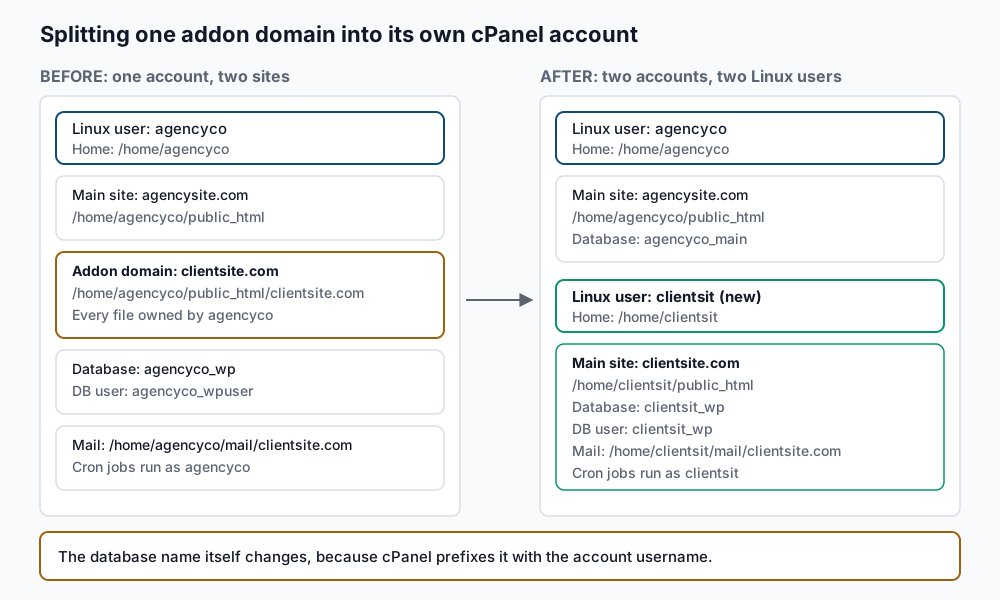
That is why WHM’s whole-account tools do not fit here. The Transfer Tool and pkgacct package an entire account and restore it somewhere else, which would carry the agency’s other sites along with the client’s. If you are moving a whole account between servers instead, use the WHM Transfer Tool, which is the right instrument for that job.
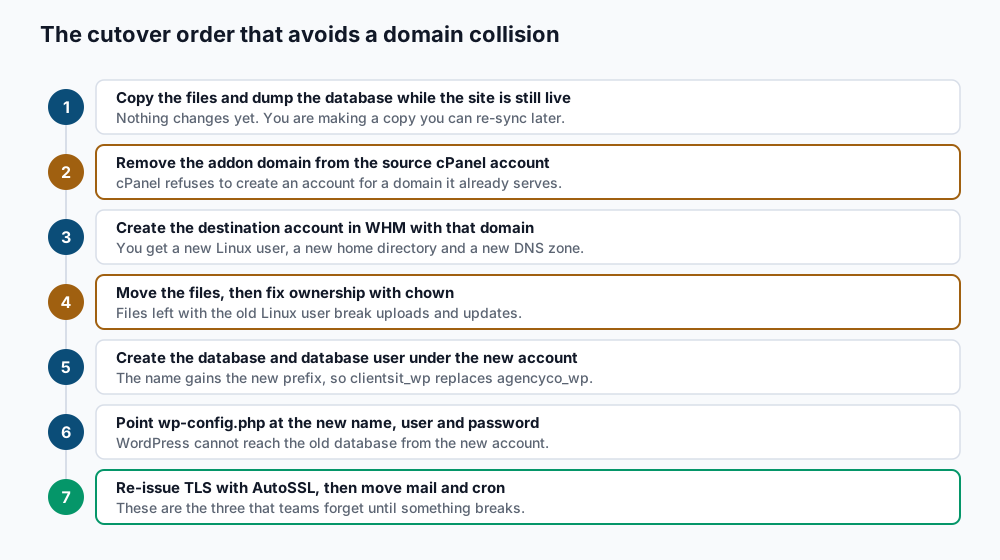
Two constraints set the order of the steps. First, cPanel keeps a single map of which account owns which domain, in /etc/userdomains. It refuses to create an account for a domain that already appears there, so the addon domain has to leave the source account before the new account can be created. Second, cPanel prefixes every database name and database user name with the account name. A database called agencyco_wp cannot be renamed into clientsit_wp, so the move is a dump and a reload, not a rename.
Step-by-step
1. Write down what you are moving. Do this before you change anything, because some of it disappears when the addon domain is removed. Run these as root.
grep -w clientsite.com /etc/userdomains /etc/localdomains
ls -ld /home/agencyco/public_html/clientsite.com
grep -E "DB_NAME|DB_USER|DB_HOST" /home/agencyco/public_html/clientsite.com/wp-config.php
crontab -l -u agencyco
ls /home/agencyco/mail/clientsite.com /home/agencyco/etc/clientsite.com
Expect /etc/userdomains to answer clientsite.com: agencyco, the document root to be owned by agencyco agencyco, and the wp-config.php grep to print a database name that starts with agencyco_. If /etc/localdomains also lists the domain, mail for it is handled on this server and step 9 applies to you.
2. Copy the files while the site is still live. This first pass takes the longest and costs no downtime. The trailing slash on the source path matters, because it copies the contents rather than the folder itself.
mkdir -p /root/split-clientsite
rsync -aH --info=stats2 /home/agencyco/public_html/clientsite.com/ /root/split-clientsite/files/
The summary ends with a line like Number of regular files transferred: 24193. Nothing on the live site has changed.
3. Dump the database. Use the name you found in step 1.
mysqldump --single-transaction --routines --triggers --default-character-set=utf8mb4 \
  agencyco_wp > /root/split-clientsite/agencyco_wp.sql
tail -1 /root/split-clientsite/agencyco_wp.sql
A complete dump ends with a line beginning -- Dump completed on. If that line is missing, the dump was cut short and you should run it again before going further.
4. Start the window and take the final pass. Put the site into maintenance if you have a plugin for it, then repeat the copy and the dump. The second pass only moves what changed since step 2, so it finishes quickly.
rsync -aH --delete /home/agencyco/public_html/clientsite.com/ /root/split-clientsite/files/
mysqldump --single-transaction --routines --triggers --default-character-set=utf8mb4 \
  agencyco_wp > /root/split-clientsite/agencyco_wp.sql
5. Remove the addon domain from the source account. Log in to the source account’s cPanel and go to Domains, find clientsite.com, and choose Remove Domain. cPanel removes the virtual host, the DNS zone and the /etc/userdomains entry. It leaves the files on disk, which is what you want, since your copy in /root/split-clientsite is the one you will use. Confirm the map is clear before moving on.
grep -w clientsite.com /etc/userdomainsAn empty result is the success signal here. While this command returns nothing, the domain is free.
6. Create the destination account. Pick a username of eight characters or fewer, lower-case, starting with a letter. Substitute your own package name and contact address.
whmapi1 createacct username=clientsit domain=clientsite.com \
  plan=agency_standard contactemail=owner@clientsite.com
The reply starts with metadata: result: 1 and reason: Account Creation Ok. The new account now has the Linux user clientsit, the home directory /home/clientsit, an empty document root at /home/clientsit/public_html, and a fresh DNS zone for the domain. WHM generates a password and shows it in the output; record it somewhere safe and hand it to the client through your normal channel.
7. Move the files into the new document root and fix ownership. The new account is a different Linux user, so every file has to change owner. This is the single most common cause of a broken split.
rsync -aH /root/split-clientsite/files/ /home/clientsit/public_html/
chown -R clientsit:clientsit /home/clientsit/public_html
find /home/clientsit/public_html -type d -exec chmod 755 {} +
find /home/clientsit/public_html -type f -exec chmod 644 {} +
chmod 600 /home/clientsit/public_html/wp-config.php
ls -l /home/clientsit/public_html/index.php
The last command should print clientsit clientsit. If it still prints agencyco, the chown did not run against the path you think it did.
8. Create the database and database user, then load the dump. cPanel adds the account prefix on its own, so you pass the short name and get clientsit_wp back.
uapi --user=clientsit Mysql create_database name=wp
uapi --user=clientsit Mysql create_user name=wp password='<new-strong-password>'
uapi --user=clientsit Mysql set_privileges_on_database \
  user=clientsit_wp database=clientsit_wp privileges=ALL
mysql clientsit_wp < /root/split-clientsite/agencyco_wp.sql
mysql -e "SELECT COUNT(*) FROM clientsit_wp.wp_posts"
Each uapi call answers result: 1. The final count should match what the old database held. Check that with mysql -e "SELECT COUNT(*) FROM agencyco_wp.wp_posts" if you want the two numbers side by side. If your table prefix is not wp_, read it from wp-config.php first. For the deeper detail on moving databases between accounts, see migrating a single database between cPanel accounts.
9. Point WordPress at the new database. Edit /home/clientsit/public_html/wp-config.php and set three values. Run WP-CLI as the account user rather than as root, so nothing it writes ends up owned by the wrong user.
su -s /bin/bash - clientsit -c "cd ~/public_html && \
  wp config set DB_NAME clientsit_wp && \
  wp config set DB_USER clientsit_wp && \
  wp config set DB_PASSWORD '<new-strong-password>' && \
  wp db check"
wp db check prints one line per table ending in OK, then Success: Database checked. That is WordPress reading the new database with the new credentials.
10. Move the mail accounts on that domain. Skip this if step 1 showed no mail/clientsite.com directory. Two directories matter: the messages themselves, and the account definitions with their password hashes and quotas.
rsync -aH /home/agencyco/mail/clientsite.com/ /home/clientsit/mail/clientsite.com/
rsync -aH /home/agencyco/etc/clientsite.com/ /home/clientsit/etc/clientsite.com/
chown -R clientsit:clientsit /home/clientsit/mail/clientsite.com /home/clientsit/etc/clientsite.com
grep -w clientsite.com /etc/localdomains
uapi --user=clientsit Email list_pops
list_pops should list every mailbox that existed on the old account. Their passwords carry over, because the hashes travel in the etc directory.
11. Recreate the cron jobs. Cron tables belong to the Linux user, so anything the old account ran for this site stopped when you moved. Read the old table, then write the relevant lines into the new user’s table with the paths updated.
crontab -l -u agencyco | grep clientsite.com
crontab -u clientsit -e
crontab -l -u clientsit
In the editor, paste the lines and change every /home/agencyco/public_html/clientsite.com to /home/clientsit/public_html. Then remove those lines from the old table with crontab -u agencyco -e, so they do not fire against a path that no longer holds the site.
12. Re-issue the certificate. The new account has no certificate for the domain yet, so the site answers on HTTP but fails on HTTPS. AutoSSL, cPanel’s free certificate service, fixes that once the domain resolves to this server and the new document root answers.
/usr/local/cpanel/bin/autossl_check --user=clientsit
tail -20 /var/cpanel/logs/autossl/*/*.log
The log ends with a line naming the domains that were secured. A certificate normally installs within a minute or two of the check finishing.
Validate it works
Run every one of these before you tell the client the move is done.
# The domain now belongs to the new account
grep -w clientsite.com /etc/userdomains
# The virtual host points at the new document root
grep -A3 -w clientsite.com /etc/apache2/conf/httpd.conf | grep DocumentRoot
# The certificate is live and covers the domain
echo | openssl s_client -connect clientsite.com:443 -servername clientsite.com 2>/dev/null \
  | openssl x509 -noout -subject -dates
# WordPress answers over HTTPS with a 200
curl -sI https://clientsite.com/ | head -1
# WordPress agrees about where it lives
su -s /bin/bash - clientsit -c "cd ~/public_html && wp option get siteurl && wp core verify-checksums"
# Nothing in the site is still owned by the old user
find /home/clientsit -not -user clientsit | head
You want clientsite.com: clientsit, a document root of /home/clientsit/public_html, a certificate whose notAfter date is in the future, HTTP/2 200, a siteurl of https://clientsite.com, Success: WordPress installation verifies against the checksums, and no output at all from the find.
Then do the human checks. Log in to wp-admin, upload a small image, save a post, and send a test message to one of the moved mailboxes. Leave the old files at /home/agencyco/public_html/clientsite.com for a week before removing them.
Troubleshooting
The site loads but uploads and updates fail with a permission error. Some files are still owned by agencyco. This happens when the second rsync ran after the chown, or when a path was typed wrong. Find the stragglers with find /home/clientsit -not -user clientsit and re-run chown -R clientsit:clientsit /home/clientsit/public_html. Also check find /home/clientsit -not -group clientsit, because group ownership drifts the same way.
WordPress shows “Error establishing a database connection”. The database name in wp-config.php still carries the old prefix, or the new database user was never granted. Confirm what exists with whmapi1 list_dbs user=clientsit, which should show clientsit_wp. Then test the credentials directly with mysql -u clientsit_wp -p clientsit_wp -e "SHOW TABLES" | head. A failure here is a grant problem, so re-run the set_privileges_on_database call from step 8.
AutoSSL fails and the log says the domain could not be verified. Usually the domain still resolves somewhere else, or DNS was never updated. Check what the world sees with dig +short clientsite.com A and compare it against the server’s shared IP address from whmapi1 accountsummary user=clientsit. If the zone is served by this server, confirm it exists with whmapi1 dumpzone domain=clientsite.com. If DNS lives at a registrar or at Cloudflare, update the A record there and wait for the old TTL to expire before running the check again.
Mail bounces with “no such user here” after the move. Either /etc/localdomains lost the domain, or the etc/clientsite.com directory was not copied. Confirm both, then run /scripts/updateuserdomains to rebuild cPanel’s domain maps from the account data. If the mailboxes exist but authentication fails, the shadow file inside etc/clientsite.com did not come across with its ownership intact.
Scheduled work stops silently. Nobody gets an error when a cron job disappears, so backups, feeds and stock syncs fade out without a signal. Compare crontab -l -u agencyco against crontab -l -u clientsit and account for every line. If the site relies on WordPress’s own scheduler rather than system cron, check it with wp cron event list as the new user, and look for events whose next run is in the past.
When this is the wrong approach
If you are moving the entire account, with all of its domains, to another server, this procedure is more work than you need. The WHM Transfer Tool copies everything at once and leaves the source live until you cut over.
If the copy takes hours, or the business cannot accept any window at all, a straight split is a rough fit. Stage the new account on a temporary subdomain instead, replicate the database, and cut over with a DNS change.
If the two sites share anything, stop and design first. Shared uploads directories, symlinks between the document roots, and licences keyed to a path all break when the Linux user changes. Multisite cannot be split this way at all, because its sites share one database.
And if the goal is to stop one noisy site from affecting the others, a separate account helps with quotas and file isolation. It does nothing about a shared CPU or a shared MySQL server. A different server is the honest answer there.
For the official reference on the interfaces and API calls used here, see the cPanel and WHM documentation and the WP-CLI command reference.
Running WordPress that earns real money deserves an operator — Stack Harbor runs that stack under Enterprise WordPress; book an infrastructure consult.