This guide walks you through moving a WordPress site out of a subfolder so it answers at the root of your domain, on a cPanel hosting account. You are probably here because a one-click installer dropped WordPress into example.com/wordpress/, or because a blog at example.com/blog/ grew into the whole site, and every page URL still carries that folder name. The short answer is to use WordPress’s own Site Address setting, which leaves the files where they are and changes only the address visitors see. That method is documented and supported by WordPress itself, takes about fifteen minutes, and survives core updates. Physically moving the files into public_html is the other option, and this guide covers it too, together with the redirects that keep your existing links and search rankings alive.
What you’ll accomplish
- Your home page, posts and pages all answer at
https://example.com/instead ofhttps://example.com/blog/. - A deliberate choice between the two methods, with the reason written down for whoever touches the site next.
- Old subdirectory URLs returning
301 Moved Permanentlyto their new address, so bookmarks, inbound links and search results keep landing on real pages. - Permalinks (the URL patterns WordPress builds for posts and pages) regenerated, with the matching rewrite rules written into a
.htaccessfile Apache reads at the new location. - Stored URLs rewritten in the database without breaking serialized PHP, the format WordPress uses to pack arrays into a single database column.
Prerequisites
- A cPanel account you can reach over SSH, or cPanel’s Terminal tile. Log in as the account user, never as root.
- WP-CLI 2.x, the WordPress command-line tool, available as
wp. Every command below can also be done through cPanel’s File Manager and the WordPress admin screens, and the guide says where. - A currently supported WordPress version. The two settings involved have been in the same place since WordPress 3.x.
- Your document root path, normally
/home/USER/public_html, whereUSERis the cPanel account name. Addon domains and subdomains have their own roots, so confirm yours before you type any path. - A full backup of files and database, taken before you start. cPanel’s Backup tile produces one, or use the
wp db exportcommand below. - Knowledge of whether a caching plugin or a CDN (a content delivery network, which serves cached copies of your pages from other servers) sits in front of the site.
Pick a quiet hour. Both methods leave the site briefly inconsistent while you work.
How it works
WordPress stores two separate addresses in the database. WordPress Address (the siteurl option) is where the WordPress program files live. Site Address (the home option) is the address people type and the address WordPress uses when it builds links. On a normal install the two are identical. They are allowed to differ, and that is the whole trick behind the supported method.
When they differ, WordPress builds every link from home, and loads its code from siteurl. A short index.php file at the document root is the bridge. Its only job is to load wp-blog-header.php from the subfolder, which boots WordPress and renders the page. Your visitors never see the folder name, and your wp-admin screens stay at the old path, where core updates keep finding them.
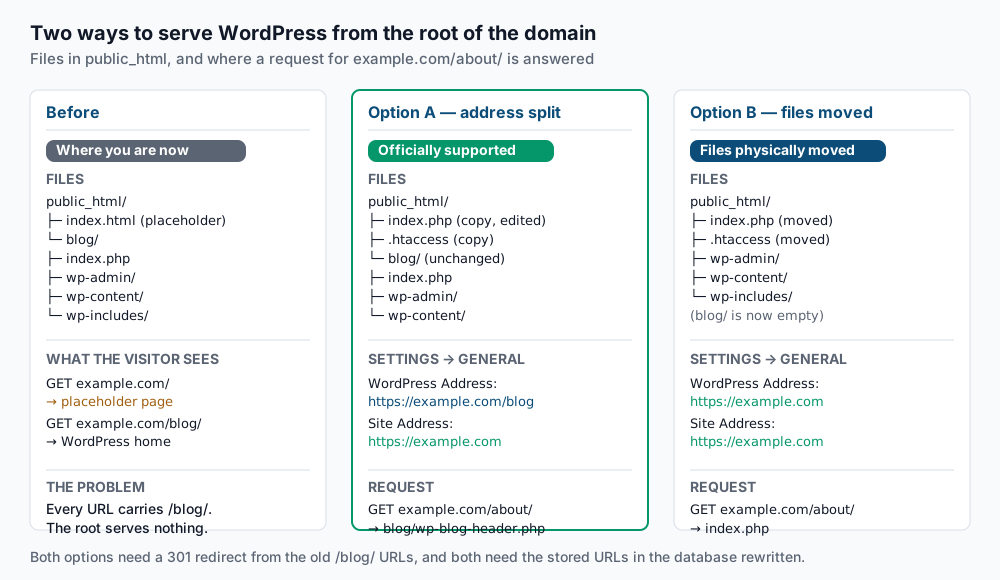
Option B does the obvious thing instead: move every file up one level into public_html, then set both addresses to the bare domain. The result is a tidier tree and a siteurl that matches what most tutorials assume. The cost is a longer window where the site is half-moved, and a bigger blast radius if a path was hardcoded somewhere.
Pick Option A unless you have a concrete reason not to. It changes one database value and adds two files, both reversible in seconds. Reach for Option B when something external requires the files at the root. A deploy pipeline may expect wp-content/ one level below the document root. A security scanner may be configured for that layout. Or you may want the blog folder name back for another use.
Either way, two jobs remain the same. URLs already written into your content and settings still point at the subfolder, so they need rewriting. And old /blog/ URLs are out in the world on other people’s sites and in Google’s index, so they need a redirect.
Step-by-step
Every command assumes USER is your cPanel account name and blog is the current subfolder. Substitute wordpress, wp or whatever yours is called.
-
Take the backup and confirm you can restore it. Run this from the WordPress folder.
cd /home/USER/public_html/blog
wp db export ~/pre-root-move.sql
tar -czf ~/pre-root-move-files.tar.gz -C /home/USER/public_html .
You should see
Success: Exported to '/home/USER/pre-root-move.sql'.and then the shell prompt. Check both files landed withls -lh ~/pre-root-move*— the SQL file should be megabytes, not zero bytes. The restore command, if you need it, iswp db import ~/pre-root-move.sql. -
Read the two addresses before you change anything. Write the output down.
wp option get siteurl
wp option get home
On a stock subdirectory install both print the same value,
https://example.com/blog. If they already differ, someone has been here before you, and you should find out why before continuing. -
Option A — change the Site Address only. In the admin, go to Settings → General, leave WordPress Address (URL) exactly as it is, and set Site Address (URL) to
https://example.com. Save. From the command line the equivalent is:wp option update home 'https://example.com'Expect
Success: Updated 'home' option.The site will look broken until the next step is done, which is normal. -
Option A — copy
index.phpand.htaccessto the document root. Copy, do not move. The originals must stay in the subfolder.cd /home/USER/public_html/blog cp index.php /home/USER/public_html/index.php cp .htaccess /home/USER/public_html/.htaccessIf
cp: .htaccess: No such file or directorycomes back, the site has no.htaccessyet. Skip that line; step 8 creates one. Ifpublic_html/index.htmlorpublic_html/index.phpalready exists from an old placeholder page, rename it first withmv index.html index.html.old, or Apache will serve it instead of WordPress. -
Option A — point the copied
index.phpat the subfolder. Open/home/USER/public_html/index.phpand change the last line so the path includes the folder name. It should read:require __DIR__ . '/blog/wp-blog-header.php';Older installs use
require( dirname( __FILE__ ) . '/wp-blog-header.php' );instead; add/blogthe same way. From the shell:sed -i "s#'/wp-blog-header.php'#'/blog/wp-blog-header.php'#" /home/USER/public_html/index.php grep wp-blog-header /home/USER/public_html/index.phpThe
grepmust print the line with/blog/in it. Leaveblog/index.phpuntouched. Editing that one instead is the most common way this method goes wrong, and it breaks the admin area. Skip to step 7 now; step 6 is the Option B path. -
Option B — move the files up one level, then set both addresses. This moves visible files and dotfiles together.
cd /home/USER/public_html/blog
find . -mindepth 1 -maxdepth 1 -exec mv -n {} /home/USER/public_html/ \;
ls -a /home/USER/public_html/blog
The
lsshould print only.and... Anything still listed collided with a file of the same name at the root, whichmv -nrefused to overwrite; deal with those by hand. Because the move stays inside one cPanel account, ownership and permissions carry over unchanged. Then remove the empty folder and update both options:rmdir /home/USER/public_html/blog cd /home/USER/public_html wp option update siteurl 'https://example.com' wp option update home 'https://example.com'Keep the folder instead of removing it if you plan to serve the redirects from a
.htaccessinside it. The rules in step 9 live at the root, so removing it is fine. -
Rewrite the URLs stored in the database. Content, menus and plugin settings still hold absolute links with
/blogin them. Dry-run first and read the report.cd /home/USER/public_html wp search-replace 'example.com/blog' 'example.com' --all-tables-with-prefix --precise --skip-columns=guid --report-changed-only --dry-runThe last line reads
Success: N replacements to be made.Expect most of them inwp_posts.post_contentandwp_options.option_value. Run it again without--dry-runto apply. Then do a second pass for block editor markup, which stores URLs with escaped slashes that the first pattern never matches:wp search-replace 'example.com\/blog' 'example.com' --all-tables-with-prefix --precise --skip-columns=guid --report-changed-onlyUse
search-replacerather than raw SQL. Serialized PHP records a byte length in front of every string. A plainUPDATEleaves that number stale, so the value becomes unreadable with no error in the log. WordPress search-replace after a domain change on cPanel covers the flags, the rollback and the layers a database pass never reaches. The WP-CLI search-replace reference documents every option. -
Flush permalinks so Apache gets fresh rewrite rules. The safest way is the admin screen, because it runs inside a real web request and resolves the document root correctly. Go to Settings → Permalinks and press Save Changes without altering anything. The command line equivalent is:
wp rewrite flush --hardExpect
Success: Rewrite rules flushed.Then confirm the rules landed in the right file:grep -c 'BEGIN WordPress' /home/USER/public_html/.htaccessThe answer must be
1. If it is0, WP-CLI wrote the block into the subfolder instead; use the Settings → Permalinks screen and check again. Inside that block,RewriteBasemust read/and not/blog/. -
Redirect the old subdirectory URLs. Add these lines to
/home/USER/public_html/.htaccessabove the# BEGIN WordPressblock. WordPress rewrites its own block on every permalink save and would otherwise erase them.For Option B, where nothing is left in the folder:
RewriteEngine On
RewriteRule ^blog$ / [R=301,L]
RewriteRule ^blog/(.*)$ /$1 [R=301,L]
For Option A, where the program files are still in
blog/, exclude the paths WordPress still needs:RewriteEngine On RewriteCond %{REQUEST_URI} !^/blog/wp-(admin|content|includes)/ RewriteCond %{REQUEST_URI} !^/blog/(wp-login|wp-cron|xmlrpc)\.php RewriteRule ^blog/(.*)$ /$1 [R=301,L]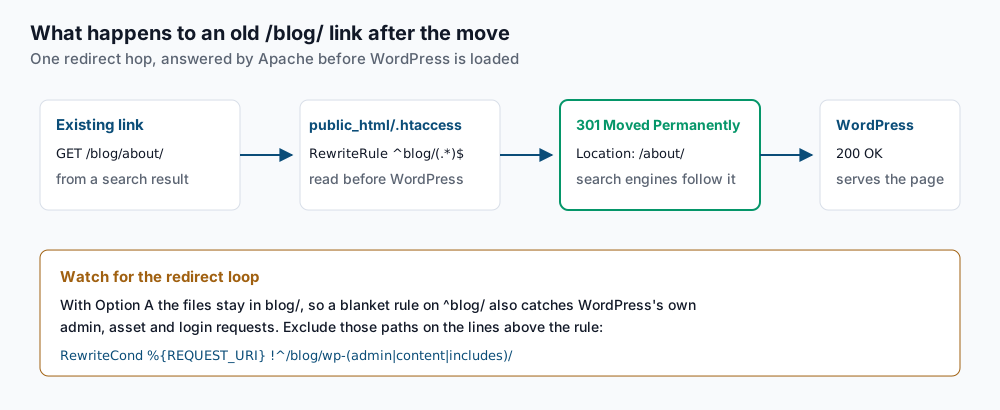
Keep these rules in place permanently. Search engines need months of consistent
301responses before they retire the old address, and inbound links from other sites never update at all. -
Clear every cache in front of the site. Order matters here. Start with the plugin, then the server, then the network edge.
wp cache flush
wp transient delete --all
Expect
Success: The cache was flushed.and a count of deleted transients. Then purge your CDN or Cloudflare cache from its dashboard, and rebuild page builder CSS from the builder’s own tools panel. Elementor keeps its stylesheets underwp-content/uploads/elementor/css/, and Elementor → Tools → Regenerate CSS rewrites them.
Validate it works
Run these from your laptop, not the server, so you test the real request path.
curl -sI https://example.com/ | head -1Expected: HTTP/2 200. A 301 here means a redirect rule is catching the root.
curl -sI https://example.com/blog/hello-world/ | grep -iE '^HTTP|^location'Expected two lines: HTTP/2 301 and location: https://example.com/hello-world/. One hop, not two.
curl -s https://example.com/ | grep -c 'example.com/blog'Expected 0. Any count above zero means a stored URL survived step 7, usually in a theme option or a widget.
cd /home/USER/public_html && wp option get home && wp option get siteurlOption A prints https://example.com then https://example.com/blog. Option B prints the same value twice.
Then check by hand: load the home page, open one post, open one page, submit the search form, and log in to wp-admin. Under Option A the admin lives at https://example.com/blog/wp-admin/ and that is correct.
Troubleshooting
The browser reports too many redirects. Something is bouncing a request between two addresses. Set the values directly in wp-config.php, above the /* That's all, stop editing! */ line, which overrides whatever is in the database: define( 'WP_HOME', 'https://example.com' ); and define( 'WP_SITEURL', 'https://example.com/blog' );. Load the site. If it recovers, the database values were wrong. If it still loops, comment out your .htaccess redirect rules and retest.
You cannot reach wp-admin after Option A. The redirect rule is catching the admin path because the RewriteCond lines are missing, or they were placed below the RewriteRule instead of above it. Apache reads conditions as a prefix to the rule that follows, so order is not cosmetic here.
Images return 404 but posts load fine. Check whether an old install set a custom uploads URL: wp option get upload_url_path. Empty output is correct. If it prints a path with /blog in it, clear it with wp option update upload_url_path '' and flush caches. Images still missing after that are usually hardcoded in theme options or in page builder content, which step 7 reaches only if they were stored as plain text.
A 500 Internal Server Error appears right after step 5. The require path in the root index.php does not match a real file. Verify with ls /home/USER/public_html/blog/wp-blog-header.php. If that file exists, check the copied .htaccess for a RewriteBase /blog/ line and change it to RewriteBase /.
The page builder shows the old layout or loses widgets. Its cached CSS and its serialized layout data are separate things. Regenerate the CSS from the builder’s tools panel first. If widgets are genuinely gone, a replace ran without --precise against serialized values; restore from ~/pre-root-move.sql and rerun step 7. Permalinks broken after a WordPress migration covers the neighbouring failure where posts 404 while the home page loads.
When this is the wrong approach
The subfolder is sometimes correct. If your main site runs on another platform at the root and WordPress serves only the blog section, moving it would take the main site down. Leave it where it is.
Stop and plan separately if the site is a WordPress multisite network. Changing the network root touches wp_blogs, wp_site and every per-site options table, and the steps above cover none of that.
If two sites share the account and the root already belongs to the other one, you need a second domain or an addon domain rather than a move.
Reinstalling is faster when the install is days old, with no traffic, no inbound links and little content. Delete it and install again at the root through cPanel’s WordPress installer. The work above exists to protect links and rankings you have already earned. WordPress’s own Giving WordPress its own directory article is the upstream reference for Option A.
Running WordPress that earns real money deserves an operator — Stack Harbor runs that stack under Enterprise WordPress; book an infrastructure consult.