This guide shows you how to move content between two WordPress sites with the built-in Tools → Export and Tools → Import screens. It is for anyone merging two sites, splitting one in half, or lifting selected posts into a new build. The export gives you a WXR file, short for WordPress eXtended RSS, which is an XML document (a plain-text format for structured data) holding your posts and the records attached to them. What surprises people is how much the file leaves out, because theme settings, widgets, WooCommerce orders and page-builder assets all live outside the standard content tables and stay on the old site. Use export and import when you want chosen content on a different build, and use a full database migration when you want the same site in a new place.
What you’ll accomplish
- Decide in two minutes whether a WXR export fits your move, or whether you need a full database migration instead.
- Produce an export the destination will actually accept, including a split export when the file is larger than the upload limit.
- Import posts, pages, custom post types, taxonomies, comments and media on a cPanel host without the request timing out.
- End state: post, term, comment and attachment counts match on both sites, and no post body still points at the old domain.
Prerequisites
- WordPress 5.9 or newer on both sites, and a login with the Administrator role on each.
- The WordPress Importer plugin on the destination. WordPress offers to install it the first time you open Tools → Import.
- Access to cPanel on the destination, so you can read and raise PHP limits in MultiPHP INI Editor.
- Optional but helpful: shell access over SSH (Secure Shell, an encrypted remote terminal) with WP-CLI, the WordPress command-line tool, available as
wp. Commands below assume the site lives in~/public_html. - A fresh backup of the destination site. An import adds content and cannot be undone with one click.
Two differences between the sites matter more than anything else. The destination must already know about every custom post type in the file. A custom post type (CPT) is a content type that a plugin or theme registers beyond posts and pages. The same goes for custom taxonomies. Items whose type is missing get skipped without a hard error. And PHP limits vary a lot between hosts, so read the destination’s own numbers rather than assuming they match the source.
How it works
An export walks the standard content tables and writes one XML <item> element per record. Posts, pages, custom post types, attachments and menu items all become items, each carrying its title, body, dates, status, terms and custom fields. Users appear as author names so the importer can attribute posts, with no passwords and no roles. Comments ride along inside their parent item.
Media is the part people misread. The file records the address of each uploaded file, not the file itself. The importer can fetch each one over HTTP from the source site if you tick Download and import file attachments. That means the source must still be online and publicly reachable while the import runs.
Everything outside those tables is absent. Theme options, the customizer, widget layouts, plugin settings in wp_options, WooCommerce orders and stock levels, form entries, membership records and page-builder caches never enter the file. That boundary is the whole decision.
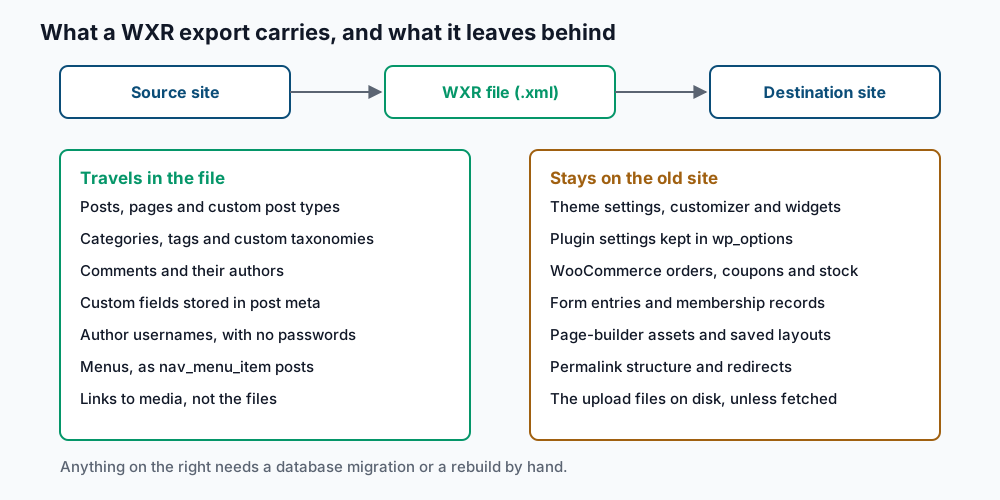
If your move needs the right-hand panel, you want a copy of the files and the database instead, which the guide on WordPress migration plugins covers. This decision tree is the short version.
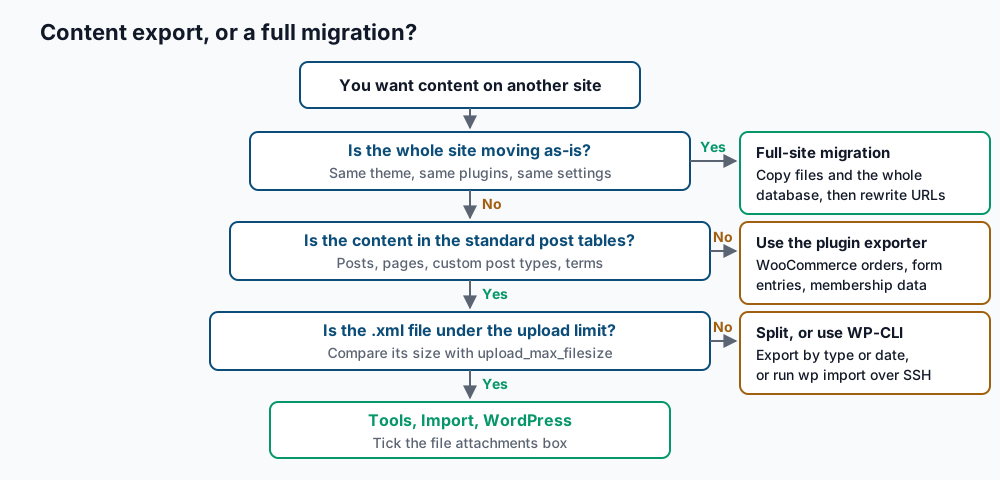
Step-by-step
1. Count what is on the source site. These numbers become your proof later, so write them down before you touch anything.
wp post list --post_type=post --post_status=any --format=count
wp post list --post_type=page --post_status=any --format=count
wp post list --post_type=attachment --post_status=any --format=count
wp term list category --format=count
wp comment list --format=count
482
37
1204
28
913Each command prints a single number. If you have custom post types, list them with wp post-type list --field=name and count each one the same way.
2. Read the destination’s real limits. The import is a file upload followed by a long PHP run, so four settings decide whether it can finish.
wp eval 'foreach (["upload_max_filesize","post_max_size","max_execution_time","memory_limit"] as $k) echo "$k = ".ini_get($k)."\n";'upload_max_filesize = 2M
post_max_size = 8M
max_execution_time = 30
memory_limit = 128MWithout shell access, the same numbers appear under Tools → Site Health → Info → Server. Raise them in cPanel under Software → MultiPHP INI Editor, in Editor Mode, for the destination domain. Set upload_max_filesize to 64M, post_max_size to 64M, max_execution_time to 300 and memory_limit to 256M. Two rules matter if your host caps you lower: post_max_size must be at least as large as upload_max_filesize, and upload_max_filesize should be at least twice the biggest file you plan to upload. Save, then run the command again to confirm the new values took effect.
3. Make the destination ready to receive the content. Install and activate the theme and plugins that register your custom post types and taxonomies, before the import runs. Compare both sides.
wp post-type list --field=name
wp taxonomy list --field=name
post
page
attachment
nav_menu_item
portfolioEvery name on the source list that is missing from the destination list marks content the importer will drop. Install whatever registers it first.
4. Export the content. In the admin, open Tools → Export, choose All content or a single section, and click Download Export File. For anything beyond a few hundred posts, WP-CLI is steadier because it does not run inside a browser request.
wp export --dir=/home/<user>/exports --post_type=post,page,portfolioStarting export process...
Writing to file /home/<user>/exports/example.wordpress.2026-09-18.000.xml
Success: All done with export.Useful filters: --start_date=2024-01-01 and --end_date=2024-12-31 to slice by date, --author=<login> for one writer, --post_status=publish to skip drafts, and --skip_comments when comments are not wanted. Check the file is well-formed XML before you move it.
xmllint --noout /home/<user>/exports/example.wordpress.2026-09-18.000.xml && echo "XML is well-formed"
ls -lh /home/<user>/exports/
XML is well-formed
-rw-r--r-- 1 user user 41M Sep 18 09:12 example.wordpress.2026-09-18.000.xml5. Split an export that is too big. The size that matters is the .xml file against upload_max_filesize from step 2. WP-CLI splits the export for you, and the number is in megabytes.
wp export --dir=/home/<user>/exports --max_file_size=8Writing to file /home/<user>/exports/example.wordpress.2026-09-18.000.xml
Writing to file /home/<user>/exports/example.wordpress.2026-09-18.001.xml
Writing to file /home/<user>/exports/example.wordpress.2026-09-18.002.xml
Success: All done with export.Pick a value at most half of upload_max_filesize, which leaves room for the rest of the upload. From the admin instead, export one section at a time from the Tools → Export radio buttons, or narrow by date range. Import the pieces in numeric order, and import the file containing attachments before the posts that reference them.
6. Run the import through the admin. On the destination, open Tools → Import, find WordPress at the bottom of the list, and click Install Now, then Run Importer. Choose your .xml file and press Upload file and import.
The next screen asks two questions. For authors, map each source author to an existing user, or type a new login to create one. For media, tick Download and import file attachments so the importer fetches each file from the source site. Leave it unticked when you plan to copy the uploads folder yourself over SFTP.
A finished run ends with the word “All done.” and a list of any skipped items. Read that list rather than closing the page.
7. Import over SSH when the browser route fails. A large file, a proxy timeout or a strict upload cap all point the same way. Install the importer package and run the import from the shell, where no browser request can expire.
wp plugin install wordpress-importer --activate
wp import /home/<user>/exports/example.wordpress.2026-09-18.000.xml --authors=create
Starting the import process...
Processing post #412 ("Spring release notes") (post)
-- 1 of 482
...
Success: Finished importing from '/home/<user>/exports/example.wordpress.2026-09-18.000.xml' file.Three switches carry real weight. --authors=create makes a user for each source author, --authors=skip assigns everything to you, and --authors=mapping.csv follows a two-column file of old and new logins. Add --skip=attachment to leave media alone, and --skip=image_resize to import media without generating thumbnails, which you can rebuild afterwards with wp media regenerate --only-missing --yes. To load several split files in order, loop over them.
for f in /home/<user>/exports/example.wordpress.2026-09-18.*.xml; do wp import "$f" --authors=create; doneSuccess: Finished importing from '.../2026-09-18.000.xml' file.
Success: Finished importing from '.../2026-09-18.001.xml' file.
Success: Finished importing from '.../2026-09-18.002.xml' file.8. Rewrite the old addresses left inside post bodies. The importer rewrites the address of any media it downloaded, and leaves every other link to the old domain exactly as written. Find them, then replace them.
wp search-replace 'https://old.example.com' 'https://new.example.com' --dry-run --report-changed-onlyTable Column Replacements Type
wp_postmeta meta_value 64 SQL
wp_posts post_content 311 SQL
Success: 375 replacements to be made.Read the table list, then run the same command without --dry-run to apply it. WP-CLI recalculates the byte lengths inside serialized PHP values, so it is safe where a plain text substitution is not. Finish by flushing the permalink rules, since new post types need their rewrite rules rebuilt.
wp rewrite flush --hardSuccess: Rewrite rules flushed.Validate it works
Run the same counts from step 1 on the destination and compare them.
wp post list --post_type=post --post_status=any --format=count
wp post list --post_type=attachment --post_status=any --format=count
wp term list category --format=count
wp comment list --format=count
482
1204
28
913An exact match on posts and terms is the bar. Attachments can legitimately be lower if you skipped media on purpose. Then check three more things.
wp post list --post_type=post --format=count --s='old.example.com'
wp post list --post_type=attachment --field=ID | head -n 5 | xargs -I{} wp post get {} --field=guid
0
https://new.example.com/wp-content/uploads/2026/03/hero.jpg
https://new.example.com/wp-content/uploads/2026/03/team.jpg
...Zero posts mentioning the old domain means step 8 worked. Attachment addresses on the new domain mean the media came across. Last, open three imported posts in the browser: one with images, one with a category, and one with comments. Each should render its featured image, show its terms under the title, and list its comments.
Troubleshooting
The import stops partway with a blank page. PHP hit max_execution_time or ran out of memory. Reload Tools → Import and run the same file again, because the importer skips items that already exist and resumes where it stopped. If it stalls at the same post every time, raise max_execution_time to 600 in MultiPHP INI Editor, or move to the WP-CLI route in step 7, which has no web timeout.
The upload is rejected before the import starts. A message about the file exceeding the maximum size means upload_max_filesize or post_max_size is still too low. Recheck both with the command in step 2, since some hosts apply a second limit at the server level that overrides the editor. When you cannot raise them, split the export as in step 5.
Posts arrived but images did not. Either the attachment box was unticked, or the importer could not reach the source site. It fetches each file over HTTP from the old domain, so a site behind a password, a firewall or a dead DNS record returns nothing. Bring the source back online and re-run the import, or copy wp-content/uploads over SFTP and then run wp media import for the files you need attached.
Every post belongs to the wrong author. This happens when the mapping screen was skipped or --authors=skip was used. Reassign in bulk rather than post by post.
wp post list --post_type=post --author=1 --format=ids | xargs wp post update --post_author=7Success: Updated post 412.
Success: Updated post 413.Find the numeric user ID you want with wp user list --fields=ID,user_login,display_name.
Duplicates appear after a second run. The importer matches on the post’s original ID and address, so it normally skips what is already there. Editing a post between two runs, or importing the same content from two different exports, can defeat that check. Find repeats by title, then delete the extra copies.
wp post list --post_type=post --field=post_title | sort | uniq -dSpring release notes
Pricing update 2026When this is the wrong approach
A WXR export is the wrong tool whenever the value of the site lives outside the post tables. WooCommerce orders, customers, coupons and stock levels sit in their own tables and will not be in the file, so use the store’s own CSV exporter or move the whole database. Form entries, membership records, learning-management progress and booking calendars are the same story. Page builders vary: some keep layouts inside post content and travel fine, while others store assets and global styles in wp_options and arrive as empty shells.
If you are moving the same site to a new host with no changes, copy the files and the database instead. The migration plugin comparison covers that path, and permalinks broken after a migration covers the most common landing problem. For a managed host with its own export rules, start with moving a site off WP Engine. Every flag for the command-line path is documented in the WP-CLI export reference, and the admin screens are described in the WordPress documentation.
Running WordPress that earns real money deserves an operator — Stack Harbor runs that stack under Enterprise WordPress; book an infrastructure consult.