This guide helps WordPress site owners and agencies decide where to go after a managed WordPress host such as WP Engine, Kinsta, SiteGround or Cloudways. Maybe the monthly bill keeps climbing, a plugin you need is not allowed, or you want SSH access (the secure remote terminal) and the plan does not give it. Lists of alternative hosts cannot tell you which kind of hosting fixes your particular problem. The answer is a short method. Write down why you are leaving, match each reason to the category of hosting that solves it, measure your site, and test a copy on the new home before you touch DNS. By the end you will have a written requirement sheet, a tested staging copy, and speed numbers you can compare side by side.
What you’ll accomplish
- A written list of the reasons you are leaving, each backed by something you can point to, such as an invoice line or a support reply.
- Each reason matched to the kind of hosting that usually fixes it, so you shortlist the right category before comparing providers.
- Real measurements of your site: database size, uploads size, active plugins, PHP version and peak traffic.
- A trial copy on the candidate host, with TTFB (time to first byte, how long the server takes to start answering) compared against your current host.
- A clear next step: the migration runbook that matches the host you are leaving.
Prerequisites
You need access to your current hosting dashboard and, ideally, SSH with WP-CLI, the official WordPress command line tool. Most managed WordPress hosts offer SSH on at least some plans. Run wp --info after you log in; if it prints a WP-CLI version, you are ready. The full command reference is at developer.wordpress.org/cli/commands.
You also need curl and dig, which come with macOS and most Linux systems, and an account on at least one candidate host for the trial migration.
Plans, limits and included features change often, and they differ between providers. This guide never quotes them. Wherever a limit matters, check your current plan page and the candidate’s plan page, and write the answer down.
All four providers named here are good products that suit many sites well. They are also different from each other. Some are managed WordPress platforms, and others are shared or cloud hosting with WordPress tools on top. What they share is that the provider decides much of the stack for you. Leaving is usually about fit, not failure.
How it works
Hosting for WordPress falls into four broad categories. Each one splits the work between you and the provider in a different way.
Another managed WordPress platform. The provider runs the server, caching, backups and core updates. You keep the same hands-off model with a different vendor. This fits when you like the model but not the specific plan, support or performance you get today.
A cPanel account or cPanel VPS. cPanel is a control panel for managing sites, databases and email on a server. A VPS (virtual private server) is a slice of a physical server that is yours alone. Either you or a hosting provider runs it. You get file access, cron jobs (scheduled tasks), PHP settings and mailboxes in one place, with fewer platform rules.
A cloud server with a control panel. You rent a virtual machine from a cloud provider and add a panel to manage it. You get root access, meaning full administrator control, and you size the server yourself. You are also the one who patches it, unless someone does that for you.
A managed operations provider on your own infrastructure. A company runs the server for you, but the server or cloud account belongs to you. This fits when you want server-level freedom and someone else on the hook for updates, monitoring and incidents.
The diagram below maps the common reasons for leaving to the category that usually fixes each one.
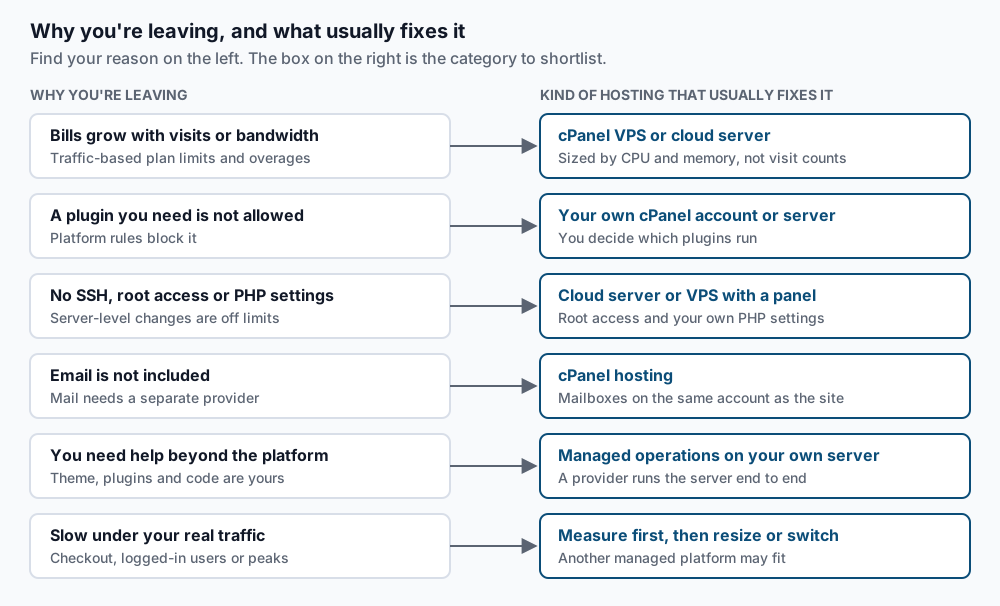
The key point is that different reasons point to different categories. If your only complaint is support response time, a cloud server you patch yourself makes things worse, not better. If you need a plugin your platform does not allow, another platform with similar rules will not help. The method below keeps you from swapping one mismatch for another.
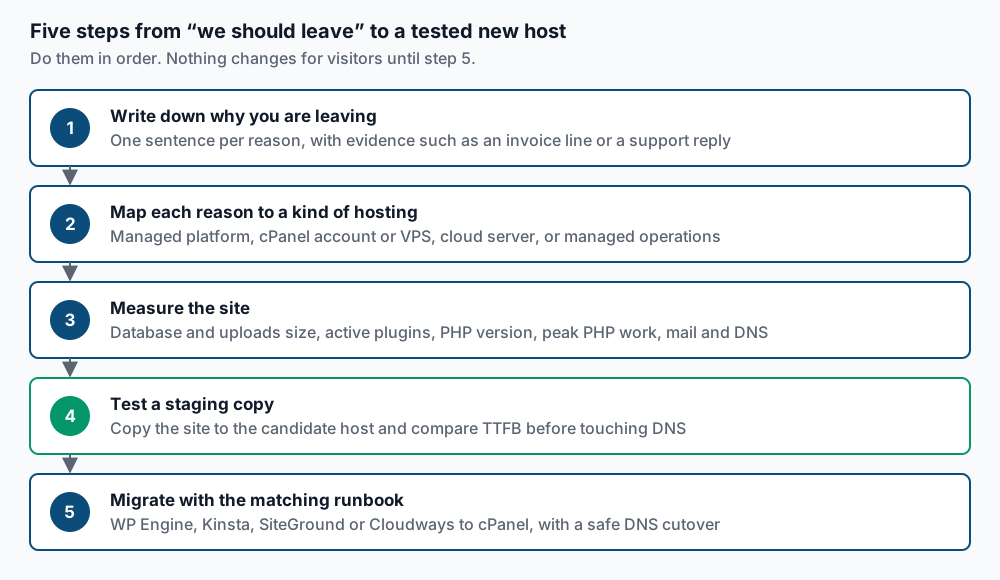
Step-by-step
-
Write down why you are leaving. Open a text file and list every reason in one plain sentence each. Next to each reason, note the evidence. The common reasons fall into six groups:
- Bills that grow with traffic. Your plan counts visits or bandwidth, and overage charges or forced upgrades keep appearing. Evidence: the invoice lines.
- A plugin you need is not allowed. Some platforms block plugins that duplicate their own caching, backups or security. WP Engine, for example, publishes a disallowed plugins list. Evidence: the list entry or the support reply.
- No server-level access. You need SSH, root access, a PHP extension, or a custom server setting, and the plan does not allow it. Evidence: the feature you asked for and the answer you got.
- Email is not included. Many managed WordPress platforms do not host mailboxes, so mail lives with a separate provider. That is fine for some teams and an extra bill and login for others.
- Support scope. Platform support usually covers the platform, not your theme, plugins or custom code. If you need someone to fix those, that is a different service.
- Performance under your real traffic. Pages are slow for logged-in users, in the store checkout, or at peak times. Evidence: the TTFB numbers you will collect in step 7.
Keep only the reasons you can back with evidence.
-
Match each reason to a category. Use the reasons diagram above. Write the matching category next to each line. If most lines point to one category, that is your shortlist. If they point in different directions, rank the reasons by what costs you the most, in money or hours, and let the top two decide.
-
Measure the site. Connect over SSH, change into the WordPress folder, and run these commands one at a time:
wp core version
wp eval 'echo PHP_VERSION . PHP_EOL;'
wp db size --human-readable
wp plugin list --status=active --format=count
du -sh wp-content/uploads
You should see a WordPress version such as
6.8.2, then a PHP version such as8.2.28. Next comes a small table with your database name and its size, such as412 MB. Then a single number for active plugins, and finally a line like4.1G wp-content/uploads. Write every value into your requirement sheet. Ifwpis not found, your plan may not include WP-CLI; your hosting dashboard usually shows the PHP version and disk usage instead. -
Save the list of active plugins. A new host must run every one of them, so keep the full list:
wp plugin list --status=active --fields=name,version > active-plugins.txt
wc -l active-plugins.txt
The second command prints a line count, one more than your plugin count because of the header row. Check each plugin against the candidate host’s rules. Also look for caching or backup plugins that only exist because of your current platform. They may be unnecessary, or they may clash with the new host’s cache.
-
Estimate how much PHP work happens at once. Pages served from cache cost almost nothing. Pages that run PHP, such as the cart, checkout, admin and logged-in pages, each hold a PHP process until they finish. Some hosts call these PHP workers. Download a raw access log from your host’s dashboard and find your busiest minutes. The
greppart drops requests for images, stylesheets and scripts, which never run PHP:grep -vE '\.(css|js|png|jpe?g|gif|svg|webp|woff2?|ico)' access.log | awk '{print $4}' | cut -d: -f1-3 | sort | uniq -c | sort -rn | head -5Each output line shows a request count and a minute, such as
1843 [22/Sep/2026:14:05. Divide the top count by 60 to get requests per second. Some of those pages were still served from cache, so treat this number as an upper limit. Then apply this rule: uncached requests per second, times the average PHP response time in seconds, equals the number of PHP processes busy at the same moment. For example, 6 uncached requests per second at 0.5 seconds each keeps about 3 processes busy. Plan for at least double that, so a burst does not queue. If your log format differs and the output looks wrong, ask your current host for peak concurrent PHP usage instead. -
Check where email and DNS live. Moving hosting must not break mail. Run:
dig +short MX example.com
dig +short NS example.com
The first command lists your mail servers, such as
10 mx1.example-mail.com.. The second lists the name servers that control your DNS. Write both down. If the MX records point to a separate mail service, mail stays where it is. If you want mailboxes on the new host, add that to the requirement sheet as its own line. -
Run a trial migration and compare TTFB. Copy the site to the candidate host without changing DNS, following the runbook for your current host listed in the last step. Then measure both hosts from the same computer. First the current site:
for i in 1 2 3 4 5; do curl -o /dev/null -s -w '%{time_starttransfer}\n' https://example.com/; doneThen the copy on the new server, replacing
203.0.113.10with its IP address. The--resolveflag sends the request there while keeping your real domain name:for i in 1 2 3 4 5; do curl -o /dev/null -s -w '%{time_starttransfer}\n' --resolve example.com:443:203.0.113.10 https://example.com/; doneEach command prints five numbers in seconds, such as
0.184. Ignore the first, which often includes a cold cache, and compare the other four. Repeat both tests on a page that cannot be cached, such as your cart or a search results URL likehttps://example.com/?s=test. That second number shows how fast PHP and the database really are. If the new host needs a valid certificate for the test, most hosts can issue one for a temporary domain; test that domain instead. -
Migrate with the matching runbook. Once the copy passes your checks, follow the full runbook for the host you are leaving. Each one covers platform leftovers, the database export and a safe DNS cutover:
- Migrating from WP Engine to cPanel
- Migrating from Kinsta to cPanel
- Migrating from SiteGround to cPanel
- Migrating from Cloudways to cPanel
The export and cleanup steps apply even if your destination is not cPanel.
Validate it works
Your decision is sound when three things are true. Every reason in step 1 has a category next to it. Every measurement from steps 3 to 6 fits within the candidate’s plan. The trial copy is at least as fast as the current host on both the cached and uncached pages.
After the real move, confirm the live site with the same checks:
wp core version
wp plugin list --status=active --format=count
curl -o /dev/null -s -w '%{http_code} %{time_starttransfer}\n' https://example.com/
The first two should match the numbers you wrote down in step 3. The last should print 200 followed by a TTFB close to what you measured on the trial copy. Send a test email to and from your domain as well, and place a test order if you run a store.
Troubleshooting
The trial copy is slower than the current host. Check whether page caching is turned on at the new host. A fresh copy often starts with the cache off, or with your old platform’s cache plugin still active and doing nothing. Compare the uncached number too. If only the cached test is slower, the cache needs setting up. If the uncached test is slower, the server is undersized for your PHP work from step 5.
curl --resolve returns a certificate error. The new server does not yet have a certificate for your real domain. Use the temporary domain the host gives you, or add -k to skip the check for this test only. Never leave -k in a monitoring script.
wp db size reports far less than you expected. The command measures only the database WordPress is using. Old staging sites or leftover tables from a previous plugin may live in the same database with a different table prefix. Run wp db tables --all-tables | wc -l to see how many tables really exist.
A plugin stops working after the copy. Check whether it expects a platform-specific feature, such as an object cache (a memory store for database results) that the new host does not provide. The runbooks above list the usual leftovers for each platform, including object-cache.php drop-ins.
The access log command prints nothing useful. Your host may use a different log format, where the time is not in the fourth field. Open the first line of the log, find the timestamp, and change $4 to that field’s position.
When this is the wrong approach
If your only complaint is a single plugin or a single limit, ask your current host first. Plans change, and a plan change or a support exception can cost far less than a migration.
If nobody on your team wants to handle updates, security and backups, avoid moving to a server you manage yourself, even when it looks cheaper. Either stay on a managed platform or hand the server to a provider that runs it. Managed vs self-managed WordPress hosting walks through that split of work and risk.
A very large site that needs several servers or a separate search cluster goes beyond this method. Treat it as an architecture project first.
Running WordPress that earns real money deserves an operator — Stack Harbor runs that stack under Enterprise WordPress; book an infrastructure consult.