This guide walks you through moving a WordPress site off Flywheel and onto a cPanel hosting account. Flywheel is the managed WordPress host that WP Engine acquired in 2019, and much of what makes your site work there sits outside WordPress. You get no shell on the lower plans, Flywheel owns wp-config.php, and your redirect rules live in their dashboard where no backup will find them. The short answer is to pull the site into Local, the free desktop app Flywheel wrote, and export a plain bundle of files and a database dump from there. You then rebuild the dashboard-only pieces by hand on cPanel.
What you’ll accomplish
- A portable bundle of the site, meaning every file plus one
.sqldatabase dump, taken out through Local. - A written list of everything that exists only in the Flywheel dashboard, with its cPanel replacement named.
- A working copy on cPanel, smoke-tested against the real hostname before a single DNS record moves.
- A TLS certificate issued on the destination and mail routing corrected, so the flip breaks neither.
- A rollback you can run in minutes, and an honest statement of when it stops being cheap.
Prerequisites
You need three kinds of access. On Flywheel, the dashboard and the SFTP credentials shown on the site’s page. SFTP is secure file transfer, and it is the access you can count on, because a shell is not part of every plan. On your own machine, install Local, Flywheel’s free app for running WordPress sites on a laptop. On the destination, a cPanel account with SSH enabled, a MySQL database and user, and wp on the box. That last one is WP-CLI, the official WordPress command line.
Answer six questions while the site is still live and you still have the dashboard.
- What PHP version is the site running? Set the destination to match in cPanel’s MultiPHP Manager before importing. A PHP 8.2 codebase dropped onto an account defaulting to 7.4 fails in ways that look like file corruption.
- Does your plan give you SSH? If not, every command below runs in Local’s site shell or on cPanel, and the file copy becomes an upload from your laptop.
- How large is the database? In Local’s shell,
wp db size --tables --size_format=mbprints it table by table. Past a few hundred megabytes, the import method and the length of your freeze both change. - What redirect rules sit in the dashboard? They are applied above WordPress, they are not in
.htaccess, and they vanish the day you close the account. Copy the list into a text file now. - Where does mail come from? Flywheel hosts no mailboxes, so your MX records point at another provider and the site sends over SMTP. Both facts change once the domain lands on cPanel.
- Which plugins did Flywheel block? Flywheel disallows caching, backup and some security plugins because the platform covers those layers. Nothing on cPanel enforces that.
Then lower the TTL on the A and AAAA records to 300 seconds, at least 24 hours ahead. TTL is how long resolvers cache an answer, and this change turns a bad cutover from a multi-hour rollback into a five-minute one.
How it works
Flywheel hands you WordPress, not the machinery wrapped around it. The cleanest way out is Local’s Connect tab, which pulls the whole site to your laptop as a working install. Local’s export then writes a .zip with site files under app/public/ and a database dump under app/sql/, which is the shape a cPanel account wants.
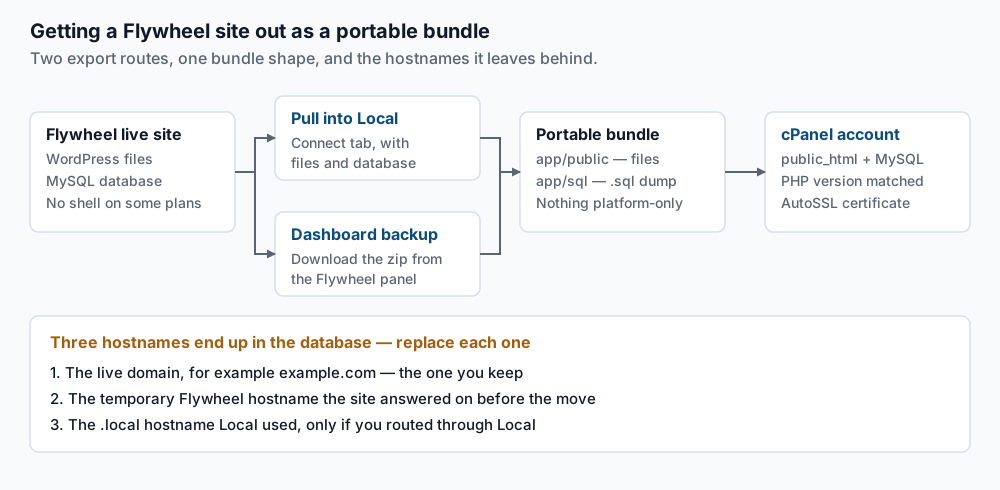
That route has one side effect. Local serves the site at a hostname ending in .local, so a pull and export leave three hostnames in the database: the live domain, the temporary Flywheel hostname, and the Local one. Step 8 replaces all three. Download a dashboard backup instead and you have two to replace.
Only one of the three columns below arrives in that bundle.
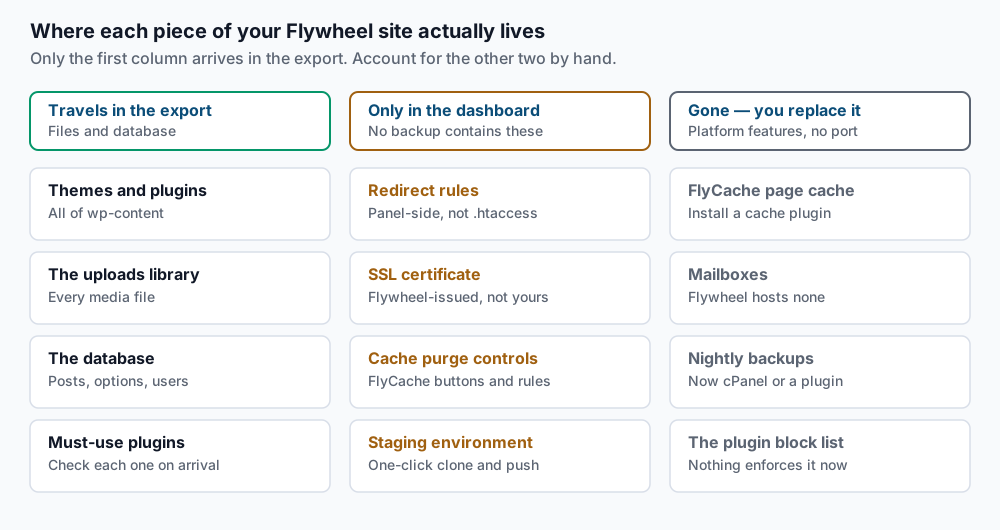
The page cache. Flywheel serves most anonymous traffic from a full-page cache in front of PHP, which they call FlyCache. On cPanel that layer does not exist until you build it. A theme that felt quick on Flywheel was measured with PHP largely skipped, and that speed belonged to the platform rather than to the code.
The redirect rules. Rules configured in the dashboard are stored in the dashboard. A file copy carries no trace of them, so the migration looks clean, and then old URLs start returning 404 to search engines and to bookmarks.
wp-config.php. Flywheel treats this file as theirs, so constants you add are not guaranteed to survive a platform change. Do not copy it across. Write a fresh one on cPanel with your own credentials and new security salts, then move over only the constants you recognise as yours.
The certificate. Flywheel issues and renews SSL from the dashboard, bound to their infrastructure, so it does not travel. On cPanel you get AutoSSL, cPanel’s own free certificate service, which must validate domain control before it issues anything.
Two smaller items round out the inventory. Staging on Flywheel is a platform feature with a one-click push, so a staging subdomain and a promotion process become yours to define. Its nightly backups are a platform service, so backup tooling on cPanel is now a decision. The same shape shows up in the WP Engine runbook.
Step-by-step
Everything before the freeze in step 12 is rehearsal you can repeat. Everything after it is live.
-
Transcribe the dashboard before you touch anything. Into a text file, write the full redirect list, the exact temporary hostname, every domain and subdomain the site answers on, and the PHP version. This step produces no output to verify, and it is the one people skip.
-
Pull the site into Local. Open the Connect tab, sign in with your Flywheel account, and pull the site down. Then open the site’s shell from Local and take an inventory:
wp --info
wp core verify-checksums
ls -la wp-content/mu-plugins/
ls -l wp-content/object-cache.php wp-content/advanced-cache.php
wp --infoprints the PHP binary, the PHP version, and thewp-config.phppath it found.verify-checksumsshould printSuccess: WordPress installs verify against checksums., and anything it flags is a modified core file you must explain. Themu-plugins/listing shows must-use plugins, which load on every request and never appear on the plugins screen. ANo such file or directoryon the last line is a good answer. -
Export a bundle you control. Right-click the site in Local, choose Export, then confirm what you are holding:
unzip -l ~/Downloads/sitename.zip | head -20You want paths under
app/public/and a.sqlfile underapp/sql/. Take your own dump too, from Local’s shell:wp db export flywheel-bulk.sql --add-drop-table --default-character-set=utf8mb4 tail -3 flywheel-bulk.sqlExpect
Success: Exported to 'flywheel-bulk.sql'.The tail must end on a complete statement, never mid-INSERT. A truncated dump imports quietly and loses the end of your largest table. -
Upload the files to cPanel. With no shell on Flywheel, the copy runs from your laptop. Unzip the export, then push the contents of
app/public/:rsync -avz --exclude 'wp-content/cache' app/public/ CPUSER@cpanel.example.com:public_html/ du -sh ~/public_htmlrsyncends with asent … received … bytes/secsummary and a total size close to what the site used on Flywheel.dushould agree. -
Create the database and import at real size. Build the database and user with cPanel’s MySQL Database Wizard and set the PHP version to match step 1. Import inside
screenortmuxso a dropped connection cannot abort it:mysql --max-allowed-packet=512M --default-character-set=utf8mb4 -u DBUSER -p DBNAME < flywheel-bulk.sql mysql -u DBUSER -p -e 'SELECT COUNT(*) FROM information_schema.tables WHERE table_schema="DBNAME";'A clean import prints nothing at all. The table count must match what the same query returns in Local’s shell.
-
Write a fresh
wp-config.php. Create it from the WordPress sample, paste in the cPanel credentials, generate new salts, and add only constants you recognise. Then read back what you wrote:grep -n 'DB_NAME\|DB_HOST\|WP_CACHE\|WP_HOME\|WP_SITEURL' ~/public_html/wp-config.phpYou want your own
DB_NAMEandDB_HOST, plusWP_CACHEset tofalseuntil you pick a cache plugin. AWP_HOMEorWP_SITEURLnaming a Flywheel hostname means you copied the file instead of writing one. -
Move the platform leftovers aside. Move rather than delete, so you can still read them later:
mv ~/public_html/wp-content/object-cache.php ~/object-cache.php.bak
mv ~/public_html/wp-content/advanced-cache.php ~/advanced-cache.php.bak
ls -la ~/public_html/wp-content/mu-plugins/
A
No such file or directoryon either drop-in means it was never there, which is fine. The final listing should show only must-use plugins you or your developers wrote. -
Search-replace every hostname, dry run first. Take the temporary Flywheel hostname verbatim from your step 1 notes:
wp search-replace 'sitename.flywheelsites.com' 'example.com' --all-tables-with-prefix --dry-run --report-changed-onlyRead the table of counts and the closing
Success: N replacements to be madeline, then commit:wp search-replace 'sitename.flywheelsites.com' 'example.com' --all-tables-with-prefix --precise--all-tables-with-prefixcatches tables a plugin created under your prefix that the default scan skips.--preciseforces PHP-side handling of serialised data, which is why hand-written SQL corrupts it. The WP-CLI search-replace reference documents every flag. Repeat the pair for the Local hostname, and forhttp://tohttps://if the old site was mixed. -
Rebuild the redirects. Translate your step 1 list into
.htaccessrules or a redirect plugin, then count what landed:grep -c 'Redirect\|RewriteRule' ~/public_html/.htaccessThe count should be at least the number of rules you transcribed. Test each one against the staging hostname before the flip, not after.
-
Install the cache layer you now own. Find out what the server runs:
curl -sI http://127.0.0.1/ | grep -i '^server:'Server: LiteSpeedmeans install LiteSpeed Cache.Server: Apachemeans a page cache plugin plus a CDN. Either way, exclude the cart, checkout and account pages if the site sells anything. A cache that stores a cart page can hand one shopper another shopper’s basket. -
Get the certificate issued before the flip. AutoSSL can validate over HTTP, which cannot succeed until the domain resolves to cPanel, or over DNS, using a TXT record you add while Flywheel still serves traffic. Use the DNS method to have the certificate ready in advance. cPanel’s documentation portal covers the options. Then confirm coverage:
uapi SSL installed_hosts | grep -i domainsEvery hostname must appear: the apex,
www, and every subdomain. A certificate coveringexample.combut notwww.example.comwarns half your visitors. -
Fix mail routing, then freeze, sync and flip. cPanel assumes by default that it is the mail exchanger for any domain on the account, which would swallow mail meant for your real provider:
dig +short MX example.comIf that returns an external provider, set the domain to Remote Mail Exchanger on cPanel’s Email Routing screen. Now open the read-only window. Put the Flywheel site into maintenance mode so it stops taking orders, comments and form entries. Re-pull in Local, re-import the database, re-run the step 8 replacements, and re-run the
rsyncfrom step 4, which should now transfer almost nothing. Only then change the A record. During propagation both hosts answer requests, which is why the freeze exists. -
Flush caches and rewrite rules on the new host.
wp cache flush
wp rewrite flush --hard
Expect
Success: The cache was flushed.andSuccess: Rewrite rules flushed.The--hardform regenerates the rules inside.htaccess, not only in the database.
Validate it works
Run this sweep about an hour after the flip, once DNS has settled:
wp option get siteurl
wp option get home
wp core verify-checksums
wp db check
siteurl and home must both return your final domain, never a Flywheel or .local hostname. wp db check should report OK for every table.
Then check the view from outside. Put your twenty busiest URLs in a file and sweep them:
while read u; do printf '%s ' "$u"; curl -o /dev/null -s -w '%{http_code}\n' "$u"; done < top-urls.txtEvery line should read 200, or 301 for URLs you redirect on purpose. Any 404 there is almost always a dashboard redirect rule you did not rebuild. Next, look for anything still pointing at the old host:
curl -s https://example.com/ | grep -o 'src="http://[^"]*' | head
dig +short example.com @1.1.1.1
The first should print nothing. The second should return the cPanel IP address from a public resolver. Finish with real mail: send a password reset, a contact form submission and an order confirmation, not one of the three. Then watch for seventy-two hours, because that window is where the problems a smoke test cannot reach show themselves.
The rollback
Keep the Flywheel site intact and paid for until the watch window closes. Cancelling it is the one irreversible act here, because the dashboard goes with it. If validation goes badly, revert the A record; at a 300-second TTL most resolvers follow within minutes.
That rollback is free only while the cPanel copy has taken no writes. The first real order, comment or form entry on the new host means reverting costs you those rows. That boundary is the point of no return, not the DNS change.
Troubleshooting
Old URLs return 404 and nothing in the site explains why. These are the dashboard redirect rules, applied above WordPress, and no file copy recorded them. If the Flywheel account is still open, read them out of the panel. If it is closed, rebuild from your server logs and Search Console’s coverage report.
Everything still points at a .local address. The Local hostname was written into the database during the pull and step 8 missed it. Replace it the same way, dry run first:
wp search-replace 'sitename.local' 'example.com' --all-tables-with-prefix --dry-run --report-changed-onlyUploads return 403, or WordPress cannot write to wp-content. The rsync ran as root, so every file belongs to root instead of the cPanel account user. Fix ownership and permissions together:
chown -R CPUSER:CPUSER ~/public_html
find ~/public_html -type d -exec chmod 755 {} \;
find ~/public_html -type f -exec chmod 644 {} \;
Pages load but feel much slower than on Flywheel. FlyCache was answering anonymous requests before PHP ran, and nothing on cPanel does that until you install a cache plugin. Do step 10 and measure again before hunting a bad plugin.
The import stops on an unknown collation. A dump from a newer MariaDB carries a collation your destination does not recognise. Rewrite it before importing, then verify with the table count from step 5:
sed -i 's/utf8mb4_unicode_520_ci/utf8mb4_unicode_ci/g' flywheel-bulk.sqlWhen this is the wrong approach
Be honest about why you are leaving. If the site feels slow and nobody wants to own performance, cPanel plus a cache plugin is a step down. Flywheel was running the page cache, the backups, the certificate and the PHP tuning. On an unmanaged cPanel account each becomes your job.
If the reason is the bill alone, price the replacement first. The cache plugin, a CDN, backup tooling, monitoring and the hours someone spends on all four add up faster than the invoice suggests. For a brochure site that trade usually works. For a store taking orders with nobody assigned to those tasks, the platform fee was buying something real.
If the reason is control, the move is justified and the three-column map above is your scope of work. Mailboxes on the same account, a plugin Flywheel disallows, a PHP extension they do not offer, or several applications side by side are all things cPanel does better. If you want a different managed platform instead, compare the Kinsta runbook first.
Running WordPress that earns real money deserves an operator — Stack Harbor runs that stack under Enterprise WordPress; book an infrastructure consult.