WordPress site owners and server admins can trigger scheduled tasks two ways: WP-Cron, the scheduler built into WordPress, or the operating system’s own cron service. Below you will see how each one starts the same list of WordPress tasks, and how to move a site from the first to the second safely. You probably landed here because something ran late: a post marked “Missed schedule”, a WooCommerce follow-up email sent hours after the order, a backup plugin that stopped reporting. For any site you depend on, the answer is a system cron that runs WP-CLI every minute, plus DISABLE_WP_CRON in wp-config.php. Keep WP-Cron only where you have no shell and no cron access at all.
What you’ll accomplish
- Know what actually starts a WordPress scheduled task under each method, and where each one can fail.
- Read the current event queue and spot overdue tasks before you change anything.
- Install a system cron entry that runs as the right user, cannot overlap with itself, and logs its errors.
- Turn off the page-load trigger in the right order, so no task is skipped or run twice.
- Prove the new setup works with a test event, and know how to undo it in one command.
Prerequisites
- WordPress 6.x on PHP 8.1 or later, on a Linux server where you can edit a crontab. The same ideas apply to older versions.
- SSH access, and WP-CLI (the
wpcommand for managing WordPress from a shell) installed for the user that owns the site files. Check withwp --info. - The name of that user. On Debian and Ubuntu with a stock web server it is often
www-data; on panels and many VPS setups each site has its own account. - If the site runs on cPanel and you prefer its interface, the cPanel version of this switch covers the Cron Jobs screen step by step. This article stays with the command line and works on any Linux host.
How it works
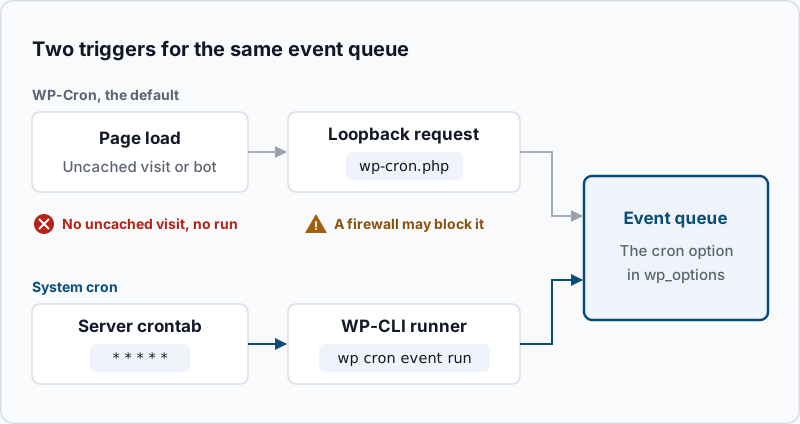
Both methods work on the same queue. WordPress stores every scheduled task, called an event, in a single option named cron in the wp_options table. Each entry has a hook name, a due time and an optional repeat interval. Plugins add events with wp_schedule_event(), and core adds its own, such as wp_version_check and wp_scheduled_delete. What differs is who looks at that queue and decides it is time to run.
WP-Cron checks the queue during normal page loads. On every request, WordPress looks for events whose due time has passed. Since WordPress 6.9 this check runs at the very end of the request, after the page has been sent; older versions ran it near the start. If it finds one, it sends a quick request to its own wp-cron.php, called a loopback request because the site calls itself over HTTP. It waits only a fraction of a second, so the visitor’s page is not held up. wp-cron.php then runs the due events in a separate PHP process. A short-lived lock, the doing_cron transient, keeps two page loads from starting the same batch at once. WordPress treats that lock as stale after 60 seconds, the default value of WP_CRON_LOCK_TIMEOUT.
That design has two weak points. With no uncached page load, nothing checks the queue: a quiet site, or one where a page cache or CDN serves almost every visit, can go hours without a check. And the loopback request leaves the server and comes back in through DNS, the firewall and any proxy, any of which can block it without leaving a trace in WordPress.
A system cron removes both. The operating system’s cron daemon starts a command on a fixed schedule whether anyone visits or not. The command is usually wp cron event run --due-now, which loads WordPress in a command-line PHP process and runs every overdue event directly, with no HTTP request involved.
| Criterion | WP-Cron (default) | System cron running WP-CLI | System cron calling wp-cron.php over HTTP |
|---|---|---|---|
| What starts it | An uncached page load | The server clock | The server clock |
| Runs on a quiet or fully cached site | No | Yes | Yes |
| Depends on DNS, firewall and proxy | Yes | No | Yes |
| PHP limits that apply | Web limits (timeout, memory) | Command-line limits, usually no timeout | Web limits |
| Adds work to visitor requests | A queue check on every page load | None | None |
| Needs shell and crontab access | No | Yes | Cron access only |
The schedule names in WordPress, such as hourly or daily, are minimum gaps, not appointments. An hourly event runs on the first check after its due time. With WP-Cron that check depends on traffic; with a system cron it happens within a minute.
Step-by-step
1. Read the queue before you change anything. Run these as the site owner, from the WordPress directory:
wp cron event list --fields=hook,next_run_relative,recurrence+------------------------------------+----------------------+------------+
| hook | next_run_relative | recurrence |
+------------------------------------+----------------------+------------+
| action_scheduler_run_queue | now | 1 minute |
| wp_scheduled_delete | now | 1 day |
| wp_privacy_delete_old_export_files | 38 minutes 4 seconds | 1 hour |
| wp_version_check | 5 hours 51 minutes | 12 hours |
| wp_update_plugins | 5 hours 51 minutes | 12 hours |
+------------------------------------+----------------------+------------+Example output. now means the event is overdue and waiting for a trigger. Count them so you have a number to compare against later:
wp cron event list --fields=hook,next_run_relative --format=csv | grep -c ',now$'A count of 0 to 2 is normal on a healthy site. Dozens of overdue events mean the current trigger is not keeping up, which confirms the switch is worth making.
2. Check how the site is triggered today. The constant may already be set by a previous admin, with nothing replacing it:
wp config get DISABLE_WP_CRON
wp cron test
Error: The constant or variable 'DISABLE_WP_CRON' is not defined in the 'wp-config.php' file.
Success: WP-Cron spawning is working as expected.This is the default: WP-Cron is on and its loopback works. If wp config get prints 1 and crontab -l shows no WordPress entry, the site currently has no trigger at all, and step 4 is urgent. If wp cron test reports an HTTP status such as 403, the loopback is being blocked; behind Cloudflare, the WP-Cron behind Cloudflare guide explains why.
3. Run the exact cron command by hand, as the site owner. Cron starts commands with a very short PATH, so use the full path to wp. Find it, then run the command the way cron will:
command -v wp
sudo -u www-data /usr/local/bin/wp --path=/var/www/example.com cron event run --due-now
/usr/local/bin/wp
Executed the cron event 'action_scheduler_run_queue' in 0.214s.
Executed the cron event 'wp_scheduled_delete' in 0.031s.
Success: Executed a total of 2 cron events.Replace www-data and /var/www/example.com with your user and path. With nothing due, the last line reads Executed a total of 0 cron events, which is fine. Do not run it as root: WP-CLI refuses by default, and files a plugin writes would end up owned by root.
4. Install the cron entry with an overlap lock and a log. Create a log directory the site user can write to, then open that user’s crontab:
sudo install -d -o www-data -g www-data /var/log/wp-cron
sudo crontab -u www-data -e
Add one line:
* * * * * flock -n /tmp/wp-cron-example.lock /usr/local/bin/wp --path=/var/www/example.com cron event run --due-now --quiet >> /var/log/wp-cron/example.log 2>&1flock -n holds a lock file while the run lasts and skips the next start if the previous one is still busy, so a slow backup job cannot pile up copies of itself. The flock guide covers that pattern in depth. --quiet hides the success lines, so the log only grows when something fails. Every minute suits WooCommerce and sites using Action Scheduler; every five minutes (*/5) is enough for a brochure site. Confirm it saved:
sudo crontab -u www-data -l | grep wp-cron5. Watch it fire before you touch WordPress. Wait two minutes, then check the cron daemon’s own record. Reading the system journal usually needs sudo:
sudo journalctl -u cron --since "5 min ago" | grep www-dataOct 29 09:21:01 web1 CRON[48213]: (www-data) CMD (flock -n /tmp/wp-cron-example.lock /usr/local/bin/wp --path=/var/www/example.com cron event run --due-now --quiet >> /var/log/wp-cron/example.log 2>&1)
Oct 29 09:22:01 web1 CRON[48266]: (www-data) CMD (flock -n /tmp/wp-cron-example.lock /usr/local/bin/wp --path=/var/www/example.com cron event run --due-now --quiet >> /var/log/wp-cron/example.log 2>&1)Example output. On Red Hat family systems the unit is crond instead of cron. The log file at /var/log/wp-cron/example.log should still be empty. Both triggers are active for these few minutes. The overlap is low risk, because each runner removes an event from the queue before running it, but do not leave it that way for days.
6. Turn off the page-load trigger. Only now add the constant:
wp config set DISABLE_WP_CRON true --raw
wp cron test
Success: Added the constant 'DISABLE_WP_CRON' to the 'wp-config.php' file with the raw value 'true'.
Error: The DISABLE_WP_CRON constant is set to true. WP-Cron spawning is disabled.That error is the result you want: page loads no longer start cron. wp-cron.php itself still works when called directly, which matters if you ever switch to the HTTP runner. To roll back, run wp config delete DISABLE_WP_CRON and remove the crontab line.
7. Cover every site on a multisite network. Each site in a network has its own queue, and --due-now without --url only reads the main site. Replace the line from step 4 with a loop:
* * * * * flock -n /tmp/wp-cron-network.lock sh -c 'for u in $(/usr/local/bin/wp --path=/var/www/example.com site list --field=url); do /usr/local/bin/wp --path=/var/www/example.com --url="$u" cron event run --due-now --quiet; done' >> /var/log/wp-cron/network.log 2>&1On networks with hundreds of sites, one pass can take longer than a minute. The lock then skips starts until the pass finishes, so lower the frequency to every five minutes rather than letting the lock decide. Newer WP-CLI builds add a --network flag that does the same loop in one command; if wp help cron event run lists it, wp cron event run --due-now --network can replace the for loop.
Validate it works
Schedule a test event a minute ahead, then check that it is gone after the next run. An event with no attached code does nothing when it runs except leave the queue:
wp cron event schedule sh_cron_probe '+1 minute'Success: Scheduled event with hook 'sh_cron_probe' for 2026-10-29 13:31:12 GMT.Wait two minutes, without loading any page on the site, then:
wp cron event list --fields=hook,next_run_relative | grep sh_cron_probe || echo "probe ran"
wp cron event list --fields=hook,next_run_relative --format=csv | grep -c ',now$'
probe ran
0The probe ran with no visitor involved, and the overdue count from step 1 is back to 0 to 2. Check the log file once more the next day: an empty file means a full day of clean runs.
Troubleshooting
The log says wp: not found or php: not found. Cron’s PATH does not include /usr/local/bin. Use full paths for wp, and if WP-CLI cannot find PHP, add PATH=/usr/local/bin:/usr/bin:/bin as the first line of the crontab.
Events run, but files or caches end up owned by root. The entry is in root’s crontab with --allow-root. Move it to the site owner’s crontab as in step 4, and fix ownership of the affected files with chown.
A plugin’s task fails under WP-CLI but worked under WP-Cron. Command-line PHP reads its own php.ini, so memory limits and loaded extensions can differ, and there is no web request for code that expects one. Compare wp --info with the web server’s PHP. If the plugin needs a web context, switch the runner to HTTP: curl -sS -o /dev/null --max-time 300 "https://example.com/wp-cron.php?doing_wp_cron". That runner depends on the loopback path again, so first confirm the server can reach its own site with curl -I on that URL.
Action Scheduler still shows a backlog. WooCommerce and many plugins run their own queue on top of WP-Cron, processing a batch each time the action_scheduler_run_queue event fires. A faster trigger helps, but failed or stuck actions need their own audit; see the Action Scheduler queue audit.
Tasks run twice. Two system triggers exist, often a crontab entry plus a hosting panel’s own cron for the same site, or one entry per user. Run sudo crontab -u <user> -l for each user and keep exactly one.
When this is the wrong approach
On shared hosting with no SSH and no cron access, keep WP-Cron. If tasks there wait for hours, an external uptime monitor can request the home page every few minutes. That keeps the queue moving, as long as the page is not served from cache. On hosts that run each site in a container, use the platform’s scheduler (a Kubernetes CronJob, for example) to run the same WP-CLI command instead of a crontab inside the container. If you manage many tenants on one server, the cPanel cron policy guide covers limits that stop one account’s jobs from slowing everyone else. WordPress documents the event API in its Cron handbook, and every subcommand used here is in the WP-CLI cron reference.
Running WordPress that earns real money deserves an operator — Stack Harbor runs that stack under Enterprise WordPress; book an infrastructure consult.