tcpdump prints the packets crossing a network interface — and only the ones you ask for. That second half is the whole point. You hand it a filter expression like tcp port 443 and host 10.0.3.9, the kernel matches every packet against that filter, and only the survivors are copied up to tcpdump for decoding. What lands on your terminal is one line per packet, in order, with a microsecond timestamp. It answers a question no application log can answer: did the packet actually leave this machine, did anything come back, and how long was the gap. When your app says “connection timed out” and the team on the other side says “we never got a request”, tcpdump is the thing that settles it.
What you’ll accomplish
- Capture on the right interface with a filter narrow enough that the output is readable.
- Write BPF expressions by
host,port,net, and TCP flag — including the SYN-with-no-SYN-ACK and RST patterns. - Save a capture with
-w, replay it with-r, and rotate it with-C/-Wso a long capture never fills the disk. - Hand the same file to Wireshark when you need per-stream analysis instead of a flat list.
- Tell apart four failures that look identical from the application side: nothing sent, nothing arrived, actively refused, or lost and retransmitted.
Prerequisites
- tcpdump installed. Check with
tcpdump --version; you should see something liketcpdump version 4.99.4followed bylibpcap version 1.10.4. The 4.99 line is current; anything 4.9 or newer supports every flag in this guide. Install it withapt install tcpdump,dnf install tcpdump, or on macOS it ships with the system. - Root, or the capabilities that stand in for it. Packet capture needs
CAP_NET_RAWandCAP_NET_ADMIN, so in practice you runsudo tcpdump. Some distributions grant them to the binary instead:sudo setcap cap_net_raw,cap_net_admin=eip /usr/sbin/tcpdumplets a normal user capture without sudo. Where you cannot get either, you cannot capture — there is no unprivileged fallback. - Know your interface name. Modern Linux uses predictable names (
ens5,enp0s3,eno1) rather thaneth0; cloud images vary by hypervisor. macOS usesen0. Linux also offers the pseudo-interfaceany, which captures on all interfaces at once — it does not exist on macOS or BSD. - Wireshark on your laptop, if you want the deep-analysis step. You do not install it on the server; you copy the pcap file back.
How it works
tcpdump does not read packets one by one and throw away the ones you do not want. Your filter expression is compiled to BPF bytecode and handed to the kernel, which runs it against every frame as it arrives. Packets that fail the filter are dropped in the kernel and never copied to userspace at all. That is why a filter is a performance decision and not just a tidiness one: on a busy host, tcpdump -i eth0 with no filter can drop packets simply because the copy-and-decode loop cannot keep up, and the packets it drops may be exactly the ones you needed.
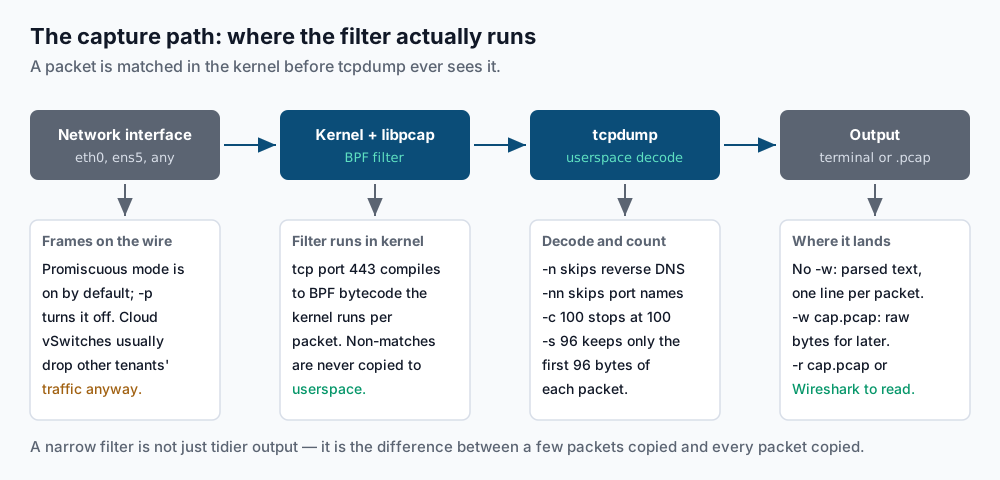
Two consequences follow. First, the filter you pass on the command line is a capture filter — it decides what gets recorded, and anything it rejects is gone for good. This is not the same as a Wireshark display filter, which hides packets you already captured and can be changed freely afterwards. Second, the amount of each packet you keep is a separate decision, controlled by -s (snaplen).
Step-by-step
1. Find out what you can capture on. -D lists the interfaces libpcap can see, which is faster and more honest than guessing from ip addr:
sudo tcpdump -D1.eth0 [Up, Running, Connected]
2.any (Pseudo-device that captures on all interfaces) [Up, Running]
3.lo [Up, Running, Loopback]
4.docker0 [Up, Running]2. Take the smallest capture that proves tcpdump works. -i picks the interface, -c stops after N packets so you are never stuck holding Ctrl-C, and -nn turns off both reverse-DNS lookups and port-name translation. Always use -nn on a server: without it, tcpdump does a DNS lookup per address, which is slow and adds its own traffic to the capture you are reading.
sudo tcpdump -i eth0 -nn -c 5tcpdump: verbose output suppressed, use -v[v]... for full protocol decode
listening on eth0, link-type EN10MB (Ethernet), snapshot length 262144 bytes
09:14:02.184417 IP 10.0.3.11.51234 > 10.0.3.9.443: Flags [S], seq 2934857021, win 64240, length 0
09:14:02.184903 IP 10.0.3.9.443 > 10.0.3.11.51234: Flags [S.], seq 118392, ack 2934857022, win 65160, length 0
09:14:02.184961 IP 10.0.3.11.51234 > 10.0.3.9.443: Flags [.], ack 1, win 502, length 0
09:14:02.186740 IP 10.0.3.11.51234 > 10.0.3.9.443: Flags [P.], seq 1:518, ack 1, win 502, length 517
09:14:02.187201 IP 10.0.3.9.443 > 10.0.3.11.51234: Flags [.], ack 518, win 509, length 0
5 packets capturedRead one line: timestamp, IP, source address and port, >, destination address and port, then the TCP flags. [S] is SYN, [S.] is SYN-ACK (the dot means ACK), [.] is a bare ACK, [P.] is push-ACK carrying data, [F.] is FIN, [R] is RST.
3. Narrow with the primitives. A BPF expression is built from a few primitives combined with and, or, and not. The ones that matter:
sudo tcpdump -i eth0 -nn host 10.0.3.9
sudo tcpdump -i eth0 -nn port 443
sudo tcpdump -i eth0 -nn net 10.0.3.0/24
sudo tcpdump -i eth0 -nn tcp and dst port 5432
sudo tcpdump -i eth0 -nn 'host 10.0.3.9 and not port 22'
host matches either direction; src host and dst host pin it to one. Same for port. Quote the whole expression in single quotes once it contains anything the shell would touch — parentheses, |, !. That last example is the one you will type most: a specific peer, minus your own SSH session, which would otherwise flood the output with every keystroke.
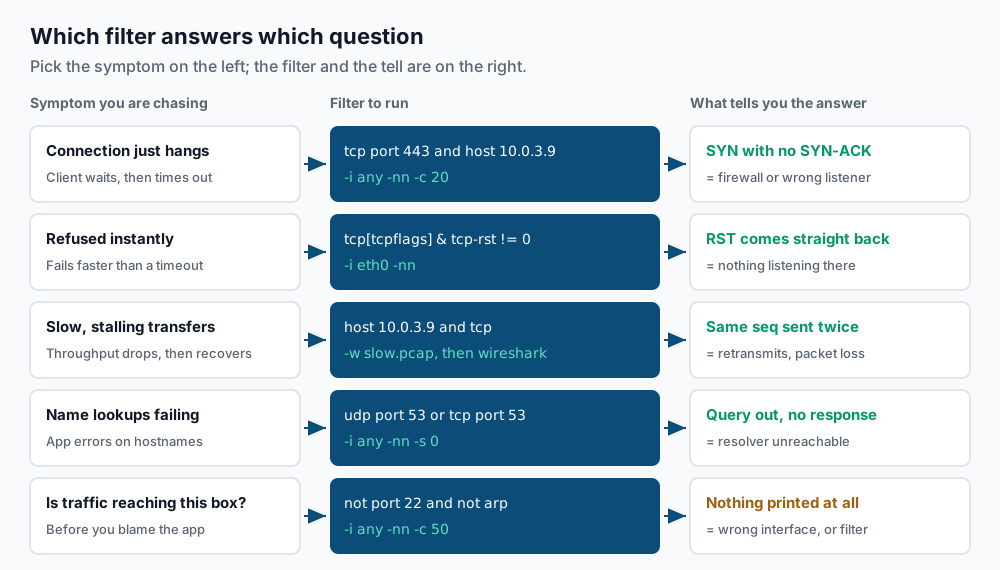
4. Ask the first real question: did the SYN get answered? This is the diagnosis behind most “connection timed out” reports. Capture every packet to that peer carrying a SYN or an ACK — in a healthy session that is nearly all of them, and in a broken one it is only the SYNs, which is exactly the tell:
sudo tcpdump -i eth0 -nn -c 20 'host 10.0.3.9 and tcp[tcpflags] & (tcp-syn|tcp-ack) != 0'09:22:41.003912 IP 10.0.3.11.44120 > 10.0.3.9.5432: Flags [S], seq 771002455, win 64240, length 0
09:23:42.014883 IP 10.0.3.11.44120 > 10.0.3.9.5432: Flags [S], seq 771002455, win 64240, length 0
09:24:44.032190 IP 10.0.3.11.44120 > 10.0.3.9.5432: Flags [S], seq 771002455, win 64240, length 0Three SYNs, same sequence number, roughly one minute apart, and no SYN-ACK ever: the kernel is retrying the handshake into silence. Your packet left this box and nothing answered. That is a firewall, a security group, or a route — not your application. The tcp[tcpflags] syntax reads the TCP flags byte directly; tcp-syn, tcp-ack, tcp-rst, tcp-fin, tcp-push are named constants for its bits, and & is a bitwise AND. If you want SYNs that are not also ACKs — connection attempts only, no replies — test for equality instead: 'tcp[tcpflags] & (tcp-syn|tcp-ack) == tcp-syn'.
5. Distinguish that from an active refusal. A timeout and a refusal are different failures with the same error message in some clients. Look for RST:
sudo tcpdump -i eth0 -nn 'tcp[tcpflags] & tcp-rst != 0'09:31:18.442091 IP 10.0.3.9.5432 > 10.0.3.11.44980: Flags [R.], seq 0, ack 1, win 0, length 0An RST that arrives within a millisecond of your SYN means the packet reached the host and the host said no — nothing is listening on that port, or something reset the connection deliberately. Silence means it never got there. Those two findings send you to two different teams.
6. Watch name resolution. DNS failures surface as application errors that never mention DNS. Capture both transports, since large answers fall back to TCP:
sudo tcpdump -i eth0 -nn -s 0 'udp port 53 or tcp port 53'09:35:07.112004 IP 10.0.3.11.39114 > 10.0.0.2.53: 41288+ A? db.internal.example.com. (41)
09:35:07.113990 IP 10.0.0.2.53 > 10.0.3.11.39114: 41288 1/0/0 A 10.0.3.9 (57)A query with no matching reply means your resolver is unreachable. A reply carrying the wrong address means your resolver is fine and your zone data is not.
7. Keep the whole packet — or deliberately don’t. -s sets the snaplen, the number of bytes recorded per packet. Modern tcpdump defaults to 262144, effectively the whole packet, and -s 0 asks for the maximum explicitly. Shrink it when you only care about headers and want to cut file size and CPU on a busy link:
sudo tcpdump -i eth0 -nn -s 96 -c 5 tcptcpdump: verbose output suppressed, use -v[v]... for full protocol decode
listening on eth0, link-type EN10MB (Ethernet), snapshot length 96 bytes
09:41:12.660713 IP 10.0.3.11.44688 > 10.0.3.9.5432: Flags [P.], seq 1:88, ack 1, win 502, length 87
09:41:12.661204 IP 10.0.3.9.5432 > 10.0.3.11.44688: Flags [.], ack 88, win 509, length 0
5 packets capturedThe success signal is snapshot length 96 bytes in the second line — that is tcpdump confirming -s took effect. Note that length 87 still reports the real packet size, read from the IP header, even though only 96 bytes were stored.
96 bytes covers Ethernet, IP, and TCP headers with room to spare, so flags, sequence numbers, and ports all survive — payload does not. If you later find the analysis needs payload you cannot get it back, so only truncate when you are sure the headers are the story.
8. Write to a file instead of the screen. -w writes raw pcap: no decoding, no reverse DNS, much less CPU, and a file you can analyze anywhere. This is what you run when the fault is intermittent:
sudo tcpdump -i eth0 -w /var/tmp/db.pcap 'host 10.0.3.9 and tcp port 5432'tcpdump: listening on eth0, link-type EN10MB (Ethernet), snapshot length 262144 bytes
^C1843 packets captured
1847 packets received by filter
0 packets dropped by kernelThose last three lines are the success signal, and 0 packets dropped by kernel is the one that matters. A non-zero drop count means your filter was too wide or the host too busy, and the capture has holes.
9. Bound it with a ring buffer. An unattended -w will happily fill the disk and take the host down with it. -C caps each file at N million bytes and -W caps how many files are kept, overwriting the oldest — a fixed ceiling on disk use, forever:
sudo tcpdump -i eth0 -s 128 -C 100 -W 10 -w /var/tmp/ring.pcap 'tcp port 5432'Let it run, then check that the rotation is actually happening:
ls -1 /var/tmp/ring.pcap*/var/tmp/ring.pcap0
/var/tmp/ring.pcap1
/var/tmp/ring.pcap2Files appearing and their count never passing -W is the success signal.
That leaves at most ten files of about 100 MB each — one gigabyte, never more — named ring.pcap0 through ring.pcap9. When the fault fires, stop the capture and the last few files hold the minutes before it. Use -G 3600 with a strftime pattern in -w instead if you would rather rotate on time than size.
10. Read it back. -r reads a pcap and applies a fresh filter to it, so a wide capture can be re-examined narrowly as many times as you like — no root needed, since nothing is being captured:
tcpdump -r /var/tmp/db.pcap -nn 'tcp[tcpflags] & tcp-rst != 0' | head -5reading from file /var/tmp/db.pcap, link-type EN10MB (Ethernet), snapshot length 262144
09:31:18.442091 IP 10.0.3.9.5432 > 10.0.3.11.44980: Flags [R.], seq 0, ack 1, win 0, length 0The reading from file line confirms the pcap opened; every line after it is a packet that survived the new filter. No matches means the capture holds no RSTs — which is itself an answer.
For anything beyond a flat list — following one connection, seeing round-trip times per stream, spotting retransmits without reading sequence numbers by eye — copy the file to your laptop and open it in Wireshark. Its tcp.analysis.retransmission display filter and the Statistics > Conversations view do in two clicks what would take an hour of squinting at terminal output.
Validate it works
Prove the whole loop end to end against traffic you cause yourself. In one terminal, start a capture filtered to a host you can reach:
sudo tcpdump -i eth0 -nn -c 10 'host 1.1.1.1 and tcp port 443'In a second terminal, generate exactly one connection:
curl -s -o /dev/null https://1.1.1.1/The first terminal should print the handshake and then stop on its own at ten packets:
10:02:55.771092 IP 10.0.3.11.55302 > 1.1.1.1.443: Flags [S], seq 1855049103, win 64240, length 0
10:02:55.781553 IP 1.1.1.1.443 > 10.0.3.11.55302: Flags [S.], seq 3277430901, ack 1855049104, win 65535, length 0
10:02:55.781601 IP 10.0.3.11.55302 > 1.1.1.1.443: Flags [.], ack 1, win 502, length 0
10 packets captured
SYN out, SYN-ACK back about 10 ms later, ACK out: a healthy handshake, and the round-trip time is right there in the timestamps. That is your reference for what “working” looks like — every diagnosis in this guide is a deviation from those three lines.
Troubleshooting
You don't have permission to capture on that device. Capture needsCAP_NET_RAW; you are running as a normal user. Usesudo, or grant the binary the capabilities:sudo setcap cap_net_raw,cap_net_admin=eip $(which tcpdump). Inside a container you also need the capability on the container itself, not just the binary — a default Docker container cannot capture, and--cap-add=NET_ADMIN --cap-add=NET_RAWis what changes that.- Nothing prints at all. Nine times out of ten this is the wrong interface, not the wrong filter. Confirm with
tcpdump -D, then drop the filter entirely and runsudo tcpdump -i any -nn -c 5— if that prints, your filter was wrong; if it does not, the traffic is not crossing this host. Watch for traffic onlo: two processes on the same machine talk over loopback, and a capture oneth0will never see them. Containers have their own network namespace, so a host capture misses container-internal traffic. packets dropped by kernelis not zero. The kernel captured more than tcpdump could consume. Narrow the filter, cut the snaplen with-s 96, and write with-wrather than decoding to a terminal — decoding is what is slow. A capture with drops has silent gaps, and a “missing” packet may simply be one you never recorded.- The capture filter is not a display filter.
tcpdump 'tcp port 443'and Wireshark’stcp.port == 443look similar and are not the same language, and more importantly are not the same moment. tcpdump’s filter runs before recording; anything it rejects is unrecoverable. Wireshark’s runs after, on a file that already contains everything. When in doubt during an incident, capture slightly wider than you think you need to a file, and narrow afterwards with-r. - You only see your own machine’s traffic. tcpdump puts the interface in promiscuous mode by default, but on a cloud VM the virtual switch will not deliver other tenants’ frames no matter what mode you set — the old “plug into a hub and see everything” model does not exist there. To see traffic between two other hosts you need a port mirror, a TAP, or a capture on one of the endpoints. Use
-pto skip promiscuous mode when you want only this host’s traffic, which is also less likely to trip an intrusion-detection alert.
When this is the wrong approach
tcpdump tells you what crossed the wire, which stops being useful the moment the interesting part is encrypted. A TLS session shows you the handshake, the SNI, and then thousands of opaque [P.] packets — you can see that data flowed and how fast, never what it said. If your question is about HTTP status codes or response bodies, application logs and breaking down request latency with curl get you there faster and without root. If your question is “is anything listening on this port”, ss -ltnp answers it in a millisecond instead of a capture. And if you are chasing a proxy handing back errors rather than a network path failing, start with why nginx returns 502 Bad Gateway — the upstream is usually reachable and simply unhappy. Packet capture is also a privacy surface: an unfiltered capture on a production host records other people’s data, so keep filters narrow and pcap files short-lived. The manual pages and the current release live at tcpdump.org.
If this is the kind of work you’d rather never own again, it’s the daily job of Managed Cloud Ops — book an infrastructure review.