Linux admins who used to reach for netstat can use ss to see every open connection and work out why one is failing, and this article shows you how to read it. You may have met it the hard way, when netstat -tlnp came back with command not found. Recent distributions and container images often leave netstat out, while ss ships with the standard iproute2 networking package. It asks the kernel for socket data directly, so it stays fast even on a busy host with thousands of connections. A socket here means one end of a network connection, and each TCP socket moves through named states as it opens and closes. The state column is where ss earns its place. A pile of SYN-SENT sockets (connection attempts still waiting for a reply) usually points to the network or a firewall. A pile of CLOSE-WAIT (the other side hung up, but your program never closed its end) points to your own code. TIME-WAIT, a short cool-down the kernel keeps after a clean close, is normal and rarely needs fixing.
What you’ll accomplish
- Replace every
netstathabit with thessequivalent, and know why the swap happened. - List what is listening, on which address, owned by which PID — and catch the classic “bound to 127.0.0.1” mistake before it costs you an hour.
- Filter sockets by TCP state and by address or port, instead of piping everything through
grep. - Read a state pile-up and name the failing component: the network, the peer, or your own code.
- Read Recv-Q and Send-Q on a LISTEN row correctly, which most people do not.
Prerequisites
- The
ssbinary, from the iproute2 package. It is installed by default on essentially every current distribution. If it is missing:apt install iproute2on Debian and Ubuntu,dnf install iprouteon Fedora and RHEL,apk add iproute2on Alpine. - Root, or
sudo, for process names. Without privilege the socket list still prints in full, but theusers:(...)column is blank for sockets you do not own. The data is not missing; your permissions are. - Distro differences, honestly:
netstatlives in net-tools, effectively unmaintained upstream for years. Debian and Ubuntu still package it but no longer install it in minimal or container images; RHEL 8 and later dropped it from the default install; many base images never had it.ssis the one you can count on. - Version note:
ssfollows the iproute2 version —ss -Vprints something likess utility, iproute2-6.1.0. Columns have been stable for years; on kernels before 4.x a few-ifields are absent, but nothing here depends on them.
How it works
netstat opens /proc/net/tcp, /proc/net/tcp6, /proc/net/udp and friends, reads them as text, and parses hex-encoded addresses line by line. To attach process names it then walks every /proc/<pid>/fd/ directory on the box and stats each descriptor to match inode numbers back to sockets. On an idle laptop this is invisible. On a busy proxy with 200,000 established connections it is a measurable amount of work, and worse, the file is regenerated as you read it, so what you get is smeared across time rather than a clean snapshot.
ss opens a NETLINK_SOCK_DIAG socket and asks the networking stack directly, with a request that can carry a filter. The kernel returns binary records. Two things follow. It is much faster, because there is no text to parse and the filtering happens kernel-side. And it can report data that never appears in /proc at all — congestion window, smoothed RTT, retransmit counters, timer state, socket memory. That is what -i, -o and -m expose, and why ss answers questions netstat structurally could not.
The payoff is the state column. Every TCP socket sits in a state defined by the protocol’s state machine, and each state means a specific thing has happened and a specific thing is being waited on. When one state accumulates far past the others, that state names the failure.
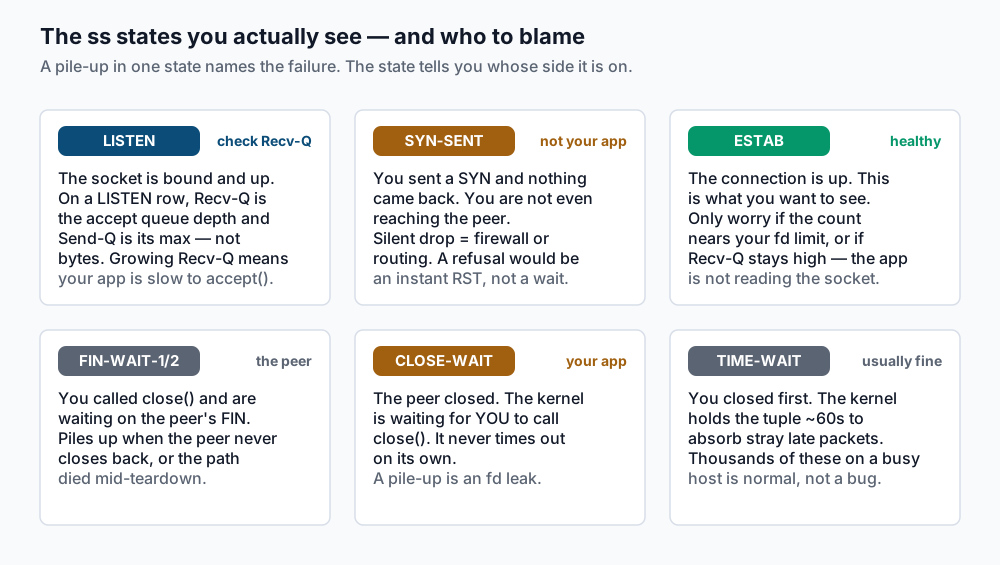
Read that map as an ownership chart. SYN-SENT means packets are not getting there — the network’s problem. CLOSE-WAIT means the peer hung up and your process never called close() — your code’s problem. TIME-WAIT means the kernel is doing exactly what the RFC tells it to — nobody’s problem.
Step-by-step
1. See what is listening, and who owns it. This single command replaces netstat -tlnp and is the one you will type most:
sudo ss -tlnpState Recv-Q Send-Q Local Address:Port Peer Address:Port Process
LISTEN 0 511 0.0.0.0:80 0.0.0.0:* users:(("nginx",pid=1041,fd=6),("nginx",pid=1040,fd=6))
LISTEN 0 4096 127.0.0.1:5432 0.0.0.0:* users:(("postgres",pid=892,fd=5))
LISTEN 0 511 [::]:80 [::]:* users:(("nginx",pid=1041,fd=7),("nginx",pid=1040,fd=7))
LISTEN 0 4096 127.0.0.1:6379 0.0.0.0:* users:(("redis-server",pid=744,fd=6))The flags decompose cleanly: -t TCP only, -l listening only, -n numeric (do not resolve :80 into :http), -p the owning process. Read Local Address carefully — 0.0.0.0:80 accepts from anywhere, 127.0.0.1:5432 only from this machine. That distinction is the most common cause of “the service is up but nothing can connect to it”.
2. See everything, not just listeners. Swap -l for -a:
sudo ss -tanp-a means both listening and non-listening, so you get LISTEN rows plus every ESTAB, TIME-WAIT and CLOSE-WAIT. On a busy host that is thousands of lines — which is why the next two steps exist.
3. Get the shape of the box in one line. Before you read individual sockets, read the totals:
ss -sTotal: 1243
TCP: 892 (estab 214, closed 601, orphaned 0, timewait 598)
Transport Total IP IPv6
RAW 1 0 1
UDP 12 8 4
TCP 291 270 21
INET 304 278 26
FRAG 0 0 0This is your triage entry point. 214 established and 598 in timewait on a host serving traffic is unremarkable. 214 established and 40,000 in close-wait is a bug, and you now know it before you have read a single socket row.
4. Filter by state instead of grepping. The state filter is kernel-side and exact:
ss -tn state established
ss -tn state time-wait
ss -tn state syn-sent
sudo ss -tnp state close-wait
Recv-Q Send-Q Local Address:Port Peer Address:Port Process
0 0 10.0.1.14:8080 10.0.1.7:51044 users:(("app",pid=2214,fd=57))
0 0 10.0.1.14:8080 10.0.1.7:51046 users:(("app",pid=2214,fd=58))Note what changed: with a state filter there is no State column, because it would be the same value on every row. The accepted names are the TCP states spelled in lower case with hyphens — established, syn-sent, syn-recv, fin-wait-1, fin-wait-2, time-wait, closed, close-wait, last-ack, listening, closing — plus the group shorthands all, connected (everything except listening and closed), synchronized (connected minus syn-sent), and bucket (the minisocket states, time-wait and syn-recv).
To count rather than read, pipe to wc -l (minus the header):
ss -tn state close-wait | wc -l5. Filter by address and port. Filter expressions go in single quotes so the shell leaves them alone:
ss -tn 'dport = :443'
ss -tn 'sport = :5432'
ss -tn 'src 10.0.0.0/8'
ss -tn state established '( dport = :5432 or dport = :6379 )'
dport is the remote port on an outbound connection, sport the local one. src and dst take a host or a CIDR block. The or form needs the parentheses, and the spaces around = are part of the syntax.
6. Look inside the connection. When a connection exists but feels wrong, -i prints the kernel’s own view of it:
sudo ss -tinp state established '( dport = :5432 )'Recv-Q Send-Q Local Address:Port Peer Address:Port Process
0 0 10.0.1.14:44120 10.0.1.9:5432 users:(("app",pid=2214,fd=31))
cubic wscale:7,7 rto:204 rtt:0.412/0.121 ato:40 mss:1448 pmtu:1500
cwnd:10 bytes_sent:2841 bytes_acked:2842 bytes_received:19422
segs_out:41 segs_in:39 send 281Mbps lastsnd:12 lastrcv:12 lastack:12
pacing_rate 562Mbps delivery_rate 48.2Mbps retrans:0/0 rcv_space:14480rtt:0.412/0.121 is smoothed round-trip time and its variance, in milliseconds. cwnd is the congestion window in segments. retrans:0/0 is current and total retransmits — a climbing second number means the path is dropping packets, a network fault dressed up as application slowness. lastrcv is milliseconds since the socket last received anything, which quietly identifies a hung connection.
7. The rest of the toolkit. More flags worth keeping in your fingers:
sudo ss -tonp state established    # -o adds timer:(keepalive,29sec,0)
sudo ss -tmnp state established    # -m adds skmem:(r0,rb131072,t0,tb87040,...)
sudo ss -tenp state established    # -e adds uid, inode, socket cookie
sudo ss -xa                        # Unix domain sockets
ss -uan                            # UDP sockets
-o is how you tell “idle but healthy, keepalive is running” from “stuck in retransmit”: the timer name is keepalive in the first case, on with a rising retransmit count in the second. -m shows socket buffer usage, which confirms whether a Recv-Q number is real memory pressure or a blip.
Validate it works
Three checks, in order.
Confirm the port is listening on the address you think it is. Do not accept “it’s up” from the service manager:
sudo ss -tlnp 'sport = :8080'Look at Local Address. 0.0.0.0:8080 or *:8080 accepts remote connections; 127.0.0.1:8080 does not. If you expect remote traffic and see loopback, stop here — you have found the bug.
Confirm the PID owns what you think it does. Take the pid from the users:(...) column and check it:
ps -p 2214 -o pid,user,cmdIf the owner is an old instance that never exited, that is why your restarted service is failing to bind.
Confirm a real connection reaches ESTAB. From a client machine, open a connection and watch the state on the server:
ss -tn state established '( sport = :8080 )'A row appearing means the handshake completed and the app accepted it — a much stronger statement than “the port is open”.
Troubleshooting
No process name in the output. You ran ss -tlnp and the Process column is empty. You are not root. The kernel will not tell an unprivileged user which process owns a socket it does not own. Re-run with sudo. Nothing else is wrong.
Service bound to 127.0.0.1, remote connects hang. ss -tlnp shows 127.0.0.1:8080. The service is running and the port is listening, yet remote clients get a timeout rather than a refusal: the SYN arrives, matches no listening socket on that interface, and is dropped. Fix it in the application config, not the firewall — bind to 0.0.0.0, or to the interface address you intend to serve — then re-check with ss -tlnp.
CLOSE-WAIT pile-up. Thousands of rows in ss -tnp state close-wait, all owned by one PID. CLOSE-WAIT means the peer sent FIN and the kernel is waiting for your process to call close(). There is no timeout — the kernel waits forever, holding a file descriptor the whole time. This is a bug in your code: a path that returns without closing, a missing defer conn.Close(), a pool that never reaps. The restart that “fixes” it buys hours, not a fix. If you also see accept: too many open files, the leak has reached your descriptor ceiling — see too many open files and ulimit.
SYN-SENT pile-up. Rows in ss -tn state syn-sent that sit there for seconds. Your host sent a SYN and got nothing back. Here is the distinction that matters: a refused connection returns an instant RST and never lingers in SYN-SENT. A socket stuck here means silence — a firewall dropping rather than rejecting, a security group with no matching rule, a route to nowhere, or a peer that is gone. Debug the path, not the application. If the destination came from a hostname, confirm you resolved to the address you expected — dig for DNS troubleshooting covers that half.
TIME-WAIT panic. Someone runs ss -s, sees timewait 24000, and opens an incident. Almost always: this is fine. TIME-WAIT is the side that closed first holding the four-tuple for roughly 60 seconds so stray late packets cannot be mistaken for a new connection. It is correctness, not a leak — each entry costs a little kernel memory and no file descriptor. It only matters when you are exhausting the local ephemeral port range to a single destination; check sysctl net.ipv4.ip_local_port_range before you believe it, and reach for connection reuse rather than the tuning blog that tells you to set tcp_tw_recycle, removed from the kernel in 4.12 because it broke NAT.
The listen backlog, read correctly
It is misread more than anything else in ss output.
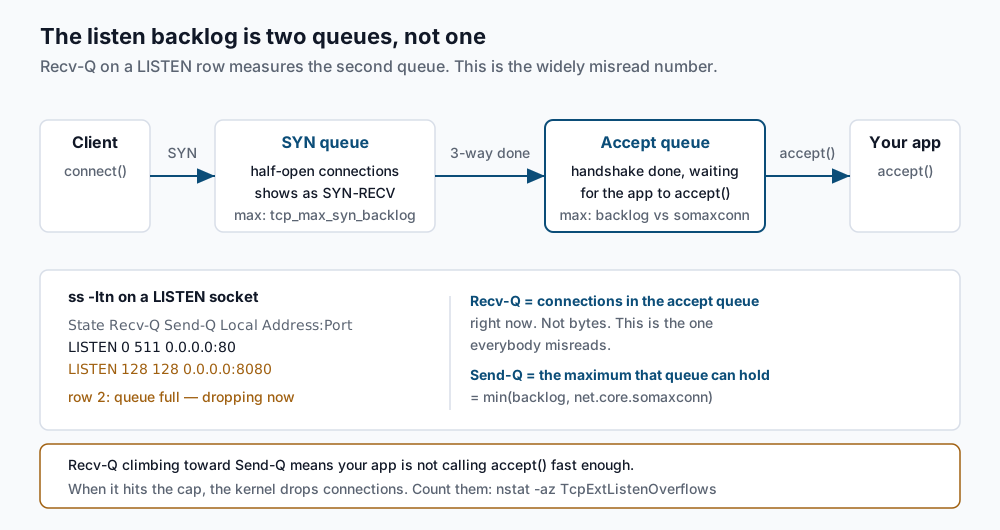
On an ESTAB row, Recv-Q and Send-Q are byte counts: data received but not yet read by the app, and data written but not yet acknowledged. On a LISTEN row they mean something completely different. Recv-Q is the number of established connections sitting in the accept queue waiting for your application to call accept(). Send-Q is the maximum that queue can hold — min(backlog, net.core.somaxconn), where backlog is the argument the app passed to listen(). Neither is a byte count.
So a LISTEN row reading Recv-Q 0, Send-Q 511 is a healthy listener with a 511-deep queue and nothing waiting. A row reading Recv-Q 128, Send-Q 128 is a full accept queue, and full means the kernel is dropping new connections right now. Clients see hangs and timeouts while your service looks perfectly alive.
Confirm the drops rather than inferring them:
nstat -az TcpExtListenOverflows TcpExtListenDrops#kernel
TcpExtListenOverflows 1420 0.0
TcpExtListenDrops 1420 0.0A counter that climbs while you watch is proof. The fix is upstream of the kernel: your app is not calling accept() fast enough — too few workers, workers blocked on something slow, an event loop stalled. Raising somaxconn and the app’s own backlog buys queue depth, converting drops into latency. Worth doing while you fix the real cause, but it is not the cause.
When this is the wrong approach
ss shows you sockets — the kernel’s accounting of connections. It does not show you packets. When the question is “what is actually on the wire”, that is tcpdump territory: a SYN-SENT socket tells you nothing came back, but only a capture tells you whether the SYN left the box, which interface it left by, or whether a RST arrived and got dropped somewhere in between.
ss also does not know about NAT. On a router, a Docker host, or anything doing masquerade, the socket table and the connection tracking table are different things — use conntrack -L to see translated tuples, and remember conntrack exhaustion produces its own drops that never show up in ss.
Finally, ss is scoped to its network namespace. Run it on the host and you will not see a bridged container’s sockets — you get the host’s view, a different set entirely. Use nsenter -t <pid> -n ss -tlnp, or run ss inside the container.
The ss(8) man page is short and worth reading once end to end.
If this is the kind of work you’d rather never own again, it’s the daily job of Managed Cloud Ops — book an infrastructure review.