This guide shows you how to use iperf3, a free command-line tool, to measure how much data one server can really send to another over the network. It is for anyone who manages Linux hosts and wants a real number instead of a guess.
You start iperf3 -s (server mode) on one host and iperf3 -c (client mode) on the other. The client then prints a table with the data transferred, the bitrate, Retr and Cwnd. Retr counts retransmissions, meaning data that had to be sent again. Cwnd is the TCP congestion window, the amount of data allowed in flight before the other side confirms receipt.
A common surprise is a result far below the link speed on a long-distance path, even though nothing is broken. A single TCP (Transmission Control Protocol) connection is capped by its window size divided by the round-trip time. You will learn which columns show whether you hit that cap or a real network fault, how to confirm it with parallel streams, and when to use a different tool.
What you’ll accomplish
- Run a clean bidirectional throughput test between two hosts and read every column of the output table.
- Tell a lossy or congested path apart from a correctly working path with an undersized TCP window.
- Use
-Pparallel streams and-wto prove which of the two you are looking at. - Measure packet loss and jitter with UDP mode, and understand why the default
-brate makes UDP results misleading. - Capture results as JSON so a scheduled run can be graphed or compared over time.
Prerequisites
iperf33.x installed on both hosts.apt install iperf3on Debian and Ubuntu,dnf install iperf3on the RHEL family. iperf3 shares no protocol with iperf2 — an iperf3 client cannot test against aniperf(2.x) server, and mismatched 3.x point releases occasionally disagree on newer options.- TCP port 5201 reachable from client to server, plus UDP 5201 if you intend to run UDP tests. Pick another port with
-pwhen 5201 is taken. If the host runs a firewall, open the port with ufw for the client address only, not the whole internet. - No root needed on either side for the default port. Root is only required if you bind below 1024.
- An honest caution:
iperf3 -swith no options listens on every interface and will happily saturate your uplink for anyone who connects. Run it on trusted networks, bind it to one address with-B, and stop it when the test is done. It is a measurement tool, not a service. - Both hosts reasonably idle. A busy CPU or a noisy neighbour changes the answer more than most network faults do.
How it works
iperf3 is a client/server pair. The server listens on 5201, and the client opens a control connection, negotiates the test parameters, then opens one or more data streams and pushes generated bytes as fast as the socket accepts them. Nothing is read from disk and nothing is stored, so the number you get is the transport’s ceiling rather than an application’s.
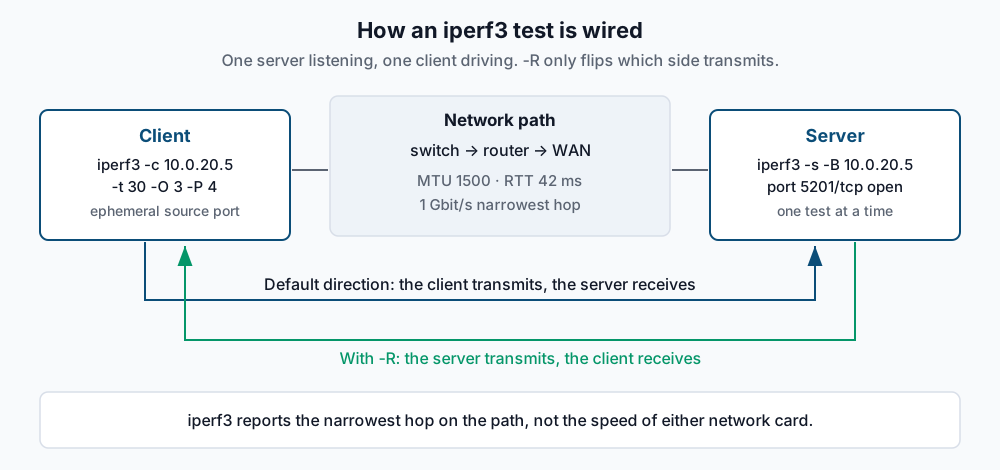
By default the client transmits and the server receives. That matters more than people expect: many paths are asymmetric, either by policy (an ISP shaping upload) or by fault (a bad optic in one direction only). -R reverses the roles inside the same session, so the server transmits and the client receives, and you should always run both.
The single most useful piece of theory here is the bandwidth-delay product. A TCP sender can have at most one congestion window of unacknowledged data in flight, so its maximum rate is roughly cwnd / RTT. On a 1 Gbit/s path with 42 ms of round-trip time, filling the pipe needs about 5.25 MB in flight. Linux autotunes the send buffer up to net.ipv4.tcp_wmem, commonly 4 MiB out of the box, and the usable window ends up smaller than that after overhead. So one stream on that path tops out somewhere around 700 Mbit/s no matter how healthy the link is. Two conclusions follow: a low single-stream number on a long path is normal, and the fix is more windows (-P) or a bigger one (-w), not a ticket to the carrier.
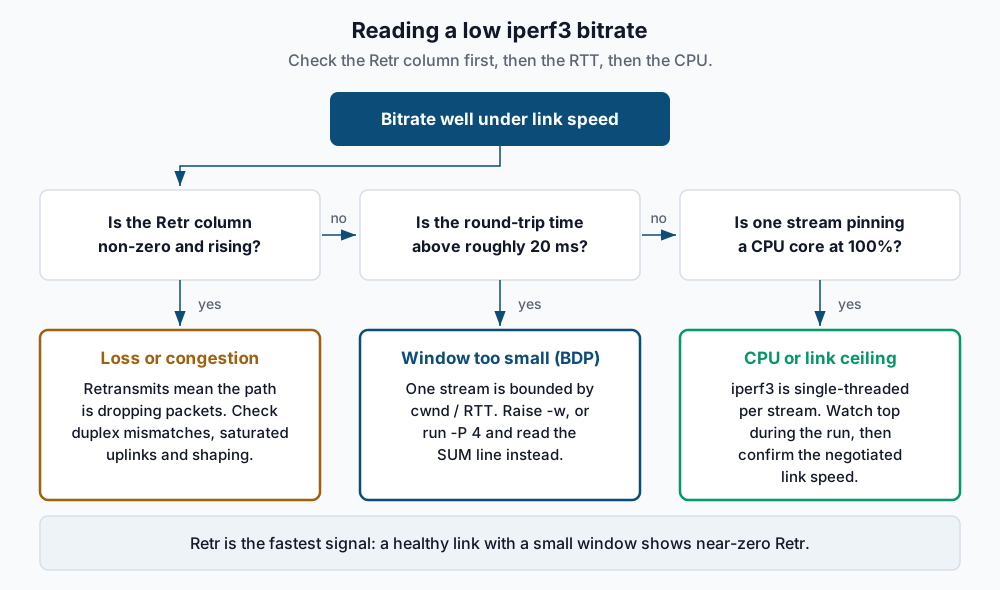
The Retr column is the fastest diagnostic in the tool. Retransmits mean segments were lost, which on a wired LAN means a real fault — duplex mismatch, a failing port, an oversubscribed uplink, or a shaper dropping instead of queueing. A near-zero Retr alongside a low bitrate says the path is clean and the sender simply never had enough data in flight.
Step-by-step
1. Confirm both sides run compatible builds. Do this first; it explains most of the confusing failures:
iperf3 --versioniperf 3.16 (cJSON 1.7.15)
Linux node-a 6.8.0-45-generic #45-Ubuntu SMP x86_64
Optional features available: CPU affinity setting, IPv6 flow label, TCP congestion algorithm setting, sendfile / zerocopy, socket pacing, authentication, bind to device, support IPv4 don't fragmentCompare the first line on both hosts. The version numbers do not have to be identical, but the major version does.
2. Start the server, bound and in the foreground. Binding with -B keeps it off every other interface:
iperf3 -s -B 10.0.20.5-----------------------------------------------------------
Server listening on 5201 (test #1)
-----------------------------------------------------------Leave it running in this terminal so you can watch connections arrive and stop it with Ctrl+C. -D daemonises it and -1 makes it exit after a single test, which is the safer pattern for an unattended box.
3. Run a baseline test. Ten seconds, one stream, one-second intervals:
iperf3 -c 10.0.20.5 -t 10 -i 1Connecting to host 10.0.20.5, port 5201
[ 5] local 10.0.10.4 port 51234 connected to 10.0.20.5 port 5201
[ ID] Interval Transfer Bitrate Retr Cwnd
[ 5] 0.00-1.00 sec 38.2 MBytes 320 Mbits/sec 0 1.31 MBytes
[ 5] 1.00-2.00 sec 76.2 MBytes 639 Mbits/sec 0 2.62 MBytes
[ 5] 2.00-3.00 sec 81.2 MBytes 681 Mbits/sec 0 3.05 MBytes
[ 5] 3.00-4.00 sec 82.5 MBytes 692 Mbits/sec 0 3.05 MBytes
[ 5] 4.00-5.00 sec 82.5 MBytes 692 Mbits/sec 0 3.05 MBytes
- - - - - - - - - - - - - - - - - - - - - - - - -
[ ID] Interval Transfer Bitrate Retr
[ 5] 0.00-10.00 sec 735 MBytes 617 Mbits/sec 0 sender
[ 5] 0.00-10.04 sec 733 MBytes 612 Mbits/sec receiver
iperf Done.4. Read the table properly. Transfer is bytes moved in that interval, Bitrate the same figure as a rate, Retr the retransmitted segments during that interval, and Cwnd the congestion window at the end of it. Two summary lines close the run: sender is what the transmitting side believes it pushed, receiver is what actually arrived. A small gap is normal — the receiver’s interval is slightly longer. A large gap means data was lost in flight. In the run above, Cwnd climbs to 3.05 MB and stops, Retr stays at zero, and 3.05 MB over 42 ms is almost exactly the 617 Mbit/s reported. That is a textbook window ceiling, not a network fault.
5. Discard the slow-start ramp. Those first two intervals dragged the average down while TCP was still opening the window. -O omits the first N seconds from the summary:
iperf3 -c 10.0.20.5 -t 30 -O 5 -i 5[ ID] Interval Transfer Bitrate Retr
[ 5] 0.00-30.00 sec 2.42 GBytes 693 Mbits/sec 0 sender
[ 5] 0.00-30.04 sec 2.41 GBytes 690 Mbits/sec receiverThirty seconds with five omitted is a sane default for anything crossing a WAN. Ten-second tests on long paths measure slow start more than they measure the path.
6. Test the other direction. -R flips who transmits, on the same control connection and the same server:
iperf3 -c 10.0.20.5 -t 30 -O 5 -R[ ID] Interval Transfer Bitrate Retr
[ 5] 0.00-30.04 sec 1.02 GBytes 291 Mbits/sec 1842 sender
[ 5] 0.00-30.00 sec 1.01 GBytes 290 Mbits/sec receiverHalf the forward rate and 1842 retransmits: this direction is genuinely lossy. --bidir runs both ways simultaneously, which is a different and harsher test — use it to check whether the two directions interfere, not as a substitute for two clean one-way runs.
7. Use parallel streams to separate window from wire. Each stream gets its own congestion window, so -P multiplies the data you can hold in flight without touching any kernel setting:
iperf3 -c 10.0.20.5 -t 30 -O 5 -P 4[ ID] Interval Transfer Bitrate Retr
[SUM] 0.00-30.00 sec 3.28 GBytes 940 Mbits/sec 0 sender
[SUM] 0.00-30.04 sec 3.27 GBytes 936 Mbits/sec receiverRead the [SUM] line, not the per-stream rows. One stream gave 693 Mbit/s and four give 940 on a gigabit link: the path was always fine and the single stream was window-limited. If four streams total the same as one, you found a real bottleneck.
8. Or raise the window directly. -w sets the socket buffer, and the kernel doubles the value you ask for while disabling autotuning for that socket:
iperf3 -c 10.0.20.5 -t 30 -O 5 -w 8M[ 5] local 10.0.10.4 port 51248 connected to 10.0.20.5 port 5201
[ ID] Interval Transfer Bitrate Retr Cwnd
[ 5] 0.00-30.00 sec 3.26 GBytes 933 Mbits/sec 0 8.12 MBytesThis is a diagnostic, not a fix. If -w 8M solves it, the durable change is raising net.ipv4.tcp_rmem and net.ipv4.tcp_wmem on the real workload’s hosts.
9. Measure loss and jitter with UDP. UDP mode does not back off, so it reports what the path drops. The critical detail: -u alone sends at only 1 Mbit/s in iperf3, so you must set -b to the rate you want to offer:
iperf3 -c 10.0.20.5 -u -b 900M -t 20 -O 2[ ID] Interval Transfer Bitrate Jitter Lost/Total Datagrams
[ 5] 0.00-20.00 sec 2.09 GBytes 900 Mbits/sec 0.000 ms 0/1589424 (0%) sender
[ 5] 0.00-20.04 sec 2.06 GBytes 885 Mbits/sec 0.084 ms 25937/1589424 (1.6%) receiverOnly the receiver line carries usable loss and jitter figures; the sender line reports what it handed to the socket. Use -b 0 for unlimited only when you want to find the cliff, and expect to lose a lot of packets and to hurt anything else sharing the path.
10. Emit JSON for scripted runs. --json replaces the whole table with one machine-readable document:
iperf3 -c 10.0.20.5 -t 30 -O 5 --json | jq '.end.sum_sent.bits_per_second, .end.sum_sent.retransmits'693114882.1
0Add --logfile to write it somewhere from a cron job, and --get-server-output to fold the server’s view into the same document.
Validate it works
Check the server actually saw the test. The server terminal prints each connection, and the identifiers should match the client’s:
Accepted connection from 10.0.10.4, port 51232
[  5] local 10.0.20.5 port 5201 connected to 10.0.10.4 port 51234
[ ID] Interval           Transfer     Bitrate
[  5]   0.00-30.04  sec  2.41 GBytes   690 Mbits/sec
Check the result against the negotiated link speed. A test that reports 94 Mbit/s on hardware you believe is gigabit is usually a duplex or autonegotiation problem, not a tuning one:
ethtool eno1 | grep -E 'Speed|Duplex' Speed: 1000Mb/s
Duplex: FullCheck the run was repeatable. Three consecutive 30-second runs should land within a few percent of each other. Wide scatter means something else is using the path, and every number you took is suspect.
Troubleshooting
iperf3: error - unable to connect to server: Connection refused. Nothing is listening on that address and port. Confirm the server process is up, confirm you did not bind it with-Bto an address the client cannot reach, and confirm the port matches on both sides. AConnection timed outinstead ofrefusedpoints at a firewall silently dropping rather than at a missing listener.iperf3: error - the server is busy running a test. try again later. iperf3 serves one test at a time by design. Either someone else is testing, or a previous client died and the server has not timed out yet. Wait, or run a second server on another port with-p 5202.- The client hangs, then fails with a control-message error. Classic version mismatch. An iperf3 client pointed at an iperf 2.x server never completes the handshake, because they share a port number and nothing else. Run
iperf3 --versionon both hosts and check the binary name —iperfandiperf3are separate packages that can be installed side by side. - UDP results look absurdly low and loss-free. You forgot
-b. Without it iperf3 offers 1 Mbit/s, so nothing drops. Set-bto a rate near the expected capacity, and remember the receiver line is the one that counts. - The bitrate stalls at a round number well under the link and
Retris zero. Look at CPU before the network. iperf3 handles each stream in one thread, so a single stream cannot exceed what one core can do — commonly a wall somewhere in the 10 to 40 Gbit/s range depending on the CPU, the MTU and whether offloads are on. Watchtopduring the run; a thread pinned at 100% is your answer. Spread the work with-Pand pin with-Aif needed. On 25 Gbit/s and faster links, treat iperf3 as a smoke test rather than a measurement of the hardware. - Numbers disagree with what the application sees. iperf3 measures a bulk stream with no think time, no TLS and no request/response turns. If your application is chatty, latency dominates and throughput tests will not reflect it. Capture the real traffic instead — use tcpdump with capture filters to look at what the application is actually doing on the wire.
When this is the wrong approach
- Diagnosing latency or jitter for interactive traffic. A throughput test deliberately fills queues, which inflates the very latency you are trying to measure. Use
ping,mtrorirttfor that, and run them when iperf3 is not running. - Testing above roughly 25 Gbit/s. The tool becomes the bottleneck. You will be measuring your CPU, your MTU and your driver’s offload settings. Purpose-built harnesses or hardware traffic generators belong here.
- Testing over the public internet as a capacity check. You are measuring the worst hop between you and a server you do not control, plus whatever shaping sits in the middle, plus that server’s load. It is a useful reachability sanity check and a poor capacity number.
- Proving a link is healthy when the complaint is about an application. Full line rate between two hosts tells you nothing about a slow database query, a saturated connection pool, or DNS resolution taking two seconds. Confirm where the time goes before reaching for a bandwidth test.
- On a network you do not own or have not been asked to test. Deliberately saturating a link is disruptive and looks exactly like an attack in someone else’s monitoring. Get agreement first, and schedule it.
The authoritative reference is the ESnet iperf3 documentation, which covers every flag and the JSON output schema.
If this is the kind of work you’d rather never own again, it’s the daily job of Managed Cloud Ops — book an infrastructure review.