nmap sends crafted probes to a host and reports back which TCP and UDP ports answer, what state each one is in, and — if you ask — what software is listening. Run against infrastructure you own, it is an inventory and verification tool: it tells you which ports the outside world can actually reach, whether a firewall change did what you intended, and whether a service you thought you shut off is still listening. A typical run looks like sudo nmap -sS -sV -p- 10.0.3.9, and the answer that matters is the state column — open, filtered, or closed — because each one is a different statement about your firewall. This guide stays on the defensive side of the tool: scanning your own hosts to confirm reality matches intent.
What you’ll accomplish
- Discover which hosts on a subnet are up with a ping sweep, without touching a single port.
- Choose the right scan type for your privileges — SYN scan as root, connect scan when you are not.
- Select ports deliberately with
-p,-p-, and--top-ports, and understand why UDP scanning is slow and vague. - Fingerprint services and versions with
-sV, run the default script set with-sC, and read OS guesses with-O. - Save every scan in a parseable format so you can diff two scans and prove a firewall change had exactly the effect you wanted.
Prerequisites
- Authorization first, always. Scan only hosts you own or have explicit, written permission to test. Port scanning someone else’s infrastructure violates the acceptable-use policy of every cloud provider and network you would run it across, and in many jurisdictions it is a criminal offence regardless of intent. This guide assumes the target is your own VM, your own subnet, or a system whose owner has authorized you in writing. If you cannot point to that authorization, stop here.
- nmap installed. Check with
nmap --version; you should see something likeNmap version 7.94— anything 7.x supports every flag here. Install it withapt install nmap,dnf install nmap, or on macOSbrew install nmap. - Root, for the scan types that build raw packets.
-sS(SYN scan),-sU(UDP),-O(OS detection), and traceroute all needCAP_NET_RAW, so in practice you runsudo nmap. Without root, nmap silently falls back to a connect scan — usable, but slower and more visible in the target’s logs. - Know your target’s address or range. A single host (
10.0.3.9), a CIDR range (10.0.3.0/24), a hyphenated range (10.0.3.1-50), or a hostname all work.
How it works
nmap runs in phases. It first decides which targets are alive (host discovery), then which ports on each live host are worth probing, then optionally what is running behind those ports. Each phase narrows the work for the next, which is why a full -p- scan of a /24 with version detection can take minutes while a ping sweep of the same range takes seconds. Understanding the phases is also how you read the output: a port’s state is nmap’s interpretation of how the target replied to a probe, and that interpretation is the whole value of the tool.
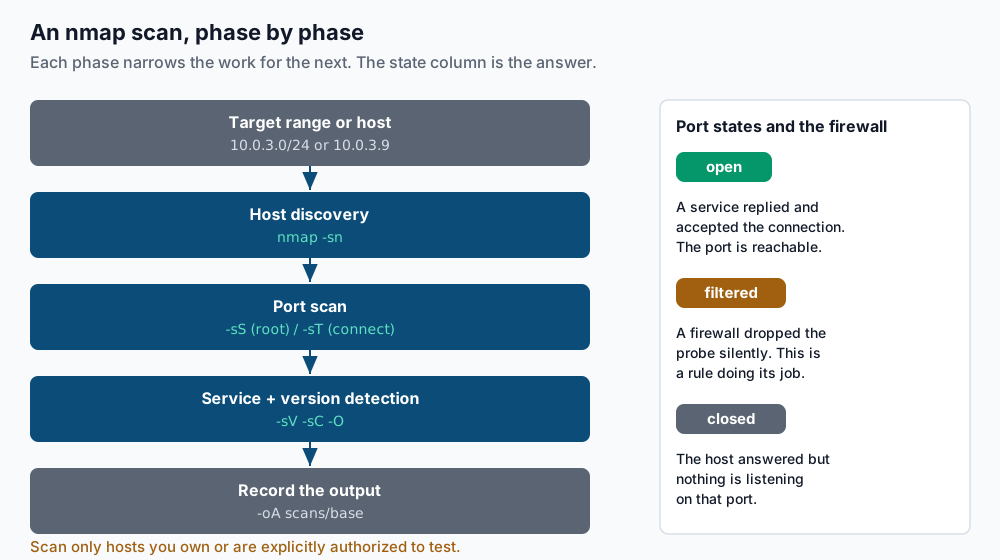
The three states you will read most are open (something replied and accepted the connection), closed (the host answered but no service is listening on that port), and filtered (nmap got no useful answer — a firewall dropped the probe silently). That third state is the one worth internalizing: filtered is what a correctly configured firewall produces, and seeing it on a port you meant to block is the confirmation you were looking for.
Step-by-step
1. Find out which hosts are up. A ping sweep (-sn) does host discovery only — no port scan — so it is fast and cheap for taking inventory of a subnet:
sudo nmap -sn 10.0.3.0/24Starting Nmap 7.94 ( https://nmap.org )
Nmap scan report for 10.0.3.1
Host is up (0.00042s latency).
Nmap scan report for 10.0.3.9
Host is up (0.00061s latency).
Nmap scan report for 10.0.3.24
Host is up (0.00088s latency).
Nmap done: 256 IP addresses (3 hosts up) scanned in 2.31 secondsThree hosts answered out of 256 addresses. On a local subnet nmap uses ARP for discovery, which is both fast and hard for a host firewall to suppress; across a router it falls back to ICMP and a few TCP probes.
2. Run the default scan on one host. With no scan-type flag and root, nmap runs a SYN scan of its top 1000 ports. -sS makes that explicit:
sudo nmap -sS 10.0.3.9Nmap scan report for 10.0.3.9
Host is up (0.00058s latency).
Not shown: 997 closed tcp ports (reset)
PORT STATE SERVICE
22/tcp open ssh
80/tcp open http
443/tcp open https
Nmap done: 1 IP address (1 host up) scanned in 0.34 secondsThe SYN scan sends a SYN, watches for the SYN-ACK that means open or the RST that means closed, and never completes the handshake. It needs root because it builds raw packets. Not shown: 997 closed tcp ports is nmap telling you the other 997 of its top-1000 list answered with RST — the host is reachable and simply not listening there.
3. Use a connect scan when you are not root. Without privileges, nmap cannot forge raw packets, so it asks the kernel to complete a full TCP handshake with -sT:
nmap -sT 10.0.3.9Nmap scan report for 10.0.3.9
Host is up (0.00071s latency).
Not shown: 997 closed tcp ports (conn-refused)
PORT STATE SERVICE
22/tcp open ssh
80/tcp open http
443/tcp open https
Nmap done: 1 IP address (1 host up) scanned in 0.39 secondsSame result, different mechanism: conn-refused instead of reset in the “not shown” line is the tell that this was a connect scan. It is slower on large port ranges and shows up as completed connections in the target’s application logs, so prefer -sS when you have root and -sT only when you do not.
4. Choose ports on purpose. By default nmap scans 1000 common ports. -p names specific ports or ranges, -p- scans all 65535, and --top-ports N scans the N most common:
sudo nmap -sS -p 22,80,443,5432 10.0.3.9PORT STATE SERVICE
22/tcp open ssh
80/tcp open http
443/tcp open https
5432/tcp filtered postgresqlHere 5432/tcp filtered is the interesting line: PostgreSQL is meant to be firewalled off from this network, and filtered confirms the firewall is dropping probes to it. For a full audit, sudo nmap -sS -p- 10.0.3.9 scans every port and catches a service someone stood up on an odd high port — it takes longer, so save it for the thorough pass rather than the quick check.
5. Scan UDP separately, and expect it to be slow. UDP has no handshake, so nmap sends a packet and infers state from silence or an ICMP error. That makes -sU slow and its results vaguer:
sudo nmap -sU --top-ports 20 10.0.3.9PORT STATE SERVICE
53/udp open domain
123/udp open ntp
161/udp open|filtered snmp
Nmap done: 1 IP address (1 host up) scanned in 18.44 secondsopen|filtered is UDP’s honest shrug: a closed UDP port replies with an ICMP port-unreachable, but an open port often stays silent — and so does a firewalled one — so nmap cannot always tell them apart. Keep UDP scans to the ports you actually care about (--top-ports 20 or an explicit -p), because a full UDP sweep can take hours.
6. Fingerprint services and versions. -sV connects to each open port and reads banners to name the software and version. -sC runs nmap’s default safe scripts; -O guesses the OS; -A bundles all three plus traceroute:
sudo nmap -sS -sV -p 22,80,443 10.0.3.9PORT STATE SERVICE VERSION
22/tcp open ssh OpenSSH 9.6p1 Ubuntu 3ubuntu13.5 (Ubuntu Linux; protocol 2.0)
80/tcp open http nginx 1.24.0 (Ubuntu)
443/tcp open http nginx 1.24.0 (Ubuntu)
Service Info: OS: Linux; CPE: cpe:/o:linux:linux_kernelNow you can see not just that SSH is open but that it is OpenSSH 9.6p1 — the version detail that lets you check it against a known-vulnerable list. Add -sC for the default scripts (they will, for example, pull the TLS certificate details off 443) or reach for -A when you want everything and do not mind the extra time and noise.
7. Set the timing template. -T0 through -T5 trade speed against politeness and stealth. -T3 is the default; -T4 speeds things up by assuming a fast, reliable network:
sudo nmap -sS -T4 -p- 10.0.3.9On your own LAN, -T4 is the right default — the network is fast, you are not worried about tripping your own alarms, and it turns a slow full-port scan into a quick one. Save -T0 and -T1 for the rare case where you are deliberately pacing a fragile target; -T5 is aggressive enough to drop results on a lossy link, so reach for it only on a genuinely fast, local network.
8. Write the results down. For anything you want to keep or compare, save machine-readable output. -oN is normal text, -oG is greppable, -oX is XML, and -oA <base> writes all three at once:
sudo nmap -sS -sV -p- -oA scans/db-2026-07-27 10.0.3.9Nmap done: 1 IP address (1 host up) scanned in 24.10 secondsThat leaves scans/db-2026-07-27.nmap, .gnmap, and .xml. The greppable file is the one you diff over time — each open port is on its own line, so a diff of last week’s scan against today’s shows exactly what changed on the host.
Validate it works
Prove the loop end to end against a service you control. Start a throwaway listener on a known port:
nc -l -p 9999 &Then scan just that port and confirm nmap sees it move to open:
nmap -sT -p 9999 127.0.0.1PORT STATE SERVICE
9999/tcp open distinct
Nmap done: 1 IP address (1 host up) scanned in 0.06 secondsStop the listener with kill %1 and scan again: the same port now reports closed (the host answered, nothing is listening). That transition — open while the process runs, closed after you stop it — is your reference for what a real state change looks like, and it is the exact signal you rely on when verifying a firewall rule: block the port, rescan, and confirm it flips to filtered instead.
Troubleshooting
- Every port shows
filtered. Two common causes. Either a firewall really is dropping all your probes — which for a locked-down host is correct and expected — or you asked for a scan type you cannot run. If you ran-sSwithout root, nmap may have failed to send raw packets; rerun withsudo, or switch to-sT, which needs no privileges. Iffilteredpersists under sudo against a host you know is open, the drop is upstream: a cloud security group or network ACL between you and the target. You requested a scan type which requires root privileges.-sS,-sU, and-Oall build raw packets and needCAP_NET_RAW. Run the command undersudo, or if you genuinely have no root, use-sTfor TCP — it is the unprivileged path and gives the same open/closed answer, just more slowly and more visibly.- A host you know is up reports “Host seems down”. nmap skips port-scanning a host that fails discovery, and a host that drops ICMP looks down to the default probes. Add
-Pnto skip discovery and scan it anyway:sudo nmap -Pn -sS 10.0.3.9. This is routine against hardened hosts and most cloud VMs, which drop ping by policy. - The scan is too slow. Full
-p-with-sVon a slow link is genuinely minutes of work. Cut the scope: scan--top-ports 100instead of all 65535, drop-sVuntil you know which ports are open, and on your own fast LAN raise the timing with-T4. If UDP is the slow part, restrict it to the handful of UDP ports you actually run. - UDP results are all
open|filtered. This is UDP working as designed, not a bug. An open UDP port that does not reply to an empty probe is indistinguishable from a filtered one. To resolve it, add-sVso nmap sends protocol-specific payloads that provoke a real answer, or accept the ambiguity and confirm the service another way — from the host itself,ss -lunlists the UDP sockets actually bound.
When this is the wrong approach
nmap tells you what is reachable from where you are standing, which is exactly the wrong lens for some questions. If you want to know what a host is listening on regardless of any firewall in between, run ss -ltnp on the host itself — it is instant, authoritative, and needs no scan. If your question is about the firewall rules rather than their effect, read them directly; UFW firewall basics covers auditing and changing them, and a scan is how you verify the change afterward, not how you make it. If a name is resolving to the wrong address and a “connection refused” is really a DNS problem, dig for DNS troubleshooting gets you there faster than any port scan. And when you need to see the actual packets an nmap probe produces — to understand why a port reads filtered — capture and filter traffic with tcpdump shows the probe leaving and whatever, if anything, comes back. The full reference for every flag is the official nmap manual. Above all: keep scanning to hosts you own or are authorized to test, and keep the saved output somewhere you can point to later.
If this is the kind of work you’d rather never own again, it’s the daily job of Managed Cloud Ops — book an infrastructure review.