When a request is slow, failing, or answering wrong, curl -v shows you the whole conversation — the exact bytes sent, the exact bytes received, and the connection and TLS notes in between — while -w breaks the latency into phases so you can say where the time went rather than just that it was slow. Between those two flags you can settle almost any “is it us or is it them” argument without opening a browser.
What you’ll accomplish
- See the full request and response as curl sends and receives it, headers and all.
- Break the round trip into DNS, TCP connect, TLS handshake, and time-to-first-byte, and name the slow phase.
- Inspect headers, status codes, and every hop of a redirect chain.
- Reproduce a failure in one line and isolate whether it is an origin, DNS, or TLS problem.
Prerequisites
- curl 7.x or 8.x. Check with
curl --version; anything from the last several years is fine. The%{...}timing variables used here are old and safe — they have shipped for well over a decade. A few flags are newer:--fail-with-bodyneeds 7.76+, and--jsonneeds 7.82+, so this guide sticks to--dataand-Hfor portability. - A shell. Everything here is a single command you can paste and read.
- A URL to test. A public endpoint like
https://example.comis enough to follow along; swap in your own origin when you diagnose for real. - Honesty about what curl shows you: the transport view, not the browser view. curl runs no JavaScript, shares nothing with your browser cache or cookies, and follows no
<meta>refreshes. It tells you what the server actually sent — which is often exactly the discrepancy you are chasing when “it works in curl but not in the browser,” or the reverse.
How it works
Every HTTP(S) request curl makes moves through the same fixed sequence, and curl can time each boundary. It resolves the hostname to an address (DNS), opens a TCP connection to it (connect), negotiates TLS on top of that connection if the scheme is https (curl calls this appconnect), sends the request, waits while the server does its work, receives the first byte of the response (starttransfer), and finally finishes reading the body (total).
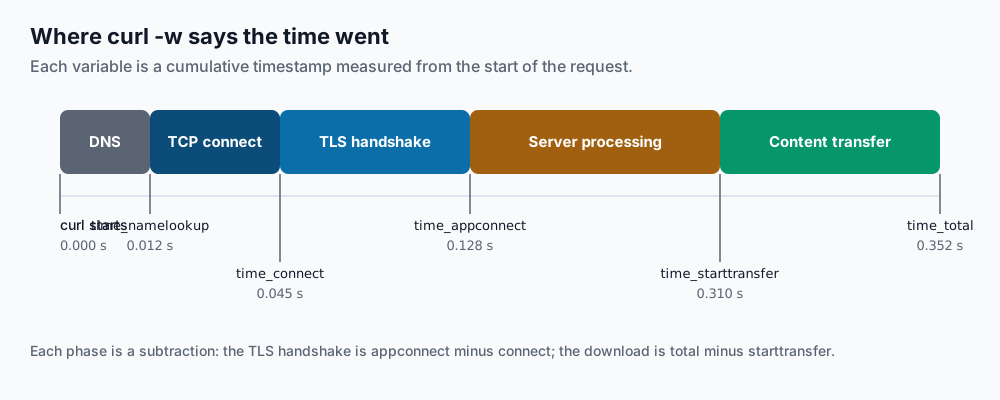
Two things about that picture matter for reading output. First, with -v, curl annotates the live conversation: lines beginning * are curl’s own notes about the connection and TLS, lines beginning > are bytes curl sent, and lines beginning < are bytes curl received. Second, every -w timing variable is cumulative from the start of the request, not the duration of one phase. time_appconnect is the clock reading at the moment TLS finished — so the TLS handshake alone is time_appconnect minus time_connect. Keep that subtraction in mind and the numbers stop being confusing.
Step-by-step
1. Watch the whole conversation with -v. This is the first thing to run against any URL that is misbehaving. Read the prefixes: * for connection and TLS notes, > for what you sent, < for what came back.
curl -v https://example.com* Trying 93.184.216.34:443...
* Connected to example.com (93.184.216.34) port 443
* ALPN: server accepted h2
* SSL connection using TLSv1.3 / TLS_AES_256_GCM_SHA384
* Server certificate:
* subject: CN=example.com
* issuer: C=US; O=DigiCert Inc; CN=DigiCert TLS RSA SHA256 2020 CA1
> GET / HTTP/2
> Host: example.com
> user-agent: curl/8.6.0
> accept: */*
>
< HTTP/2 200
< content-type: text/html; charset=UTF-8
< content-length: 1256
<The success signal is the < HTTP/2 200 line: a response came back with a status. The * block above it tells you the negotiated protocol (h2) and TLS version, and confirms which certificate the server presented — the fastest way to catch a wrong or expired cert.
2. Ask for headers only. When you care about status and headers, not the body, -I sends a HEAD request and prints only the response headers. Use -i instead when you want the headers and the body of a normal GET.
curl -I https://example.comHTTP/2 200
content-type: text/html; charset=UTF-8
content-length: 1256
cache-control: max-age=604800
date: Sun, 26 Jul 2026 14:02:11 GMTOne caveat: some servers handle HEAD differently from GET (a few reject it outright, or a CDN reports a different cache status). If a HEAD looks wrong, confirm with curl -i before blaming the server.
3. Break the latency into phases with -w. The -w (write-out) flag prints variables after the transfer completes. Point the body at /dev/null with -o and silence the progress meter with -s so only your timing line prints. This one format string is worth keeping in a shell alias:
curl -w 'dns:%{time_namelookup}s connect:%{time_connect}s tls:%{time_appconnect}s ttfb:%{time_starttransfer}s total:%{time_total}s\n' -o /dev/null -s https://example.comdns:0.012s connect:0.045s tls:0.128s ttfb:0.310s total:0.352sRead it as cumulative clock readings, then subtract to find each phase. Here DNS took 12 ms, the TCP handshake added 33 ms (0.045 − 0.012), TLS added 83 ms (0.128 − 0.045), the server thought for 182 ms before the first byte (0.310 − 0.128), and the body took the last 42 ms. The big number tells you which team to call.
4. Follow redirects and see each hop. By default curl shows you one response and stops. Add -L to follow Location headers, and combine with -v (or -I -L) to watch every hop resolve.
curl -I -L http://example.comHTTP/1.1 301 Moved Permanently
location: https://example.com/
HTTP/2 200
content-type: text/html; charset=UTF-8Each block is one hop. This is how you confirm an http to https upgrade fires exactly once, or catch a chain that bounces through three hostnames before landing — latency you would otherwise never see.
5. Force resolution to hit a specific origin. Behind a CDN or load balancer, DNS points you at the edge, not the machine you want to test. --resolve host:port:address overrides DNS for that one name and port only, so the URL, the Host header, and the TLS SNI stay correct while the connection goes where you aim it.
curl -v --resolve example.com:443:203.0.113.10 https://example.com* Added example.com:443:203.0.113.10 to DNS cache
* Trying 203.0.113.10:443...
* Connected to example.com (203.0.113.10) port 443The Connected to example.com (203.0.113.10) line is the proof: the hostname is unchanged but the address is the one you chose. This is how you test one backend behind a round-robin, or a new origin before you cut DNS over to it.
6. Make failures scriptable. By default curl prints the server’s error body and still exits 0 on an HTTP 404 or 500 — a trap in scripts. --fail makes curl exit non-zero on any 4xx/5xx and print nothing; --fail-with-body does the same but keeps the error body so you can log it. Pair with -o /dev/null -s and -w '%{http_code}' for a clean check.
curl --fail-with-body -s -o /dev/null -w '%{http_code}\n' https://example.com/does-not-exist404The command exits non-zero (check with echo $?), so it slots straight into a health check or CI step. A printed 000 instead of a code means no HTTP response arrived at all — connection refused, DNS failure, or timeout — which is a different class of problem from any real status.
7. Send a JSON POST and read the answer. -X POST sets the method, -H sets a header, and --data supplies the body. Pipe the response through jq to pretty-print and query it.
curl -s -X POST -H 'Content-Type: application/json' --data '{"name":"harbor","region":"ca"}' https://example.com/api/echo | jq .{
"name": "harbor",
"region": "ca"
}If jq errors on the input, the server did not return JSON — drop the pipe and run the raw curl -i to see the real Content-Type and body, which is usually an HTML error page in disguise.
Validate it works
Three quick checks confirm you read the tools right. In the -v output, the * lines should name a real protocol and TLS version — ALPN: server accepted h2 and SSL connection using TLSv1.3 — proving the handshake actually completed rather than curl guessing. In the -w line, the sums should make sense: on HTTPS, time_appconnect is always larger than time_connect because TLS happens after the TCP handshake; on plain HTTP, time_appconnect reads 0.000000 because there is no TLS phase at all — a fast way to confirm you really hit http and not https. And when you use --resolve, the Connected to <host> (<address>) line must show the address you forced, not the one DNS would have returned; if it shows the old address, your host:port did not match the URL exactly.
Troubleshooting
SSL certificate problem. curl refused the cert — self-signed, expired, or issued for a different hostname.-k(--insecure) skips verification and is fine for a quick local test, but never in a script or against anything real, because it turns off the check that a TLS connection exists to provide. The right fixes: if the cert is valid but you reached the wrong box, use--resolveto hit the correct origin; if it is a private CA, trust it explicitly with--cacert /path/to/ca.pemrather than disabling verification wholesale.Could not resolve host. DNS failed before any connection was attempted, so this is not an origin problem. Confirm the name resolves at all (getent hosts example.comordig example.com), check/etc/resolv.conf, and if the record simply is not published yet, use--resolveto point curl at the intended address and keep testing.Connection refusedversus a hang. These are two different faults.Connection refusedis immediate and means the address is reachable but nothing is listening on that port — the wrong port, or a service that is down. A request that hangs until it times out means packets are going into silence — a firewall or security group dropping them, or the wrong address entirely. Refused points at the service; a timeout points at the network path.- A redirect loop. If
-Lspins and eventually stops withMaximum (50) redirects followed, the site is bouncing between locations — commonly anhttptohttpsrule that also strips the scheme, or a cookie the redirect target keeps demanding. Cap it lower to see the loop clearly with--max-redirs 5, then read theLocationheaders with-vto find the two URLs it ping-pongs between. - The body looks like garbage. A response full of binary noise usually means it is gzip- or brotli-compressed and you asked for it raw. Add
--compressedso curl advertises the encodings it can handle and decodes the reply. If it is still unreadable after that, check theContent-Type— you may be looking at an image or a protobuf, not text.
When this is the wrong approach
curl shows the transport, which stops being enough the moment the problem lives above it. If a page renders wrong only in a browser — layout, a script that fails, a cache or cookie interaction — curl will not reproduce it, because curl runs no JavaScript and keeps no browser state; the browser devtools Network and Console tabs are the right tools there. If the question is below HTTP — packets that never arrive, retransmits, a handshake that stalls at the TCP level — you need a packet capture; start with capture and filter traffic with tcpdump. And curl measures one request at a time, so it is the wrong instrument for load testing: to learn how an endpoint behaves under concurrency, reach for a purpose-built load tool rather than a shell loop around curl. The full flag reference lives in the curl manual.
If this is the kind of work you’d rather never own again, it’s the daily job of Managed Cloud Ops — book an infrastructure review.