This guide shows you how to display prices in Canadian dollars for shoppers in Canada and US dollars for shoppers in the United States, from a single WooCommerce store. It is written for store owners and for the people who run the hosting behind them. WooCommerce keeps every price in one currency, called the store currency, so a second currency is always something you add on top. There are three honest ways to do that. A currency switcher extension converts prices at display time, a hand-typed second price fixes each amount yourself, or two separate stores keep the markets apart. By the end you will have picked one, and you will have a command that proves your cache is not handing a US visitor the Canadian page.
What you’ll accomplish
- Choose between a switcher, fixed per-currency prices, and separate stores, using a short decision tree.
- Show a second currency on one store without duplicating the catalogue.
- Know which currency the gateway charges the card in, and which currency reaches your bank account.
- Keep Canadian sales tax lines correct and your bookkeeping in one reporting currency.
- End state: a curl command shows the Canadian price to a CAD request and the American price to a USD request, from a cached page.
Prerequisites
- WooCommerce 8.x or newer on WordPress 6.4 or newer. These settings and filters have been stable for many versions.
- An administrator account and a staging copy. Currency changes touch every price on the store, so do not test on the live shop.
- SSH access and WP-CLI, the WordPress command-line tool. The admin screens work, but commands leave you something repeatable.
- Your payment gateway in test mode, and a written answer on which currencies your merchant account accepts. A merchant account is the account your payment processor deposits into.
- A list of every cache in front of the site, usually a page cache on the server (LiteSpeed, Nginx FastCGI cache or Varnish) plus a CDN. A CDN, or content delivery network, is the network of edge servers that answers visitors from somewhere near them.
- Your accountant’s written answer on which currency you report in. This article is not tax advice.
How it works
One option, woocommerce_currency, holds the store currency. Every product price in the database is a number in that currency, with no currency code attached. When WooCommerce prints a price it asks a filter, also named woocommerce_currency, which currency to use, then formats the stored number with your decimal and symbol settings.
A currency switcher extension works inside those two facts. It stores the visitor’s chosen currency, usually in a browser cookie, then hooks the display filters and multiplies each stored price by an exchange rate. Nothing in the database changes. What changes is the number on the page and, at checkout, the currency written onto the order. Each order records its own currency, so a US dollar order stays a US dollar order forever.
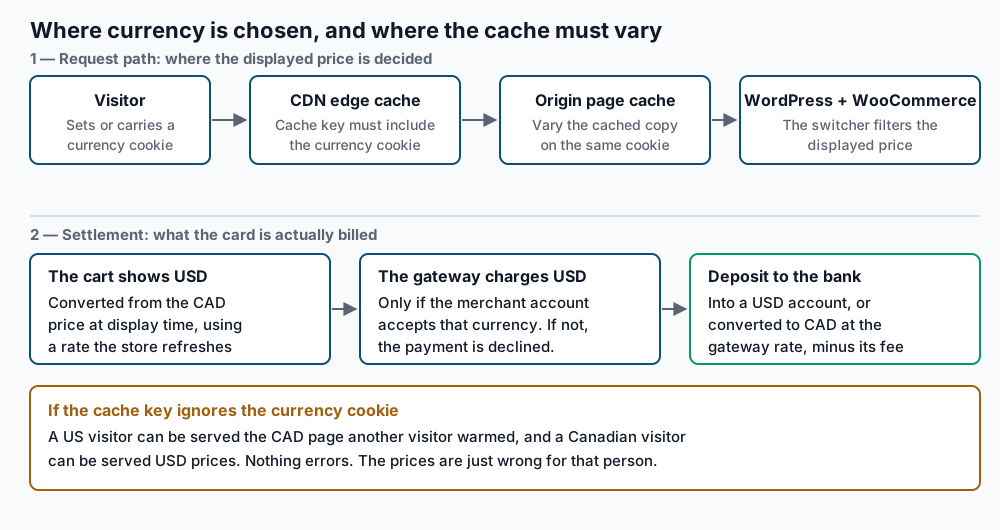
That cookie is where this stops being a plugin question and becomes a hosting question. A full-page cache stores finished HTML and looks it up by URL. Two visitors asking for the same product page get the same stored copy, so the first visitor’s currency is served to everyone until it expires. The fix is to make the currency part of what the cache stores, which caches call varying the cache key. You either add the currency cookie to that key, or stop caching pages for visitors who have switched.
Settlement is a separate mechanism. The number in the cart is a display conversion. The gateway charges the card in whatever currency your integration sends, and it can only do that if your merchant account is enabled for that currency. Your bank then receives either that currency, if you hold an account in it, or Canadian dollars after the gateway converts at its own rate and takes a conversion fee. The rate your store displayed and the rate the gateway used are never the same number.
Step-by-step
-
Write down the store currency and leave it alone. Every approach below assumes Canadian dollars stay the base.
wp option get woocommerce_currency
wp option get woocommerce_price_num_decimals
wp option get woocommerce_currency_pos
CAD 2 leftIf the first line says anything other than
CAD, find out why before continuing. Changing this option converts nothing; it relabels every stored price. -
Pick the approach before you install anything. Walk the tree below once with whoever owns the pricing.
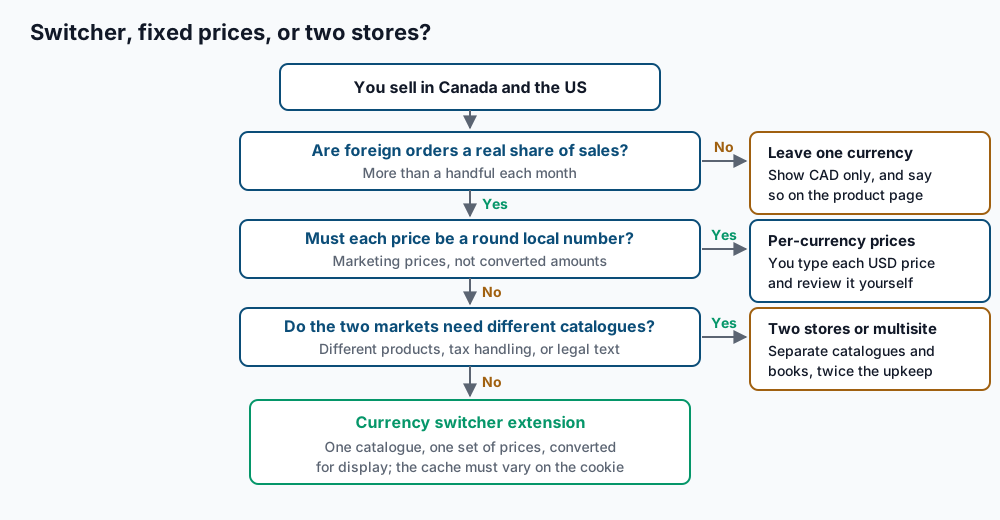
A switcher suits one catalogue with prices that can be arithmetic. Fixed per-currency prices suit a store where the US price is a marketing decision rather than a conversion. Two stores suit two different businesses that share an owner. One caution on the switcher path: converting prices product by product adds database work to catalogue pages, and slow WooCommerce shop and catalogue pages covers isolating that.
-
Confirm which currencies your merchant account accepts, in writing. Ask the gateway, not the plugin. A Canadian Stripe account can normally charge in US dollars, while some Canadian bank-owned gateways accept Canadian dollars only and decline anything else. Keep the reply. Gateway-side failures are the hardest to diagnose from inside WordPress, and the WooCommerce Stripe troubleshooting guide covers the log trail you will need.
-
Install the switcher on staging and choose the rate source. Every switcher offers a manual rate you type yourself and an automatic feed that pulls a rate on a schedule. Use the feed with a daily refresh, because a rate that moves mid-checkout creates support tickets. Then add a buffer on top of the fetched rate to absorb movement between refreshes and the gateway’s conversion spread. Derive the buffer this way. Take the widest Canadian-to-US-dollar swing over the last twelve months from the Bank of Canada’s published rates, halve it, and use that. For most catalogues it lands between two and three percent.
-
Set the rounding rule so converted prices are readable. A raw conversion produces amounts nobody would print on a shelf. Every switcher can round the converted result. The rule that works is to round up to the nearest whole unit, then subtract one cent. Keep the decimal count the same for both currencies:
wp option get woocommerce_price_num_decimals2Leave this at
2. Mixing0for one currency and2for another produces totals that will not reconcile with the gateway’s records. -
Find the cookie name the switcher sets. You need the exact name before you touch any cache. Load the storefront with the currency switched and read the cookie jar:
curl -s -c /tmp/wc.jar 'https://staging.example.com/?currency=USD' -o /dev/null
grep -v '^#' /tmp/wc.jar
staging.example.com FALSE / FALSE 0 wcml_currency USDThe name in the second-to-last column is the one you use everywhere below. Substitute it for
<switcher-cookie>in the commands that follow. If the switcher does not accept a query argument, click it in a browser and copy the cookie name from the developer tools Storage panel. -
Make the origin page cache vary on that cookie. The mechanism differs by server; the result is the same, in that the cookie value becomes part of the cache key. On LiteSpeed, add the cookie name under LiteSpeed Cache → Cache → Advanced → Vary Cookies, one per line. The LiteSpeed cache settings for WooCommerce article covers the surrounding options. On Nginx with FastCGI cache, append the cookie to the key in the server block:
fastcgi_cache_key "$scheme$request_method$host$request_uri$cookie_wcml_currency";nginx -t && systemctl reload nginxnginx: configuration file /etc/nginx/nginx.conf test is successfulReplace
wcml_currencyin the variable name with your own cookie name, lowercased and with hyphens turned into underscores, which is how Nginx exposes cookies. -
Handle the CDN the same way, or keep it away from HTML. A CDN repeats the problem one layer up. Two arrangements work. The first is a custom cache key that includes the currency cookie, which on Cloudflare needs an Enterprise plan. The second works everywhere: add a cache rule that bypasses the cache for any request carrying the currency cookie. Switched visitors then reach the origin, while first-time visitors still get an edge hit. Pick the second unless you already pay for the first.
-
Set the default for a visitor who has not chosen yet. WooCommerce can guess a visitor’s country, and it has a mode built for cached sites. In WooCommerce → Settings → General, set Default customer location to Geolocate (with page caching support). That mode appends a short
?v=argument to URLs, so each detected country gets its own cached copy. Geolocation needs a MaxMind licence key under WooCommerce → Settings → Integration. Verify:wp option get woocommerce_default_customer_addressgeolocation_ajax -
Leave the tax table alone and check what it produces. WooCommerce calculates tax from your rate table against the order amount. Canadian sales tax is owed on the Canadian-dollar value of the supply. The Goods and Services Tax (GST), the Harmonized Sales Tax (HST) and the Quebec Sales Tax (QST) do not change because a visitor reads the price in US dollars. Build the table the way WooCommerce tax rates for a Canadian store sets out, then place a test order in each currency and read the tax lines off the order. Which currency you report in is a question for your accountant.
Validate it works
Place two test orders on staging with the gateway in test mode, one per currency, and confirm each order screen shows the currency you expect. Then prove the cache. Request the same product page twice, once with each cookie value, and compare the first price in the HTML:
for cur in CAD USD; do
  printf '%s -> ' "$cur"
  curl -s -H "Cookie: <switcher-cookie>=$cur" \
    https://staging.example.com/product/sample-product/ \
    | sed 's/>/>\n/g' | grep -m1 -oE '^[0-9][0-9,]*\.[0-9]{2}'
done
CAD -> 120.00
USD -> 88.00Two different numbers mean the cache is varying. Two identical numbers mean it is not, and the first request warmed a copy the second one reused. That command reads the first decimal amount in the page source, which on a standard WooCommerce template is the product price. If your theme prints another number first, save the page with curl -s ... -o /tmp/page.html and read the price element directly.
Run the pair a second time to confirm both answers survive a cache hit, and read the cache headers while you are there:
curl -sI -H "Cookie: <switcher-cookie>=USD" \
  https://staging.example.com/product/sample-product/ \
  | grep -iE 'x-litespeed-cache|cf-cache-status|x-cache|^vary'
x-litespeed-cache: hit
cf-cache-status: DYNAMICTroubleshooting
A visitor sees the other country’s prices. This is the cache key, every time. Reproduce it with the curl pair above, then work outwards. Flush the origin cache and retest; if it now behaves, the CDN is the layer still holding one copy. Cached pages are the ones served to logged-out visitors, so testing while logged in as an administrator hides the fault entirely.
The gateway declines every order in the second currency. The merchant account is not enabled for it. The store will send a US dollar charge that the processor rejects, and the order sits in a failed state with a gateway message in the order notes. Read the note, then open a ticket with the gateway. No WordPress setting fixes this.
Tax lines look wrong on foreign orders. Check whether your tax rows match on country, and whether the switcher converts the tax line as well as the item line. Tax is owed on the Canadian-dollar amount of the supply, so a converted display total should still map back to the same tax owed. If the order stores a total the tax line cannot be derived from, rebuild the rate table before blaming the switcher.
Converted prices come out as long ugly numbers. The rounding rule in step 5 was not applied, or it was applied to the base price instead of the converted result. Round after conversion, never before, and test a product whose base price ends in a nine, because that is where the fault shows first.
A refund is recorded in the wrong currency. Refund from the WooCommerce order screen, not from the gateway dashboard. The order carries its own currency, so refunding through WooCommerce sends the refund in that currency and records it against the order. A refund issued in the gateway dashboard leaves the order showing the full amount, and your reports will disagree with your deposits. Partial refunds work the same way, and the amount you type is in the order’s currency.
When this is the wrong approach
If foreign orders are a handful a month, none of this earns its upkeep. Show one currency, say so plainly on the product page, and let the buyer’s card issuer convert. You keep a simpler cache, simpler books and simpler refunds.
The two markets may differ in what you can legally sell, how you must label it, or what the receipt must say. In that case two stores are easier than one store full of conditions. The same is true when the catalogues barely overlap. A WordPress multisite gives you shared logins and separate stores, at the cost of running two of everything.
The settings and filters named here are documented in the WooCommerce documentation and the WooCommerce developer resources. Confirm every tax and bookkeeping decision with your accountant before you go live.
Running WordPress that earns real money deserves an operator — Stack Harbor runs that stack under Enterprise WordPress; book an infrastructure consult.