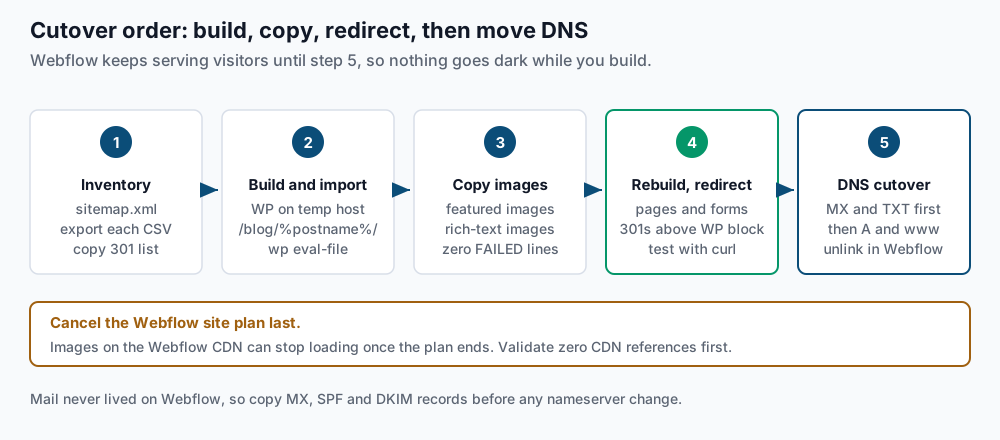
This guide shows you how to move a website from Webflow to self-hosted WordPress on a cPanel/WHM server. Webflow gives you two partial exports and no full one. Your CMS content (blog posts and other collection items) comes out as one CSV file per collection, while the rest of the site has to be rebuilt. The short answer is to import each CSV with a small WP-CLI script and copy every image off Webflow’s servers. Then rebuild pages and forms, and keep your blog URLs identical so most redirects are never needed. You cancel the Webflow site plan last, once validation proves nothing still loads from Webflow.
What you’ll accomplish
- Export each Webflow CMS collection to CSV and know which columns matter.
- Import posts, categories and dates into WordPress with WP-CLI, the command-line tool for WordPress, while Webflow keeps serving visitors.
- Copy every image from the Webflow CDN into your own media library.
- Keep blog URLs the same, and add 301 redirects only for paths that change.
- Move DNS in an order that keeps mail flowing, then cancel Webflow with confidence.
Prerequisites
- Owner or admin access to the Webflow site, with access to the Designer’s CMS panel. What you can export depends on your Webflow plan, so check what your account offers before you set a date.
- Access to the domain’s DNS at the registrar or the DNS host. Webflow does not host email, so your mail already lives with another provider.
- A cPanel account on a server you control, or WHM root access to create one.
- SSH access with WP-CLI. Check with
wp --info. curlanddigon your own machine. Both ship with macOS and most Linux distributions; on Windows use WSL or Git Bash.- At least two weeks before the next Webflow renewal. The image step needs the old site online.
- cPanel servers run Apache or LiteSpeed. Both read
.htaccessthe same way, so the redirect rules below work on either.
How it works
A Webflow site has two kinds of content, and they leave by different doors.
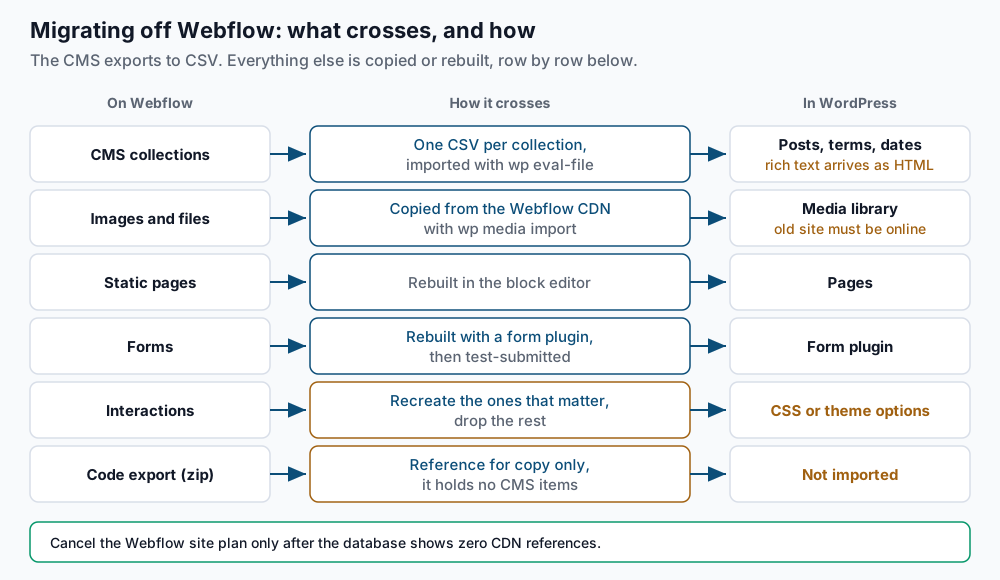
CMS collections are Webflow’s structured content, such as Blog Posts, Categories or Team Members. Each collection exports to its own CSV file. Every row is one item, with system columns like Name, Slug and Published On, plus one column per field you defined. Rich-text fields arrive as HTML, which WordPress can store as post content directly. Reference fields, which link one item to an item in another collection, usually export as the linked item’s slug. Multi-reference fields hold several slugs in one cell, separated by semicolons.
Static pages such as Home, About and Pricing are not in any CSV. Webflow’s code export (a zip of HTML, CSS and JavaScript, offered on some paid plans) contains them, but it does not contain your collection items. Collection pages in that zip are templates with no content. Use the zip as a reference for copy and structure, not as something to import.
Images live on Webflow’s CDN (content delivery network, the servers that store and serve your uploads). Older sites use uploads-ssl.webflow.com; newer ones use cdn.prod.website-files.com. The CSV only holds links to those files. After import, your WordPress pages still load images from Webflow until you copy them.
Forms and Interactions do not move at all. Webflow forms send submissions to Webflow, and Interactions (Webflow’s animation system) depend on Webflow’s own JavaScript. You rebuild forms with a WordPress form plugin and recreate only the animations that matter.
Webflow serves collection items at /<collection-slug>/<item-slug>, for example /blog/spring-open-house. If you set WordPress permalinks to the same shape, your blog URLs survive unchanged.
Step-by-step
-
Inventory the live site. Webflow generates
/sitemap.xmlwhen auto-sitemap is on in the SEO settings, which is the default.curl -s https://example.com/sitemap.xml \ | grep -o '<loc>[^<]*</loc>' | sed 's|</*loc>||g' \ | sort -u > ~/wf-urls.txt wc -l < ~/wf-urls.txt sed -E 's#https://[^/]+/([^/]+)/.+#\1#;t;d' ~/wf-urls.txt | sort | uniq -cExpected: a total like
84, then one line per collection, such as52 blogand9 team. Those are your collection slugs. If the sitemap is empty, turn on auto-sitemap in Webflow’s SEO settings and publish. While you are in Webflow’s site settings, copy the existing 301 redirects from the Publishing tab into a text file, because no export carries them. -
Export each collection to CSV. In the Designer, open the CMS panel, select a collection, and choose Export. Repeat for every collection, including small ones like Categories. Copy the files to the server with short names, then read the header row:
# on your own machine
scp blog-posts.csv categories.csv exmpl@server.example.net:~/
# on the server
head -1 ~/blog-posts.csv
Expected: a header such as
Name,Slug,Collection ID,Item ID,Archived,Draft,Created On,Updated On,Published On,Post Body,Post Summary,Main Image,Category. Your custom field names will differ. Note the exact names of the body, image and category columns, because the import script uses them. Do not open and re-save these files in a spreadsheet app, since that can break the HTML inside rich-text cells. -
Create the cPanel account and install WordPress on a temporary hostname. In WHM, use Account Functions > Create a New Account. Point a subdomain such as
new.example.comat the new server with an A record. Create the empty database and user in cPanel’s Manage My Databases, then run:cd ~/public_html wp core download wp config create --dbname=exmpl_wp --dbuser=exmpl_wp --dbpass='REPLACE_ME' wp core install --url=https://new.example.com --title='Example Studio' \ --admin_user=admin --admin_email=you@example.com --skip-email wp rewrite structure '/blog/%postname%/' --hard wp option get permalink_structureExpected:
Success: WordPress installed successfully., thenSuccess: Rewrite structure set., then/blog/%postname%/. Replaceblogwith your blog’s collection slug from step 1. This makes/blog/spring-open-houseon Webflow and/blog/spring-open-house/on WordPress the same page. WordPress adds the trailing slash with its own 301. -
Import categories, then posts. Save this as
~/wf-terms.php. It creates one WordPress category per row, keeping Webflow’s slug:<?php $fh = fopen( $args[0], 'r' ); $head = fgetcsv( $fh ); $head[0] = preg_replace( '/^\xEF\xBB\xBF/', '', $head[0] ); $h = array_flip( $head ); while ( ( $r = fgetcsv( $fh ) ) !== false ) { $t = wp_insert_term( $r[ $h['Name'] ], 'category', array( 'slug' => $r[ $h['Slug'] ] ) ); WP_CLI::log( ( is_wp_error( $t ) ? 'skipped ' : 'created ' ) . $r[ $h['Slug'] ] ); }Save this as
~/wf-posts.php. Edit the$colnames to match your header row from step 2:<?php $col = array( 'body' => 'Post Body', 'image' => 'Main Image', 'terms' => 'Category' ); $fh = fopen( $args[0], 'r' ); $head = fgetcsv( $fh ); $head[0] = preg_replace( '/^\xEF\xBB\xBF/', '', $head[0] ); $h = array_flip( $head ); $n = 0; while ( ( $r = fgetcsv( $fh ) ) !== false ) { if ( $r[ $h['Draft'] ] === 'true' || $r[ $h['Archived'] ] === 'true' ) { continue; } $ts = strtotime( preg_replace( '/\s*\(.*\)$/', '', $r[ $h['Published On'] ] ) ); $id = wp_insert_post( array( 'post_type' => 'post', 'post_status' => 'publish', 'post_title' => $r[ $h['Name'] ], 'post_name' => $r[ $h['Slug'] ], 'post_content' => $r[ $h[ $col['body'] ] ], 'post_date' => $ts ? date( 'Y-m-d H:i:s', $ts ) : current_time( 'mysql' ), ), true ); if ( is_wp_error( $id ) ) { WP_CLI::warning( $r[ $h['Slug'] ] . ': ' . $id->get_error_message() ); continue; } if ( $r[ $h[ $col['image'] ] ] !== '' ) { update_post_meta( $id, '_wf_main_image', $r[ $h[ $col['image'] ] ] ); } if ( $r[ $h[ $col['terms'] ] ] !== '' ) { wp_set_object_terms( $id, array_map( 'trim', explode( ';', $r[ $h[ $col['terms'] ] ] ) ), 'category' ); } $n++; } WP_CLI::success( "Imported $n posts." );Run both, as the admin user:
wp eval-file ~/wf-terms.php ~/categories.csv --user=admin
wp eval-file ~/wf-posts.php ~/blog-posts.csv --user=admin
wp post list --post_type=post --format=count
Expected: one
createdline per category, thenSuccess: Imported 52 posts., then52. The count should match the blog line from step 1.--user=adminmatters: without a user, WordPress filters the HTML and strips embeds such as YouTube iframes. The date line removes the time-zone label in brackets that Webflow can append, and falls back to today if the date still cannot be read. Draft and archived items are skipped. -
Copy every image off the Webflow CDN. Start with featured images, which the script saved as post meta:
for id in $(wp post list --post_type=post --meta_key=_wf_main_image --field=ID --posts_per_page=-1); do
  url=$(wp post meta get "$id" _wf_main_image < /dev/null)
  wp media import "$url" --post_id="$id" --featured_image --porcelain < /dev/null || echo "FAILED $id $url"
done 2>&1 | tee ~/wf-featured.log
grep -c FAILED ~/wf-featured.log
Expected: a column of attachment IDs, then
0. Now handle images inside rich text:wp db query "SELECT post_content FROM wp_posts WHERE post_content LIKE '%webflow.com%' OR post_content LIKE '%website-files.com%';" --skip-column-names \ | grep -oE 'https://(uploads-ssl\.webflow\.com|cdn\.prod\.website-files\.com)/[^"?) ]+' \ | sort -u > ~/wf-images.txt while read -r old; do id=$(wp media import "$old" --porcelain < /dev/null) || { echo "FAILED $old"; continue; } new=$(wp eval "echo wp_get_attachment_url($id);" < /dev/null) wp search-replace "$old" "$new" wp_posts --include-columns=post_content --quiet < /dev/null done < ~/wf-images.txt 2>&1 | tee ~/wf-images.log grep -c FAILED ~/wf-images.logExpected:
0. Each< /dev/nullstops a WP-CLI command from reading the rest of the list as its own input.wp search-replaceis safer than a raw SQLREPLACEbecause it keeps serialized PHP data valid, where each stored string records its own length. -
Rebuild what the CSV does not carry. Work in order of business value:
- Static pages. Rebuild Home, About and the rest in the block editor. The code export, if your plan offers it, is handy for copying text and alt attributes.
- Other collections. Import Team Members or Case Studies with a copy of
wf-posts.php, changing'post_type' => 'post'to'page'or to a custom post type your theme registers. - Forms. Recreate each form with a form plugin and send a test submission. Export past submissions from Webflow’s form settings if your plan lists them there, and keep the CSV as an archive.
- Interactions. List the animations visitors actually notice. Recreate those with CSS or your theme’s options, and let the rest go.
-
Redirect only the paths that change. Check where WordPress now puts category archives, then write rules for the old Webflow paths:
wp term list category --fields=slug,urlExpected: URLs like
https://new.example.com/blog/category/events/. Add the block to~/public_html/.htaccessabove# BEGIN WordPress:# --- Webflow legacy paths: keep above the WordPress block --- RedirectMatch 301 ^/categories/([^/]+)/?$ https://example.com/blog/category/$1/ Redirect 301 /about-us https://example.com/about/ # --- end Webflow legacy paths --- # BEGIN WordPressUse your own collection slugs and paste in the redirects you copied from Webflow in step 1. The block sits above the WordPress rules because their catch-all sends every unknown request to
index.php. Keep it outside theBEGIN/ENDmarkers, since WordPress rewrites that section when permalinks are saved. Test it:curl -sI https://new.example.com/categories/events | head -3Expected:
HTTP/1.1 301 Moved Permanentlyand aLocation:header with the new address. Our guide to preserving rankings during a WordPress migration covers the SEO side in more depth. -
Move DNS: mail records first, then the website. Record the current state:
dig +short NS example.com
dig +short CNAME www.example.com
dig +short MX example.com
dig +short TXT example.com
Expected: a
wwwCNAME pointing at a Webflow hostname, and MX records for your mail provider, such as Google Workspace or Microsoft 365. The day before, lower the TTL (time to live, how long resolvers cache a record) on these records to 300 seconds. If you are moving nameservers to the cPanel server, first recreate every MX and TXT record in cPanel’s Zone Editor, including SPF and DKIM. Then confirm the new server answers the same way:dig +short MX example.com @ns1.server.example.netExpected: the same MX list as above. Only then switch nameservers, or change the website records at your existing DNS host. Point the root A record at your server’s IP and
wwwat the root domain. Our DNS prep checklist walks through the TTL work. Finish by rewriting the temporary hostname:wp search-replace 'new.example.com' 'example.com' --all-tables wp option get siteurlExpected: a replacement count, then
https://example.com. Once the new site is live, remove the custom domain in Webflow’s Publishing settings so Webflow stops trying to serve it.
Validate it works
Confirm nothing still loads from Webflow, in the database or in the page:
wp db query "SELECT COUNT(*) FROM wp_posts WHERE post_content LIKE '%website-files.com%' OR post_content LIKE '%uploads-ssl.webflow.com%';" --skip-column-names
wp db query "SELECT COUNT(*) FROM wp_postmeta WHERE meta_key <> '_wf_main_image' AND (meta_value LIKE '%website-files.com%' OR meta_value LIKE '%uploads-ssl.webflow.com%');" --skip-column-names
curl -s https://example.com/ | grep -cE 'website-files\.com|webflow\.com'
Expected: 0 from all three. Any other number is an image or script that breaks when the site plan ends.
Check that every old URL now answers 200 or 301, never 404:
while read -r u; do
  printf '%s  %s\n' "$(curl -s -o /dev/null -w '%{http_code}' "$u")" "$u"
done < ~/wf-urls.txt | grep -vE '^(200|301)'
Expected: no output. Each line that appears is a page you still owe. Send a test message from an outside account to each mailbox and submit every rebuilt form once. Our post-migration smoke tests cover the rest of day one. Cancel the Webflow site plan only when all of this passes.
Troubleshooting
- Every post has today’s date. Webflow’s date format did not parse. Run
head -2 ~/blog-posts.csv | cut -c1-400to see the raw value, adjust thepreg_replacein the script, then delete the import withwp post delete $(wp post list --post_type=post --field=ID --posts_per_page=-1) --forceand run it again. - Embedded videos vanished from posts. The script ran without
--user=admin, so WordPress filtered out iframes. Delete the imported posts the same way and rerun with the flag. PHP Warning: Undefined array keyduring import. A column name in$coldoes not match the header row exactly, including capitals and spaces. Compare it withhead -1from step 2.wp media importfails with “Sorry, you are not allowed to upload this file type.” The file is likely AVIF or SVG. WordPress accepts AVIF from version 6.5, and SVG needs a plugin that sanitizes uploads. Otherwise download the file, convert it to WebP or PNG, and import the local copy.- Posts return 404 on the new host. The permalink rules never reached
.htaccess. Runwp rewrite flush --hardand confirm# BEGIN WordPressnow appears in the file.
When this is the wrong approach
If your site has no CMS content and its value is the design and animation, WordPress may be a step backward. On a plan with code export, you can host that static zip on a cPanel account directly, as long as you replace the forms, which will not work outside Webflow.
If you sell through Webflow Ecommerce, treat the store as its own project. Products may export to CSV, but customers, orders and payment setup do not follow.
If you are comparing site builders, our Squarespace migration guide shows a platform with a WordPress-format export. The WP-CLI reference for eval-file and media import lists every option used here.
Running WordPress that earns real money deserves an operator — Stack Harbor runs that stack under Enterprise WordPress; book an infrastructure consult.