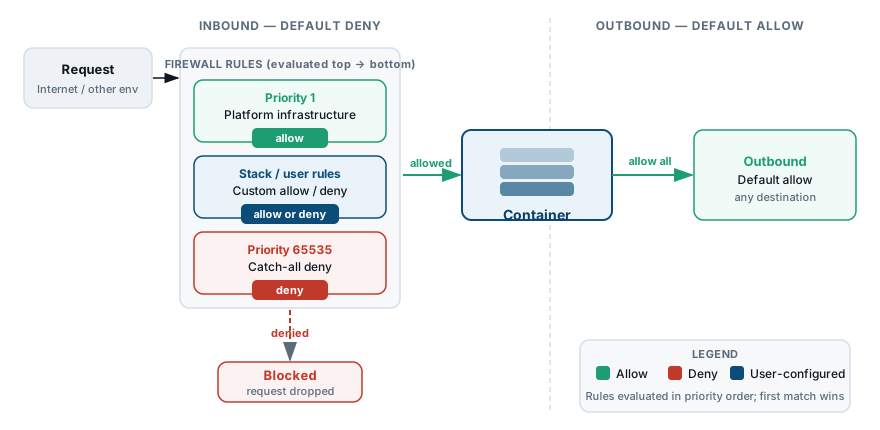
The container firewall controls which connections each container accepts or rejects. It evaluates four properties on every incoming or outgoing packet: request source, protocol, target port, and source location (any IP, a specific IP or CIDR, or an environment layer). Rules are processed in priority order and the first match wins.
What this covers
- How the firewall relates to Network Isolation and when to use each.
- Accessing the firewall section of the dashboard.
- The default rule structure and priority model.
- Adding ports at provisioning time with
OPEN_INBOUND_PORTS. - Managing rules through the dashboard toolbar.
- Blocking an IP — a worked example via the dashboard.
- Editing rules directly over SSH using
nftables(oriptableson legacy containers). - The full API method reference under
environment > Security.
Firewall and Network Isolation — when to use which
Network Isolation restricts traffic between environments on the same account at the environment level. It is the right tool when you want one environment to be unreachable from another.
Container firewall gives you per-container control: which IPs can connect, on which protocol, to which port. Use it when you need rules more specific than environment-to-environment isolation — for example, allowing only your CI agent to reach port 22, or blocking a specific IP from a container that has a public IP.
See Network Isolation for the environment-level control.
Accessing the firewall in the dashboard
Open Settings > Firewall on any environment to manage its rules.
Every container — except custom Docker-based and Windows-based containers — is provisioned with a starting set of firewall rules editable through the dashboard.
Availability note: the firewall section may not be visible in all accounts. If you do not see it under Settings, contact Stack Harbor support to request firewall activation for your account.
The Firewall section exposes three tabs: Overview, Inbound Rules, and Outbound Rules.
- Inbound Rules — default-deny. Only traffic explicitly permitted by a rule reaches the container.
- Outbound Rules — default-allow. Traffic leaves the container unless an explicit deny rule matches.
Default rule structure
When a container is created, the platform populates both rule lists with the rules the container needs to operate. If any defaults are absent, the platform re-adds them at the next firewall restart.
Default port assignments come from the EXPOSE directives in the container image’s Dockerfile.
Rules are grouped by layer and always follow the same three-band structure:
| Priority | Color | Purpose | Editable |
|---|---|---|---|
| 1 | Gray | Platform infrastructure allow — permits the orchestrator (password reset, config generation, Cloud Scripting execution, SSH key provisioning), SSH Gate, Web SSH, and Shared Load Balancers for containers without a public IP | No |
| 10, 20, 30… | Standard | Stack-related defaults and rules added by the environment owner or collaborators | Yes |
| 65535 | Gray | Deny any incoming connection not matched by a higher-priority rule | No |
Default rules are added in 10-point priority steps, leaving room to insert custom rules between them.
When you add a mount point, install an FTP add-on, or perform other operations that require extra connectivity, the platform automatically extends the default rules.
Do not edit the gray platform-infrastructure rules unless you understand the specific consequence — they are required for orchestration, SSH access, and managed load balancing.
Adding ports at provisioning time: OPEN_INBOUND_PORTS
For automation scenarios, set the OPEN_INBOUND_PORTS environment variable in the Topology Wizard before creating the container. It opens additional inbound ports through the firewall at provisioning time.
- In the Topology Wizard, select your software stack and open the Variables configuration frame.
- Add
OPEN_INBOUND_PORTSwith a comma-separated list of ports or port ranges:
"OPEN_INBOUND_PORTS": "1234, 33062-34000"Each port or range is opened on both TCP and UDP when the container is created.
Important: OPEN_INBOUND_PORTS applies once at installation. After provisioning, manage the firewall rules through the dashboard, SSH, or API — the variable has no effect on a running container.
Managing rules in the dashboard
| Priority | Action | Protocol | Port | Source | Status |
|---|---|---|---|---|---|
| 1 | Allow | TCP | — | Platform infrastructure system | Locked |
| 100 | Allow | TCP | 443 | Any | Enabled |
| 110 | Allow | TCP | 22 | 203.0.113.10/32 | Enabled |
| 120 | Deny | TCP | 3306 | Any | Enabled |
| 65535 | Deny | ALL | — | Default catch-all system | Locked |
Above the rule list, the toolbar provides: Add, Edit, Remove, Disable / Enable, and Refresh.
When adding or editing a rule, configure these fields:
| Field | Description |
|---|---|
| Nodes | The environment layer the rule applies to. Cannot be changed after creation. |
| Name | A descriptive label; presets are available from the drop-down. |
| Protocol | TCP, UDP, or TCP/UDP. |
| Port Range | A single port (80) or a range (1024-2048). Leave blank to cover all ports. |
| Source | Where the traffic originates (see below). |
| Priority | Lower numbers evaluate first. |
| Action | Allow or Deny. |
Source types:
- Custom IP Address(es) — comma-separated IPv4/IPv6 addresses and CIDR blocks, for example
10.0.0.1, 10.0.0.0/24. - Predefined ranges — All, All IPv4, All IPv6, Local Network, Internet (Public Access).
- Environment Nodes — a layer in any environment on the account. The rule is auto-updated as the layer scales in or out.
Toolbar notes:
- Disable / Enable — temporarily deactivate a rule without removing it. Useful for testing: disable, observe, re-enable.
- Refresh — re-reads the rule list after a topology change without restarting anything.
- Edit — all fields are adjustable except Nodes. To apply an identical rule to a different layer, add a new rule for that layer.
Add inbound rule
New rule will be evaluated against existing rules by priority.
Blocking a specific IP — dashboard walkthrough
This pattern applies when a container has a public IP and you need to drop traffic from a known-bad source. Without a public IP the platform infrastructure already mediates external traffic at the load balancer level.
- Open Settings > Firewall for the environment.
- Switch to Inbound Rules and click Add. (For egress restrictions use Outbound Rules — the fields are identical.)
- Fill in the rule:
- Nodes — the container to restrict, for example
tomcat. - Name — a descriptive label, for example
block-bad-ip. - Protocol — TCP.
- Port Range — leave blank to cover all ports.
- Source — Custom IP Address(es), then type the IP, for example
111.111.111.111. - Priority —
900(evaluated before the default allow rules at priority ≥ 1000, so this rule wins). - Action — Deny.
- Nodes — the container to restrict, for example
- Click Add to save and apply.
The rule takes effect immediately. A client connecting from the blocked address receives a connection-refused response.
Editing rules over SSH
For rule types the dashboard does not expose — NAT redirects, complex chains, stateful match conditions — connect to the container over Web SSH and edit the firewall files directly. Rules added this way take effect independently of the UI rule list and do not appear in it.
user@container-prod-01:~$ sudo jem firewall list

# nftables · chain: inbound (filter)

  1  chain inbound {
  2    # priority 1 — platform infrastructure (locked)
  3    ip saddr 10.0.0.0/8    tcp dport 0-65535 accept
  4    # priority 100
  5    tcp dport 443                           accept
  6    # priority 110
  7    ip saddr 203.0.113.10/32 tcp dport 22   accept
  8    # priority 120
  9    tcp dport 3306                          drop
 10    # priority 65535 — default catch-all (locked)
 11    counter                                   drop
 12  }

user@container-prod-01:~$ Steps
-
Open Web SSH on the target container from the dashboard.
-
Check that the container firewall is enabled:
cat /etc/jelastic/metainf.confLook for
FIREWALL_ENABLED=1. If the flag is absent or set to0, the firewall is inactive — contact Stack Harbor support to request firewall activation. -
Edit the user-defined rules file:
vim /etc/nftables/user-defined.nftAdd your rule using
nftablessyntax. To deny TCP traffic from111.111.111.111to port 1111:insert rule ip filter INPUT ip saddr 111.111.111.111 ct state new tcp dport 1111 counter dropLegacy CentOS 7 containers use
iptablesrather thannftables. Edit/etc/sysconfig/iptables-customor/etc/sysconfig/ip6tables-custominstead, usingiptables-saveformat:*filter :INPUT DROP [0:0] :FORWARD DROP [0:0] :OUTPUT ACCEPT [0:0] -I INPUT -s 111.111.111.111 -p tcp -m state --state NEW -m tcp --dport 1111 -j DROP COMMIT -
Apply your custom rules:
sudo /usr/bin/jem firewall fwstart -
Confirm the rule is active:
sudo jem firewall listYour rule should appear in the output, confirming it is loaded into the active rule set.
API method reference — environment > Security
The platform API exposes firewall management under the environment > Security namespace. These methods are available alongside all other environment automation surfaces — use them from CI pipelines, provisioning manifests, or your own tooling.
| Method | What it does |
|---|---|
AddRule | Create a new firewall rule. |
AddRules | Add several rules in a single call. |
EditRule | Change the parameters of an existing rule. |
GetRules | List all rules for an environment. |
RemoveRule | Delete a single rule. |
RemoveRules | Delete several rules at once. |
SetFirewallEnabled | Turn the container firewall on or off for an environment. |
SetRuleEnabled | Enable or disable a specific rule without removing it. |
SetRules | Replace the entire rule set for an environment in one call. |
Common automation patterns:
- A CI pipeline whitelists a new build agent’s IP before a deploy and removes it afterward using
AddRule+RemoveRule. - An environment bootstrap manifest calls
SetRulesto establish the full security posture before traffic is allowed. - A scheduled job calls
GetRulesto audit the rule set and alerts on unexpected additions.
Constraints and edge cases
- Custom Docker and Windows containers — firewall rules cannot be managed through the dashboard for these container types. Use network-level controls instead.
- Containers without a public IP — the platform Shared Load Balancer mediates all external traffic, so a container-level IP block is only observable from outside the cluster when the container has its own public IP attached.
- Priority collisions — if two rules share the same priority, evaluation order between them is not guaranteed. Use distinct priority values.
Nodesfield is immutable — you cannot move an existing rule to a different layer after creation. Create a new rule for the target layer, then remove the old one.- SSH-managed rules vs. UI rules — rules written directly to
/etc/nftables/user-defined.nft(or the legacyiptables-customfiles) take effect independently and do not appear in the dashboard rule list. Track them separately if you mix both methods.
Troubleshooting
Firewall section not visible in Settings The firewall may not be activated for your account. Contact Stack Harbor support and request firewall activation.
Rule does not appear to take effect
Run sudo jem firewall list over Web SSH to confirm the rule is loaded into the active rule set. If it is absent, re-apply with sudo /usr/bin/jem firewall fwstart.
A client can still reach a blocked port Confirm the container has a public IP — without one, external traffic enters through the Shared Load Balancer and the container-level block may not intercept it. Also verify the rule priority is lower than any allow rule covering the same source and port.
Custom SSH rules lost after restart
Rules written to /etc/nftables/user-defined.nft (or the legacy iptables-custom files) should persist across firewall restarts because the files are re-read on fwstart. If rules disappear, confirm the file path is correct for your container image and that fwstart reads it.