When an account owner invites you, we email you a link to set your own password. You don’t need to create an account yourself. The owner decides what you can see and do.
Set your password
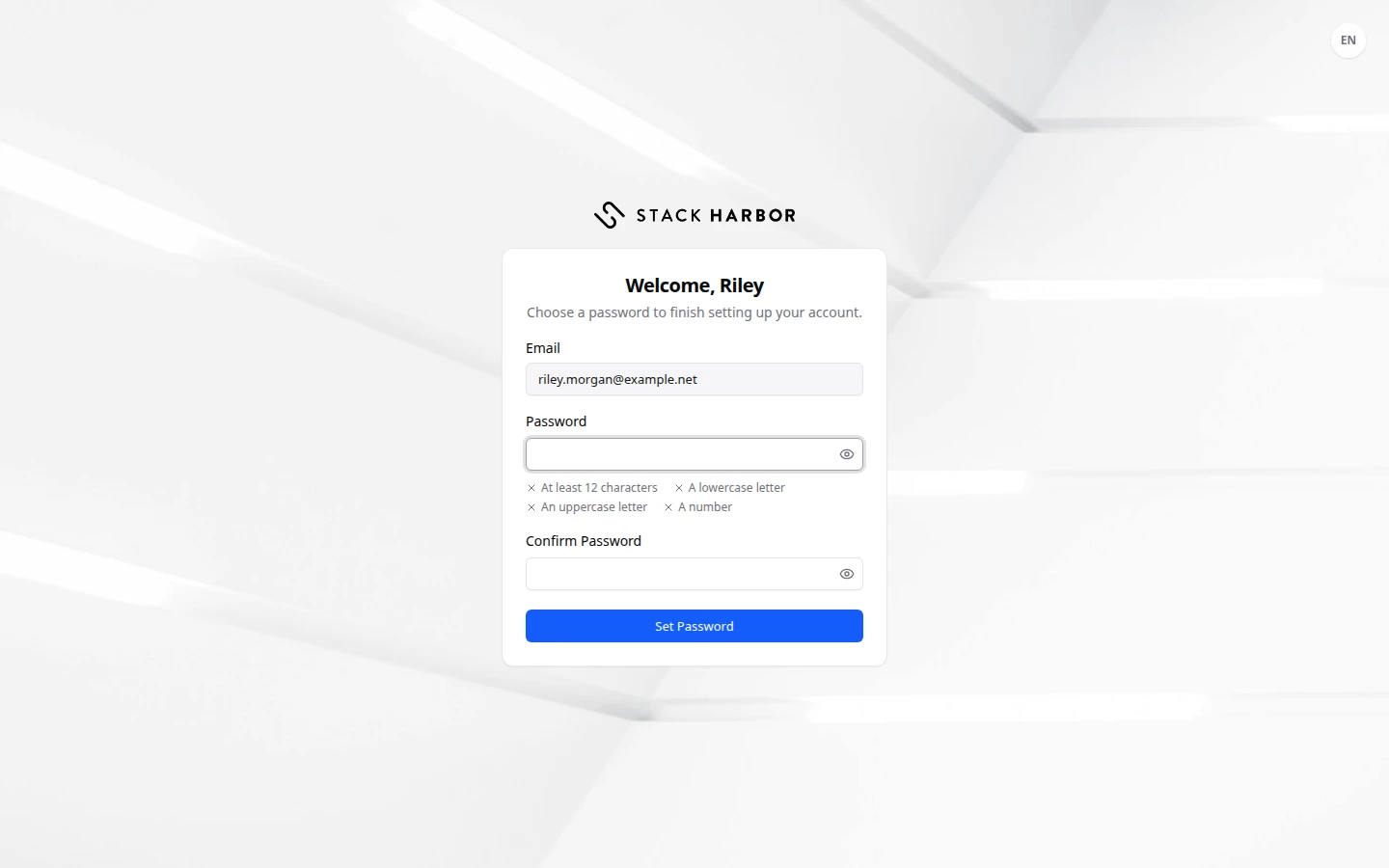
- Open the invitation email and select its link. Lighthouse checks the link, then shows Welcome, Jordan and Set Your Password.
- Type a Password. The page lists the rules it must meet.
- Type it again in Confirm Password.
- Select Set Password.
What you see afterwards
You see You’re All Set. What comes next depends on the account:
- Your password is set, and you’re signed in. Select Continue to open Lighthouse.
- Your password is set. Enter your verification code to finish signing in. Type the 6-digit code to finish.
- Your password is set. Sign in with your email address and your new password to get started. Select Sign In and sign in. See Sign in.
Then protect your sign-in with a second step. See Turn on two-factor authentication.
If something goes wrong
- This Link Has Expired: set-password links work for a few days only. Ask the account owner to resend your invitation.
- This Link Isn’t Valid: the link may be mistyped, or already used. Ask the account owner to resend your invitation.
- Already Set Up: you already set your password. Select Sign In and use it. If you forgot it, reset it. See Reset your password.
- Passwords don’t match. Type the same password in both fields.
- If Lighthouse couldn’t set your password, the link may have just expired. Ask for a new invitation and try again.