Application Hosting runs your applications in managed environments. An environment is one application with everything it needs, such as a load balancer, application nodes and a database. Each part is a layer, and each layer runs one or more nodes. You size layers in cloudlets, and you never look after an operating system.
This page shows where everything is, and how to read your list of environments.
Open Application Hosting
- In the side menu, select Application Hosting.
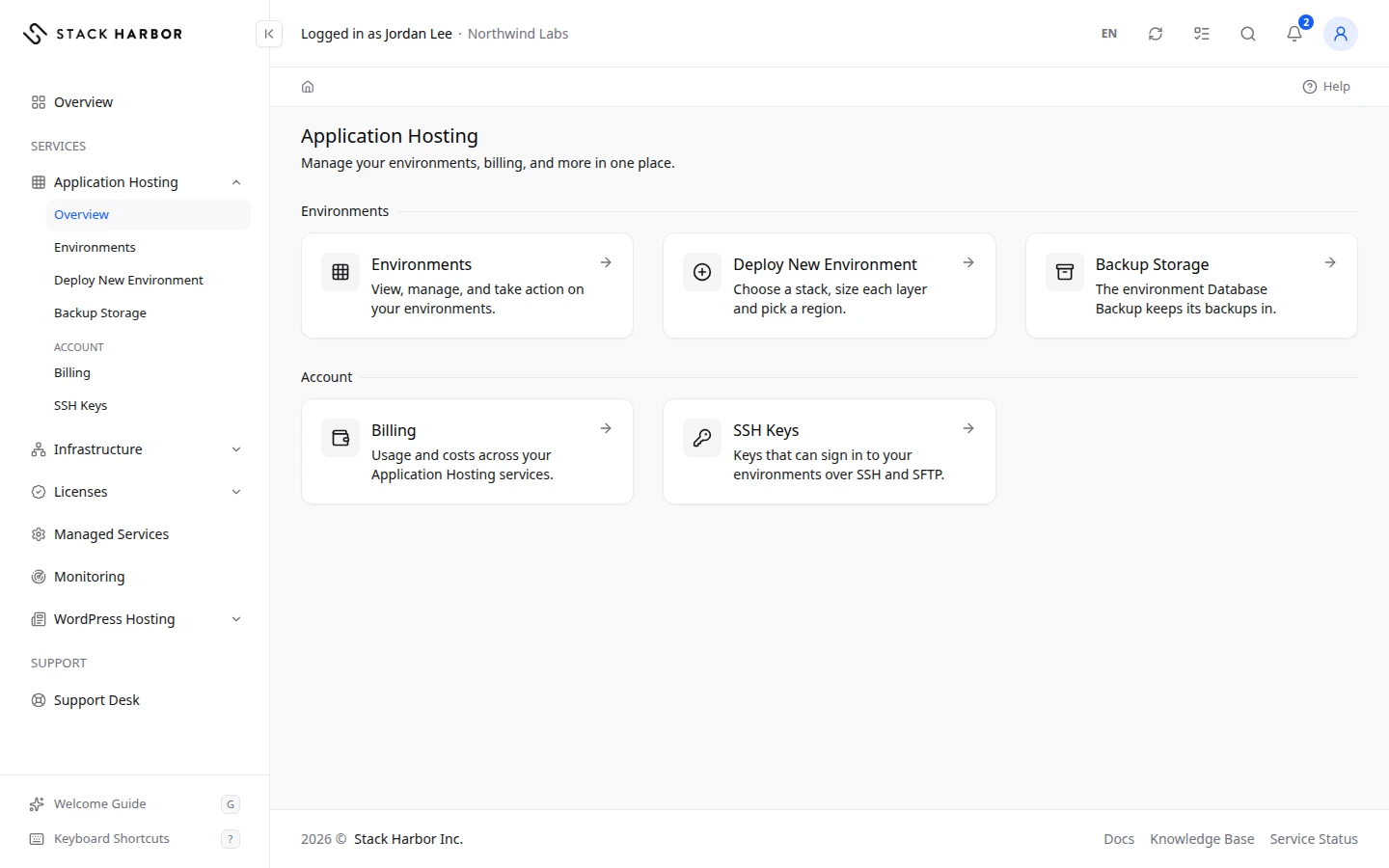
- The Application Hosting page opens with a card for each place in the section:
- Environments lists every environment on your account.
- Deploy New Environment opens the wizard that builds a new one. See Create an environment.
- Backup Storage creates the environment that database backups are kept in. See Create backup storage.
- Billing shows what your environments cost. See Read Application Hosting usage.
- SSH Keys holds the keys that can sign in to your environments. See Add an SSH key for Application Hosting.
The same places appear under Application Hosting in the side menu. Billing only shows if you can see billing on the account.
If Application Hosting isn’t on yet for your account, you see the Enable Application Hosting panel instead. See Enable a service.
Read your list of environments
- Select the Environments card, or Environments in the side menu.
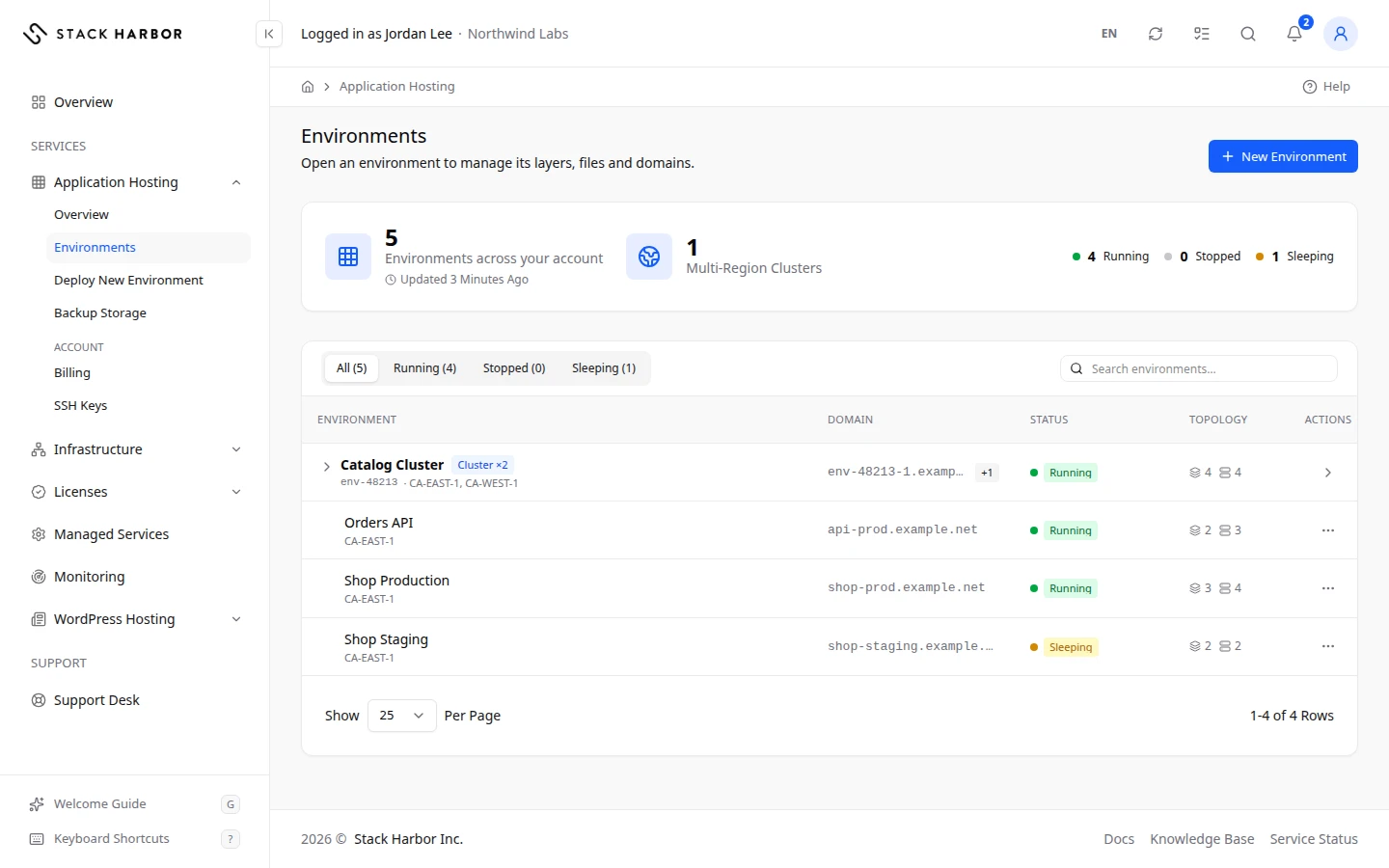
- The list shows one row per environment, with these columns:
- Environment is the display name. A badge such as Cluster ×3 marks a multi-region cluster, which is a set of environments that work together across regions.
- Domain is the web address of the environment.
- Status shows whether it’s running. See the statuses below.
- Topology counts its layers and nodes, for example 3 layers and 4 nodes.
- Region is where it runs.
- Actions has Open App, which opens the running application, and View Environment.
- To narrow the list, select a status tab such as All, Running or Stopped, or type in Search environments…. Search matches the name, domain, region or service.
- To open an environment, select its row or View Environment.
A cluster row is collapsed at first. Select it to show each member environment and its region. The cluster’s status reads Mixed when its members aren’t all in the same state.
WordPress sites are listed under WordPress Hosting, not here. When you have some, a note above the list says so, with a View Sites button.
Environment statuses
- Running means the environment is on and serving requests.
- Stopped means it’s off. Visitors can’t reach it until you start it.
- Sleeping means it’s idle to save resources. It wakes up on the next request.
- Starting, Stopping, Building and Cloning mean a change is under way. The list updates by itself when it ends.
- Unknown means Lighthouse couldn’t read the state. Refresh the page after a minute.
If something goes wrong
- No Environments Yet means you have the service but no environment. Select New Environment to create one.
- No environments match this view. Clear the search or pick the All tab.
- No Application Hosting Services Yet means the service isn’t set up on your account. Select Contact Support and our team will help.
Fields and statuses
What each item on this page means, what it does and how to read it.
- Environment Column
-
What it is. The environment’s display name, with a cluster badge when it belongs to a multi-region cluster.
What it does. Selecting the row opens the environment’s page.
How to read it. A badge such as Cluster ×3 means the row groups three environments in different regions.
- Domain Column
-
What it is. The default web address of the environment.
How to read it. It ends with the suffix of the region the environment runs in.
- Status Column
-
What it is. Whether the environment is running, stopped, asleep or changing state.
How to read it. A spinning dot means a change is under way and the list refreshes by itself.
- Topology Column
-
What it is. How many layers and nodes the environment has.
How to read it. For a cluster, the figures are the total across all its member environments.
- Region Column
-
What it is. The region where the environment runs.
How to read it. A cluster lists every region it spans.
- Actions Column
-
What it is. Buttons for one environment.
What it does. Open App opens the running application in a new tab. View Environment opens its page.
- Search environments… Field
-
What it is. A search box for the environments list.
What it does. Filters the list by name, domain, region or service as you type.
- Multi-Region Clusters Option
-
What it is. A multi-region cluster: several environments that run the same application in different regions and work together.
What it does. Its row collapses the members into one line. Select it to see each member.
How to read it. The cluster’s status reads Mixed when its members are not all in the same state.
- Running Status
-
What it is. The environment is on and serving requests.
What it does. Its layers and nodes use cloudlets, which are billed.
How to read it. Green. Open App is offered only in this state.
- Stopped Status
-
What it is. The environment is off, because someone stopped it.
What it does. Visitors cannot reach it. Storage and public IP addresses are still billed.
How to read it. Grey. Use Power, then Start, to bring it back.
- Sleeping Status
-
What it is. The environment is idle to save resources.
What it does. It wakes up by itself on the next request.
How to read it. Amber. Use Power, then Wake Up, to wake it now.
- Starting Status
-
What it is. The environment is on its way to Running, after a start or a wake-up.
How to read it. Usually takes a few seconds. Wait for it to settle before you act on it.
- Stopping Status
-
What it is. The environment is on its way to Stopped.
How to read it. Usually takes a few seconds.
- Building Status
-
What it is. The environment is being created.
How to read it. Some builds take several minutes. It turns Running when ready.
- Cloning Status
-
What it is. The environment is being copied into a new one.
How to read it. Cloning can take several minutes. Follow it in Background Actions.
- Unknown Status
-
What it is. Lighthouse could not read the environment’s state.
How to read it. Refresh the page after a minute. Contact support if it stays this way.
- Mixed Status
-
What it is. The members of a cluster are not all in the same state.
How to read it. Expand the cluster row to see each member’s status.