A team member is a colleague with their own sign-in to your Stack Harbor account. Each member has their own password and two-factor settings, and sees only what you allow. The account owner is the person who created the account. The owner can do everything.
You need the Manage Members permission to open Team Members. The account owner always has it.
Invite someone
- Open the account menu at the top right and select Team Members.
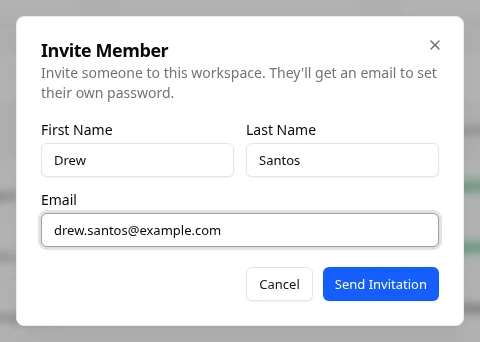
- Select Invite Member.
- Type their First Name, Last Name and Email. For example, Jordan Lee at jordan.lee@example.com.
- Select Send Invitation.
- If Lighthouse shows Confirm It’s You, type your Current Password, and your two-factor code if Lighthouse asks for it. Then select Verify.
What you see afterwards
You see Invitation sent to jordan.lee@example.com. The new member appears in the list with Invite Pending until they set their password. They get an email with a link to set it. See Accept an invitation.
Before they sign in, open their page and choose what they can do. On Infrastructure, a member has no access until you set it. See Manage a team member.
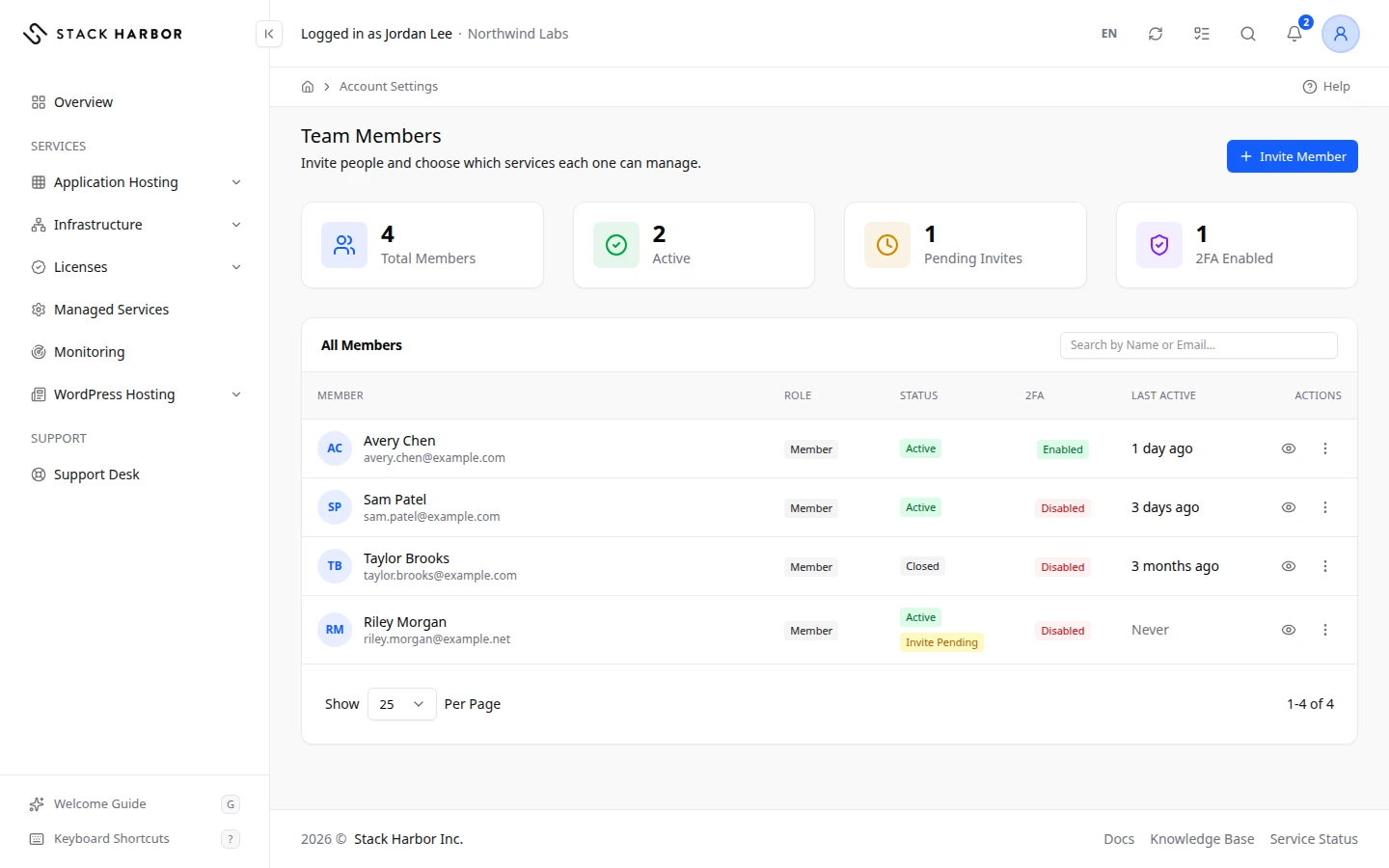
Read the Team Members list
The tiles at the top count Total Members, Active members, Pending Invites and members with 2FA Enabled.
The table shows, for each person:
- Member: their name and email.
- Role: Owner or Member.
- Status: Active, or Closed for a deactivated member. Invite Pending or Invite Expired shows next to it until they finish setting up.
- 2FA: Enabled if they turned on two-factor authentication, Disabled if not.
- Last Active: when they last signed in, or Never.
- Joined: when they were added.
Type in Search by Name or Email… to find someone. Select a row, or View Member, to open their page.
Resend an invitation
If someone didn’t get the email, or their link expired, open the Member Actions menu at the end of their row and select Resend Invite. You see Invite resent.
If something goes wrong
- If Lighthouse says the member was added but the invitation email could not be sent, the member exists. Use Resend Invite to send the email again.
- We couldn’t create this member. Please try again. Check the email address. It may already belong to another member.
- This member has already finished setting up. No new email is needed. They can sign in with their own password.
Fields and statuses
What each item on this page means, what it does and how to read it.
- First Name Field
-
What it is. The new member’s first name.
- Last Name Field
-
What it is. The new member’s last name.
- Email Field
-
What it is. The new member’s email address.
What it does. We send the invitation there. It becomes their sign-in address.
How to read it. Each member needs their own address.
- Total Members Metric
-
What it is. Everyone listed on Team Members.
How to read it. A count of people, invited ones included.
- Active Metric
-
What it is. Members who finished setting up and can sign in.
How to read it. A count. It doesn’t include pending invitations.
- Pending Invites Metric
-
What it is. People invited who haven’t set their password yet.
How to read it. A count. Above 0, check whether someone needs Resend Invite.
- 2FA Enabled Metric
-
What it is. Members who turned on two-factor authentication.
How to read it. A count. Ideally it equals Total Members.
- Member Column
-
What it is. The person’s name and email address.
What it does. Select it to open their page.
- Role Column
-
What it is. Whether the person owns the account or is a team member.
- Owner Option
-
What it is. The person who holds the account.
What it does. Can do everything, including what no permission grants.
How to read it. There is one owner per account.
- Member Option
-
What it is. A person the owner invited.
What it does. Can do only what their permissions and services allow.
- Status Column
-
What it is. Whether the member can sign in.
How to read it. Active or Closed, plus Invite Pending or Invite Expired until they finish setting up.
- Active Status
-
What it is. The member can sign in.
- Closed Status
-
What it is. The member was deactivated and can’t sign in.
How to read it. Select Reactivate in Member Actions to give access back.
- Invite Pending Status
-
What it is. The member was invited but hasn’t set a password yet.
How to read it. If they can’t find the email, select Resend Invite.
- Invite Expired Status
-
What it is. The invitation link is too old to use.
How to read it. Select Resend Invite to send a new link.
- 2FA Column
-
What it is. Whether the member uses two-factor authentication.
- Enabled Status
-
What it is. The member signs in with a password and a code.
- Disabled Status
-
What it is. The member signs in with a password only.
How to read it. Ask them to turn on two-factor authentication.
- Last Active Column
-
What it is. When the member last signed in.
How to read it. A relative time, such as 2 hours ago.
- Never Status
-
What it is. The member has never signed in.
How to read it. Normal right after an invitation.
- Joined Column
-
What it is. The day the member was added.
- Actions Column
-
What it is. The Member Actions menu for this person.
What it does. Holds Edit, Resend Invite, Sign In As Member, Deactivate or Reactivate, and Delete.