Each router has its own page in Lighthouse. It shows the router’s state, its gateway to a public network, the subnets it routes, its static routes, and the floating IPs and servers that depend on it. To create a router, see Set up a router.
Open a router’s page
- In the side menu, open Infrastructure, then select Routers under Networking.
- Select the router’s name in the list.
You can also open it from a network’s page, under Internet Access, or from a floating IP’s page.
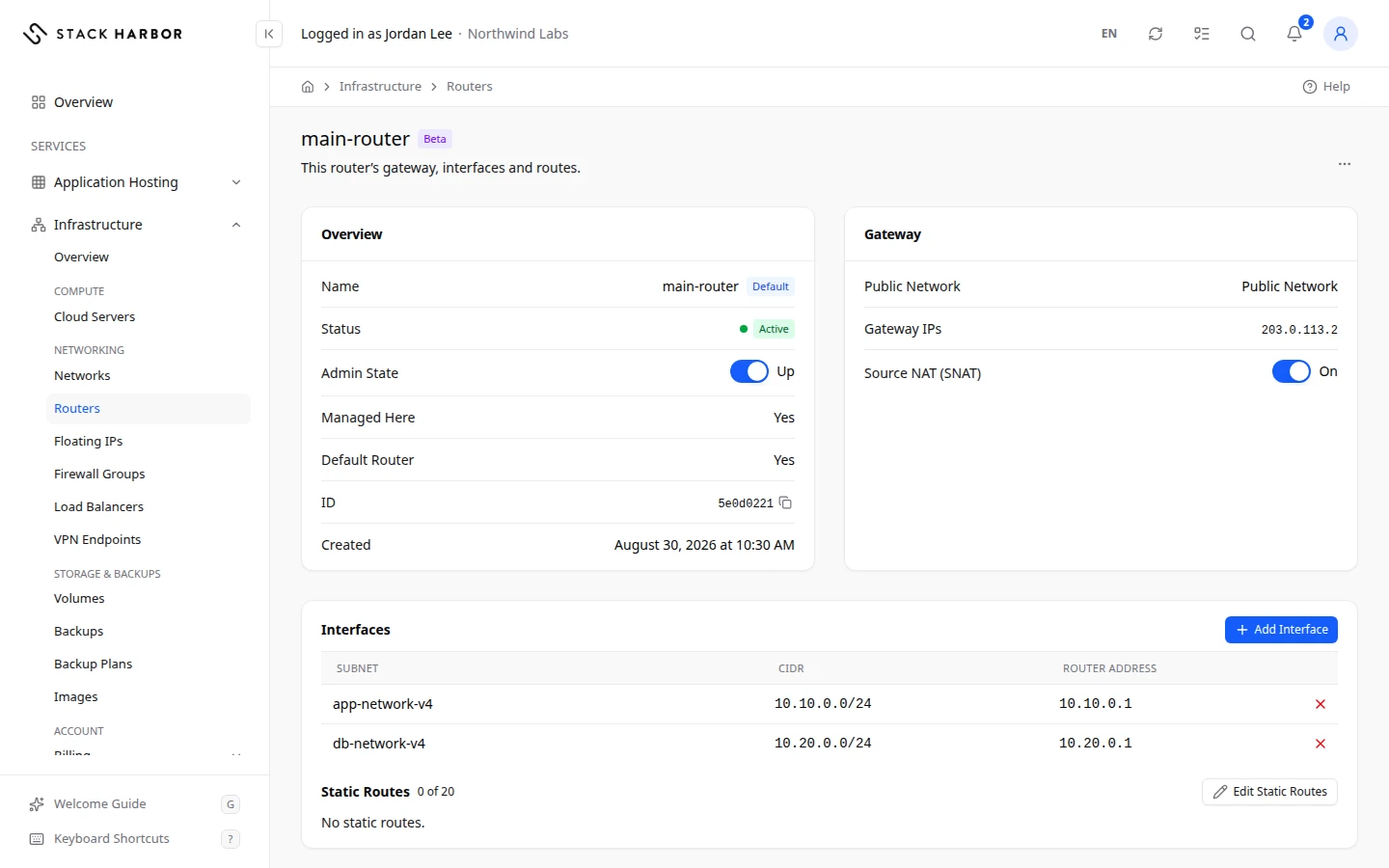
Read the header
The header shows the router’s name, with a Default badge for the project’s own router, and This router’s gateway, interfaces and routes. A router that wasn’t created in Lighthouse carries a Read Only badge and has no menu.
The menu holds the router’s actions: Rename Router, Set Gateway (or Change Gateway and Clear Gateway when it has one), Add Interface, Edit Static Routes and Delete Router. The same actions are in the router’s row menu on the list. See Set up a router for the gateway, interfaces and static routes.
Read the cards
Overview lists:
- Name and Status, for example Active.
- Admin State: Up when the router passes traffic, Down when it is turned off.
- Managed Here: Yes when the router was created in Lighthouse and you can change it.
- Default Router: Yes for the router made when a network in this project was first connected to a public network.
- ID, with a button to copy it, and Created.
Gateway shows the router’s link to a public network:
- Public Network: the public network it connects to.
- Gateway IPs: the router’s public addresses. No Gateway IP means none is assigned yet.
- Source NAT (SNAT): On or Off. See below.
A router without a gateway shows No Gateway. It only connects your private subnets.
Below them:
- Interfaces lists each Subnet the router routes, with its CIDR and Router Address. No subnets yet. Add an interface to route one. means it routes nothing yet.
- Static Routes lists each Destination and Next Hop, with a count such as 2 of 20. No static routes. means there are none.
- Floating IPs lists the floating IPs that reach the internet through this router, each with the private address it points to and its server. No floating IPs go through this router. means there are none.
- Servers On Its Subnets lists the servers with an address on a subnet this router connects. No servers on its subnets. means there are none.
Turn the router off or on
The switch next to Admin State turns the router off (Down) or on (Up). Select it, then confirm Turn Router Off or Turn Router On. While it’s off, servers behind it lose their connection through it.
Turn SNAT off or on
Source NAT (SNAT) lets servers without a public address reach the internet through the router’s own address. The switch next to Source NAT (SNAT) turns it Off or On. Confirm Turn SNAT Off or Turn SNAT On. With SNAT off, those servers lose outbound internet access.
Rename or delete a router
- Rename Router changes its name. You see Router Renamed.
- Delete Router removes its interfaces and gateway first, then the router. This can’t be undone. If you delete the Default Router, a new one is made the next time you connect a network. You see Router Delete Started, then Router Deleted.
If something goes wrong
- Router Not Found means the router was deleted, or it isn’t on one of your projects. Go back to Routers and check the list.
- If the menu and switches are missing, the router carries a Read Only badge, or you don’t have permission to manage networks. Ask your account owner.
- Another router already routes that subnet. Remove it there first. Remove the interface from the other router, then add it here.
- A floating IP or reserved address still reaches the internet through this router. Release or move it first. See Manage a floating IP.
- This router wasn’t created here, so it can’t be changed here.
Fields and statuses
What each item on this page means, what it does and how to read it.
- Admin State Field
-
What it is. Whether the router is switched on.
What it does. Turning it off cuts the connection of servers behind it.
How to read it. Up or Down.
- Up Status
-
What it is. The router is on.
- Down Status
-
What it is. The router is off.
What it does. Servers behind it lose their connection through it.
How to read it. Turn Router On to bring it back.
- Managed Here Field
-
What it is. Whether the router was created in Lighthouse and can be changed here.
- Gateway IPs Field
-
What it is. The router’s public addresses on the public network.
- Source NAT (SNAT) Field
-
What it is. Lets servers without a public address reach the internet through the router’s address.
What it does. With SNAT off, those servers lose outbound internet access.
How to read it. On or Off.
- Servers On Its Subnets Field
-
What it is. The servers on the subnets the router routes.
- Default Router Field
-
What it is. Whether this is the project’s default router.
What it does. Connecting and disconnecting a network use the default router.
How to read it. Yes for the router made when a network was first connected to a public network.
- Created Field
-
What it is. When the router was created.
How to read it. In your time zone.
- No Gateway IP Status
-
What it is. The router has a gateway, but no public address is assigned to it yet.
How to read it. Wait a moment and refresh. Contact support if it lasts.
- On Status
-
What it is. Servers without a public address reach the internet through the router’s own address.
- Off Status
-
What it is. Servers without a public address have no outbound internet access through this router.
How to read it. Turn SNAT on to give it back.
- Floating IPs Field
-
What it is. The floating IPs that reach the internet through this router.
How to read it. Each shows the private address it points to and its server.
- Subnet Column
-
What it is. A subnet the router routes.
What it does. Remove Interface takes it off the router.
- 2 of 20 Metric
-
What it is. How many static routes the router has, out of its limit.
How to read it. A router takes at most 20 static routes.
- Rename Router Field
-
What it is. The action that changes the router’s name.
What it does. You see Router Renamed.
- Set Gateway Field
-
What it is. The action that connects the router to a public network.
What it does. Its subnets can then reach the internet and take floating IPs. The gateway uses one public IPv4 address.
- Change Gateway Field
-
What it is. The action that moves the gateway to another public network.
What it does. The router’s public address changes.
How to read it. It is refused while a floating IP or reserved address uses this router.
- Clear Gateway Field
-
What it is. The action that takes the router off its public network.
What it does. Servers on its subnets lose their route to the internet, and the address goes back to the pool.
- Add Interface Field
-
What it is. The action that routes another subnet through the router.
How to read it. Only a subnet with a gateway address, on no other router, can be added.
- Remove Interface Field
-
What it is. The action that takes a subnet off the router.
What it does. Servers on that subnet lose the routes this router gives them.
- Edit Static Routes Field
-
What it is. The action that changes the router’s static routes.
What it does. The whole list is saved at once.
- Delete Router Field
-
What it is. The action that deletes the router.
What it does. Its interfaces and gateway are removed first, then the router.
How to read it. It can’t be undone. A deleted default router is made again the next time you connect a network.
- Router Not Found Status
-
What it is. The router wasn’t found.
How to read it. It may have been deleted, or it isn’t on one of your projects. Go back to the Routers list.