Some actions take more than a few seconds, for example creating a server, updating a site or launching a new WordPress site. They run on our servers in the background. You can leave the page and keep working while they run.
Background Actions shows every long action on your account, newest first: what ran, on what, and how it ended. You see only the actions your permissions allow.
See what is running now
- Select the Open Background Actions button in the top bar. A number shows how many actions are running.
- The list shows what is running now, and what finished in the last ten minutes.
- Select an action to open its page, or View All Background Actions for the full list.
Open the full list
- In the Background Actions menu, select View All Background Actions.
- Select a row, or the view button at its end, to open that action’s page.
- To see older actions, select Load Older Actions at the bottom.
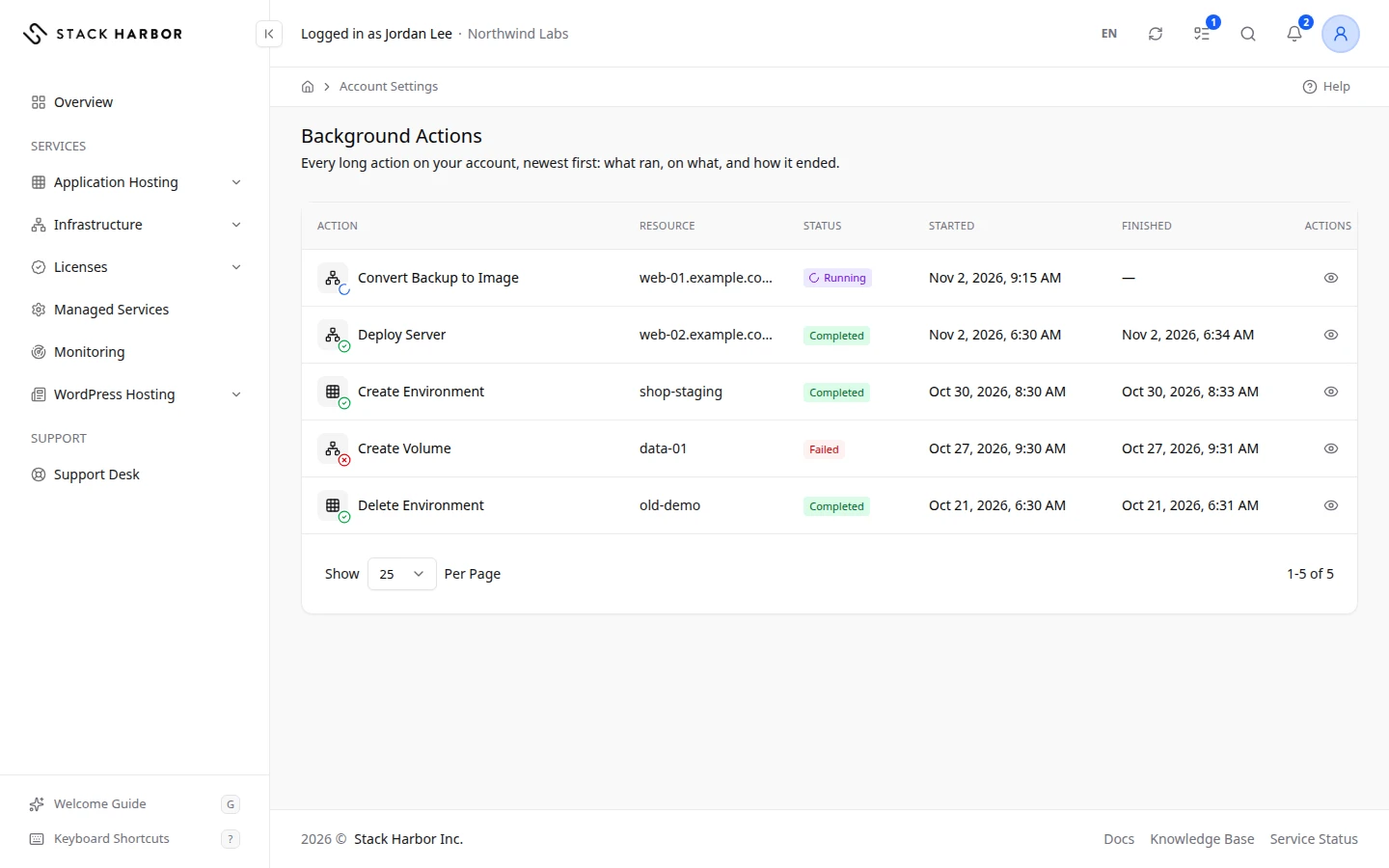
The list shows the Action, the Resource it ran on, its Status, when it Started and when it Finished. Hold the pointer over a status to see where the action stands, or why it failed.
Read an action’s page
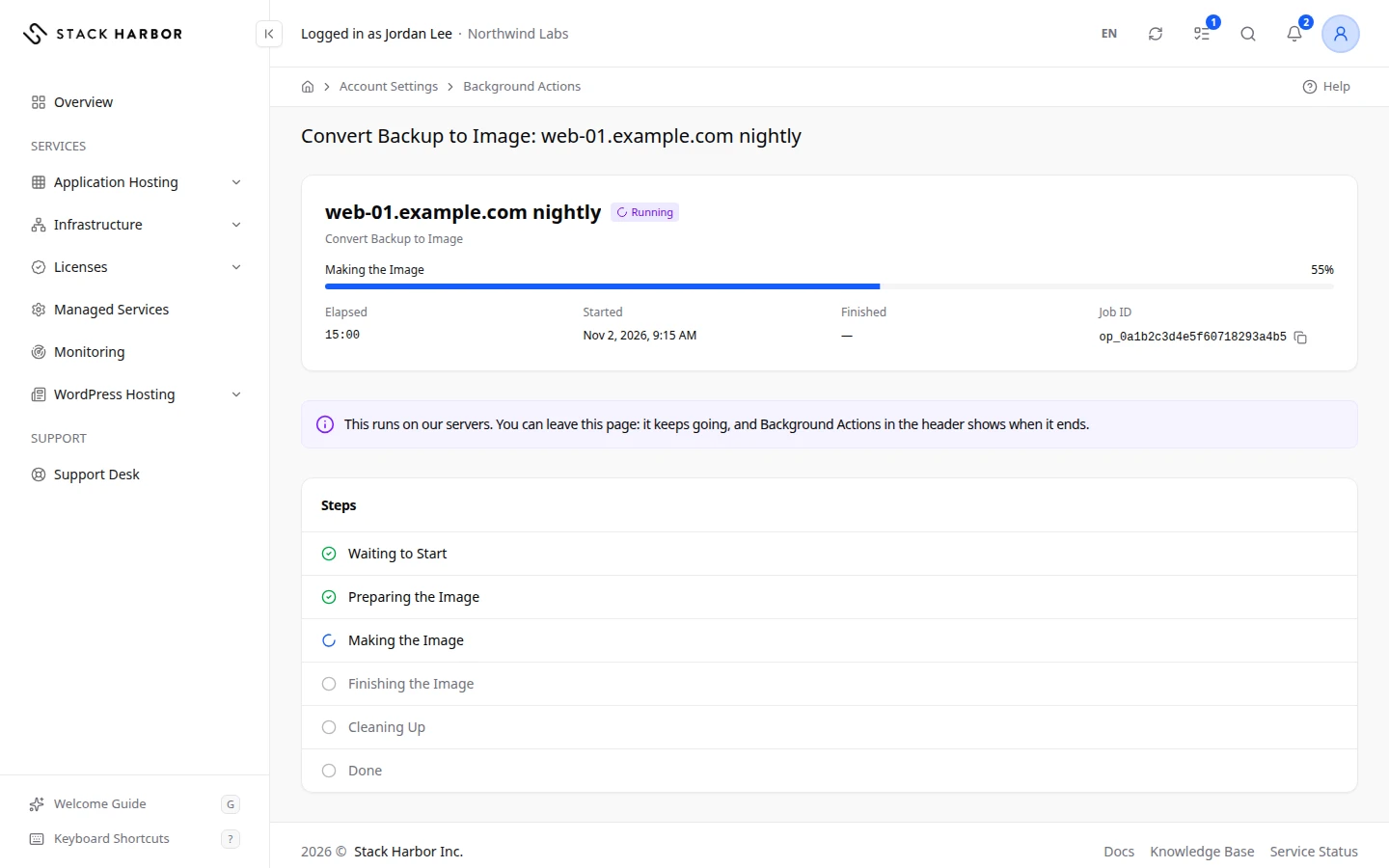
The page shows the status, Started, Finished and Elapsed time, and the Job ID. Under Steps, each step says whether it is completed, in progress, waiting, pending, skipped, failed, cancelled or not confirmed.
While it runs, the page says it runs on our servers and you can leave. Select Open with the resource’s name to go to the server, environment or site it worked on.
What the statuses mean
- Queued: waiting for its turn to start.
- Running: in progress now.
- Waiting: paused until you do something, for example a site move that is Ready for Cutover.
- Completed: finished successfully.
- Failed: stopped with an error. The status says why.
- Cancelled: stopped before it finished.
- Not Confirmed: we couldn’t confirm the result. It may have worked anyway. Check the resource before you try again.
If something goes wrong
- This background action could not be found, or it is not one you can see. The link may be wrong, or your permissions don’t cover that resource.
- If you see No Background Actions Yet, no long action has started on your account.
Fields and statuses
What each item on this page means, what it does and how to read it.
- Action Column
-
What it is. What ran, for example a new server or an update.
- Resource Column
-
What it is. What the action ran on, such as a server, an environment or a site.
- Status Column
-
What it is. Where the action stands.
How to read it. Hold the pointer over the badge to see more, or why it failed.
- Started Column
-
What it is. When the action started.
- Finished Column
-
What it is. When the action ended.
How to read it. Empty while it is still running.
- Actions Column
-
What it is. The button that opens the action’s page.
- Queued Status
-
What it is. The action is waiting for its turn to start.
How to read it. It starts on its own. You don’t need to do anything.
- Running Status
-
What it is. The action is in progress.
How to read it. You can leave the page. It keeps going.
- Waiting Status
-
What it is. The action is paused until you take the next step.
How to read it. Open its page to see what it needs, for example a site move that is ready for cutover.
- Completed Status
-
What it is. The action finished successfully.
- Failed Status
-
What it is. The action stopped with an error.
How to read it. Open its page to see which step failed and why. Fix the cause, then try again or contact support.
- Cancelled Status
-
What it is. The action was stopped before it finished.
- Not Confirmed Status
-
What it is. We couldn’t confirm how the action ended.
How to read it. It may have completed anyway. Check the resource before you try again.
- Started Field
-
What it is. When the action started.
- Finished Field
-
What it is. When the action ended.
- Elapsed Field
-
What it is. How long the action has run, or ran.
- Job ID Field
-
What it is. The reference of this action.
How to read it. Quote it when you contact support about it.
- Steps Field
-
What it is. The parts of the action, in order.
How to read it. Each step says whether it is completed, in progress, waiting, pending, skipped, failed, cancelled or not confirmed.