Use Import Existing Site to bring a WordPress site from another host. Lighthouse creates a new site here, connects to your current host over SSH or SFTP, and copies the files and database. Your current site stays online the whole time.
The copy opens first on its own Stack Harbor address, so you can check it before visitors see it. When you are happy with it, the Go Live card on the site’s page walks you through moving your domain.
Before you start
- You need the Add and Remove Sites and Run Migrations permissions. The account owner has both.
- Have your current host’s SSH or SFTP details ready: the host name, the port and the username, plus a password or a private key. Your host shows them in its control panel.
- Know the domain your site answers on today, for example
www.example.com.
Step 1: Source
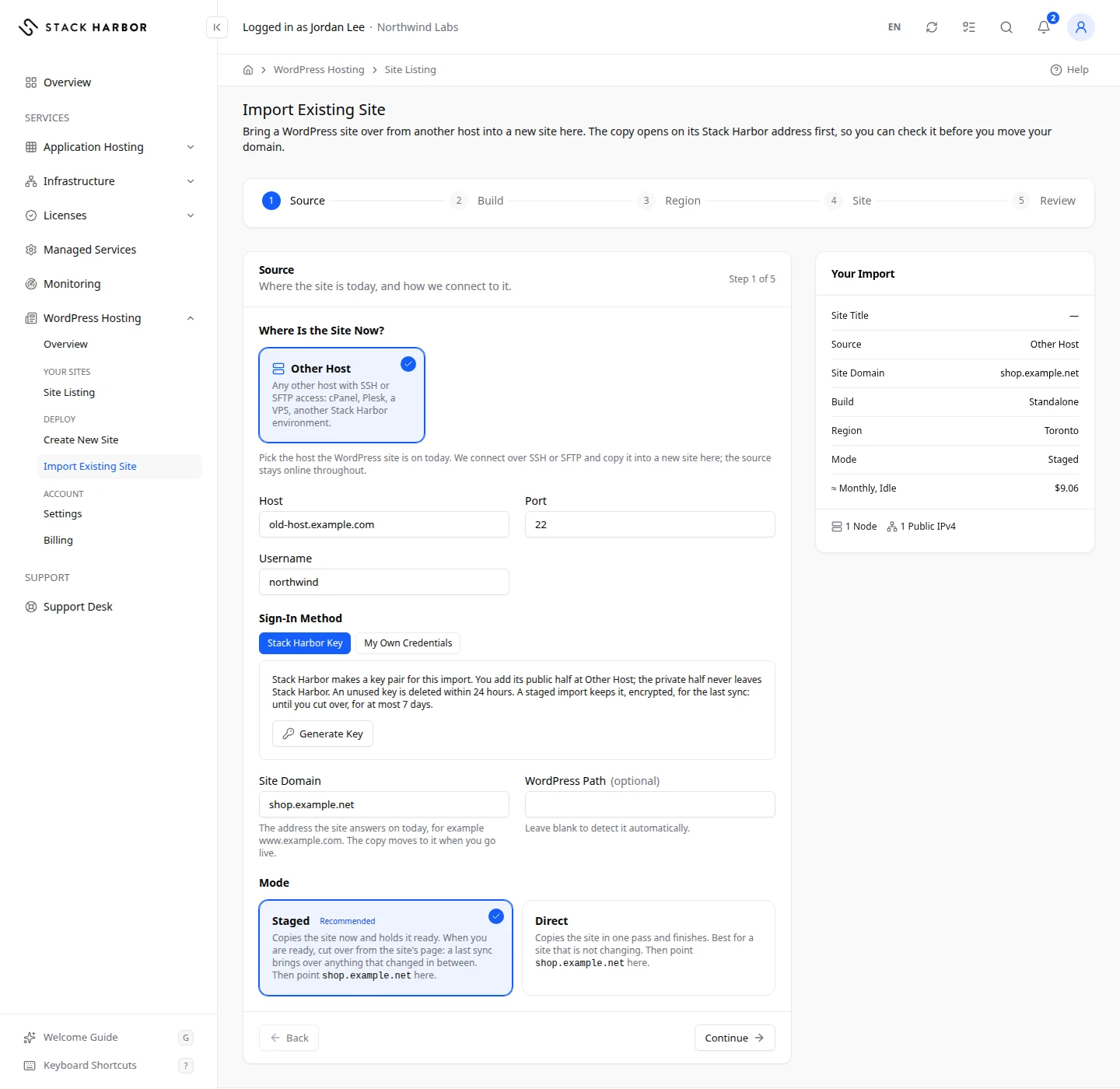
- Go to WordPress Hosting, then select Import Existing Site.
- Under Where Is the Site Now?, choose your current host. If it isn’t listed, choose the option for any other host with SSH or SFTP access.
- Under Sign-In Method, choose how Lighthouse signs in to your current host:
- Stack Harbor Key: select Generate Key. Lighthouse makes a key pair and shows its Public Key. Add that public key at your current host, following the steps on screen. The private half never leaves Stack Harbor, and an unused key is deleted within 24 hours.
- My Own Credentials: choose Password or SSH Key under Authentication, then enter the password or paste the Private Key. The key must have no passphrase.
- Fill in Host, Port and Username. Some hosts fill these in for you from a pasted SSH command or an install name.
- Enter the Site Domain, the address the site answers on today.
- Leave WordPress Path blank to find WordPress by itself, or enter the folder that holds it.
- Choose a Mode:
- Staged (Recommended): copies the site now and keeps it ready. When you are ready, you cut over from the site’s page, and a last sync brings over anything that changed in between.
- Direct: copies the site in one pass and finishes. Best for a site that isn’t changing.
- Select Continue.
Your password or key is used for this import only. It is stored encrypted while the copy needs it: until the copy finishes, or for a staged import until you cut over or cancel, and never more than 7 days.
Steps 2 to 4: Topology, Region and Site
- Under Topology, choose Standalone or Cluster, as for a new site. See Launch a WordPress site.
- Under Region, choose the region closest to most of your visitors.
- Under Site, check the Site Title, Admin Email and PHP Version. The imported site brings its own title and users, which replace these once the copy lands.
Step 5: Review
- Read What Will Happen. It lists what the import does, in order.
- Read the Cost Estimate, then tick the box to confirm that this creates an environment billed by usage.
- Select Start Import.
What you see afterwards
Lighthouse opens the import’s progress page. Creating the site takes 5 to 15 minutes, then the copy takes as long as the site’s size needs. You can leave the page. See Follow a site’s progress.
When it ends, you see Your Site Is Copied (staged) or Your Site Is Imported (direct). Select Go Live to open the site’s page.
If you used a Stack Harbor Key, keep it at your previous host until you cut over, because the last sync signs in with it. Remove it there once the move is over.
Go live
The Go Live card sits above the tabs on the site’s page. It shows five steps, each marked Done, To Do, In Progress or Waiting. Before you start, open the site on its Stack Harbor address and sign in with WP Admin to check it.
- Cut Over (staged imports only). Select Cut Over, then Cut Over Now. A last sync brings over anything that changed on your old site, and this site becomes the live copy. Don’t point your domain here before this step: changes visitors make on the copy until then are replaced by the last sync.
- Add Your Domain. Select Open Domains & SSL and add your domain, so the site answers for it. See Manage a WordPress site.
- Point Your Domain Here. At your DNS provider, set the records shown under DNS Records to Set. Delete any records marked Remove. Select Check DNS to see where the domain points now. It shows Points Here once it does.
- Switch Site Address. Select Switch Address, choose the New Address and the Protocol, and confirm. WordPress moves from its Stack Harbor address to your domain, and mentions of the old address are rewritten across the site. You can leave the page while it runs.
- Secure It With SSL. Add a certificate for your domain under Domains & SSL, then select Switch to HTTPS.
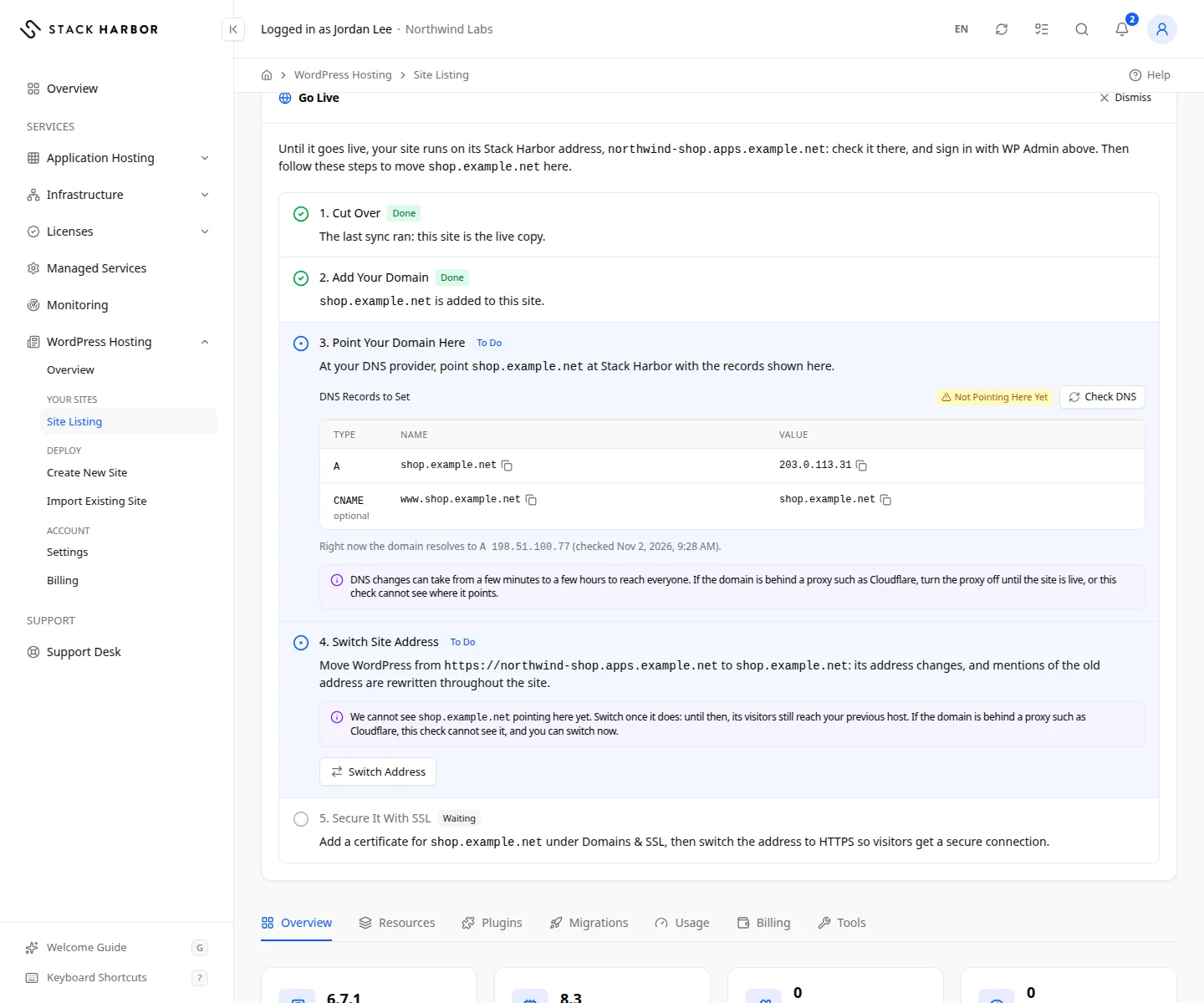
When every step is done, the card says Your Site Is Live and WordPress answers on your domain over HTTPS.
DNS changes can take from a few minutes to a few hours to reach everyone. If your domain is behind a proxy, the DNS check can’t see where it points. Turn the proxy off until the site is live, or switch the address without waiting for the check.
If something goes wrong
- Importing sites needs the Add and Remove Sites and Run Migrations permissions. The account owner can grant them.
- If Lighthouse says your key is protected by a passphrase, use a key without one, or a password if your host allows it. Imports can’t use a passphrase yet.
- This key has expired. Generate a new one and add it at your host. A Stack Harbor key lasts 24 hours.
- The import could not be started. Try again in a moment. Nothing was created.
- If the Go Live card says the import did not finish, the Migrations tab on the site’s page shows what happened and can run it again. See Review a site’s migrations.
- Enter the Source Credentials Again: a staged cutover waited more than 7 days, so the password or key was deleted. Enter it again to run the last sync.
- If the site’s agent is too old to switch the address, select Upgrade Agent on the Overview tab, then try again.
Fields and statuses
What each item on this page means, what it does and how to read it.
- Where Is the Site Now? Field
-
What it is. The host your WordPress site is on today.
What it does. Sets the connection fields and the sign-in methods the form offers.
- Sign-In Method Field
-
What it is. How Lighthouse signs in to your current host: a Stack Harbor Key or My Own Credentials.
- Stack Harbor Key Option
-
What it is. A key pair Lighthouse makes for this import. You add its public half at your host.
What it does. The private half never leaves Stack Harbor. An unused key is deleted within 24 hours.
How to read it. Remove the key from your host once the move is over.
- My Own Credentials Option
-
What it is. Your own SSH password or private key for the current host.
What it does. Used for this import only, stored encrypted while the copy needs it, and never more than 7 days.
- Public Key Field
-
What it is. The public half of the Stack Harbor key, to paste at your current host.
What it does. Copy it and add it as the steps on screen say.
How to read it. Its fingerprint and the time it is valid until show under it.
- Host Field
-
What it is. The SSH host name or IP address of your current host, for example 203.0.113.10.
- Port Field
-
What it is. The SSH port of your current host.
How to read it. A number from 1 to 65535. Your host shows it with the SSH details.
- Username Field
-
What it is. The SSH user that can read the WordPress files on your current host.
How to read it. Letters, digits, dots, dashes, underscores or @ only.
- Authentication Field
-
What it is. Whether you sign in with a Password or an SSH Key.
What it does. Some hosts accept only one method, and the form says which.
- Private Key Field
-
What it is. Your private SSH key for the current host.
How to read it. PEM or OpenSSH format, without a passphrase. Its public half must be allowed on the source server.
- Site Domain Field
-
What it is. The address the site answers on today, for example www.example.com.
What it does. The copy moves to it when you go live.
How to read it. A domain name only, not a full URL.
- WordPress Path Field
-
What it is. The folder that holds WordPress on your current host.
What it does. Leave blank to detect it automatically.
- Mode Field
-
What it is. How the copy is made: Staged or Direct.
- Staged Option
-
What it is. Copies the site now and keeps it ready until you cut over.
What it does. At cutover, a last sync brings over anything that changed. The source password or key is kept, encrypted, for at most 7 days.
How to read it. Recommended for a site that keeps changing, such as a shop.
- Direct Option
-
What it is. Copies the site in one pass and finishes.
What it does. There is nothing to cut over afterwards.
How to read it. Best for a site that isn’t changing.
- Go Live Field
-
What it is. The card that walks an imported site from its Stack Harbor address to your domain, in five steps.
How to read it. Each step is Done, To Do, In Progress or Waiting.
- Done Status
-
What it is. The step is finished.
- To Do Status
-
What it is. The step is yours to do now.
- In Progress Status
-
What it is. The step is running. You can leave the page.
- Waiting Status
-
What it is. The step waits for an earlier one.
- Cut Over Option
-
What it is. The last sync of a staged import.
What it does. Copies anything that changed on your old site, then this site becomes the live copy.
How to read it. Do it before you point your domain here.
- DNS Records to Set Column
-
What it is. The DNS records to set at your DNS provider, with their Type, Name and Value.
What it does. Records marked Remove still send visitors to your old host. Delete them.
How to read it. Points Here means the domain reaches this site. Not Pointing Here Yet means it doesn’t yet.
- Check DNS Option
-
What it is. Looks up where your domain points now.
What it does. Shows the records it found and when it checked.
How to read it. DNS changes can take minutes to hours to reach everyone. A proxy in front of the domain hides where it points.
- Switch Address Option
-
What it is. Moves WordPress from its Stack Harbor address to your domain, or back.
What it does. Changes WordPress’s home and site addresses, rewrites every mention of the old address in the database, and clears the caches.
How to read it. Takes seconds to minutes. You can leave the page. Not available for Multisite.
- Protocol Field
-
What it is. Whether the new address uses HTTPS or HTTP.
How to read it. Choose HTTPS once the domain has a certificate. Without one, visitors would see a security warning.
- Switch to HTTPS Option
-
What it is. Switches the site’s address to HTTPS once a certificate is in place.
What it does. Visitors then get a secure connection.